Short answer: the easiest Monster Hunter Wilds clipping software is an app that records the whole hunt from start to finish on its own.
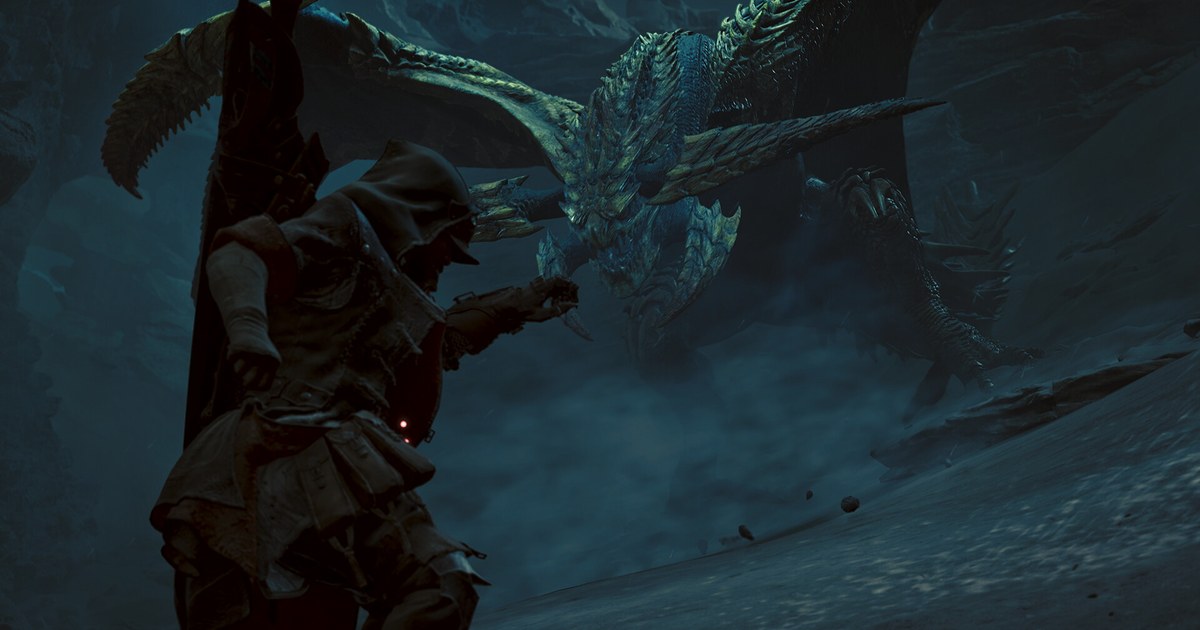
The moment an Offset Attack knocks a monster down, the moment you pop a wound in Focus Mode, or the seconds before you capture a limping monster can come at any point, and your hands are busy with your weapon when they do.
A save key only keeps the scenes you remembered to press it for, while a full recording lets you pick and trim calmly after the hunt.
DOR, a free Windows app, detects Wilds when it launches and records until you close the game, then lets you trim the scenes you choose to vertical 9:16 for Shorts or share them as a dor.gg link.
Below we compare how the NVIDIA app, Xbox Game Bar, Medal, OBS Studio and DOR each capture Wilds, and walk through cutting a finisher for Shorts.
The verdict: if you have no time to press a key, record everything
A single Wilds hunt can run long, and in multiplayer with up to four hunters the highlight might be a party member's hit rather than yours.
Saving the last few moments, often called instant replay, needs you to press a key right after the scene ends, and the longer the buffer you set, the more temporary files and disk load you take on.
So if you want the finisher on video for sure, choose a tool that records the whole hunt and leave the picking for after it ends. We compare saving the last moments with automatic recording in more detail in how to record the last 30 seconds on PC.
Whatever tool you use, Wilds is heavy on the graphics card, so starting the recording at around 1080p and 30fps and raising it only when you have headroom is the safe route.
Five clipping tools for Wilds compared (as of November 2026)
| Tool | How it keeps scenes | When it fits Wilds |
|---|---|---|
| NVIDIA app Instant Replay | Leave it on and press the save shortcut to keep the last moments as a clip; you set the length in settings | You have a supported GeForce graphics card and time to press a key right after the finisher |
| Xbox Game Bar | With background recording on it saves the last moments (30 seconds by default), and manual recording also works | You want to keep the odd scene without installing anything |
| Medal | Detects the game and saves the last stretch (from 15 seconds up to 20 minutes) with a clip key, plus a full session recording option | You want to post clips straight to the Medal community |
| OBS Studio | Manual recording with a record button, or a replay buffer to keep the last moments | You want to handle scenes and encoder settings yourself |
| DOR | Detects Wilds and records automatically until you close the game, then you pick and trim scenes in My Clips | You want a free app that records on its own so you can choose scenes after the hunt |
What to check before you pick a clipping tool
- Whether you want to choose scenes after the hunt or save them with a key during it
- Whether your recording drive has free space for long hunt videos
- Whether Wilds keeps a steady frame rate with recording on (test from 1080p and 30fps)
- Whether you want your own mic voice in the video
- Whether you will post in vertical 9:16 for Shorts or square 1:1
Turning a Wilds finisher into Shorts with DOR
- 1Install DOR and leave it runningDownload and install DOR, then leave it open. It is free, and you never have to press a record button before each hunt.
- 2Launch Wilds from SteamWhen you launch Wilds, DOR detects it and starts recording, and it keeps going until you close the game. Start with the default 1080p and 30fps, and pick 60fps if you have room. You can check whether your PC can handle the game and recording together in our Monster Hunter Wilds system requirements guide.
- 3Just focus on the huntWhen an Offset Attack, wound break or capture happens, keep your hands on the controls. The scene stays in the recording. If you like a moment, remember the quest name or roughly how far in it was, and it will be easy to find later.
- 4Pick the scene in My Clips and trim to 9:16After you close the game, the recording lands in My Clips in the app. Trim around the finisher and save it as vertical 9:16, horizontal 16:9 or square 1:1. For framing tips on vertical video, see how to make YouTube Shorts from gameplay.
- 5Merge or share as a linkTo combine finishers from several hunts into one video, open DOR Studio (dor.gg/studio), merge the clips, add text, background music and effect templates like shake zoom, and export an mp4. To show your party right away, share it as a dor.gg link.
DOR, the free app that records on its own
DOR is a free Windows game recording app. When you launch Monster Hunter Wilds, it detects the game and records your whole session from launch to exit, and the recordings collect in My Clips in the app.
Even a finisher you were too busy to save is in the recording, ready to trim (16:9, 9:16 or 1:1), and in DOR Studio you can merge scenes, add text and background music, then export an mp4 or share a dor.gg link.
Recordings and edits carry no watermark, and game sound and your mic are captured on one track. On supported NVIDIA graphics cards such as the RTX series, DOR records with NVENC hardware encoding. You can see how automatic recording works in DOR automatic game recording explained.