The main difference between MP4 and MKV for game recording is what happens when a recording is cut short, and how easily your editor opens the file. OBS's official format guide describes MKV as recoverable but weak in editor support, regular MP4 as well supported by editors but not recommended for direct recording, and Hybrid MP4 (OBS 30.2 or later) as a mix of both. This post compares only what the official documents state, as checked on October 6, 2026; for the conversion steps themselves, see how to save OBS recordings as MP4.
Short answer by situation
If you record long matches and worry about a crash or power loss, choose a format that stays recoverable (MKV or Hybrid MP4). If you plan to edit and share right after recording, Hybrid MP4 (OBS 30.2 or later) is easier according to the documentation, since the guide rates its editor support as Excellent. The documents I checked say nothing about picture quality or file size differences, so this post does not rank the two on those points. If a recording already refuses to open, start with how to fix a corrupted recording file.
How to check and choose your recording format
- 1Check your current recording format — In OBS, open Settings > Output and look at Recording Format. The list includes Matroska Video (.mkv), MPEG-4 (.mp4), Hybrid MP4 (.mp4) and Fragmented MP4 (.mp4). The official guide introduces MKV as the default container in its opening, yet its table lists Hybrid MP4 as the Windows and Linux default, so the page itself disagrees. Do not rely on a remembered default; read the value in your own install, since settings carried over from older versions may keep an older choice.
- 2Pick the format for your goal — If you want the file to survive an interrupted recording, choose MKV, Hybrid MP4 or Fragmented MP4. The guide states that regular MPEG-4 (.mp4) needs finalization and may be unrecoverable if cut short. If you want an editor to open the file directly, Hybrid MP4 (OBS 30.2 or later) is rated Excellent for editing support, against Poor for MKV.
- 3Remux if you recorded in MKV — If the recording is already MKV, open File > Remux Recordings in OBS, pick the file and re-package it into another format. To do it automatically every time, look at Settings > Advanced for Automatically remux to mp4 (record as mkv). Remuxing simply changes the container, and the screen-by-screen steps live in the article linked at the top.
- 4Test that your editor opens it — Clipchamp on Windows 11 imports MP4, MOV, WEBM, AVI, MKV and other containers according to Microsoft, and recommends .mp4 (MPEG-4) and .webm to skip conversion waits. Some formats are converted before they are used in a project, which can make loading slower. Whatever editor you use, read its supported-formats page before relying on a format.
- 5If it will not play, check the codec — Microsoft's Media Player codec page lists MPEG-4 (H.264), H.263, VC-1, WMV, DV, VP8 and Motion JPEG as built-in video codecs, while HEVC, AV1, VP9 and MPEG-2 come as Microsoft Store extensions. That page does not state which containers play, so I cannot say MKV opens or fails; what matters is whether the codec inside the file is supported.
What the official documents say about each option
| Option | What the official documents say | What to check |
|---|---|---|
| OBS Matroska Video (.mkv) | Described as playable and recoverable even when a recording does not finish cleanly; the guide rates editing software support as Poor. | You may need to remux (re-package the container) before editing. |
| OBS MPEG-4 (.mp4) (regular MP4) | Called the de-facto standard for internet video, with editor support rated Excellent. The file must be finalized to play, and an interrupted recording may not be recoverable. | The guide says recording directly to this format is not recommended. |
| OBS Hybrid MP4 (.mp4) | Written in fragments during recording, then finalized like a regular MP4 on stop; recoverable after crashes or power outages. Editor support is rated Excellent. | Only available in OBS 30.2 or later. Chapter markers are written at finalization, so they are lost after a crash. |
| OBS Fragmented MP4 (.mp4) | Writes in chunks without finalization, so it stays playable after a BSOD or power loss; editor support is rated Good. | May not work with every player or editor; use File > Remux Recordings if needed. |
| Windows 11 Xbox Game Bar | Saves recordings as MP4 files, found under Videos in a folder called Captures. | File names include the game or app name plus the date and time. |
| Microsoft Clipchamp | Imports many containers including MKV and exports MPEG-4 (.mp4). It recommends mp4 and webm to avoid waiting for conversion. | Some formats are converted automatically and may load slowly; MKV is not listed as an export option. |
Before you record
- Read the value currently selected under Settings > Output > Recording Format.
- Confirm your OBS is 30.2 or later so Hybrid MP4 appears in the list.
- Make sure you are not recording long sessions straight to regular MPEG-4 (.mp4), which the official guide does not recommend.
- Check that MKV files appear in your editor's supported formats, and use File > Remux Recordings if they do not.
- Remember that Xbox Game Bar saves MP4 files in the Videos > Captures folder.
If you record with DOR
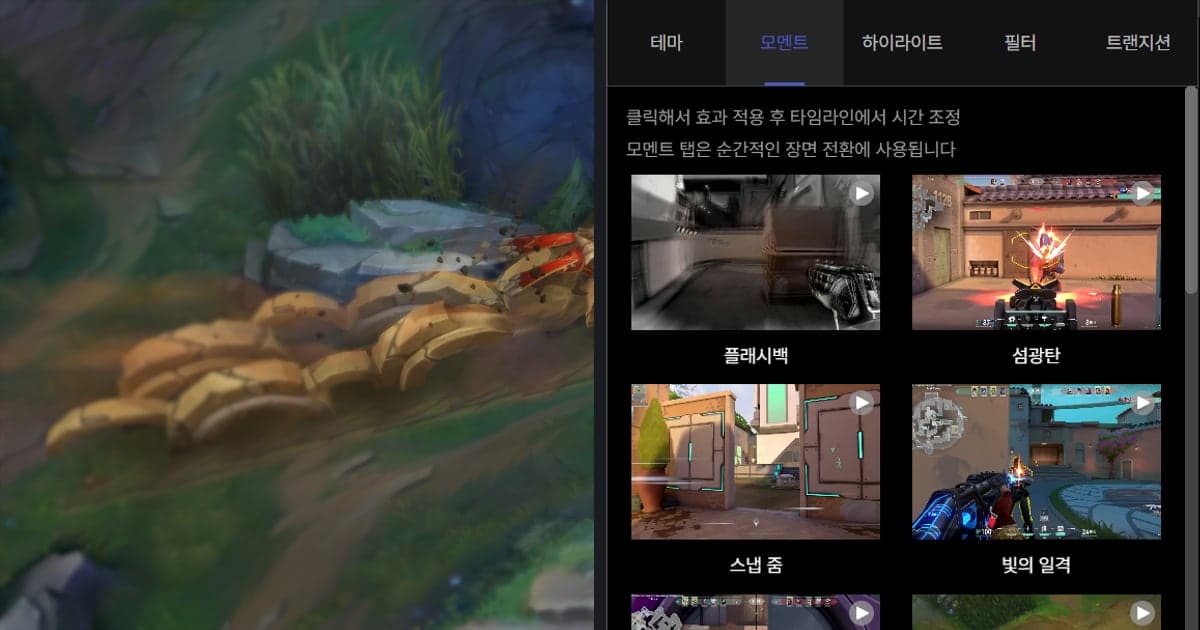
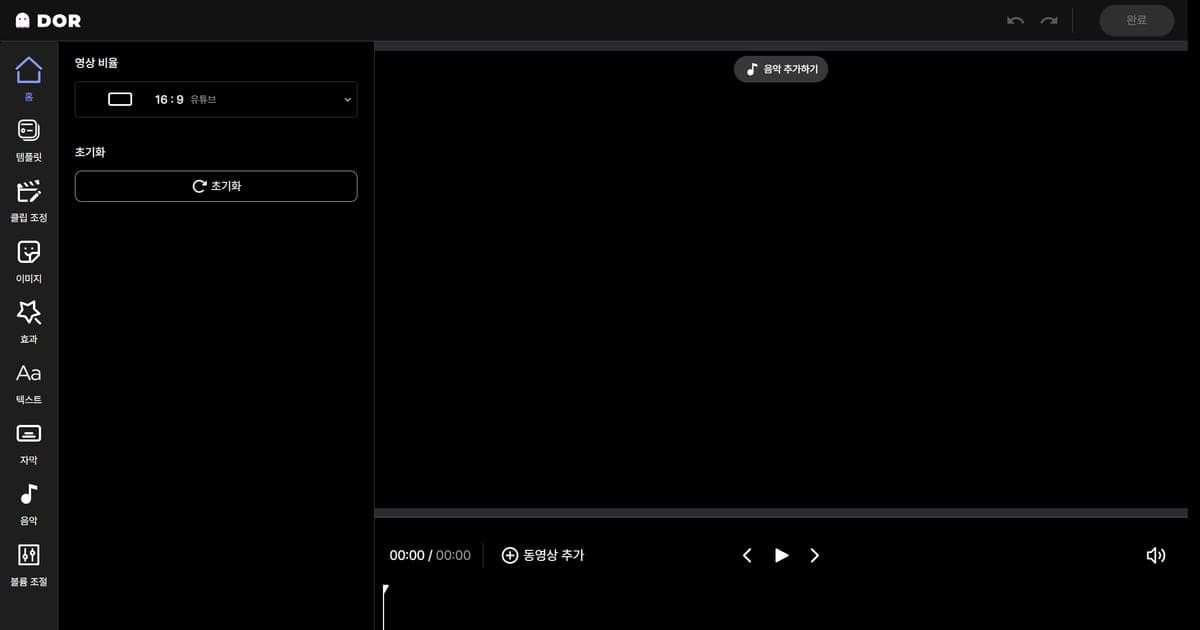
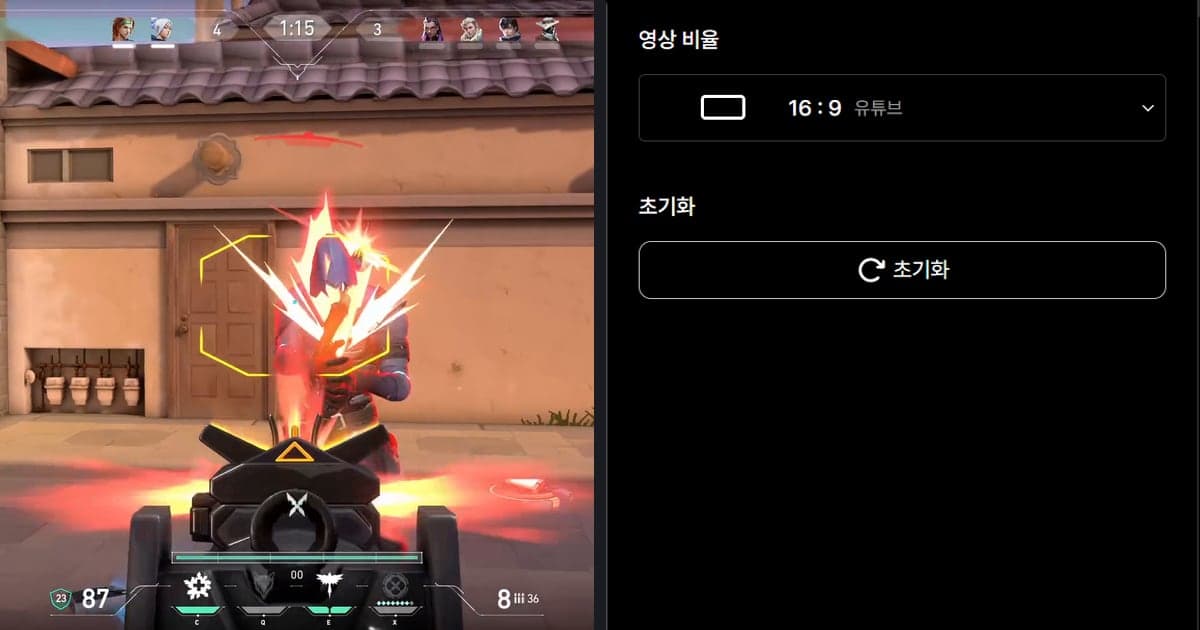
DOR detects supported games, records the full match and saves the file as MP4, so the result sits on the MP4 side of the table above. Roblox is a game with full-match automatic recording on PC (automatic kill clips apply only to seven games such as VALORANT), and the flow is covered in how to record Roblox gameplay. On an NVIDIA graphics card, NVENC hardware encoding is used by default and game sound and microphone are captured together. Afterwards you can trim, combine clips, add text and background music in the browser without installing anything, then download an mp4 or share a link, using the DOR browser clip editor.
Official sources (checked October 6, 2026)
The OBS format descriptions come from the official OBS Hybrid MP4 page and the official OBS audio and video formats guide; Clipchamp import formats come from Microsoft's support page. The Clipchamp export format, the Xbox Game Bar save location and the Media Player codec list are also from Microsoft support pages. Menu names and defaults can differ by version, so recheck them in your installed OBS.