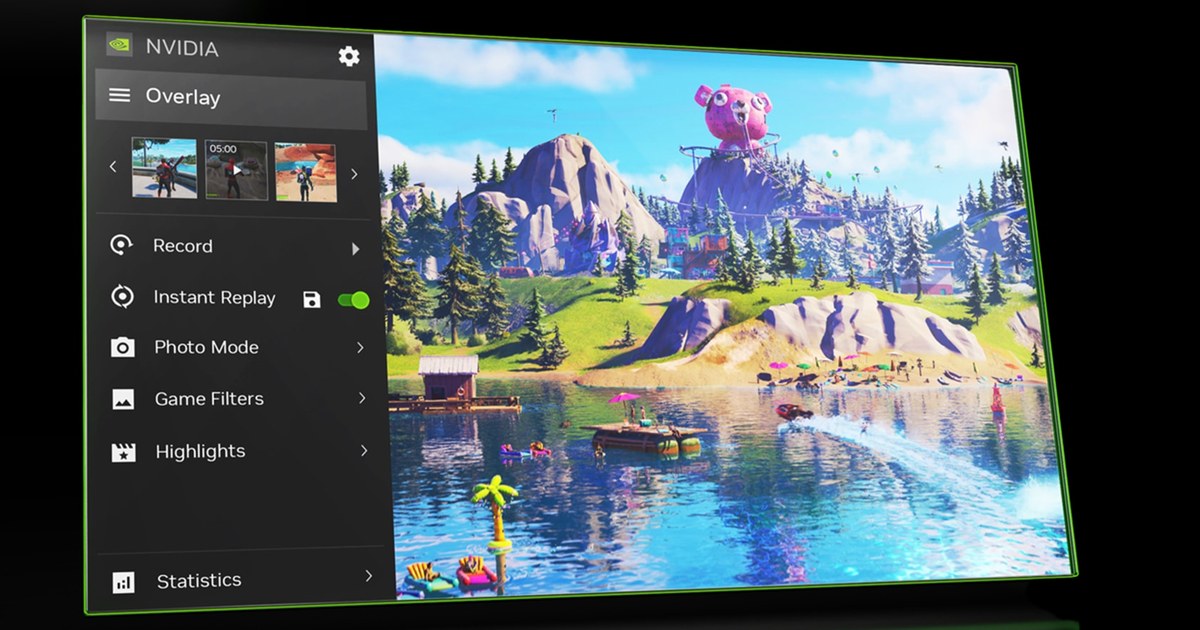
The short answer: if a video you recorded with the NVIDIA app is a black screen, check two things first. One, if you recorded something that is not a game, such as the desktop or a browser, press Alt+Z to open the overlay, click the gear, go to Video Capture and make sure Desktop capture is on.
Two, if a game recording comes out black, turn off Windows HDR and record a short test of about a minute to compare. If neither of those settles it, narrow it down in this order: protected content, laptop GPU assignment, the player's codecs, then the driver.
The recording features of GeForce Experience moved to the NVIDIA app, which officially launched in November 2024, so this guide uses the NVIDIA app and also notes where the same switch lived in the old GeForce Experience.
If your recordings are fine but Instant Replay keeps switching itself off, that is a different symptom covered in NVIDIA Instant Replay Keeps Turning Off. What follows is based on the menu layout in NVIDIA's official material and the fixes that many user reports and guides agree on (as of November 29, 2026).
Black recordings by symptom: cause and fix (as of November 29, 2026)
| Symptom | Likely cause | Fix |
|---|---|---|
| Only desktop or browser recordings are black | Desktop capture is off | Alt+Z, gear, Video Capture, turn on Desktop capture |
| Game footage looks far too dark or black | Recorded with Windows HDR on, so it saved as HDR video | Turn HDR off and record again to compare, or open it in an HDR capable player |
| Only streaming sites or apps are black | Copy protected (DRM) content | Protected screens cannot be recorded, so close those apps and tabs while recording |
| Laptop recording has sound but a black picture | The game is running on integrated graphics | Set the game to High performance (NVIDIA) in Windows graphics settings |
| The file exists but shows no picture when played | The player cannot read AV1 or HEVC | Install the AV1 or HEVC Video Extension from the Microsoft Store, or try another player |
| Black only after Alt+Tab or changing graphics settings | Capture dropped after the display mode changed | Restart the game and test in borderless windowed mode |
| Every recording turned black after a driver update | Broken driver or app install | In the NVIDIA app Drivers tab, choose a custom install with a clean installation |
The answer: split it by what you recorded
The fastest way through a black recording is to ask what you were recording. If the desktop, a browser or an app like Discord comes out black, the Desktop capture setting is the most likely cause.
Record in the NVIDIA app (Alt+F9 by default) can capture apps and the desktop as well as games, but with Desktop capture off, anything that is not a game is left out. In the old GeForce Experience, the same switch sat under Privacy control in the overlay settings.
If the game itself looks black or far too dark, suspect HDR and the playback setup first. Recording with Windows HDR on saves an HDR video, and many users report that players or messaging apps that cannot display HDR properly show it far too dark or with strange colors.
Screens with copy protection, such as streaming services, come out black or stop capture entirely by design, and no setting changes that. Where to switch HDR on and off is covered in Windows 11 HDR Gaming Setup. Change one thing at a time and record a short test after each change, or you will not know which fix worked.
Black screen check order
- 1Work out what kind of black recording it isOpen the file and check whether there is sound, whether only the game is black, or whether only the desktop or browser is black. Sound with a black picture means recording itself ran and the problem is the capture target or playback. No file at all is a saving problem and needs different checks.
- 2Turn on Desktop capture and record a short testPress Alt+Z, click the gear, go to Video Capture and turn on Desktop capture. Record about 30 seconds of the desktop with Alt+F9 and check that the picture is there. Users also report that Instant Replay switches off when Desktop capture is on and a video app is open, so you can turn it back off when you only record games.
- 3Turn off HDR and record againGo to Windows Settings, System, Display, switch off Use HDR, and record about a minute of the same game. If this recording looks right, the cause is the HDR video and the playback setup. If you want HDR recordings, check them in a player that supports HDR, and record clips you plan to send to friends with HDR off to be safe.
- 4Match the GPU and the monitorOn a laptop, go to Windows Settings, System, Display, Graphics and set the game to High performance so it runs on the NVIDIA GPU. With several monitors, move the game to the main display and test again. Tips for each monitor layout are in How to Record Only the Game on Dual Monitors.
- 5Work through display mode, codecs and driversIf it went black after Alt+Tab, restart the game and test in borderless windowed mode. The difference between the two modes is explained in Fullscreen vs Borderless Windowed. If the file is black only in one player, install the AV1 or HEVC Video Extension from the Microsoft Store or open it in another player. If every recording is still black, reinstall the driver from the NVIDIA app Drivers tab using a custom install with a clean installation.
Check before you record again
- You know whether the black recording is the game or the desktop and browser
- Desktop capture under Video Capture is on if you record anything that is not a game
- You recorded a short test with Windows HDR off and compared
- On a laptop, the game is set to run on the NVIDIA GPU
- The driver and the NVIDIA app are up to date and you restarted the PC
Want to check your recording the moment the match ends? Try DOR
DOR is a free game recording app for Windows. When you launch a supported game, it detects it automatically and records the whole match, and every recording lands in My Clips in the app, ready to play back as soon as the match ends. There is no record hotkey to press; you just keep it running.
In League of Legends, VALORANT, PUBG: BATTLEGROUNDS, FC Online, Fortnite, CS2 and Overwatch, moments such as kills are also saved as automatic highlight clips, and in other supported games you cut the scenes you want from the full match recording.
Anything that is not a game can be captured with screen recording. On supported NVIDIA graphics cards such as the RTX series, DOR records with NVENC hardware encoding, and you can trim clips to 16:9, 9:16 or 1:1 in the app and share them right away with a dor.gg link. Recordings and edited videos carry no watermark.