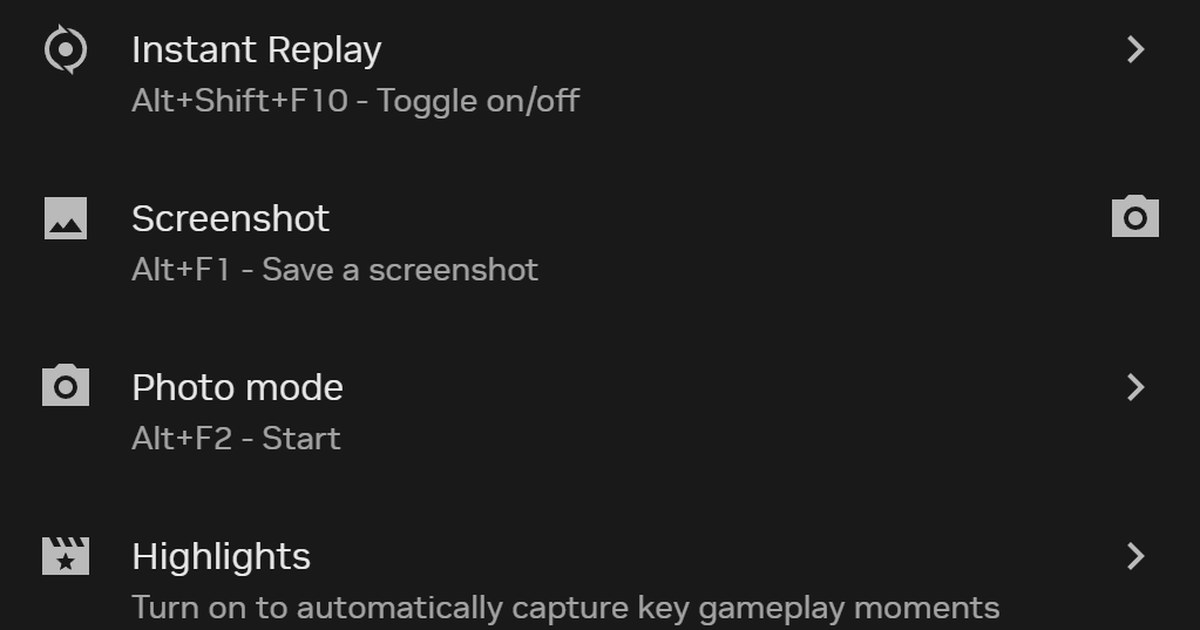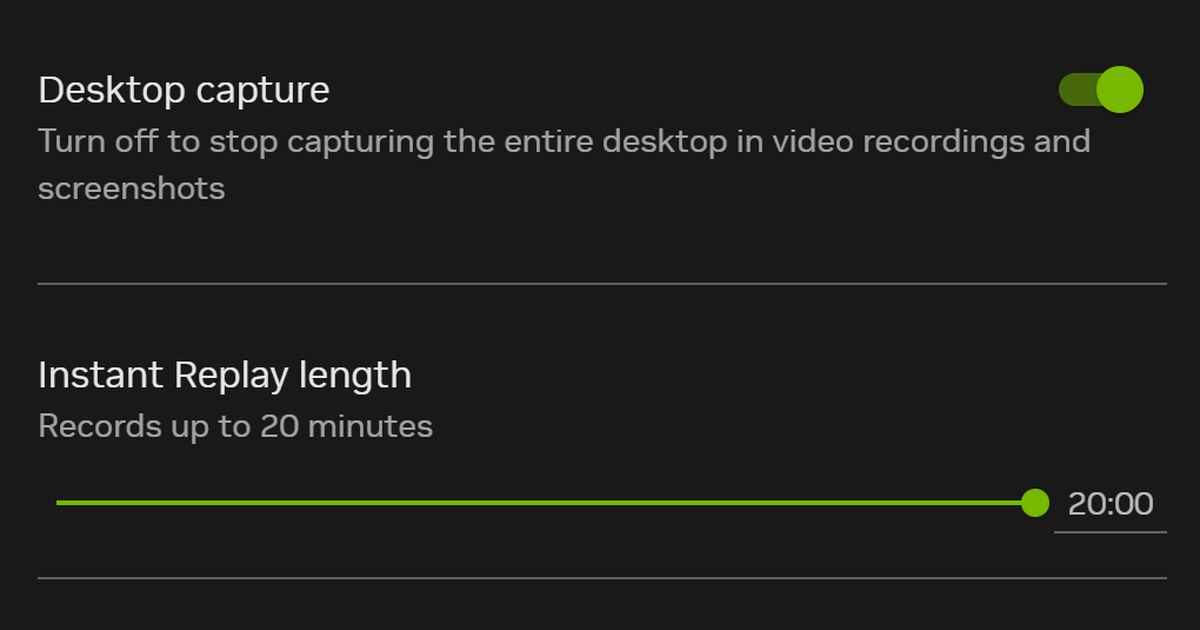
The short answer: when NVIDIA Instant Replay keeps turning itself off, press Alt+Z to open the overlay, click the gear, go to Video capture and switch Desktop capture off.
The most commonly reported trigger is protected content, such as a video playing in a browser or a media app in the background, while Desktop capture is on. Turning it off does not stop the game window from being recorded.
This guide narrows down the cause by what was running at the moment replay stopped. If the hotkey does nothing or clips will not save, that is a different problem covered in NVIDIA Instant Replay Not Working: Fix Saving and Hotkeys; this page is only about replay that you turned on and then switched off by itself.
I could not find an NVIDIA document devoted to this symptom, so the answer below is what many user reports and guides agree on (as of November 2026).
Causes and fixes by situation
| When it turns off | Likely cause | Fix |
|---|---|---|
| When you open a browser video or media app | Protected content plays while Desktop capture is on | Switch Desktop capture off under Video capture |
| Right after launching a game, with a notice that desktop capture is blocked | The game blocks desktop capture | Turn Desktop capture off and Instant Replay back on |
| When a screen scaling or frame generation tool starts | Two programs fighting over the same screen capture | Close that tool, then turn replay on |
| When an anti-cheat client or launcher opens | A helper program interferes with capture | Close them one at a time and compare |
| Only on a dual monitor setup | Could be a driver or app version problem | Update the driver and the NVIDIA app |
| Only in one particular game | Compatibility with that game | Check whether it stays on in other games, and use another recording method alongside |
The answer: turn off Desktop capture, then close what was running
There are three steps. First, under Video capture in the overlay settings, switch Desktop capture off and turn Instant Replay back on. Recording the game window works as before; you only need Desktop capture for the desktop or for apps that are not games.
Second, if it still stops, close video sites, media apps, screen scaling tools and anti-cheat clients one at a time to find the culprit. Third, update your driver and the NVIDIA app. For quality and bitrate values, see The Complete Guide to Optimal GeForce Game Recording Settings. Change one thing at a time so you know which change worked.
Check order
- 1Remember the moment it stoppedWrite down which programs were open, which game you were in and how many monitors were connected. The cause is usually whatever was running at that moment, so this note saves the most time.
- 2Turn off Desktop capturePress Alt+Z, open the gear, go to Video capture and switch Desktop capture off. Toggle Instant Replay off and on, then open a video site and see whether replay stays on. Turn Desktop capture back on only when you need to record something that is not a game.
- 3Close conflicting programsClose screen scaling tools, anti-cheat clients and streaming or screen sharing programs one at a time and watch whether replay still stops. Closing everything at once hides which one was the cause.
- 4Update the driver and the NVIDIA appA newer version sometimes fixes the shutoff, so update both and restart. This is also the step to retest a problem that only happens on a dual monitor setup.
- 5Use another method alongside if neededIf it only stops in one game, that may be a compatibility problem with that game. If you need to save just the last few seconds, use another tool in parallel, as in How to Save Just the Moment You Just Saw as a Clip.
Check after turning it back on
- Desktop capture is off and Instant Replay is back on
- Replay stays on with a video site or media app open
- Screen scaling and anti-cheat tools were closed one at a time and compared
- The driver and the NVIDIA app are up to date
- One short match confirmed that replay stays on until the end
Keep DOR on and supported games record themselves
DOR is a free Windows game recording app. When you launch a supported game, it detects it and records the whole match, and the recordings gather in My Clips. You do not have to check that replay is on; just keep DOR running.
For League of Legends, VALORANT, PUBG, FC Online, Fortnite, CS2 and Overwatch, moments such as kills are also saved as automatic highlight clips, and for other supported games you cut the scene you want from the full match recording. Anything that is not a game is captured with screen recording.
On RTX series and other supported NVIDIA graphics cards, DOR records with NVENC hardware encoding, and recordings and edited results carry no watermark.