The short answer: when an NVIDIA screenshot does not work, check three things in this order, whether the overlay is on, whether you restarted the game after changing settings, and whether another program is using the same hotkey. This guide covers screenshots taken with the NVIDIA App overlay.
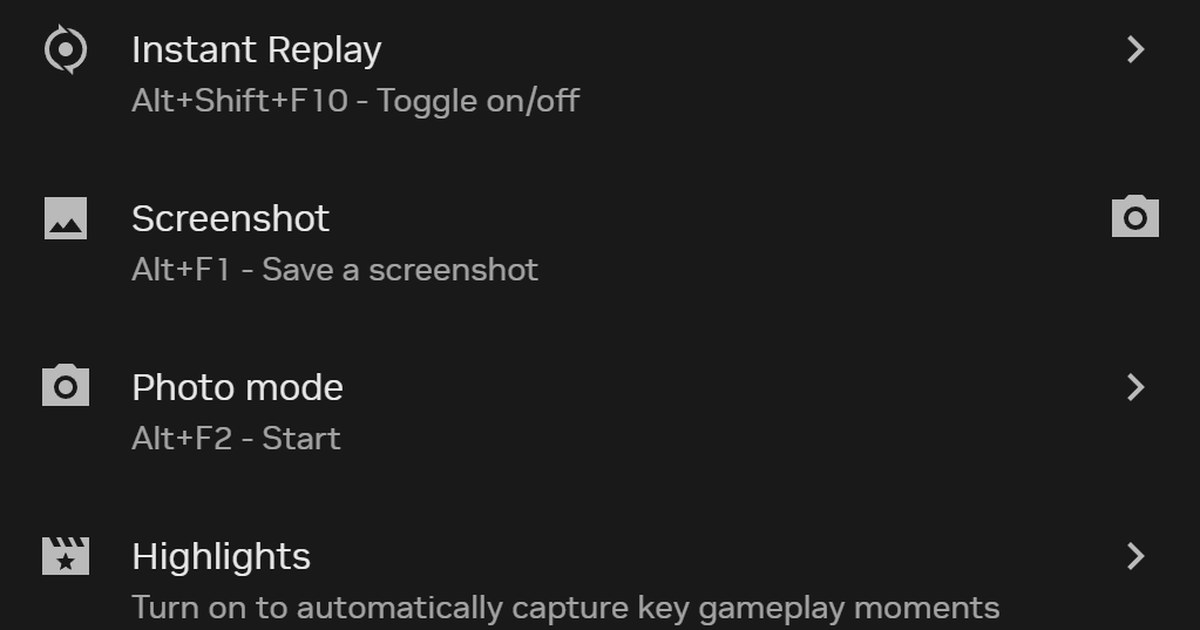
By NVIDIA's official guide, the overlay opens with Alt+Z by default and a screenshot is Alt+F1 by default. If you assign your own shortcut, the default stops working and only your key does.
If the overlay is on and the key is right but nothing happens, another program has usually grabbed the same key first. If your screenshot was taken but you cannot find the file, start with where NVIDIA screenshots are saved. This page is only for the case where pressing the key captures nothing.
The order below is limited to what NVIDIA's guide and several independent troubleshooting reports agree on, as of November 2026.
NVIDIA screenshot not working: causes and checks
| Cause | How to check | Fix |
|---|---|---|
| Overlay is off or the app is not running | Press Alt+Z in the game and see whether the overlay opens. | Turn the overlay on in NVIDIA App settings, keep the app running and relaunch the game. |
| Settings changed without restarting the game | Check whether the same game window has stayed open since the change. | Close the game completely and start it again. The overlay attaches at game launch. |
| Hotkey changed or conflicting with another program | Look at the key assigned to Screenshot in the overlay settings. A custom key replaces the default. | Close the Discord or Steam overlay, OBS and PowerToys and test again, then change to another combination if needed. |
| Not in a game window | NVIDIA describes it as a capture of the game you are playing. | Bring the game window to the front and press the key. |
| Confused with Photo Mode | Photo Mode is Alt+F2 and opens only in compatible games. | Use Alt+F1 for a normal screenshot. |
| Display mode, driver or app version | Suspect the display mode if it fails only in exclusive fullscreen. | Test in borderless windowed mode, and update the graphics driver and NVIDIA App. |
The answer: overlay, game restart, hotkey conflict, in that order
There are four main causes. First, the overlay is off or the NVIDIA App is not running. If the overlay will not open, the screenshot key will not respond either, so press Alt+Z first.
Second, you changed a setting and did not restart the game. The overlay attaches when a game starts, so the game must be closed completely and launched again. Third, the hotkey was changed or collides with another program.
The usual suspects are the in-game overlays of Discord and Steam, recording tools such as OBS, and PowerToys when it remaps keys. Fourth, you are not in a game, or the display mode or driver is the problem.
NVIDIA describes the screenshot as a capture of the game you are playing, so it may not behave as expected on the desktop. Photo Mode is separate, uses Alt+F2 and works only in compatible games, so do not mix the two up.
If you are following older GeForce Experience instructions, menu names may differ from what you see in the current NVIDIA App.
How to fix an NVIDIA screenshot that will not work
- 1Open the overlay firstIn a game, press Alt+Z or use the button at the top right of the NVIDIA App window. If the panel opens, the overlay is fine. If not, check that the overlay is on in app settings and that the NVIDIA App is running.
- 2Check the screenshot hotkeyOpen the cog settings at the top of the panel and read the key assigned to Screenshot. The default is Alt+F1, but if you changed it only your key works. If unsure, reset to the default and read the on screen note about whether other shortcuts reset too.
- 3Close the game completely and relaunchAfter changing a setting, end the game process rather than just closing a window, then start it again. The overlay attaches at launch, so a game that stayed open may not pick up the new settings.
- 4Close programs that use the same keyTurn off the Discord and Steam in game overlays, recording tools such as OBS, and PowerToys key remapping, then test again. Quit them from the tray to be sure. If the key now works, that program was the culprit, and you can move the NVIDIA key to another combination. If hotkeys fail in general, see when a recording hotkey does not work too.
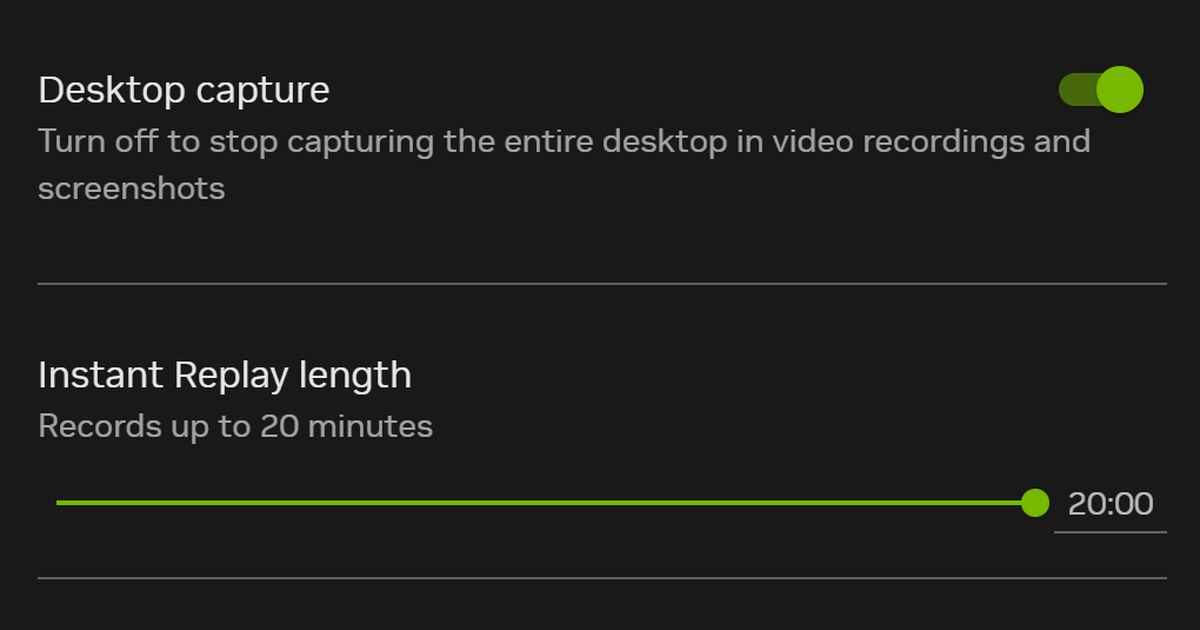
- 5Check display mode and driversTry the game in borderless windowed mode, and update the graphics driver and the NVIDIA App. If Instant Replay is also failing, NVIDIA Instant Replay not working covers causes from the same family.
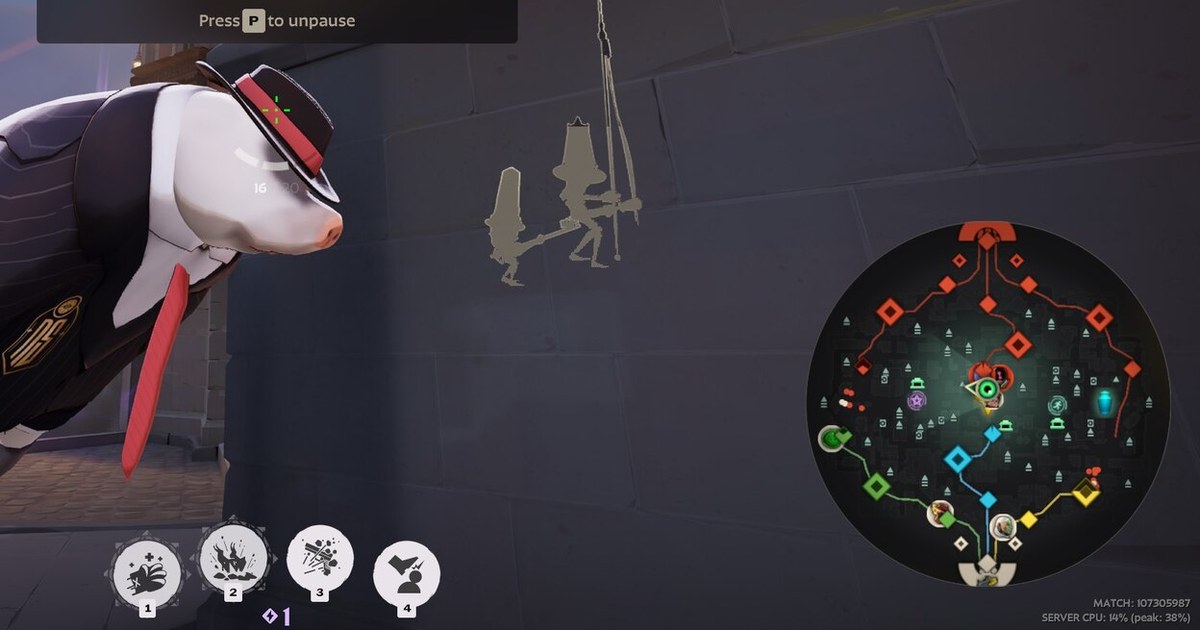
- 6If you missed the moment, bring it back from a recordingA moment that has already passed cannot be re-shot as a screenshot. With DOR running, a supported game is recorded for the whole match, so find that moment in My Clips and trim it to a clip you can save.
Check before you try again
- Alt+Z opens the overlay in the game
- The Screenshot hotkey matches the key you press
- You fully closed and relaunched the game after changing settings
- You tested with the Discord or Steam overlay, OBS and PowerToys closed
- You tried borderless windowed mode and updated the driver
Keep DOR on and supported games are recorded for you
The real annoyance with a blocked hotkey is that you have to press a key at the right moment. DOR is a free Windows game recording app, and when you launch a supported game it detects it automatically and records the whole match.
Recordings collect in My Clips, so you can find a moment that has passed and save it with the in app trim (16:9, 9:16 or 1:1), then use DOR Studio (dor.gg/studio) to join clips and add text, BGM and effect templates before exporting an mp4 or sharing a dor.gg link.
On supported NVIDIA graphics cards such as the RTX series, recording uses NVENC hardware encoding. DOR output carries no watermark. To compare apps that can stand in for the NVIDIA overlay, see ShadowPlay alternatives.