You hit the hotkey, the game kept running, and now you can't find the picture. This guide covers screenshots taken with the NVIDIA App overlay, and the short version is that you don't need to memorize a path.
NVIDIA's launch announcement for the app doesn't list a default folder, and you can change the save location yourself, so the real folder can differ from one PC to the next. What the overlay does give you is a direct route to the file through its Gallery.
The hotkey and Gallery details below come from NVIDIA's announcement dated November 12, 2024. The app gets updates, so if your screen looks different, go with what the app shows. If you came here for recording quality or encoder choices instead, the GeForce recording settings guide is the better read.
Short answer: open the file from the Gallery instead of hunting for a path
NVIDIA's route is simple. The Gallery sits inside the overlay. Click it and your captures are sorted per game, with options to view only screenshots or only videos.
Click a shot to enlarge it, and from there you can reach the file on your disk to drop into Discord or post on X. That's why the useful question isn't which folder NVIDIA picked, but where this particular file lives, and the Gallery answers that on any PC.
You only need the Settings cog if you want to choose the folder yourself. One distinction saves a lot of confusion. A regular screenshot grabs the game you're playing, in SDR or HDR.
Photo Mode is a separate tool for compatible games, on its own hotkey (Alt+F2), where you change the camera angle and the look of the game before you shoot. Mix the two up and it can feel like screenshots are broken in one game when only Photo Mode is unavailable there.
Steam's and Windows' screenshot tools are separate features too, so it helps to remember which one you actually used.
How to find an NVIDIA screenshot
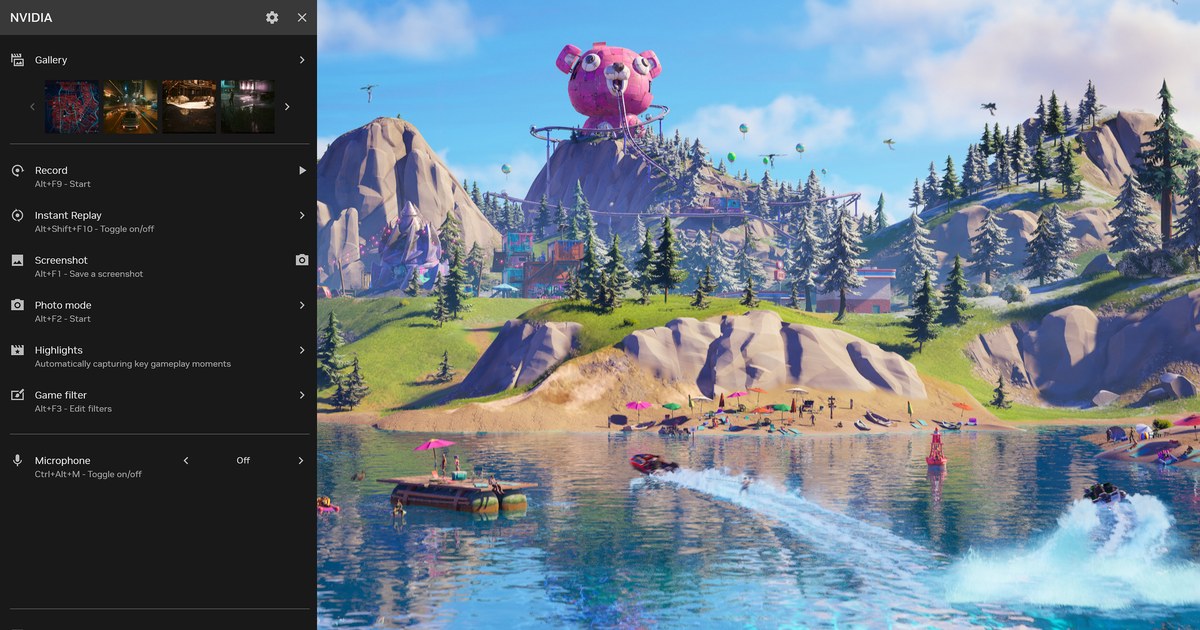
- 1Open the NVIDIA OverlayPress Alt+Z, the default shortcut, or click the button at the top right of the NVIDIA App window. In NVIDIA's own image of the panel, the Gallery sits at the very top, with Record, Instant Replay, Screenshot and other items listed below it.
- 2Open the Gallery and pick the gameClick Gallery near the top of the panel. Captures are grouped by game, so a shot from Apex Legends will be under Apex Legends. If there's no Gallery at all, jump to the third row of the table below.
- 3Filter down to screenshotsVideos and images pile up quickly under the same game. Use the Gallery's option to view screenshots only. NVIDIA documents the option, but the wording on screen can vary by app version.
- 4Open the file on diskClick the screenshot to enlarge it, then go to its file on disk. When the folder opens, the path in File Explorer's address bar is your PC's real save location. Pin that folder to Quick Access and you won't need the overlay next time.
- 5Change the save location if you wantThe Settings cog at the top of the overlay panel lets you adjust where files are saved. The same place covers hotkeys and a limit on how much disk space files can use. Labels can change between versions, so look for the save location item on your screen. NVIDIA's announcement doesn't say whether existing files move with the change, so check the old folder too.
- 6Take a test shotPress Alt+F1 once, then confirm that a new screenshot appears in the Gallery and that its file sits in the folder you expect. Once that works, you know exactly where the next one will land.
NVIDIA screenshot won't capture? Check in this order
| What to check | How to check it | If it fails |
|---|---|---|
| Does the overlay open? | Press Alt+Z or click the button at the top right of the NVIDIA App window. | In the app, open Settings in the left menu and turn on the NVIDIA overlay. The app says this takes effect the next time you launch a game, so restart the game. |
| Did the hotkey change? | Read the key listed under Screenshot in the overlay panel. NVIDIA's stated default is Alt+F1. | Use the key shown, or change it under the Settings cog. If the key does nothing, see our recording hotkey fixes for key conflicts. |
| Is the Gallery there? | Look near the top of the overlay panel. The Gallery appears after your first screenshot or video capture. | If it's missing, nothing may have been captured yet. Work through the two rows above, take one shot, and see whether the Gallery appears. |
| Were you in a game? | NVIDIA describes this feature as capturing the game you're playing. | Bring the game back on screen and try again while you're playing. |
| Did you mean Photo Mode? | Photo Mode works in compatible games only and uses Alt+F2 by default. | Use a regular screenshot in games that don't support it. For Photo Mode itself, check that the game filters and Photo Mode switch in the app's Settings is on. |
| Does your PC meet the requirements? | As of November 4, 2026, NVIDIA lists Windows 10 or 11, GeForce driver 551.52 or later, and GeForce RTX 20, 30, 40 and 50 Series. | Update your driver and compare your graphics card with NVIDIA's requirements page. |
Last checks before you give up on a lost shot
- Picked the right game in the Gallery and switched to screenshots only.
- Opened the file on disk and noted the folder path.
- Used the hotkey shown in the overlay panel, not one from memory.
- Had the game on screen when you pressed it.
- After changing the save location, took a new shot and confirmed it landed there.
- On an older app version, checked the desktop folder for windowed-mode shots. NVIDIA's 11.0.2 release notes list a fix for those being saved there.
When one frame isn't enough
A screenshot is a single moment, so whatever happened just before and after it isn't in the file. NVIDIA covers part of that with Instant Replay, which its product page describes as instantly saving the last 30 seconds of gameplay (as of November 4, 2026). We compare that style of capture in how to record the last 30 seconds on PC.
Another approach is to keep everything and choose later. DOR, a free Windows app, detects supported games when you launch them and records the whole match, or the whole session from launch to exit.
Recordings collect in My Clips in the app, where you can trim out the part you want and save it, so you don't have to time a keypress. On RTX series and other supported NVIDIA graphics cards, DOR records with NVENC hardware encoding. If terms like NVENC are new to you, the game recording glossary explains them.