OBS's documentation ranks hardware encoders for local recording as AV1 > HEVC > H.264, but you can only pick what your own encoder list shows, and the file only helps if your player, editor and upload target can open it. So the short answer is: use AV1 if it is in your list and your tools accept it, use HEVC if AV1 is missing, and stay on H.264 when compatibility matters most. If AV1 does not appear, check your GPU generation and driver first. This guide follows OBS Studio 32.2.2, the stable version shown on the official OBS download page as of September 30, 2026, and covers only the codec choice; bitrate and the rest of the output setup are in OBS game recording settings.
Codec comparison using OBS's own labels
| OBS label | What it is and when to use it | Basis |
|---|---|---|
| H.264 (AVC): Hardware (NVENC, H.264) / Hardware (AMD, H.264) / Hardware (QSV, H.264) / Software (x264) | OBS's default codec. Plays on nearly every device and program, and editing software support is listed as 'Excellent'. Use it when compatibility comes first. | OBS Audio/Video Formats Guide (dated March 26, 2023) |
| HEVC (H.265): Hardware (NVENC, HEVC) / Hardware (AMD, HEVC) / QuickSync HEVC in Advanced mode | Described as better quality than H.264 at the same bitrate and file size, and supported in OBS only by hardware encoders. Editing support is listed as 'Good'. Use it when your GPU cannot do AV1 but you want more quality than H.264. | OBS Audio/Video Formats Guide (dated March 26, 2023) |
| AV1: Hardware (NVENC, AV1) / Hardware (AMD, AV1) / Hardware (QSV, AV1) | The newest codec OBS supports, described as improving on HEVC in quality and file size. Needs a supported GPU, and the 2023 document says 'Not well supported in editing software yet'. | The same OBS document, plus NVIDIA, AMD and Intel official pages |
| Software AV1: SVT-AV1 / AOM AV1 (Advanced mode) | Works without a supported GPU, but OBS says real-time compression needs a high-end CPU. Hardware encoders move the load to dedicated GPU circuitry, which is why they are generally recommended. | OBS Audio/Video Formats Guide and Hardware Encoding documents |
The short verdict
Pick the newest codec that both your GPU and your destination accept. OBS describes H.264 as its default codec, played by nearly every device and program; HEVC as giving better quality at the same bitrate and file size but supported in OBS only through hardware encoders; and AV1 as the newest codec OBS supports, with improved quality and file size over HEVC. The same page, dated March 26, 2023, says AV1 was not yet well supported in editing software at that time, so check your editor's own documentation for today's status. The official pages give no percentage for how much smaller or better AV1 is, so this guide does not quote one. After switching codecs, set your bitrate with the game recording bitrate guide.
How to pick a codec your GPU can actually use
- 1Check your OBS version and graphics driver — As of September 30, 2026, the official OBS download page lists Version 32.2.2 as the stable release, for Windows 10 and 11. Menus here follow 32.x; the 33.0.0 beta is a pre-release and was not used. For NVENC problems, OBS's advice is to install the latest NVIDIA driver, so update it before changing encoders.
- 2Confirm your GPU's codecs in the maker's own tables — In NVIDIA's Video Encode and Decode Support Matrix (checked September 30, 2026), the GeForce rows with AV1 YUV 4:2:0 encoding marked YES are Ada Lovelace (RTX 40 series) and Blackwell (RTX 50 series). Ampere (RTX 30), Turing (GTX 16 and RTX 20) and Pascal (GTX 10) are NO for AV1 but YES for H.264 and HEVC encoding. AMD's RX 7800 XT, RX 7600 and RX 9070 pages list AV1 Encode as Yes, while the RX 6600 XT and RX 6800 XT spec tables list H.264 and HEVC encode and AV1 decode with no AV1 Encode row (a missing row is not a statement that it is unsupported). Intel lists AVC, HEVC, VP9 and AV1 as encoding codecs for Arc GPUs, with model details in its document's table.
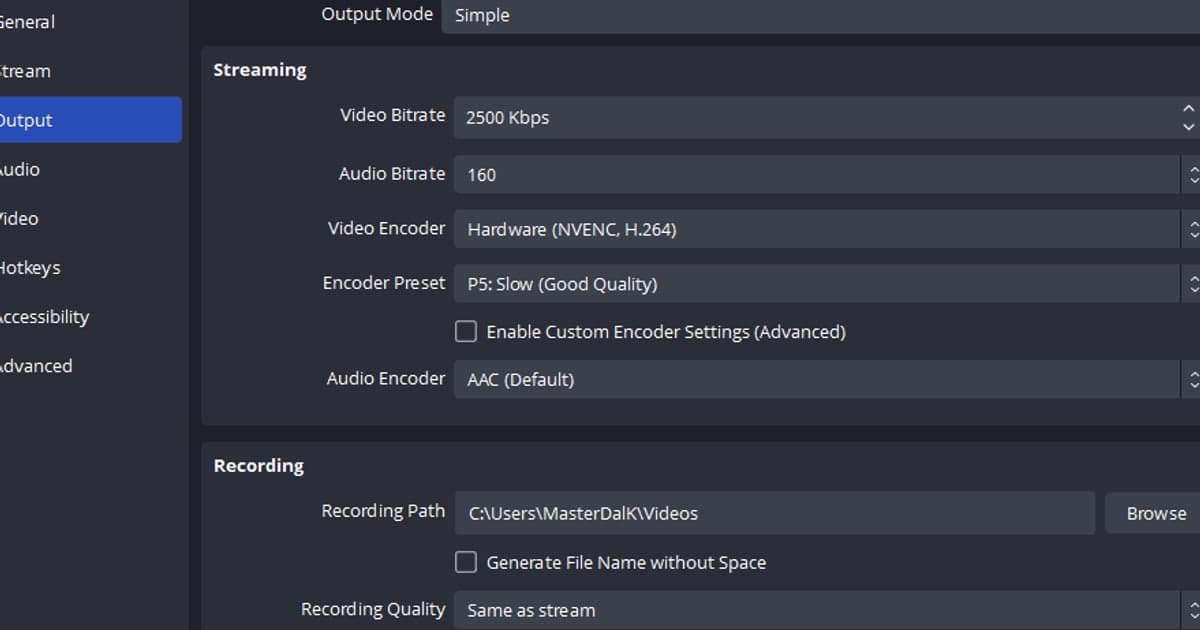
- 3Open File > Settings > Output and choose an output mode — Go to File > Settings > Output and pick Simple or Advanced under Output Mode. In Simple mode the Video Encoder dropdown shows only encoders available on your system, with names like 'Hardware (NVENC, AV1)', and there is no QSV HEVC entry. Advanced mode's list does include QuickSync HEVC, and its names are fixed in English, such as 'NVIDIA NVENC AV1' and 'AMD HW AV1'. If you want to see the exact codec names, Advanced mode is easier.
- 4Choose the codec under Recording > Video Encoder — In Advanced mode, open the Recording tab and use Video Encoder. The candidates are NVIDIA NVENC H.264, HEVC and AV1; AMD HW H.264 (AVC), H.265 (HEVC) and AV1; QuickSync H.264, HEVC and AV1; SVT-AV1; and AOM AV1. If NVENC AV1 shows 'AV1 encoding is not available with the current settings', OBS says to disable any re-scaling or GPU options and check the log. For general NVENC errors, close other programs that use NVENC, such as ShadowPlay or Windows Game DVR. On laptops with more than one GPU, use the main graphics adapter's hardware encoder.
- 5Match the recording format to the codec — OBS documentation lists Matroska Video (.mkv) as the default and recommended for most uses. It can be played and recovered if a recording is interrupted and holds H.264, HEVC and AV1, but its editing software support is listed as 'Poor'. Hybrid MP4 (.mp4), introduced in OBS 30.2, combines interruption recovery with regular MP4 compatibility and supports all three codecs. Hybrid MOV (.mov), introduced in OBS 32.0, does not support AV1. The documents differ on which format is the default, so check the actual value on your screen. To convert MKV to mp4, use File > Remux Recordings.
- 6Record a short test and try to open it — Make a short test recording and open it in your player, your editor and the place you plan to upload. If the default Windows player cannot play it, Microsoft's guidance is to install 'HEVC Video Extension' or 'AV1 Video Extension' from the Microsoft Store, and it does not recommend third-party codec packs. As of September 30, 2026, YouTube's supported formats list includes HEVC (H.265), MP4 and MOV but does not name .mkv or AV1, and its recommended upload settings are MP4, H.264 video and AAC-LC audio. If a file will not open, record again with H.264.
Pre-recording checklist
- OBS and the graphics driver are on the latest stable versions
- The GPU maker's own table confirms encoding for the codec you want
- The Recording tab's Video Encoder list actually shows the codec entry
- The recording format can hold the chosen codec (not Hybrid MOV for AV1)
- A short test file opens in your player, editor and upload target
- Your previous settings are written down so you can go back if needed
If you want fewer things to set yourself
If matching codec, recording format and driver before every session sounds like too much, there is a way to decide less by hand. DOR is a free Windows app that detects supported games and records full matches to mp4 automatically; on NVIDIA graphics cards NVENC hardware encoding is the default, and it captures game sound and your microphone at the same time. This article does not cover which codec DOR saves in or whether it offers a codec option. If you are weighing whether to stay on OBS, see when OBS feels too complicated and the OBS alternatives comparison.
Official sources checked (as of September 30, 2026)
GPU codec support was checked in the NVIDIA Video Encode and Decode Support Matrix, the AMD Radeon RX 7000 series product page and Intel's page on codecs supported by Arc GPUs. On the OBS side, the sources are the stable version shown on the official OBS download page and the OBS knowledge base documents Audio/Video Formats Guide, Hardware Encoding, Hybrid MP4 & Hybrid MOV and Standard Recording Output Guide. The knowledge base asks not to be linked to, so only the titles are given. YouTube's supported file formats and recommended upload settings, and Microsoft's media player codec guidance, were read on their official support pages. GPU tables and platform format lists can change, so recheck the latest pages before you rely on them.