If OBS shows a “Failed to start recording” dialog as soon as you press Start Recording, the first steps OBS itself points to are to check the log and, if you use the NVENC or AMD encoders, to make sure your video drivers are up to date. You can open the log under Help > Log Files > View Current Log, and this guide splits the dialog text into causes so you know what to try first. Everything follows the official text and menu names of OBS Studio 32.2.2, the latest stable release (August 14, 2026) as of the September 30, 2026 check, and the encoder values themselves are covered in the OBS game recording settings guide. It only covers the case where an error dialog appears and recording never starts.
Error text, cause, and first action (official OBS 32.2.2 text)
| Text in the dialog | Cause the OBS text points to | What to do first |
|---|---|---|
| Starting the output failed. Please check the log for details. | A generic message that names no cause. If you use the NVENC or AMD encoders, OBS adds a note to make sure your video drivers are up to date. | Open Help > Log Files > View Current Log to find the error line, and update the graphics driver. |
| Failed to open NVENC codec: (cause text follows) | The NVENC codec could not be opened. The text after the colon is the real cause. | Read the text that follows and match it to one of the NVENC rows below. |
| NVENC Error: Unsupported device. | The video card may not support NVENC, or the driver may not fit it. | Check that the card supports NVENC and update the driver. With two GPUs, also check which one OBS uses. |
| The installed NVIDIA driver does not support this NVENC version | The installed NVIDIA driver is too old for this NVENC version. | Update the NVIDIA driver. |
| NVENC Error: Too many concurrent sessions. | The number of concurrent NVENC sessions has hit its limit. | Close other recording software that uses NVENC, such as NVIDIA ShadowPlay or Windows Game DVR. |
| Unable to write to … / Bad File Path | The recording path cannot be opened, your account cannot write to it, or there is not enough disk space. | Check the Recording Path under Settings → Output → Recording, and pick a writable folder with free space. |
| Unable to start the recording helper process. | Antivirus or security software may have blocked or removed OBS files. OBS also says Windows ransomware protection (controlled folder access) can cause it. | Check the security software’s block log and allow list, and, as OBS suggests, try turning off controlled folder access in Windows Security to see whether it changes anything. |
| The output format is either unsupported or does not support more than one audio track. | The chosen recording format does not match the encoder or the audio track setup. | Switch the Recording Format to Matroska Video (.mkv), then check the audio track count and encoder combination. |
Verdict: let the message pick the branch
There are three branches. If the message mentions NVENC, look at the graphics driver and at other programs that also use NVENC. If it names a path, such as Unable to write to or Bad File Path, look at folder permissions and disk space. If it mentions the recording helper process, look at security software. “Starting the output failed” is a generic message that does not name a cause, so the answer is in the log. If you want the recommended values for NVENC itself, continue with the OBS NVENC settings guide for RTX cards. Encoder overload warnings during a recording, black screens, and files that are not saved are different symptoms and are not covered here.
Narrowing it down, in order (OBS 32.x on Windows)
- 1Open the log file first — The OBS dialog itself tells you to check the log. Under Help > Log Files you can choose View Current Log to read the log of the run that just failed, Show Log Files to open the folder, or Upload Current Log File. Look for error lines that mention NVENC, AMD, a path, or permissions, and use them to decide which of the steps below applies. The official OBS knowledge base has no page dedicated to this error, so the order here connects OBS’s own error text to the relevant KB pages.
- 2Update the graphics driver — When you use the NVENC or AMD encoders, the OBS dialog adds a note to make sure your video drivers are up to date. The OBS Hardware Encoding page (written January 11, 2022) also stresses driver updates on every platform and lists NVIDIA NVENC, AMD Advanced Media Framework (AMF), and Intel Quick Sync Video (QSV) as the hardware encoders. NVIDIA has an official driver page where you pick product type, series, product, and OS, Intel drivers can be found at the Intel Download Center, as the OBS page notes, and for AMD you use the graphics card maker’s official site. After installing, fully close OBS and start it again before trying to record.
- 3Close other programs that use NVENC — The generic NVENC error in OBS says to install the latest NVIDIA driver and close other recording software that may be using NVENC, such as NVIDIA ShadowPlay or Windows Game DVR. Too many concurrent sessions points the same way. All we can confirm is that a session limit exists; the OBS KB (2021) and NVIDIA’s support matrix describe it differently, so this guide gives no number. On the Windows side, the OBS Windows Gaming Features Troubleshooting page (August 26, 2021) says to turn off “Record in the background while I’m playing a game” under Settings app > Gaming > Game DVR (Captures on some Windows versions), and to turn off “Record game clips, screenshots and broadcast using Game bar” for Game Bar. That page is from 2021, so menu names and locations may differ on Windows 11. The OBS Known Application Conflicts page lists capture and recording software such as RivaTuner, EVGA Precision, Action!, and DXTory, plus overlay tools such as Medal.tv, MSI Afterburner, Overwolf, and FRAPS, as things that can conflict, and suggests closing them before using OBS.
- 4Check device support and which GPU OBS uses — NVENC Error: Unsupported device tells you to check that your video card supports NVENC and to update the driver. The OBS Hardware Encoding page names NVIDIA GeForce 750 Ti, the 900 series (Maxwell), or higher, and Intel Core-i 2xxx (Sandy Bridge) or newer, with 4xxx (Haswell) or newer recommended. It also warns that with several GPUs you should use the encoder of the primary graphics adapter. According to the OBS GPU Selection Guide (April 24, 2023), OBS runs on only one GPU at a time. On a laptop with integrated and dedicated graphics, close OBS, then register obs64.exe (default path C:\Program Files\obs-studio\bin\64bit\obs64.exe) under Windows Settings → System → Display → Graphics settings. The guide says to choose High Performance (the dedicated GPU) for game and window capture and Power Saving (the integrated GPU) for display capture.
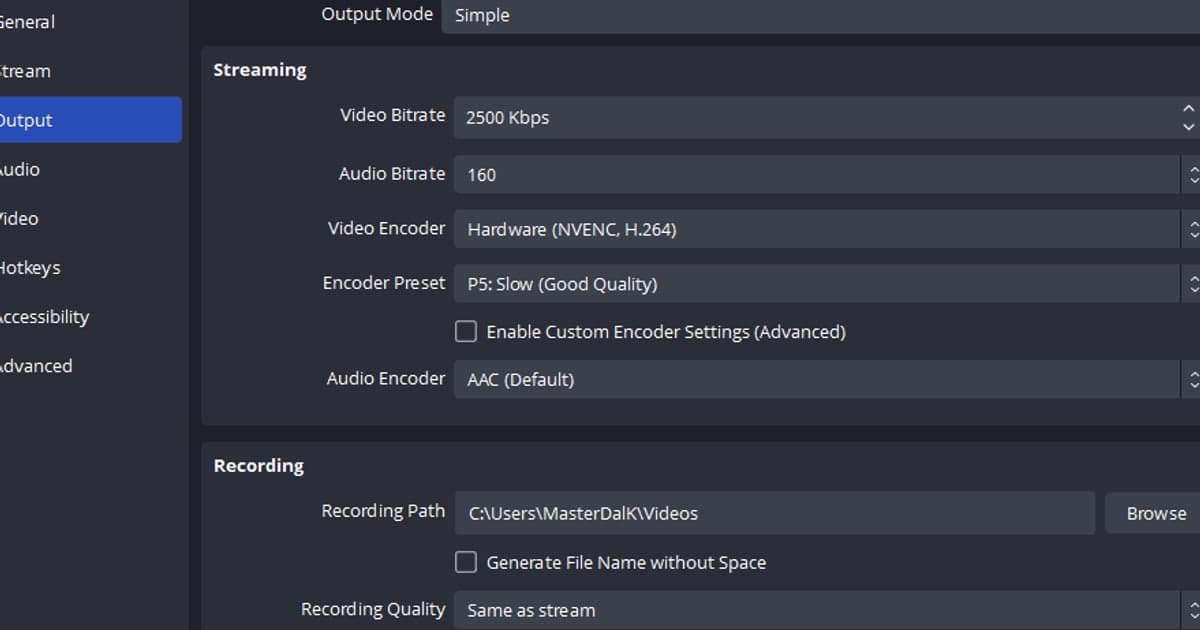
- 5Check the recording path, permissions, and disk space — Unable to write to … asks you to make sure you use a recording path that your user account can write to and that there is enough disk space. The Bad File Path dialog tells you to check the Recording Path under Settings → Output → Recording. If Output Mode is Advanced, look on the Recording tab of the Output settings. Check that the folder still exists, that an external drive has not been unplugged, and that the path is not somewhere your account cannot write. As a test, point it at a folder your account can definitely write to and see whether recording starts.
- 6Check security software and Windows ransomware protection — Unable to start the recording helper process asks you to check that OBS files have not been blocked or removed by third-party antivirus or security software. OBS also says the Windows 10 ransomware protection (controlled folder access) can trigger this error and tells you to try turning off controlled folder access in the Windows Security / Virus & threat protection settings. The OBS Known Application Conflicts page suggests adding OBS to the allow list of antivirus and firewall software and, if that does not help, disabling it. Try the allow list before turning protection off, and if you turn something off only to test, switch it back on once you know the cause.
- 7Check the recording format and audio track combination — If you see “The output format is either unsupported or does not support more than one audio track”, look at the Recording Format and audio tracks under Settings → Output. The OBS Standard Recording Output Guide recommends MKV because it protects the file if OBS stops unexpectedly, and the Audio/Video Formats Guide (March 26, 2023) says MKV works with every encoder OBS supports. Incompatible pairs from that page: AV1 cannot go into FLV, MOV, M3U8 (HLS) or TS; HEVC cannot go into FLV; Opus audio cannot go into FLV or MOV; and FLV holds only a single audio track. With the AV1 encoder, “AV1 encoding is not available with the current settings” tells you to try disabling any re-scaling or GPU options. If you use 10-bit color under Advanced > Color Format, the AMD H.264 and Intel QSV H.264 encoders cannot do a 10-bit encode, and for NVENC OBS says to use P010 instead of I010.
- 8Swap the encoder and plugins to isolate the cause — Switching the encoder to Software (x264) to see whether recording starts is not something the OBS documentation lists as a fix for this error, so treat it only as a check that separates hardware-encoder trouble from everything else. In Simple output mode the choices read Hardware (NVENC, H.264), Hardware (AMD, H.264), Hardware (QSV, H.264), and Software (x264). If Recording Quality is Same as stream, the recording uses the stream encoder settings, so check those too. If a third-party plugin is the suspect, the OBS Launch Parameters page describes --safe-mode, which starts OBS with all third-party plugins, scripts, and websockets disabled.
Last checks when recording will not start
- Write down the dialog text exactly and confirm you found the matching error line in Help > Log Files > View Current Log.
- Confirm the graphics driver is up to date and that you fully closed and restarted OBS afterwards.
- Confirm that NVIDIA ShadowPlay, Windows Game DVR, overlays, and other recording programs are not running.
- Confirm the Recording Path exists, your account can write to it, and the disk has free space.
- Confirm that security software and Windows Security are not blocking OBS files or the save folder.
- If the format is MKV and the encoder and audio track combination is valid but it still fails, keep the log file so you can share it.
An automatic option if you would rather not fight OBS errors
The steps above are for staying on OBS, and DOR does not fix OBS errors for you. But if working through NVENC errors, save paths, and security prompts is more than you want to deal with, an approach where recording starts automatically once you launch a supported game is another option. DOR detects supported games automatically and records the full match to mp4. On an NVIDIA graphics card it uses NVENC hardware encoding by default and captures game audio together with your microphone. Automatic highlight clips work only for some games. To see whether that fits you, read when OBS feels too complicated, and for a wider comparison see OBS alternatives compared.
Official sources and verification date
Error text and menu names follow the official locale strings of OBS Studio 32.2.2 (latest stable) as of September 30, 2026, and the cause-by-cause advice rests on the official OBS knowledge base pages Hardware Encoding, Known Application Conflicts, and Windows Gaming Features Troubleshooting. The GPU Selection Guide, Launch Parameters, and recording output and format guides on the OBS knowledge base were checked too. These pages date from 2021 to 2023, so Windows menu names and values may have changed; check the links again.