When an OBS recording looks washed out, the quickest check is whether your Windows HDR state and the values in Settings → Advanced match the official HDR recording combination: Color Format P010, Color Space Rec. 2100 (PQ) and Color Range Partial (shown as Limited in the OBS 32.2.2 interface). Then confirm the Game Capture RGB10A2 Color Space and a 10-bit HEVC or AV1 encoder. OBS's official documentation does not diagnose why colors look faded, so this guide does not claim a single cause. It lists what the official pages and OBS's own warnings say, in the order to check them. If your problem is soft or blocky detail rather than color, OBS recording blurry fix is the closer match. Everything here reflects what we checked on September 30, 2026, against OBS Studio 32.2.2, released August 14, 2026.
Setting names and official references (OBS 32.2.2 labels)
| Setting (OBS name) | What it does and the official reference | Where to find it |
|---|---|---|
| Windows HDR (HDR on Windows 11, Use HDR on Windows 10) | Turns HDR on or off for an HDR-capable display. The SDR content brightness slider balances SDR content, and Microsoft notes that SDR content can look too bright or too dark on an HDR display. | Start > Settings > System > Display |
| Auto HDR (Windows 11) | Automatically raises the color range and brightness of older DirectX 11/12 games that are SDR only. Requires an HDR-capable display. | Display > expand the HDR toggle > Auto HDR |
| Color Format | The HDR recording guide uses P010 (10-bit, 4:2:0, 2 planes). NV12 is an 8-bit format, and OBS shows warnings or errors for Rec. 2100 combined with an 8-bit format. | Settings → Advanced |
| Color Space | Choices are sRGB, Rec. 601, Rec. 709, Rec. 2100 (PQ) and Rec. 2100 (HLG). The HDR recording guide uses Rec. 2100 (PQ). | Settings → Advanced |
| Color Range | Choices are Limited and Full. The HDR guide writes Partial, which the 32.2.2 interface shows as Limited. We could not find an official explanation of when Full is needed. | Settings → Advanced |
| Game Capture: RGB10A2 Color Space (written as sRGB Color Space in the guide) | The guide says to set this property to Rec. 2100 (PQ). In 32.2.2 the choices are sRGB and Rec. 2100 (PQ). | Game Capture source → Properties |
| Video Encoder | Use a 10-bit HEVC (H.265) or AV1 encoder and pick the Main10 profile if one is offered. OBS shows error messages for encoders that cannot do 10-bit. | Settings → Output → Recording |
Bottom line: find the mismatched setting first
Before changing anything, write down your current combination: whether Windows HDR is on, the three values on the Advanced tab, and the value of the Game Capture source's RGB10A2 Color Space. If you intend to record HDR, match the values in the official guide. If you do not, check whether OBS is already showing a warning, because OBS itself warns about Rec. 2100 combined with an 8-bit format. General recording choices such as bitrate and encoder are covered separately in OBS game recording settings.
Steps to check in order
- 1Check the HDR state in Windows — Open Start > Settings > System > Display, pick your monitor and see whether HDR is on. The toggle is called HDR on Windows 11 and Use HDR on Windows 10. On Windows 11, expand the HDR toggle and note whether Auto HDR is on as well. If your monitor does not support HDR, you can skip this step.
- 2Record the current Advanced values in OBS — In OBS, open Settings → Advanced and write down the current Color Format, Color Space and Color Range. If a warning appears under a setting, copy it too. For example, choosing a low-precision format with Rec. 2100 shows "Warning: Rec. 2100 should use a format with more precision."
- 3Match the official values if you record HDR — For HDR recording, the OBS guide says to set Color Format to P010, Color Space to Rec. 2100 (PQ) and Color Range to Partial. In the 32.2.2 interface Partial is labeled Limited, so choose Limited. SDR White Level and HDR Nominal Peak Level sit on the same tab, but the official guide gives no recommended values, so this article does not either.
- 4Set the Game Capture property — Open the properties of your Game Capture source and set RGB10A2 Color Space to Rec. 2100 (PQ). The guide calls this option sRGB Color Space, but the OBS 32.2.2 English interface labels it RGB10A2 Color Space. The two choices are sRGB and Rec. 2100 (PQ).
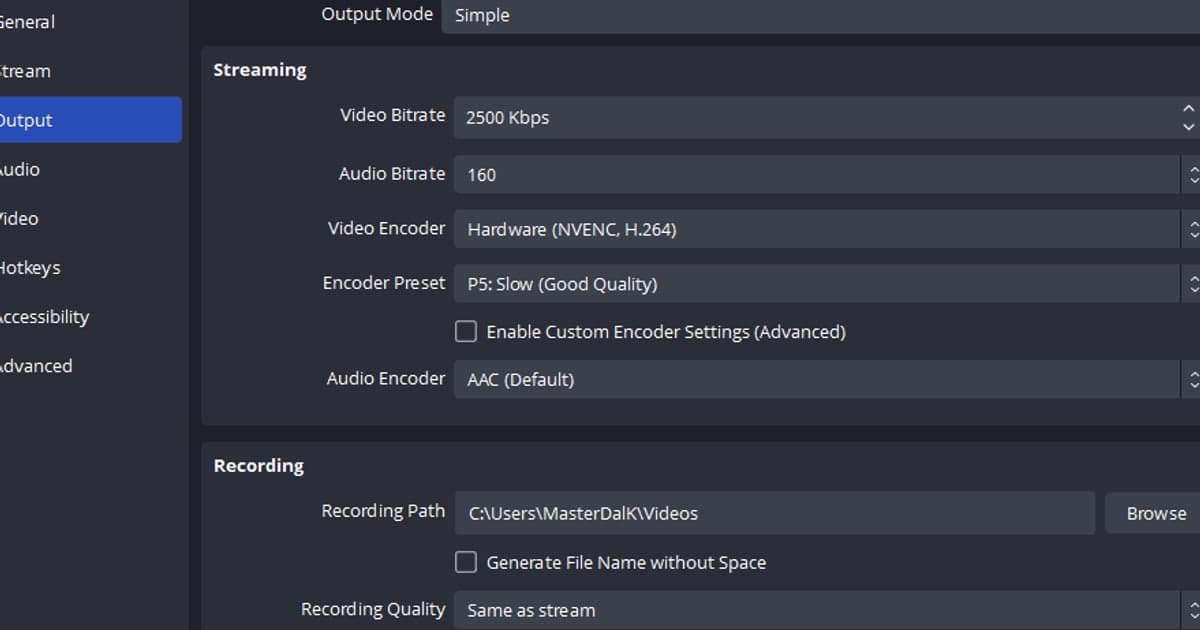
- 5Confirm the encoder supports 10-bit — In Settings → Output, check that the recording encoder is 10-bit HEVC or AV1. In Simple output mode the list shows entries such as Hardware (NVENC, HEVC) or Hardware (AMD, AV1); in Advanced mode you choose it on the Recording tab. Pick the Main10 profile if there is one. Among the 32.2.2 encoder errors, "OBS does not support 8-bit output of Rec. 2100." means Rec. 2100 cannot be output as 8-bit, and "Cannot perform 10-bit encode on this encoder." means that encoder cannot do 10-bit encoding. Whether your graphics card supports 10-bit HEVC or AV1 has to be checked in the manufacturer's official documentation; this guide gives no per-generation table.
- 6Change one setting and record a short test — Change only one setting at a time and record roughly ten seconds to see the result. Changing several at once hides which change mattered. After turning Windows HDR on or off, reopen the OBS Advanced tab and check whether a warning remains. How different video players display the footage has no official basis, so this guide does not compare them.
Checklist
- Checked whether HDR (Use HDR on Windows 10) is on in Windows display settings
- Noted whether Auto HDR is on if you use Windows 11
- Wrote down the current Color Format, Color Space and Color Range in Settings → Advanced
- Confirmed that no warning is shown on the Advanced tab
- For HDR recording, confirmed P010, Rec. 2100 (PQ) and Limited (written Partial in the guide)
- Checked the Game Capture RGB10A2 Color Space value and the recording encoder (10-bit HEVC or AV1)
- For a capture card or webcam source, also looked at Color Space and Color Range (default: Default) in the Video Capture Device properties
When OBS setup feels like too much
Instead of matching color settings one by one in OBS, you could try DOR, a free Windows app that detects supported games and keeps the full match as an mp4 file. On an NVIDIA graphics card its default encoding is NVENC, and game sound and your microphone are recorded together. We have not confirmed whether DOR preserves HDR footage, so this guide makes no claim about it. For why OBS setup can feel heavy, see when OBS feels too complicated, and for other options see OBS alternatives.
Official sources (checked September 30, 2026)
Color Format, Color Space, Color Range, Game Capture and encoder values come from the OBS guide HDR Configuration (page dated 2026-09-01). The Windows HDR toggle and brightness slider follow Microsoft's HDR settings in Windows, and Auto HDR follows Use Auto HDR for better gaming in Windows. Menu names follow the OBS Studio 32.2.2 English interface.