If the OBS Stats dock keeps counting 'Frames missed due to rendering lag', run OBS as administrator first, then cap your game's frame rate and close other programs that use the GPU. I read this line as the GPU not keeping up with the scene, and the official guide names an overloaded GPU as the likely cause when OBS falls behind. That order comes from the official OBS 'Encoding Performance Troubleshooting' guide. OBS does not publish a page that defines this exact Stats line, so treat the link to that guide as the closest official advice about GPU overload, not as an official definition. If the line that grows is 'Skipped frames due to encoding lag' instead, read the OBS encoder overloaded fix. This guide also covers the mix-up between the Stats line and the Render Delay filter, the Game Capture options and laptop GPU assignment, while encoder-side diagnosis stays in the linked guide. Menu and option names below are from OBS Studio 32.2.2, checked on September 30, 2026.
Which Stats line points where
| Stats line (OBS 32.2.2 wording) | How this guide reads it | Where to look first |
|---|---|---|
| Frames missed due to rendering lag | Read as the GPU not keeping up with compositing and rendering the scene. There is no official definition; the closest official page is the GPU overload guide. | Every step in this guide, starting with administrator mode |
| Average time to render frame | Shows how long rendering takes. The official docs give no normal range for it. | Use it only to compare before and after a change |
| Skipped frames due to encoding lag | The encoder could not keep up. Not covered here. | The encoder overloaded guide linked in the first paragraph |
| Dropped Frames (Network) | As the name says, this is the network side. Outside this guide. | Your network connection when streaming |
| Render Delay (source filter) | A filter that delays a source to help with audio/video sync. It is not a Stats line and is not named as a cause here. | Check whether you added it to a source on purpose |
The short answer and what this guide covers
The answer has three parts: run OBS as administrator, match the game frame rate to your monitor refresh rate (or turn on V-Sync), and only then trim other GPU users, output settings and scene weight. The official guide describes the case where the game frame rate looks fine but OBS cannot keep up as most likely an overloaded GPU or a bottleneck between the GPU and the rest of the system. If the game itself is dropping frames, the game recording FPS drop fix is the better place to start. You can open the Stats dock from the Docks menu, though the menu location can vary by version. OBS gives no official number for how many missed frames is acceptable, so press Reset Stats and compare the same scene before and after each change. One more thing that trips people up: the source filter named Render Delay only delays a source to fix audio/video sync, and it is unrelated to this Stats line.
Steps in the official order
- 1Run as administrator and clear out other GPU users — Close OBS completely, right-click the OBS Studio shortcut and choose Run as administrator. The official guide says OBS can ask Windows to reserve some GPU capacity for itself, that many GPU overload problems are solved this way, and that you should try it before the other steps. Then open Task Manager and look for programs with heavy GPU use, such as another game running in the background. Only close programs you opened yourself and understand; the guide warns against closing things you are unsure about. If you capture two games at once, lower the graphics settings of one or both, or capture them separately. Overlays and other recording programs can also cause hook conflicts, so close them or turn off their on-screen display.
- 2Cap the game frame rate and lower graphics — The guide calls this the best option. Limit the game to your monitor refresh rate (most PC monitors are 60 Hz; match the number if yours is higher) or enable V-Sync in the game. If problems remain, limit the game to the frame rate you set in OBS. Frames above the refresh rate give diminishing returns. If game FPS and OBS FPS are not stable together, lower the game's graphics settings, because the system cannot handle maximum settings plus OBS.
- 3Review the Game Capture options — The guide says Game Capture is the most efficient way to add a game and should always be tried first. In the source properties, make sure 'SLI/Crossfire Capture Mode (Slow)' is off; older docs call it Multi-adapter Compatibility. It switches to memory capture, which is less efficient, so use it only if you have no other option. That said, the guide notes that SLI/CrossFire setups or laptops with multiple graphics cards may need it turned on. 'Limit capture framerate' stops capture from running above the frame rate OBS is set to use, and it is off by default.
- 4Point OBS at the high-performance GPU on laptops — Close OBS, open Windows Settings > System > Display > Graphics settings (the local label may differ), add obs64.exe (default path C:\Program Files\obs-studio\bin\64bit\obs64.exe) and set it to High performance. OBS can only run on one GPU, and the guide warns of performance issues when it is not on the discrete GPU. The steps cover Windows 10 (1809 and up) and Windows 11.
- 5Check the Windows gaming features — The OBS article is written for Windows 10. It says to turn off Game bar and the Game DVR (Captures) option that records in the background, and that Game Mode can be left on if you run Windows 10 1809 or newer. The menu names and behavior on Windows 11 are not stated in the article, so yours may look different.
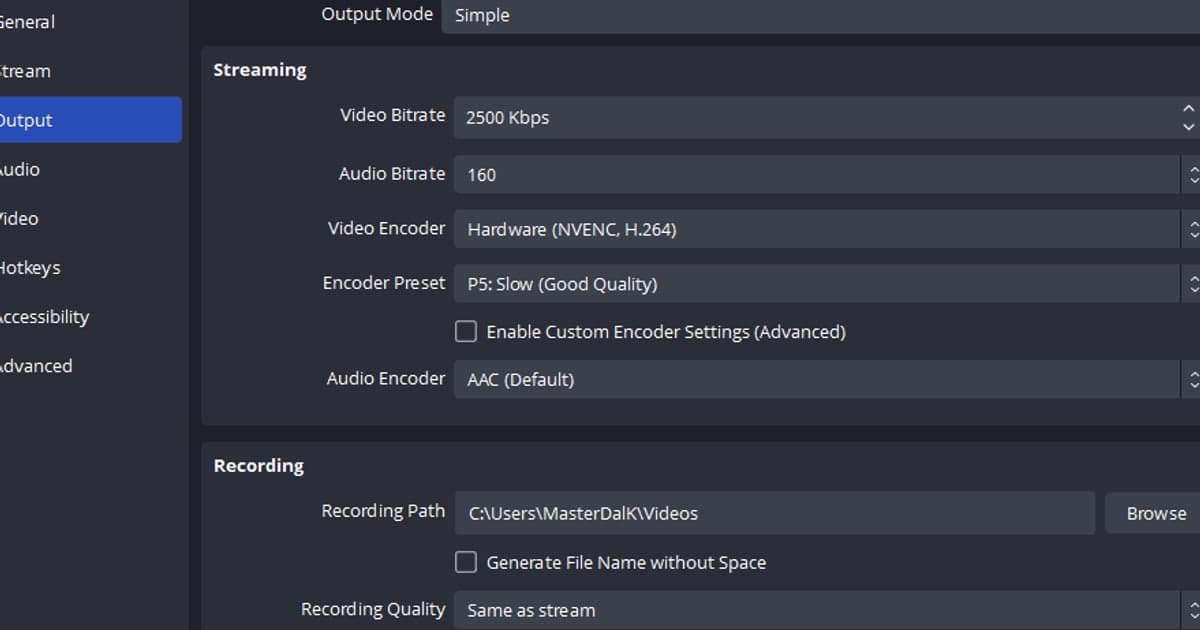
- 6Lower output settings and simplify the scene — In Settings > Video, lowering 'Output (Scaled) Resolution' reduces the GPU resources needed and the encoder load. Frame rate affects both rendering and encoding, so if 60 does not work, try 30. Most sources use resources even when not visible, so reduce the number and size of Browser Sources and use an Image Source or Media Source for static assets. Filters can be resource hungry: disable some, or apply them only to the smallest source possible. Some overlays, such as tip jars, run complex JavaScript with a large performance impact. Keep Scene Collections small and split them up.
After you change something
- I pressed Reset Stats and changed only one thing at a time before checking again.
- I restarted OBS as administrator and compared the same scene.
- I checked Task Manager for GPU-heavy programs and closed only ones I opened myself.
- I capped the game frame rate at the refresh rate or turned on V-Sync.
- On a laptop, I set obs64.exe to High performance in Graphics settings.
- I reduced output resolution, frame rate, Browser Sources and filters, then compared the same scene again.
If tuning missed frames one by one feels like too much
Some people would rather skip this checklist and simply keep their matches. DOR is a free Windows desktop app that detects supported games automatically and records the full match to mp4 without a setup session. On NVIDIA graphics cards it uses NVENC hardware encoding by default and records game sound and your microphone together, so you can open the finished mp4 in the in-app library without reading any Stats numbers. Automatic highlight clips such as kills work only for some of the supported games. This is not a claim that DOR avoids rendering lag or is lighter than OBS; it is simply an option for people who do not want to configure anything first. For another way to record without setup, see OBS alternative: automatic recording with no complicated setup, and for why OBS setup feels heavy, read why OBS feels too complicated.
Official sources checked
All pages were opened on September 30, 2026, with OBS Studio 32.2.2 as the latest release. The GPU overload fix order and output settings are in Encoding Performance Troubleshooting, the Game Capture options in Game Capture Source, and laptop GPU selection in the GPU Selection Guide. The Windows gaming features section follows the Windows Gaming Features Troubleshooting article on the same site, which is written for Windows 10. Overlay and recording-program conflicts come from the Known Application Conflicts article, and the Render Delay filter description from the Filters Guide. No official page defines this Stats line, so linking it to the GPU overload guide is an interpretation.