OBS Studio's official Windows requirements come down to two lines, a 'DirectX 10.1 compatible GPU' and 'Windows 10, or Windows 11', as checked on September 30, 2026, and the official page gives no numeric minimum for CPU, RAM or storage. It also says that having a compatible system does not guarantee you can stream or record, so headroom for recording next to a game comes from general principles such as using a hardware encoder and lowering output resolution and frame rate. This article covers only what OBS itself asks for; for how much the game side needs on top of that, continue with recommended specs for game recording.
OBS official requirements and hardware encoder conditions (checked September 30, 2026)
| Item | Official wording | How to read it |
|---|---|---|
| Operating system (Windows) | Windows 10, or Windows 11 | Both versions share one line, and there is no separate Windows 11 requirement. |
| GPU (Windows) | DirectX 10.1 compatible GPU | This one line is the only GPU condition in the official Windows table. |
| CPU | No number: varies considerably by encoder, resolution, FPS and scene complexity | The docs give no core count or model, so no specific CPU can be called necessary. |
| RAM and storage | No figure in the official requirements page | Unconfirmed numbers are not used in this article either. |
| NVIDIA NVENC | a GeForce 750 Ti, 900-series (Maxwell), or higher | From the Hardware Encoding page, which recommends 6th-generation NVENC (Turing, for example GTX 1650 rev 2 or newer) as the best choice. |
| Intel Quick Sync Video (QSV) | Intel HD Graphics GPU on Intel Core-i-CPU 2xxx (Sandy Bridge) or newer | Intel Core-i 4xxx (Haswell) or newer is listed as recommended. |
Verdict: running OBS and recording smoothly are separate questions
Passing the table means OBS can run, not that a game and a recording will run smoothly side by side. The official documentation says CPU requirements vary considerably depending on the encoder, resolution, FPS and scene complexity, so the useful questions after the table are whether your graphics card can use a hardware encoder and how far you can lower the output resolution and frame rate. Those choices are covered option by option in OBS game recording settings.
What to check, in order, when recording next to a game gets heavy
- 1Match your OS and GPU to the official table — Start with whether Windows is version 10 or 11 and whether your graphics card supports DirectX 10.1. If you fail either condition, changing the settings below will not help, so check the supported features on the graphics card maker's product page. This article assumes a Windows PC and leaves macOS and Linux out.
- 2Run the wizard for recording values — Open the Tools menu > Auto-Configuration Wizard and choose 'Optimize just for recording, I will not be streaming'. According to the official Quick Start Guide the wizard optimizes OBS settings using your hardware resources, and the system requirements page also suggests it for finding settings that suit your hardware.
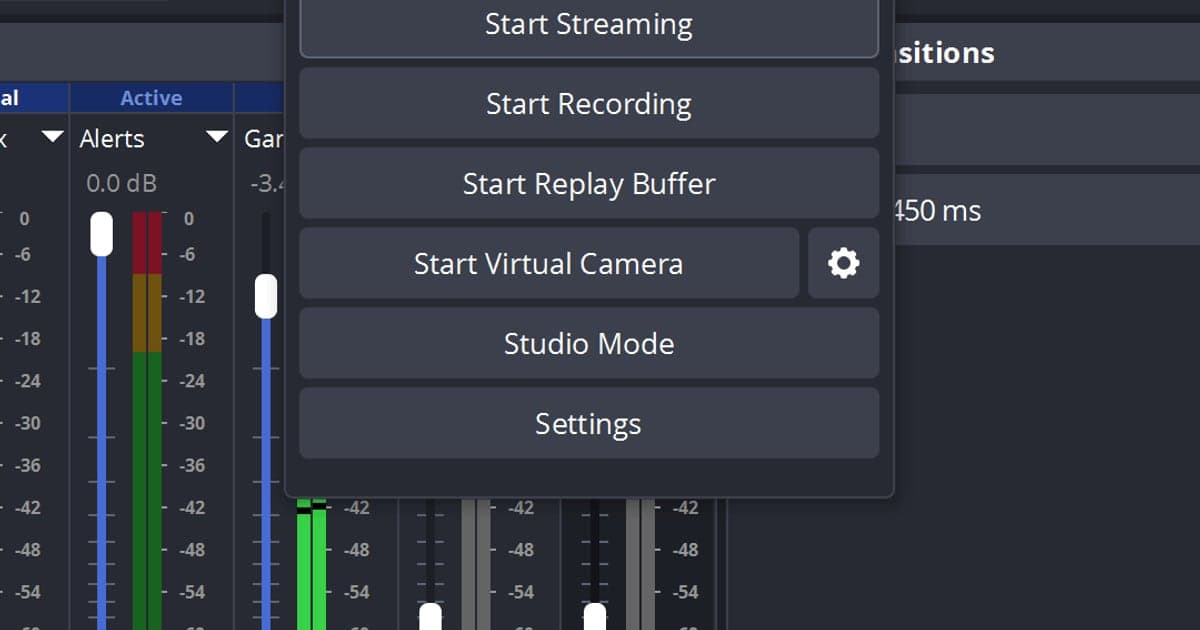
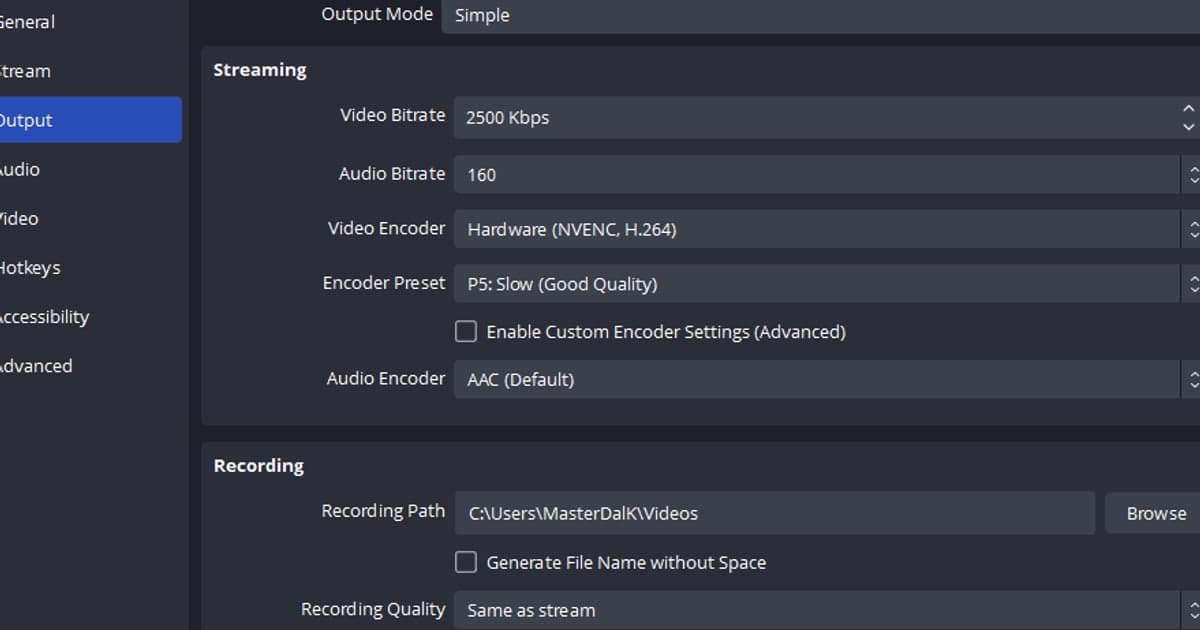
- 3Try a hardware encoder — In Settings > Output, pick an Output Mode (Simple or Advanced) and look at the encoder entry. If your graphics card supports it you will see an option such as 'Hardware (NVENC, H.264)', where a dedicated part of the GPU does the encoding; the official docs describe this as moving the workload off the CPU. 'Software (x264)' is the alternative, and neither can be called better in every case, so judge by whether the recording stutters.
- 4Lower output resolution and FPS — In Settings > Video, reduce 'Output (Scaled) Resolution' and 'FPS'. The official troubleshooting page says that reducing the resolution of OBS reduces the GPU resources needed, and it suggests lowering the frame rate, for example from 60 to 30. Lowering the 'Base (Canvas) Resolution' is described on the same page.
- 5Clean up the game and other programs — If an 'encoding overloaded' message appears or the video stutters, go through the official fixes from the top: run OBS as administrator, check for other programs using the GPU, limit the game frame rate (match the monitor refresh rate or use V-Sync), reduce the game's graphics settings, and build simpler scenes.
Pre-recording checklist
- Confirmed Windows 10 or Windows 11 against the official table (checked September 30, 2026).
- Confirmed on the maker's specifications that the graphics card meets the DirectX 10.1 compatible GPU condition.
- Ran the Auto-Configuration Wizard once with 'Optimize just for recording, I will not be streaming'.
- Chose an encoder in Settings > Output and made a short test recording with the game running.
- Lowered output resolution and FPS in Settings > Video to see whether stuttering drops.
- Checked the game frame limit and other programs that use the GPU.
If you would rather record without tuning OBS
OBS runs once you pass the requirements table, but it is a tool where you tune the encoder, resolution and FPS yourself. If that feels like a burden and you only want your gameplay saved, DOR is one option to consider. It is a free Windows desktop app that detects supported games automatically and records the full match to mp4; on an NVIDIA graphics card NVENC hardware encoding is the default, and it records game sound and microphone together. Screens from games that are not supported are not recorded, so check the list first. If a modest PC is your worry, read recording games on a low-end PC, and if OBS setup has stopped you before, see when OBS feels too complicated.
Official sources (checked September 30, 2026)
The requirements table comes from OBS System Requirements, the hardware encoder conditions from OBS Hardware Encoding, and the stutter fixes from Encoding Performance Troubleshooting. The download page showed version 32.2.2; versions and requirements can change, so recheck the official pages before installing.