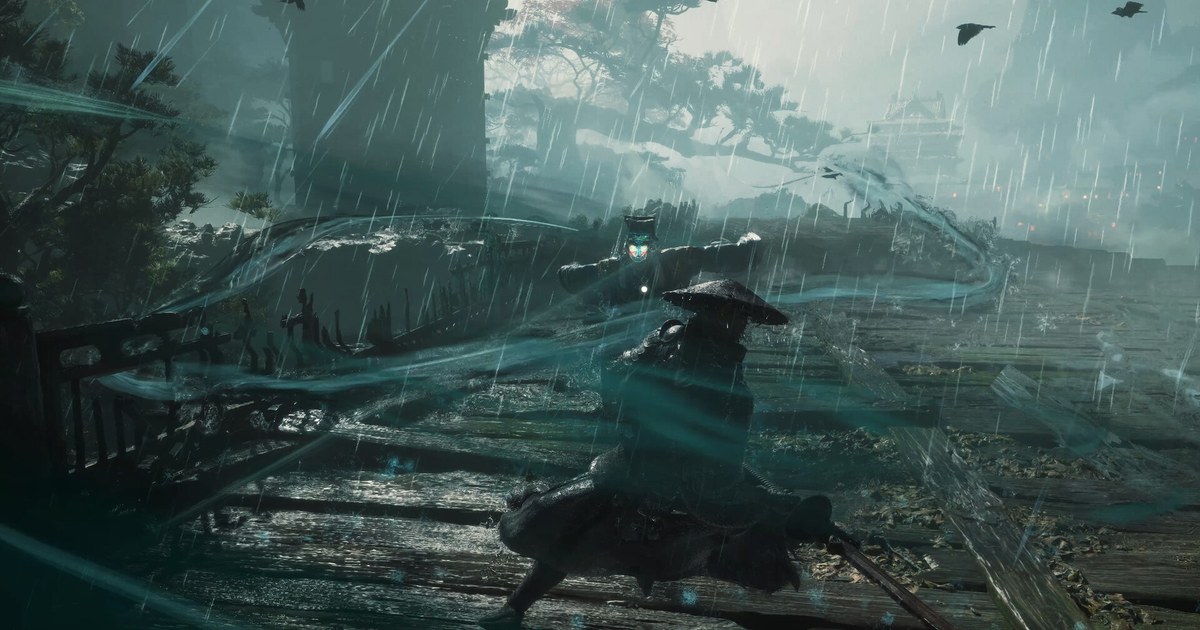
The short answer: when Phantom Blade Zero drops frames, make three changes in this order. First, turn off High-Quality Hair. Second, turn off Ray Tracing Quality, which also covers path tracing.
Third, open Super Resolution Method, pick the upscaler that fits your card, and set it to Quality. Only if that is still not enough should you lower shadows and environment options one step at a time.
The game launched on PC (Steam and Epic) and PS5 at the end of October 2026, and its roughly 5 GB day one update reportedly improved ray tracing and path tracing performance, so finish that update before you touch anything.
The numbers and requirements below are as of November 24, 2026, and only include points that the official spec sheet and several outlets and community reports agree on. Patches can change them.
The answer: Hair off, ray tracing off, upscaler on Quality
High-Quality Hair gives the biggest gain. In one outlet's own testing (RTX 3060 Ti at 1440p), turning off that single option moved the game from 64 to 91 FPS, and during combat the screen moves so much that the difference is hard to notice.
Ray tracing is second: the same test dropped from 76 FPS to 68 with ray tracing and to 55 with path tracing, and VRAM use rose by about 1.3 GB. On an 8 GB card, leave path tracing off. Third is the upscaler.
Use DLSS on RTX cards, FSR on Radeon, and XeSS on Intel Arc, start at Quality, and only drop to Balanced if you still need more. Keep Super Resolution Output Scale at 100%, because lower values look soft. To see what each change actually does, put your frame rate on screen first; the steps are in how to show FPS in games.
Settings order
- 1Check the update and driver firstFinish the roughly 5 GB day one update and restart the game. The install is about 145 GB, and 300 GB of free space was advised for preloading. The developer, S-GAME, pointed to NVIDIA driver 617.42 as its tested version, and some reports flagged 621.01 as unstable, but if your game runs fine now there is no need to change drivers.
- 2Set Very High and measure a baselineTurn Dynamic Resolution Quality, frame generation, and ray tracing off, then measure your frame rate in the same combat scene. Change one option at a time so you know which one costs what.
- 3Turn off High-Quality Hair and measure againIt has the largest effect, so it goes first. If you hit your target here, leave everything else alone.
- 4Turn on the upscaler at QualityIn Super Resolution Method choose DLSS, FSR, XeSS, or TSR to match your card. GTX 16 series cards cannot use DLSS, so pick FSR. Leave Output Scale at 100%.
- 5Lower shadows and environment one step at a timeIf you still fall short, move Shadow Quality from High to Medium, then Environment Detail Quality to Medium. Textures depend on VRAM, so keep them high if you have VRAM to spare.
- 6Add frame generation lastTurn it on only when your base frame rate is 60 FPS or higher. At 30 to 40 FPS it adds smearing and does not remove stutter. Turn V-Sync off while using it.
Targets and first settings by graphics card
| Graphics card | Target | First settings |
|---|---|---|
| GTX 1660 6GB / RX 5500 XT 8GB (official minimum) | 1080p, 30 FPS | Medium preset, FSR or XeSS on Quality, Hair off, ray tracing off |
| RTX 3050 6GB class | 1080p, 50 to 60 FPS | Medium, DLSS Quality, Hair off (one test showed Medium running about 20 FPS above High) |
| RTX 3060 Ti / RX 6700 XT (official recommended) | 1440p, 60 FPS | Very High, upscaler on Quality, shadows High, Hair off, ray tracing off |
| RTX 4060 to 4070 class | 1440p, 60 FPS or more | Very High, DLSS Quality, frame generation only if base FPS is already 60 |
| RTX 5060 8GB | 1080p, 60 FPS (ray tracing) | Ray tracing on, upscaler on Quality, Hair off |
| RTX 5080 16GB | 4K, 60 FPS (path tracing) | The tier the official spec sheet lists for path tracing, with an upscaler on |
Check before you finish
- You installed the day one update and restarted the game
- You measured a baseline with High-Quality Hair and Ray Tracing Quality off
- Your upscaler matches your graphics card and Output Scale is 100%
- Frame generation is on only if your base frame rate is 60 FPS or higher
- You recorded the same scene for each setting and checked image quality on video
Record the same scene per setting with DOR and compare
DOR is a free Windows game recording app. When you launch a supported game it detects it automatically and records the whole session from launch to exit, and the recordings collect in My Clips. If your game is not on the supported list, screen recording (default hotkey F7) gives you the same footage.
Record the same boss scene after each settings change, trim the part you want in the app, and in DOR Studio (dor.gg/studio) merge the clips into one video so you can compare image quality side by side. Free recording covers 720p and 1080p at 30 or 60 FPS, with 1080p at 30 FPS as the default.
On supported graphics cards such as the NVIDIA RTX series, DOR records with NVENC hardware encoding. Your results have no watermark, and you can export an mp4 or share a dor.gg link, which helps when you post a settings question to a community and want to show exactly what you see.