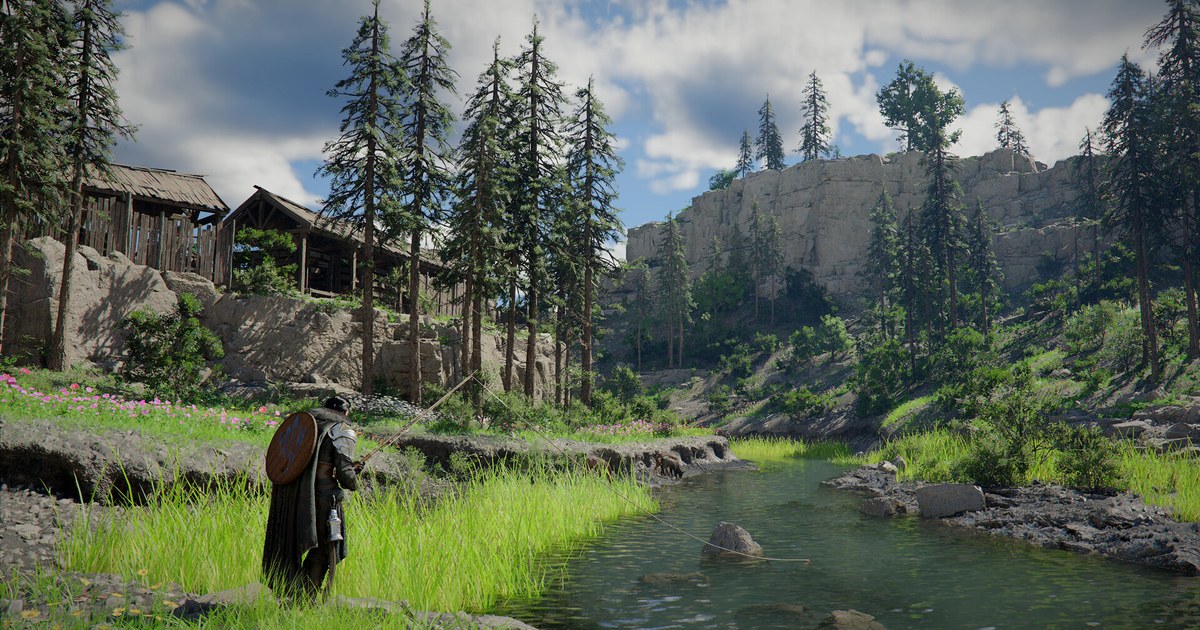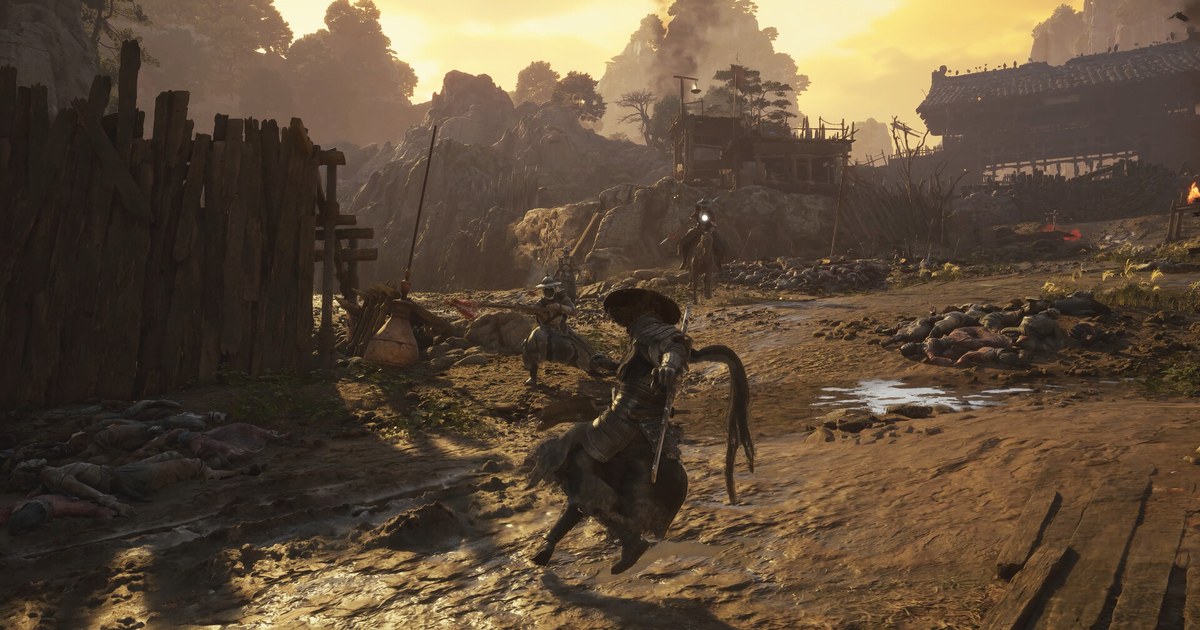
Phantom Blade Zero unlocked on PC on October 28 at 7 p.m. PT, and launch day tracking put its Steam peak above 720,000 concurrent players. With that many people on wildly different PCs, stutter quickly became one of the first things players searched for.
Before you touch a single slider, separate the two problems. If your average FPS looks fine but the game hitches for a split second during fights or when you move into a new area, the cause is usually shader compilation, a stale cache or the driver, and lowering graphics settings will not do much.
If your FPS is low across the board, the heavy options are the place to start. This guide is built on the latest patch as of November 10, 2026 (version 1.0302256, released November 4), S-GAME's official support page and PC performance testing published after launch.
Storage, the SSD rule and the minimum and recommended specs are covered in Phantom Blade Zero System Requirements, so this page only deals with what to do in the settings menu once the game is installed.
For reference, as of November 10, 2026 the Steam price is US$59.99 for the standard edition and US$69.99 for the Digital Deluxe Edition, with no discount running, and the Deluxe Edition only adds two exclusive outfits plus an in game digital art book and soundtrack, so the graphics settings and performance are identical whichever version you own. Option names follow the English menu.
Stutter or low FPS: what to check first (as of November 10, 2026)
| Symptom | Likely cause | What to do |
|---|---|---|
| Hitches in combat or traversal right after a patch | Shader cache built on the previous version | In your Steam Library, choose Manage, then Browse local files, open PBZ\ProjectPBZ\Saved\Cache, delete the files inside and relaunch (official advice). |
| Long compile on first launch or after a driver change, stutter right after | Shader compilation not finished | Keep the game window in front until compiling ends. In the background its CPU priority drops and it takes longer. |
| Stutter only with a Bluetooth controller | Wireless connection | Patch 1.0302256 reduced it. The support page recommends a USB cable that supports data transfer. |
| Random instability on an NVIDIA card | Driver version | Clean install 617.42, the version the official support page calls ideal for this game. |
| Low average FPS everywhere | Ray or path tracing, High-Quality Hair | Set Ray Tracing Quality to Off and turn off High-Quality Hair. |
| Occasional big hitches at high resolution | Running out of VRAM | Drop Environment Texture Quality one step. One test measured about 1.5GB of extra VRAM for ray tracing and nearly 3GB for path tracing. |
| Ghosting or laggy input after enabling frame generation | Base frame rate too low | Reach about 60 FPS with your upscaler on Quality first, turn off motion blur, then try frame generation again. |
| Stutter only while recording | GPU pinned at its limit | Cap the game a little below your refresh rate to leave headroom, and start recording at a light setting such as 1080p 30 FPS. |
Path tracing and frame generation: should you turn them on?
Ray Tracing Quality has three positions: Off, Ray Tracing and Path Tracing. The support page lists reflections, shadows and caustics as the ray traced effects.
According to NVIDIA, path tracing swaps Unreal Engine 5's Lumen global illumination for ReSTIR GI, which handles bounced light and color bleeding more accurately, and ray traced water caustics only appear with path tracing on.
Turning path tracing on also switches on DLSS Ray Reconstruction automatically on GeForce RTX cards, so in practice it is an RTX feature. The official reference GPUs are an RTX 5060 8GB for ray tracing at 1080p 60 FPS and an RTX 5080 16GB for path tracing at 2160p 60 FPS, both with upscaling on.
In one launch week performance analysis, ray tracing cut average FPS by about a third and path tracing by about 38 percent. S-GAME says it spent a lot of time on the rasterized look so every area keeps its art direction with ray tracing off, so if 60 FPS is already tight, Off is the sensible choice.
Frame generation is a different tool. It inserts extra frames between the ones your GPU renders, which raises the number on the counter, but it cannot fix hitches from shader compilation or a CPU bottleneck.
DLSS Frame Generation runs on RTX 40 and 50 Series cards, while Multi Frame Generation and Dynamic Multi Frame Generation, which changes the multiplier on the fly to hold a target frame rate (up to 6X), are RTX 50 Series features.
On AMD and Intel GPUs, the FSR or XeSS frame generation option appears depending on the vendor. Switched on over a low base frame rate, any of them adds input lag and visible artifacts, so get close to 60 FPS with upscaling alone and enable frame generation last.
The stutter fix order
- 1Confirm the patch and clear the shader cacheMake sure Steam has installed patch 1.0302256 from November 4. It reworked shader compilation to cut startup time, and ray tracing shaders are no longer compiled by default. If you played with ray tracing off, expect one short recompile on the first launch after the patch. If you turn ray tracing on later, its shaders compile separately on the next restart. If you get crashes or stutter after an update, delete the files inside the Cache folder as S-GAME advises and relaunch. Leave the SaveGames folder alone, since that is where your saves live.
- 2Settle your driverIn its October 28 post, S-GAME said it had seen performance instability on NVIDIA 621.01 and recommended a clean install of 617.42 until NVIDIA's next driver. NVIDIA released Game Ready 621.14 on November 4, yet the official support page we checked on November 10 still calls 617.42 the most ideal version. If 617.42 runs well, stay on it. If you move to a newer driver and things get unstable, clean install 617.42 again. A driver change can trigger shader compilation again. On AMD, update to the latest Adrenalin.
- 3Start from the recommended presetOpen Settings (System while in game), go to Graphics and apply the recommended graphics quality. The presets run from Low to Ultra in five steps. Then measure FPS and frame time in the same spot and the same fight every time. At 60 FPS each frame takes about 16.7ms, and spikes above that feel like stutter even when the average looks fine. How to Show FPS in Games covers the Steam, NVIDIA and Game Bar counters.
- 4Turn off the two heaviest optionsSet Ray Tracing Quality to Off and turn off High-Quality Hair. The hair setting applies during gameplay, not just cutscenes, and one analysis measured roughly a 19 percent difference from that toggle alone. Retest the same scene after these two changes before you lower anything else.
- 5Lower lighting, effects and shadows, then pick an upscalerIf you still need frames, drop Lighting Quality, Effects Quality, Material Quality, Shadow Quality, View Distance and Environment Detail Quality one notch at a time. Ambient Occlusion, Depth of Field and character textures were measured as cheap, so leave them for later. For upscaling, use DLSS on RTX cards, FSR on Radeon, XeSS on Intel Arc and Unreal's TSR on anything else, starting on Quality. Leave dynamic resolution off at first.
- 6Add frame generation and Reflex lastOnce your base frame rate holds near 60 FPS, try frame generation. On an RTX 50 Series card, Dynamic Multi Frame Generation with a target frame rate is the easiest way to use it. Turning off motion blur makes generated frames look cleaner. Since the November 4 patch, NVIDIA Reflex also works with V-Sync on when Reflex is set to Auto.
Check after every change
- The game is on version 1.0302256 or later, and you let shader compilation finish after updating.
- The game sits on an SSD and, if you had the choice, not on your C: drive, as the support page suggests.
- NVIDIA cards run 617.42 or another version that is stable for you; AMD cards run the latest Adrenalin.
- You changed one option at a time and compared FPS and frame time in the same scene.
- Your controller is on a USB cable that supports data transfer, if possible.
Record your runs without losing the frames you just won back
DOR is a free Windows game recorder. When you launch a supported game, it detects it and records the whole match or the full session from launch to exit, and the recordings collect in My Clips inside the app. When you record a demanding action game, headroom matters more than any single setting.
Stabilize your base frame rate with the steps above, then cap the game below your monitor's refresh rate so recording has room to run alongside it. On RTX Series and other supported NVIDIA graphics cards, DOR records with NVENC hardware encoding.
The free plan records at 720p or 1080p and 30 or 60 FPS (1080p 30 FPS by default), and 1440p, 4K, 120 FPS and 144 FPS are part of DOR Pro. Reducing GPU Load While Recording has more ways to lighten the load.
Moments you want to keep can be trimmed in the app to 16:9, 9:16 or 1:1, then combined in DOR Studio (dor.gg/studio) with text and music and exported as mp4 or shared as a dor.gg link.
With one game taking 145GB, storage is a fair worry too: recordings are only cleaned up, oldest first, when they exceed the full gameplay video allowance (5GB by default), and your latest recordings and liked videos stay.