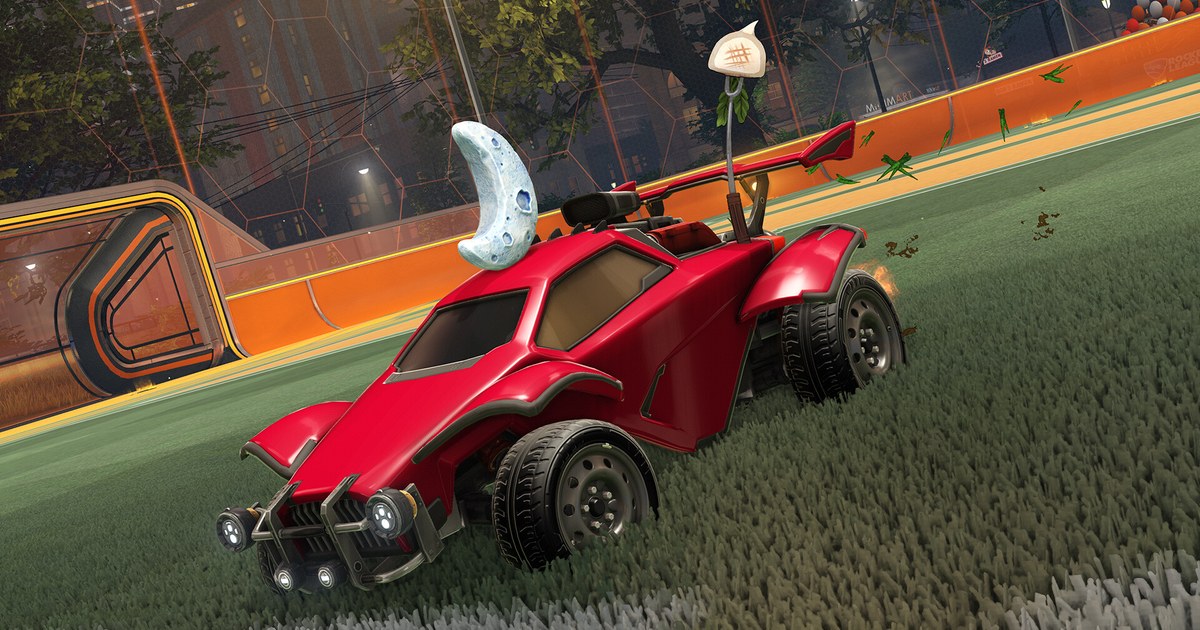

Here is the short answer: the easiest way to record Rocket League is to install DOR and launch the game. DOR detects supported games automatically and records from launch to exit, and the recordings collect in My Clips in the app.
A Rocket League match usually lasts five minutes, followed by sudden-death overtime if the score is tied, and playing ten or more matches in one evening is common.
You do not press a record button per match or remember to save a replay on the end screen, so recording is already running when an aerial goal or a goal line save happens. In Rocket League you pick the moments yourself: open the recording and trim only the stretches you like.
This guide goes in order through install, checking the recording, trimming goals, joining clips and sharing. The basic idea of automatic recording is also explained in DOR auto recording.
The answer: record the whole session, trim the moments yourself
For Rocket League, keeping the whole session recorded automatically works better than starting and stopping a capture per match. Matches are short, and goals happen without warning. So setup ends with installing DOR and launching the game, and you pick moments after you finish playing.
Good moments to trim are aerial goals, double taps, goal line saves and overtime winners, each usually 10 to 20 seconds at most. Start the clip just before the jump that sends the car toward the ball and end it right after the goal so the context stays.
In the app you trim the range and choose 16:9, 9:16 or 1:1, so a vertical short for social media comes from the same recording. Tips on cutting ranges are collected in how to trim game clips.
From recording Rocket League to sharing
- 1Install DOR and launch Rocket LeagueInstall DOR, the free Windows app, and start Rocket League. It detects the game automatically and keeps recording from launch to exit, so there is no button to press.
- 2Play several matches as usualRanked, casual or private matches, every match while the game is open is recorded one after another. Games where you did not press save replay on the end screen are still on video.
- 3Open today's recording in My ClipsAfter you close the game, open My Clips in the DOR app and today's recording is there. Scrub through the video to find moments, and look for the point where the scoreboard changes to find goals quickly.
- 4Trim goals and savesIn the app, set a start and end point to cut the range. From just before the jump to just after the goal, ten to twenty seconds at most is a good length. Choose 16:9, 9:16 or 1:1 for the ratio.
- 5Join moments and add effectsIn DOR Studio (dor.gg/studio), join several videos and add effect templates such as shake zoom and punch zoom, text and BGM to make one highlight video. The joining steps are in how to merge game clips.
- 6Export an mp4 or share a linkExport the finished video as an mp4 or send teammates and friends a dor.gg link. Pasting one link is all it takes.
What to know before you record Rocket League
| Item | Choice | Why |
|---|---|---|
| Recording mode | Automatic full session recording | A match is about five minutes, so one unbroken recording is easier than starting and stopping every match |
| PC version | Rocket League for Windows from the Epic Games Store | Since it went free to play on September 23, 2020, the Windows version is downloaded from the Epic Games Store (as of November 24, 2026) |
| Quality and frame rate | Raise the default 1080p 30fps to 60fps | The ball and cars move fast, and 60fps makes their paths look smoother. Free recording offers 720p and 1080p at 30 or 60fps |
| Encoding | NVENC hardware encoding on supported NVIDIA graphics cards such as the RTX series | On a supported card the graphics card handles recording encoding |
| Sound | Game sound and mic on one track | The calls you shout stay in the same video, so the situation comes back when you watch a moment |
| Storage | Default 5GB share for full play videos | Old videos are cleaned up first only when you go over that share, and recent recordings and liked videos stay |
| Watermark | None | PC recording originals, Studio edits and exports all carry no watermark |
| Moments to trim | Aerial goals, double taps, saves, overtime goals | Ten to twenty seconds per moment at most keeps it watchable |
Check before you record
- DOR is installed before you launch Rocket League
- You changed the default 1080p 30fps to 60fps
- You have room left in your storage share (5GB by default)
- The moments you trim run ten to twenty seconds at most
- Your mic audio is in the video before you share it
Auto record Rocket League and save your moments with DOR
DOR is a free Windows game recording app. When you launch a supported game, it detects it automatically and records from launch to exit, and recordings collect in My Clips in the app.
The default quality is 1080p at 30fps, free recording offers 720p and 1080p at 30 or 60fps, and 1440p, 4K and 120 or 144fps are available in DOR Pro. On supported NVIDIA graphics cards such as the RTX series, it records with NVENC hardware encoding.
Voice is captured with game sound and your mic on one track. Storage is cleaned up, oldest first, only when you go over the share for full play videos (5GB by default), and recent recordings and liked videos stay.
In Rocket League you trim the moments you want out of the recording in the app, and you can cut ranges in 16:9, 9:16 or 1:1.
Join several moments in DOR Studio (dor.gg/studio), change the ratio, add effect templates such as shake zoom, punch zoom, handheld and glitch transitions, plus text, BGM and volume, then export an mp4 or share a dor.gg link. PC recording originals, Studio edits and exports carry no watermark.