
The most reliable way to clip THE FINALS is to record automatically from launch to exit, then cut out the building collapse or cashout steal once the session is over.
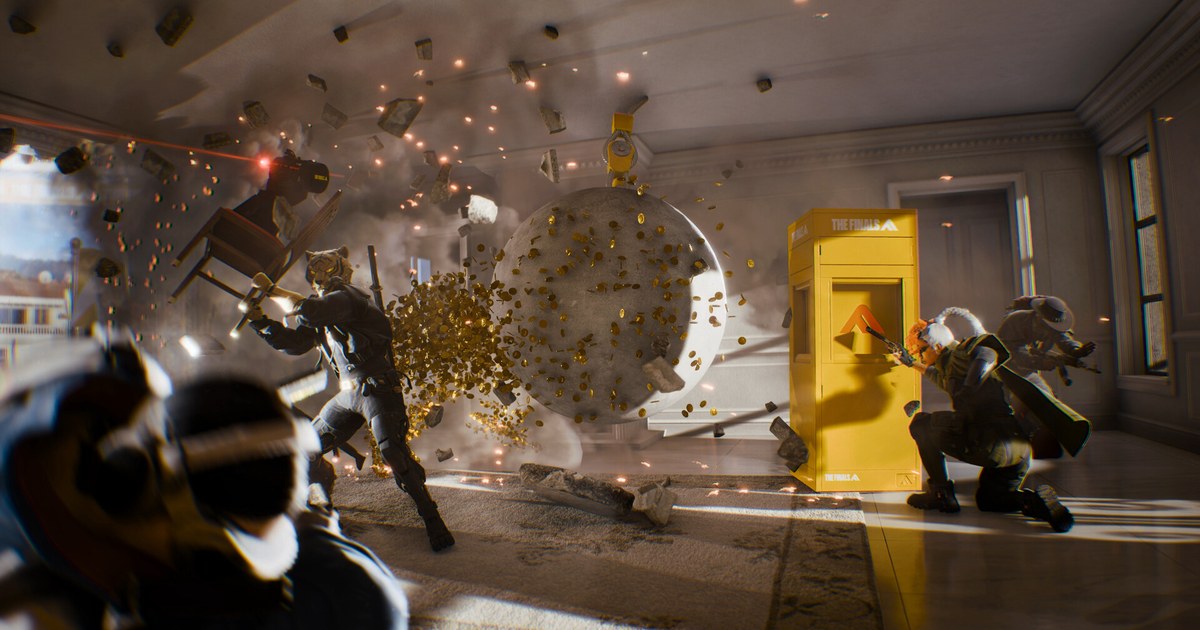
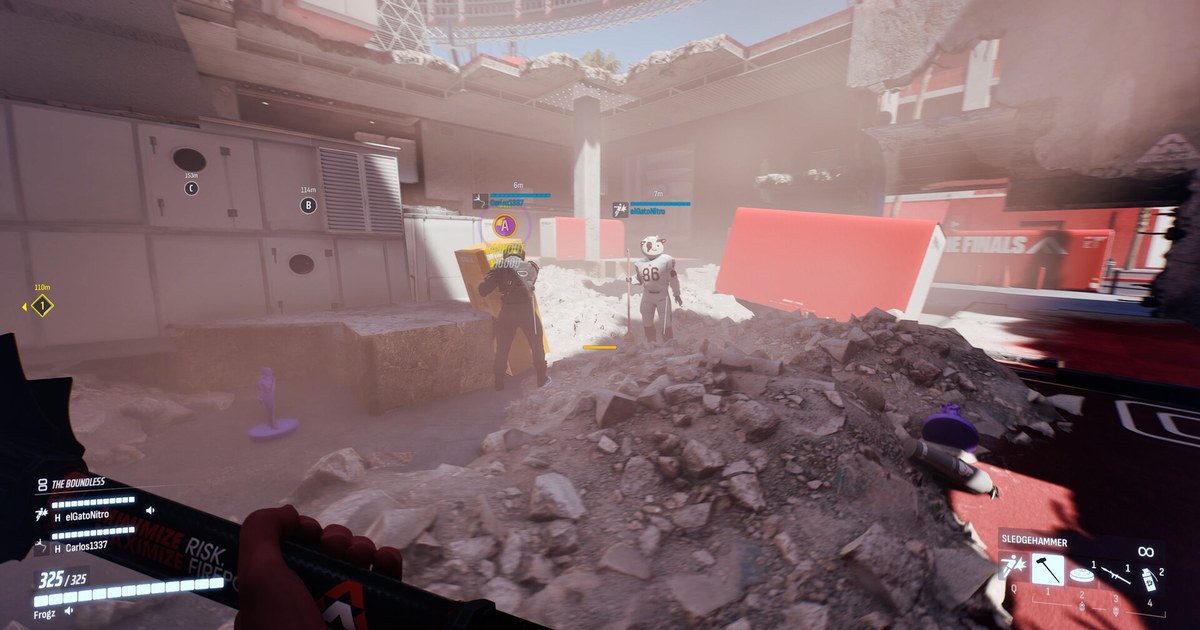
THE FINALS is a free to play FPS from Embark Studios that launched on Steam on December 7, 2023, and almost every structure in its arenas can be destroyed.
Its signature mode, Cashout, is a 3v3v3 fight between three teams of three, so a third team blowing through a wall mid fight or an entire floor caving in is routine. By the time you think "I should save that" and reach for a hotkey, the next fight has usually started.
This guide compares six popular recording tools on missed moments, frame rate impact, storage and sharing, and answers up front which one to pick. If you already have the footage and want to send it to friends, see how to share THE FINALS building destruction clips. Software features are as of November 29, 2026.
How to choose: save with a hotkey, or record everything and pick later
In THE FINALS, recording everything and choosing later is the method that misses the fewest moments. Clipping software splits into two camps. The first keeps the last few seconds or minutes in memory or a temporary file and writes that stretch to disk the moment you press a hotkey.
NVIDIA app Instant Replay (default save hotkey Alt+F10), AMD Instant Replay (Ctrl+Shift+S), the Xbox Game Bar "Record that" shortcut (Win+Alt+G), OBS Replay Buffer and Medal clip hotkeys all work this way.
Each moment is saved as a short file, which keeps things tidy, but if you forget to press the key, or the replay window runs out before you do, the moment is gone. The second camp records the entire game session and lets you cut what you need afterward.
It uses more disk space, but you can look at the results screen after a match and scroll back to that comeback, so nothing slips through.
The harder it is to predict when to save, such as a cashout final stand where you cannot let go of the mouse or a building your teammate brought down, the better the second approach works. If you stay with hotkeys, set a generous replay length in how to turn on NVIDIA Instant Replay or OBS Replay Buffer setup.
THE FINALS clipping software compared (as of November 29, 2026)
| Software | How it saves THE FINALS clips | Best for |
|---|---|---|
| NVIDIA app Instant Replay | Press Alt+F10 to save the last stretch at the length you set | GeForce owners who are used to hitting a key right after a play |
| AMD Instant Replay | Press Ctrl+Shift+S to save the last stretch at your set length (up to 20 minutes) | Radeon graphics card owners |
| Xbox Game Bar | With background recording on, press Win+Alt+G to save the last stretch (30 seconds by default) | Players who want to grab an occasional moment without installing anything |
| OBS Replay Buffer | Press the save hotkey you assign to keep the buffer length | Players who want full control over scenes and encoder settings |
| Medal | Save with clip hotkeys (15 seconds to 5 minutes or custom), with an option to record the entire session | Players who want to upload clips and share them with a community right away |
| DOR | Detects the game launch automatically, records until exit as one video, then you cut the moments you want | Players with no time to press keys mid fight who want a free app that records on its own |
Check before you record
- If you use hotkeys, is the replay length long enough to cover a full cashout finish
- Is recording set to 1080p and 60 fps or lower
- On a supported NVIDIA graphics card, are you recording with hardware encoding (NVENC)
- Is the save drive an SSD with enough free space
- Did a building collapse in your test match record without stutter
How to set up so you never miss a clip in THE FINALS
- 1Pick a recording method firstIf you can usually press a hotkey the instant a play ends, a replay tool is enough. If you often cannot let go, as in the closing seconds of a cashout, choose a tool that records the whole session. DOR detects THE FINALS when you launch it and keeps everything until you exit as one video, so you never have to press a record button.
- 2Set resolution and frame rateFor clips you send to friends or post as Shorts, 1080p at 60 fps is plenty. THE FINALS often fills the screen with debris and smoke, so every step up in resolution and frame rate sharply increases what the encoder has to process. The free version of DOR offers 720p or 1080p at 30 or 60 fps, with 1080p at 30 fps as the default. Since the game moves fast, switching to 60 fps is recommended.
- 3Reduce encoder loadRecording with the graphics card's hardware encoder has less impact on game frame rate. DOR records with NVENC hardware encoding on supported NVIDIA graphics cards such as the RTX series. With other tools, choose a GPU encoder over software x264, and cap the game frame rate near your monitor's refresh rate to leave the graphics card some headroom. How tools differ in load is covered in how to choose a lightweight game recorder.
- 4Test with one matchBefore a serious session, record one match and rewatch a building coming down. If the video stutters or the audio drifts, drop the resolution one step or lower the frame rate to 30 fps. Point the save location to an SSD with plenty of free space.
- 5Cut and share the momentsIn DOR, recordings collect in My Clips, and you can trim a section in the app and save it at 16:9, 9:16 or 1:1. To combine moments from several matches, merge them in DOR Studio (dor.gg/studio), add effect templates such as shake zoom or punch zoom plus text and BGM, then export as mp4 or share a dor.gg link.
Recording THE FINALS with DOR
DOR is a free Windows app. Install it, launch THE FINALS, and it detects the game automatically and records your entire play session as one video until you close the game, with recordings collected in My Clips.
After the match, find the building collapse or cashout comeback in the video and save it with a trim, so there is no need to press anything mid fight. Game audio and your mic are captured together on one track.
Storage is cleaned up oldest first only when the full session recording allowance (5GB by default) is exceeded, and recent recordings and liked videos are kept. Original recordings and DOR Studio edits have no watermark, so you can send a trimmed clip to friends or post it as a Short as is. For how setup time compares between hotkey tools and automatic recording, see game recorder vs OBS.