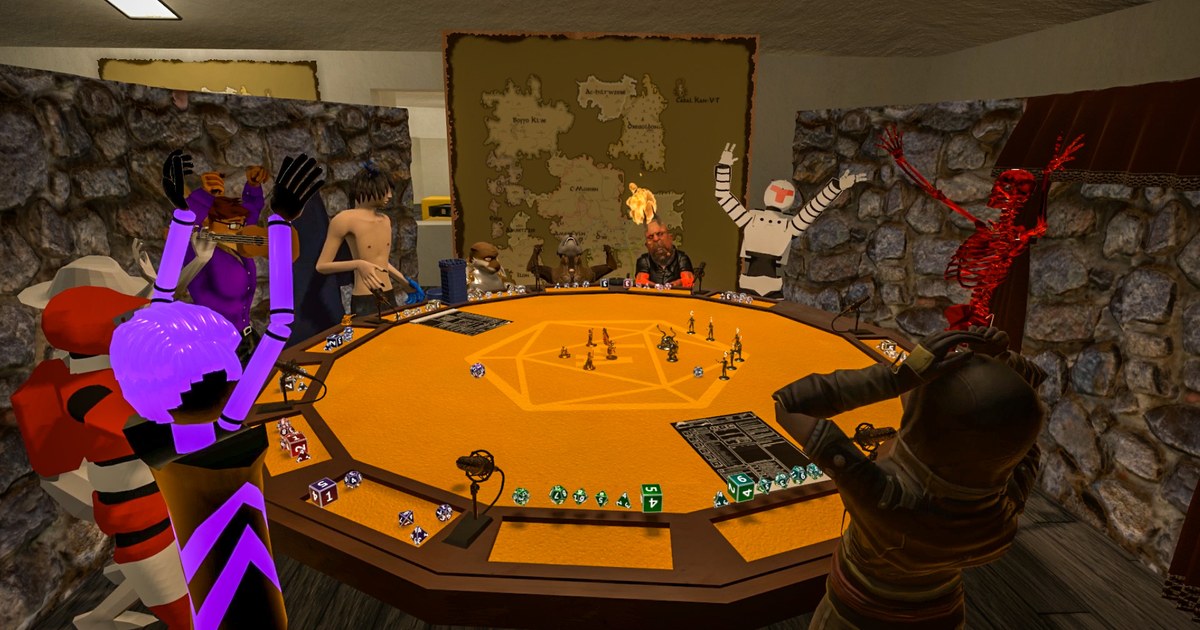
Short answer: the best VRChat clipping software is an app you leave running that records automatically from the moment you join until you quit. Funny VRChat moments are not like kills or goals that you can see coming.
They erupt in the middle of a conversation, so by the time you press an instant replay hotkey it is often too late, and with a VR headset on you may not even find the keyboard. If you want this for free, DOR is the fit.
It detects VRChat when it launches, records the whole session, and lets you trim just the moment you want later and send it as a dor.gg link. If you already use your graphics card app or OBS, you can keep using it.
This guide compares Xbox Game Bar, the NVIDIA app, OBS, Medal, and DOR using official documentation as of November 29, 2026, looking at how each saves clips, how it handles your mic and world audio, storage for long sessions, and sharing. For sending trimmed videos to friends, see how to send VRChat videos to friends, and for the basics, visit the VRChat hub.
Verdict: pick by whether you can hit a save button in the moment
Choosing a VRChat clipping tool comes down to one question: can you press a button the moment something happens? If you play in desktop mode with your hands on the keyboard, an instant replay style tool is enough.
The NVIDIA app product page describes Instant Replay as a way to instantly save the last 30 seconds of gameplay, and the OBS Replay Buffer also keeps the most recent footage and writes it to a file when you press the save hotkey.
Medal saves the last 15, 30, or 60 seconds, up to 20 minutes, with its clip hotkey (F8 by default). On the other hand, if you wear a VR headset or hang out in groups where nobody knows when the next laugh will come, recording the whole session and choosing later means you never miss anything.
Medal can turn on Long Recordings, which capture from game launch to close, and the clip hotkey then becomes a bookmark. DOR starts recording the moment VRChat launches, with no setup, and keeps going until you quit, gathering the footage in My Clips. For how buffer length relates to file size, see saving the moment you just saw.
VRChat clipping software at a glance (as of November 29, 2026)
| Tool | How it saves VRChat moments | Best for |
|---|---|---|
| VRChat built in camera | Takes photos with the in game camera, saved to a VRChat folder inside Pictures | People who want avatar and world photos |
| Xbox Game Bar | Built into Windows, Win+Alt+R starts and stops recording, Win+Alt+G saves the moment you just saw when background recording is on | Occasional clippers who want nothing extra installed |
| NVIDIA app | Instant Replay saves the last 30 seconds, manual recording up to 4K HDR at 120 fps | Desktop mode players with a GeForce RTX card |
| OBS Studio | Replay Buffer saves the last stretch, you build scenes, sources, and audio tracks yourself | People who like to fine tune their capture setup |
| Medal | Clip hotkey saves recent footage, session recording with bookmarks, separate tracks for game, mic, and Discord | People who share clips as links all the time |
| DOR | Detects VRChat and records the whole session automatically, trim in My Clips and share a dor.gg link | Anyone who wants a free app that records on its own |
Quick checks before you choose
- On Steam, VRChat is free to play on 64 bit Windows 10 and 11, and you can join on desktop without a VR headset (as of November 29, 2026).
- The VRChat built in camera is a photo tool, so video needs a separate clipping app.
- According to the NVIDIA app product page, Instant Replay saves the last 30 seconds.
- According to Medal support, clips and sessions made with screen recording can only be uploaded by Premium users.
- To see how many GB an hour of footage takes at each quality, check the GB per hour recording table.
How to set up VRChat clipping software
- 1Decide what view to recordRecording tools capture the VRChat view shown in the window on your PC. The Stream mode of the VRChat camera is a PC only feature that replaces the desktop view with the camera view, which helps when you want a steady camera angle instead of your own point of view.
- 2Check your mic and world audioMost of the fun in a VRChat video comes from voices. Make a short test recording and confirm you can hear your mic, other players, and the world music. Audio setup is covered in recording game sound and mic together.
- 3Choose how clips get savedIf your hands can reach the keyboard in desktop mode, instant replay works. If you wear a headset or join long hangouts, go with full session recording. Running several tools at once records the same moment twice, so keep only one on.
- 4Free up space before long hangoutsInstance hangouts that run for hours fill a drive quickly. Put your recording folder on a drive with plenty of room, and trim the moments you want to keep right after the session ends.
- 5Trim the funny moments and send themAfter the hangout, use spikes in laughter or the moment right after a world change as clues to find scenes. For faster ways to search long footage, see finding the best moment in a long recording.
DOR, the free VRChat clipping app that records on its own
If you would rather not think about hotkeys during a VRChat hangout, DOR is the simplest option. It is a free Windows app that detects VRChat when you launch it and records the whole session from start to finish, collecting the footage in the app's My Clips.
Game sound and your mic are captured on one track, so your friends' laughter stays in, and storage is only cleaned up, oldest first, when footage goes past the full gameplay video allowance (5 GB by default), while recent recordings and videos you liked are kept.
After the hangout, trim just the moments you want in 16:9, 9:16, or 1:1 and send a dor.gg link, or use DOR Studio to merge several scenes, add effect templates such as Shake Zoom and Glitch transitions, text, and BGM, then export an mp4. There is no watermark on anything you make.
On supported NVIDIA graphics cards such as the RTX series, DOR records with NVENC hardware encoding, and the free plan offers 720p and 1080p at 30 or 60 fps. To turn a clip into vertical Shorts, see making a vertical 9:16 gaming video.