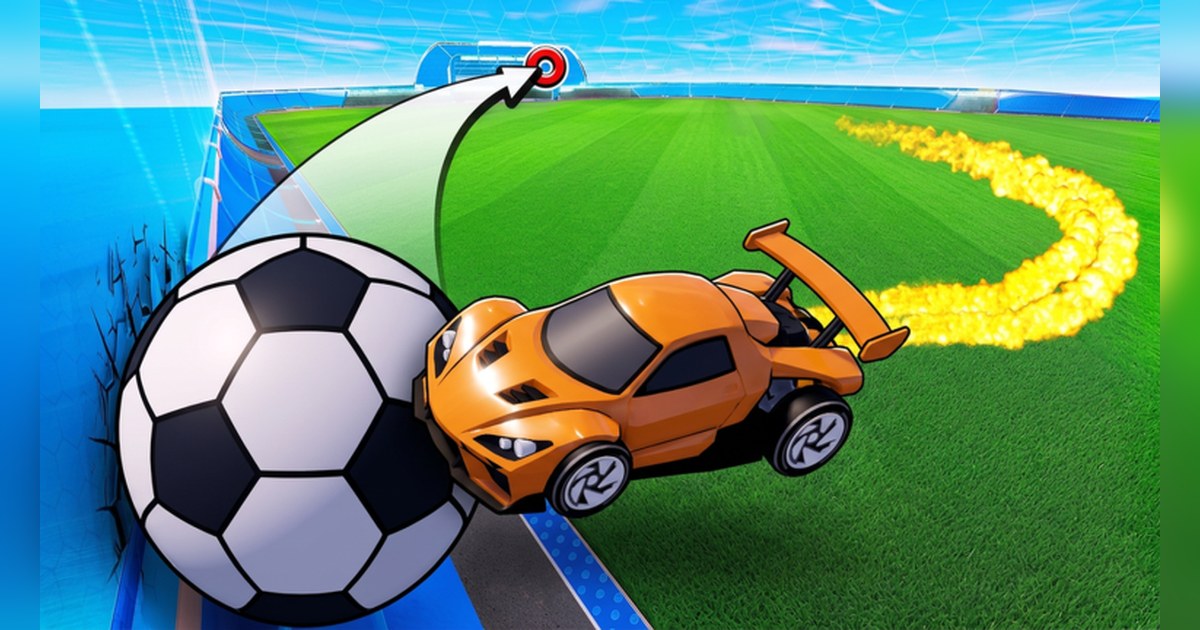
If you have played Rocket League, Turbo Soccer on Roblox will feel familiar within seconds: you drive a car, build speed with boost and smash a giant ball into the other team's net.
The official description invites you to compete in car soccer against players from around the world, and lists competitive matches, leaderboards, exclusive cars and items to unlock, skins, wheels, decals and boosts to customize, different arenas and maps, playing with friends as a team, and ranking up.
The experience is run by the verified Roblox group Turbo Soccer and was created on September 19, 2026. It sits in the Sports genre and allows up to 30 players per server.
As of November 12, 2026 it had about 179.9 million visits, 223,592 favorites, and 144,538 likes against 11,721 dislikes, a like ratio of about 92.5%. Growth that fast brings a lot of lookalike soccer experiences, so check the creator before you join.
If you prefer soccer with characters instead of cars, our Blue Lock Rivals guide covers that side of Roblox. This guide sticks to what the official page confirms about controls and stats, then shows how to improve by rewatching your own matches and how to build a clip of your best goals.
Short answer: learn the official controls, then rewatch the goals you concede
The official description lists the controls as WASD and mouse on PC, on-screen controls on mobile and a compatible controller on console. Finer bindings such as boost are not spelled out there, so check them in the in-game settings.
How rank or leaderboard points are calculated is not in the official sources as of November 12, 2026, and you will not find made-up numbers here. What the description does say is to master the mechanics and improve your skills, and the most reliable way to do that is to watch your own matches back.
Look at where your car was when a goal went in and where you spent your boost, and you will usually spot the one habit to fix next game. Turbo Soccer gets compared to Rocket League all the time, and the way you clip and share a goal is almost identical in both. For the Rocket League side, see how to share Rocket League goal clips.
How to get better at Turbo Soccer and keep your goals
- 1Join the official experienceSearch results show several soccer games with similar names. Make sure the experience is called Turbo Soccer and the creator is the verified group Turbo Soccer. To play on the same server as a friend, let them join first and use the Join button on their profile. Whether private servers are available is shown on the Servers tab of the experience page.
- 2Get the controls into your handsThe official PC controls are WASD and mouse. Press each key in your first match to see exactly what it does. Spend your first few matches learning how the ball reacts when you hit it and how sharply the car turns, rather than chasing wins. Check boost and the other keys in the in-game settings, and move them somewhere comfortable if rebinding is offered.
- 3Play with recording onWith DOR running on your PC, everything from joining to leaving is saved as one video. Cars and the ball move fast, so picking 60fps in settings keeps boost runs smoother on screen. During the match, forget about recording and just play.
- 4Rewatch the goals you conceded firstAfter you leave, open the video in My Clips and jump to the goals against you. Start about ten seconds before each one. Were you chasing the ball and leaving your goal open? Did you burn boost too early and miss the last touch? Pick one fix per match and try it next game.
- 5Trim the goals you scoredKeep each goal from the moment you boost in until a second or two after the ball crosses the line, so viewers see why it worked. Trim to 9:16 if it is going to YouTube Shorts or TikTok. If you plan to collect goals over several days, like the videos that hold them.
- 6Join them into a goal reel and shareIn DOR Studio (dor.gg/studio), join your trimmed goals, add text and background music, and you have a highlight reel of your own. Export it as mp4 for YouTube or send a dor.gg link straight to your friends.
Turbo Soccer official facts (as of November 12, 2026)
| Item | Value | Notes |
|---|---|---|
| Creator | Roblox group Turbo Soccer | Verified group badge |
| Created | September 19, 2026 | Name still shows BETA |
| Total visits | About 179.9 million | Checked November 12 |
| Players online | About 15,000 | Snapshot, changes by time of day |
| Like ratio | About 92.5% | 144,538 likes / 11,721 dislikes |
| Favorites | 223,592 | Checked November 12 |
| Max players per server | 30 | Sports genre |
| Official controls | WASD and mouse on PC | On-screen buttons on mobile, controller on console |
Clips worth keeping and a pre match check
- Long boost runs that end in a goal: the clip that shows off the speed of car soccer best.
- Saves right on the goal line: teammates love them as much as goals, and they prove you are improving.
- Team goals built with friends: the teamwork the official description talks about, captured as it happened.
- The first goal with a new car, wheels or decal: a natural way to show off your build.
- Before you record: if the game stutters, read how to boost Roblox FPS, and if it closes on launch, go through the Roblox crash fix steps first.
Record Turbo Soccer matches with DOR
DOR is a free Windows PC app that detects Roblox and starts recording the moment you join Turbo Soccer. When you leave, everything from join to leave lands in My Clips as one video, so during the match you only have to think about the ball.
Game audio and your mic are captured on one track, so the shout after a last second winner is saved with the footage. Recording defaults to 1080p at 30fps, and you can choose 720p or 60fps in settings. In My Clips, trim the goal you want and pick 16:9, 9:16 or 1:1 before saving.
Old videos are cleared only when full match recordings go past their storage share (5GB by default), and recent recordings and liked videos stay.
In DOR Studio (dor.gg/studio) you can join several goals, add shake zoom or punch zoom effect templates, text, background music and volume changes, then export an mp4 or share a dor.gg link. The sharing steps are in how to send Roblox gameplay to friends.