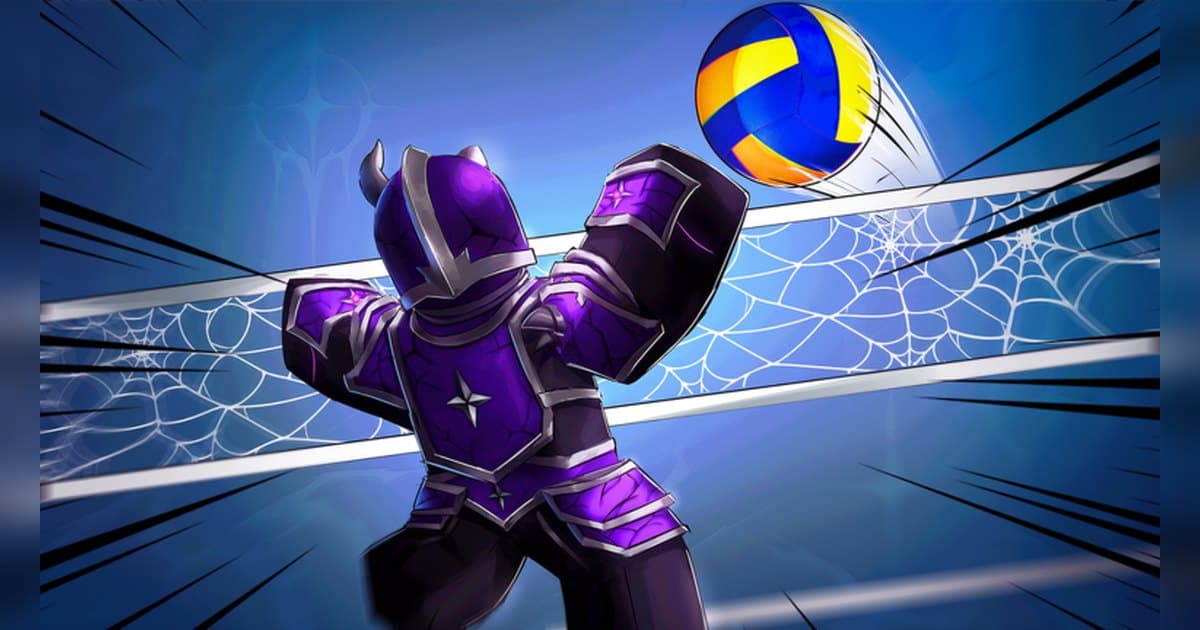
Volleyball Legends opens its official description by telling you to become the king of the court, and calls itself fast-paced 6v6 volleyball. It was created on 17 December 2024 by Volleyball Game Group, with an update on 17 October 2026, and the description states that new updates land weekly on Saturdays at 11:30am EST. A server holds 12 players, which is exactly 6v6, and the description names two ways to play: a pickup game with friends, or a ranked match against anyone. As of 19 October 2026 about 33,000 people were playing at once, against roughly 4 billion lifetime visits and 5.6 million favourites. Volleyball is a sport of three ordered actions, receive, lift, hit, so the order in which you learn the inputs is most of the skill. This guide starts with the PC controls exactly as the official description lists them, covers how a serve is executed, and shows how a rally divides between teammates. After that it moves to keeping those moments as video, because a rally is over in a few seconds and the regret usually arrives right after it ends. Recording while you play removes that problem. General PC recording setup for Roblox is in record Roblox gameplay. Experience details were checked on 19 October 2026, and with weekly updates the style and ability lineup can change.
The short answer: learn four inputs, then clip the rally the moment the point is settled
The official description lists four PC inputs. A mouse click is a bump, the action that receives the ball and lifts it; clicking while you are in the air is a spike. Q is a set, the toss that gives a teammate something to hit; pressing Q in the air is a block. Ctrl is a dive. The same button does different things on the ground and in the air, which means your jump timing is what selects the action. Serving runs in two clicks: when it is your turn, click the screen to begin, then click again to choose power. From there you can jump and spike the ball, and tilting changes the direction it travels. The description also notes you can let the ball drop and bump serve it in, which is the steadier option while you are still learning power control. Roles divide along the same three actions: one player receives, another lifts it with Q, and a third jumps and clicks to hit. Keep that three-beat rhythm and rallies last. The experience has styles and abilities you equip into slots, and Yen accumulates from match wins; the official description notes that Roblox Premium members receive 10% more Yen. The shop lists options such as VIP, which grants double Yen from match wins, and a pass that doubles emote slots, with prices and contents changing through the weekly updates, so check current terms inside the experience. Learning inputs and drilling an order is the same work as in a fighting-style experience, so the practice routine in the Strongest Battlegrounds combos guide transfers, as does the timing-first approach in the Blade Ball parry guide. Recording splits by device. Roblox has a built-in Capture in the in-experience menu that saves a video of up to 30 seconds; per the official help pages it records the screen, the file sits in the Roblox app's storage, and exporting moves it to your PC Videos folder or your phone's camera roll. A rally lasts seconds, so on PC the simplest approach is to play with recording on and lift the good rallies out with a hotkey as each point ends.
Learning the controls and keeping the rally, in order
- 1Turn recording on and pick a clip lengthA rally is finished within seconds, so starting a recording after a good moment is already too late. With DOR on PC, leave the app running and launch the PC build of Roblox from roblox.com, and recording begins as you enter the experience. The hotkey clip length can be 15, 30, 45 or 60 seconds: 15 suits a single spike, while 30 covers the teammate who set it up. On a phone, the in-experience Capture menu saves a video of up to 30 seconds that exports to the camera roll.
- 2Join and start with a pickup gameSearch Roblox for Volleyball Legends, confirm the creator is Volleyball Game Group, and join. The official description names both a pickup game with friends and a ranked match against anyone. A server holds 12 players, which fills out 6v6 exactly. Before the inputs feel automatic, use pickup games to repeat serves and spikes as many times as you need.
- 3Get both click actions into your hands firstThe input you use most is the mouse click. On the ground it bumps, receiving the ball and lifting it; after a jump, clicking in the air spikes. Because one button splits by whether your feet are down, saying it out loud while you practise, receive on the ground, hit in the air, keeps the two actions distinct. Once your jump matches the height of the incoming set, spikes start landing quickly.
- 4Split Q between setting and blockingOn the ground, Q is a set, the lift that gives a teammate a ball to hit. In the air, Q is a block against an opposing spike. A set has to go where your hitter is jumping, and a block has to leave the ground when the opponent does. As with click, the jump decides the action, so at the net choose what you are doing before you leave the floor.
- 5Use Ctrl to dive only after you have movedCtrl is the dive. It throws your body towards a falling ball, so you need to be near where the ball will land before you press it. A dive save frequently becomes a point and reads clearly on video. Rather than chasing balls going long behind you, start by practising on balls dropping just in front, where the success rate is far higher.
- 6Finish a serve in two clicksWhen your turn comes, click the screen to begin the serve, then click again to choose power. From there you can jump and hit the ball, and tilting changes the direction it goes. The official description also notes you can let the ball drop and bump serve it in, which is the safer route while power control is still rough. Serving is the only moment the game tells you is coming, which makes it the easiest to record deliberately.
- 7Save good rallies as they end, then edit the collectionPress F8 right after a rally ends and the preceding seconds are saved as a clip; waiting until the point is confirmed brings the finish with it. After the match, open the saved clips alongside the full recording in the library and cut short pieces for the spikes, blocks and dives. Export 9:16 for shorts, and to combine several moments into one piece, stitch them in the browser and add music.
Volleyball Legends moments and how to save them
| Moment to keep | Input and timing | How to save it |
|---|---|---|
| A spike that lands clean | Jump, then click in the air to hit. The timing of the jump against the height of the set is the whole skill. | Press F8 as the rally ends and the preceding seconds are saved. Use 30 seconds to include the teammate who set it. |
| A block that stops the opposing spike | Q in the air is a block. You have to jump as the opponent jumps for your hands to be up in time. | It is over in one beat, so a 15 second clip is enough, and short clips go straight out as shorts. |
| A ball saved with a dive | Ctrl dives. Move to where the ball will land first, then press, or you will land short of it. | A saved ball often turns into a point, so wait until the rally fully ends and the point comes with it. |
| A serve that scores outright | Click to begin your serve, click again for power, then either jump and hit or let it drop and bump it in. | Serving is the one moment you know is coming, so check your clip length beforehand and save once the ball lands. |
| The last rally of a ranked match and the result screen | Hold the three-beat rhythm of bump, set, spike until the final point rather than forcing a hit. | To include the result screen, raise clip length to 45 or 60 seconds and save after the score is final. |
| The first match with a new style or ability equipped | Slot it, then spend the first match recalibrating your input timing around it. | Updates arrive weekly, so record from the first match after a change and cut the parts that worked out of it. |
Check before recording Volleyball Legends
- Roblox is running from the PC build downloaded at roblox.com.
- The recording app is running with room for several matches; over 30GB free is comfortable.
- Clip length matches the moment: 15 seconds for a single spike, 30 for the serve through the point.
- If you want fast exchanges to look smoother, 60fps is set before the match starts.
- The clip hotkey sits away from click, Q and Ctrl (F8 by default).
- Teammates on voice know they will be in the video, and the spike clips are planned for a 9:16 export.
Keeping rallies and spikes with DOR
DOR is a free Windows PC app that detects the PC build of Roblox downloaded from roblox.com. Recording begins as you enter an experience and ends as you leave it, on by default and adjustable under the full-game recording setting, so several matches played back to back stay in one recording for as long as you remain in the experience. Right after a good rally, press F8 (remappable) and the previous 30 seconds are saved as a separate clip, with 15, 30, 45 and 60 seconds available: 15 for a single spike, 30 to take in the serve and the point. The hotkey works while recording inside an experience. Since the match itself uses click, Q and Ctrl, leaving the clip key at a default such as F8 keeps it clear of your playing hand. Game sound and your mic are recorded together in one track with noise suppression, so the calls between teammates and the sound of the ball stay in the video. Quality is 1080p at 30fps by default with 60fps available, and 60fps is worth setting before a match if you want fast exchanges to look smoother; resolution and frame rate are chosen before recording starts. Afterwards the trim tool in the app library sets a start and an end and exports 16:9, 9:16 or 1:1, with text available on the 1:1 output, while a dor.gg share link plays straight in a phone browser. DOR Studio runs in the browser with nothing to install: stitch spikes, blocks and dives together, add text, background music and effect templates such as punch zoom, shake zoom, handheld and glitch transitions, then download the mp4. On a day of many matches, check your storage first, as a warning appears when free space drops under 30GB. The official description mentions rewards for joining the group, and find and join a Roblox group covers how to do that.
 #Roblox