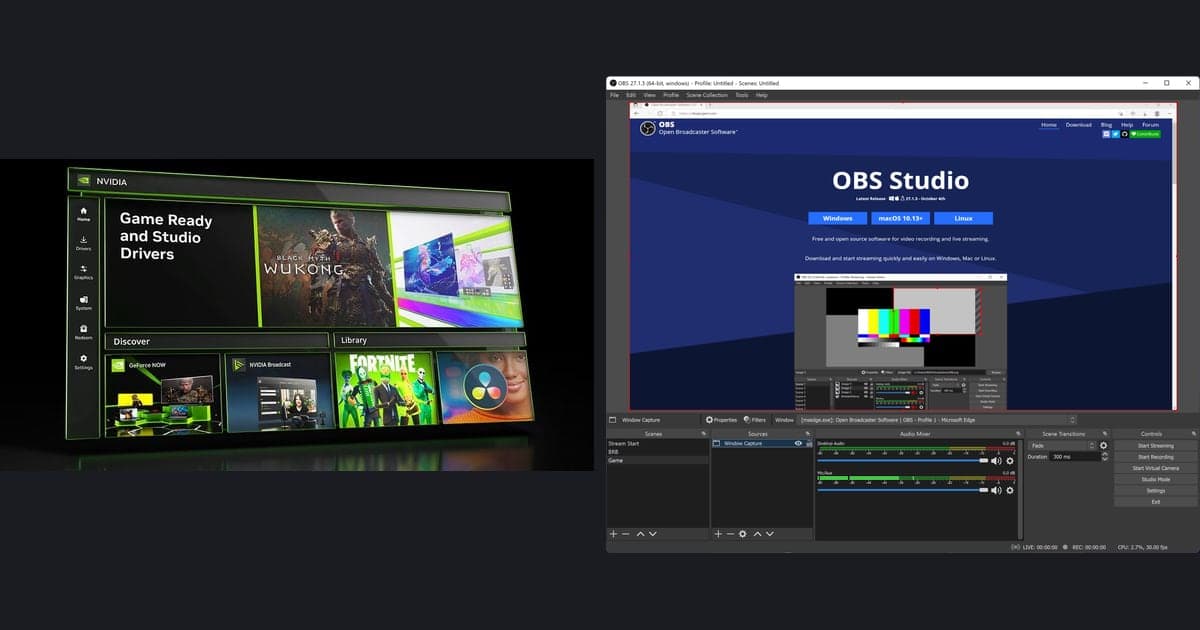
XSplit vs OBS Studio has no single winner, because the right pick depends on your limits. If you want a free tool with unlimited scenes and plugin support for both recording and streaming, OBS Studio fits; if XSplit's workflow appeals to you and you can live with the Free plan limits (a watermark above 720p or 30 fps, 4 scenes), XSplit Broadcaster is a candidate. Every value below comes from each product's official pages as opened on September 30, 2026, and prices and versions change often, so reopen the pricing page before you pay. If you are weighing tools beyond these two, see OBS alternatives.
One-line verdicts by situation
If you want to stay on a free tool long term and add scenes and sources freely, OBS Studio is the natural fit: its official home page lists it as free and open source and describes unlimited scenes. If you run light personal streams at 720p and 30 fps or below, XSplit Free is worth a look; background removal (which carries a watermark on Free), simultaneous multi-platform streaming, and commercial use call for the Premium plan according to the pricing page. The official pages give no basis for calling either one better overall, so the most reliable test is a short recording on your own PC with your own game. To choose among other recording programs by how you plan to use them, read our recording program recommendations.
Side-by-side table from official pages (checked September 30, 2026)
| Item | OBS Studio | XSplit Broadcaster |
|---|---|---|
| Price | Free and open source (official home page: Free and open source software for video recording and live streaming) | Free $0, Premium $14.99 monthly or $59.99 yearly (the yearly plan is shown as about $5 a month). The Lifetime amount is not given here because official pages disagree on it |
| Free-plan limits | The home and download pages carry no separate limit or watermark wording (and no official statement that there is no watermark) | Free lists a watermark above 720p, above 30 fps (up to 240 fps), and with AI background removal or the virtual camera, plus personal use only. The FAQ says a small logo is added to the stream above 720p; whether recorded files follow the same rule is not confirmed |
| Scenes | Unlimited scenes | 4 on Free; Premium lists unlimited scenes and resolutions |
| Supported OS | Windows 10 and 11 (x64), macOS (Intel and Apple Silicon), Linux (Flatpak, Ubuntu PPA). The minimum macOS version differs between official pages, so check the download page | The system requirements FAQ lists Windows 10 64bit. Windows 11 and macOS are not mentioned in that document |
| Requirements | DirectX 10.1 compatible GPU on Windows. CPU needs vary considerably with encoder, resolution, FPS, and scene complexity | Minimum: 2nd-gen Core i5 or equivalent, 8GB RAM, a DirectX 10.1+ GeForce/Radeon card, 250MB free space, 500kbps+ upload. Recommended: 2nd-gen Core i7 or equivalent, 5Mbps+ upload for HD |
| Recording | MKV is recommended because a crash does not corrupt the whole file; MP4 via the built-in Remux. Advanced mode lets you pick the encoder | Recording with multiple audio tracks and cue points, raw gameplay recorded separately while streaming with camera and overlays, NVIDIA encoding (including AV1). The recording format is not stated on the product page |
| Streaming and extras | Studio Mode, Multiview, custom transitions and hotkeys, per-source audio filters, plugins and scripting (Lua/Python) | Animated scenes and effects, background blur/removal/replacement, chroma key, noise suppression, an extension store, multi-platform streaming (listed under Premium) |
| Performance | No official figure compares it with XSplit; the Auto-Configuration Wizard is recommended | No official figure comparing it with OBS was found |
Checklist for picking your side
- I checked whether the Free plan limits (watermark above 720p or 30 fps, 4 scenes) fit my streaming and recording setup.
- I decided whether my use is commercial and, for XSplit, confirmed on the pricing page whether Premium is required.
- I confirmed that my operating system appears in each product's official supported-OS wording.
- I wrote down the features I truly need, such as scene count, plugins, background removal, or multi-platform streaming, and matched them against each product page.
- I recorded a short clip with the same game and settings in both tools and compared frame rate and CPU/GPU usage myself.
- If I am moving existing scenes, I backed up the scene collection and checked each imported source.
How to move over when you switch
- 1Split what moves from what you rebuild — According to OBS documentation, a scene collection stores all Scenes and Sources plus the global audio sources from Settings > Audio. A profile stores Stream (including connected accounts), Video (including base resolution), and Output, but not scenes. Scene layout and output settings live in different places, so you need to carry each one separately.
- 2From XSplit to OBS: import the scenes — The OBS documentation says the Import option under Scene Collection > Import Scene Collection supports migrating scenes from OBS Classic, XSplit Broadcaster, and Streamlabs Desktop. The document gives no step-by-step procedure and no list of sources or filters that get lost, so after importing, open each source and confirm that picture and sound work.
- 3From OBS to XSplit: back up first — The XSplit product page lists an OBS scene import capability, but when this article was written the procedure and what it carries over could not be confirmed. Start by saving your current scenes with Scene Collection > Export Scene Collection in OBS, then compare the imported result against your original layout yourself.
- 4Move output settings through the profile — OBS keeps Output Mode (Simple or Advanced), Recording Format, and Video Encoder under File > Settings > Output, and they are saved in the profile rather than the scene collection. Profile > Export Profile and Import Profile (JSON files) move those settings between OBS installs. There is no official statement that they carry into XSplit, so set them again there.
- 5Reassign hotkeys in each program — In OBS, hotkeys are set under File > Settings > Hotkeys. The official documentation does not describe importing hotkeys from another program, so set the key that starts and stops recording again in both, and check that it does not clash with a key used inside your game.
- 6Record a short test and check the file — Right after switching, record a short clip and confirm that game audio and microphone are both present and that the resolution and frame rate match what you intended. OBS recommends MKV and offers File > Remux Recordings if you need MP4. XSplit's product page does not state the saved format, so judge it from the file it actually produces.
A third option if setup itself is the obstacle
Both OBS and XSplit ask you to build scenes and sources and pick output options before they record anything. If that groundwork is the part you dread and saving your gameplay is all you need, DOR, a free Windows app, is worth a look. When a supported game starts, DOR detects it on its own and saves the whole match as an mp4 file. On an NVIDIA graphics card, NVENC does the encoding by default, and game sound and your microphone end up in the same video. That means a match with your own commentary can be kept without designing a scene or choosing output options first. DOR is not a live-streaming or multistreaming tool and works only with supported games. If OBS setup has stalled on you, read how to switch to automatic recording when OBS is too complicated, and for a wider look at free recorders, see the free game recorder comparison.
Official sources and how to verify
OBS supported OS and requirements come from the OBS system requirements page, scene collections and XSplit scene import support from the OBS scene collections page, and XSplit pricing and free limits from the XSplit pricing page, all opened on September 30, 2026. The XSplit system requirements FAQ and the OBS profile and recording output guides were also used. Prices, versions, and supported OS can change, so confirm the current values on those pages.