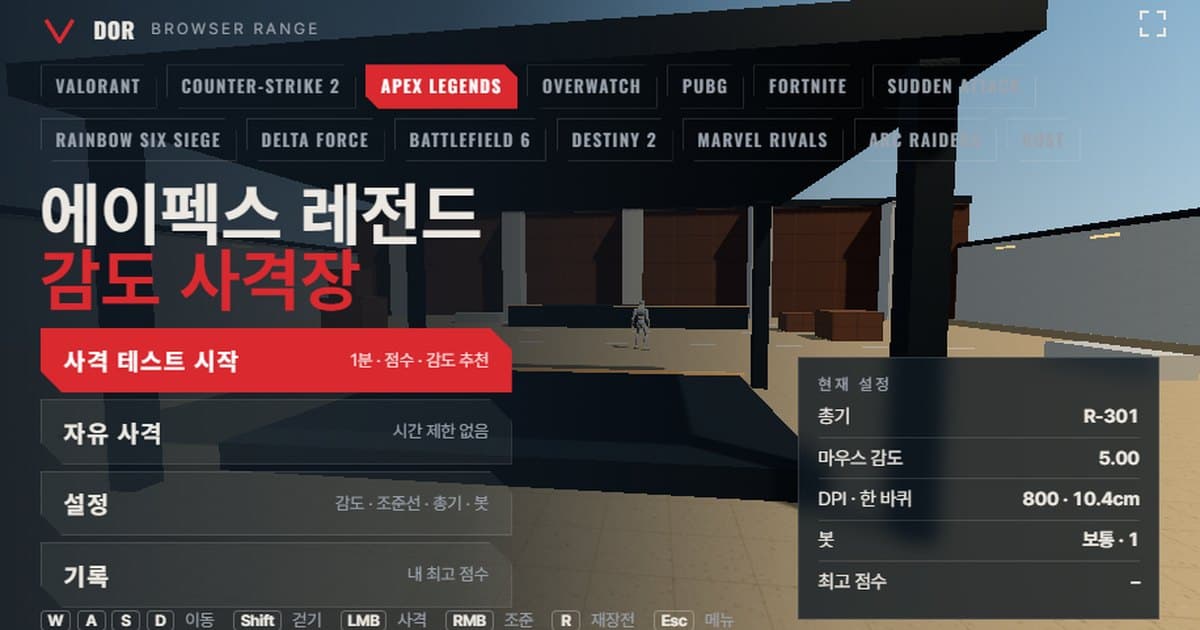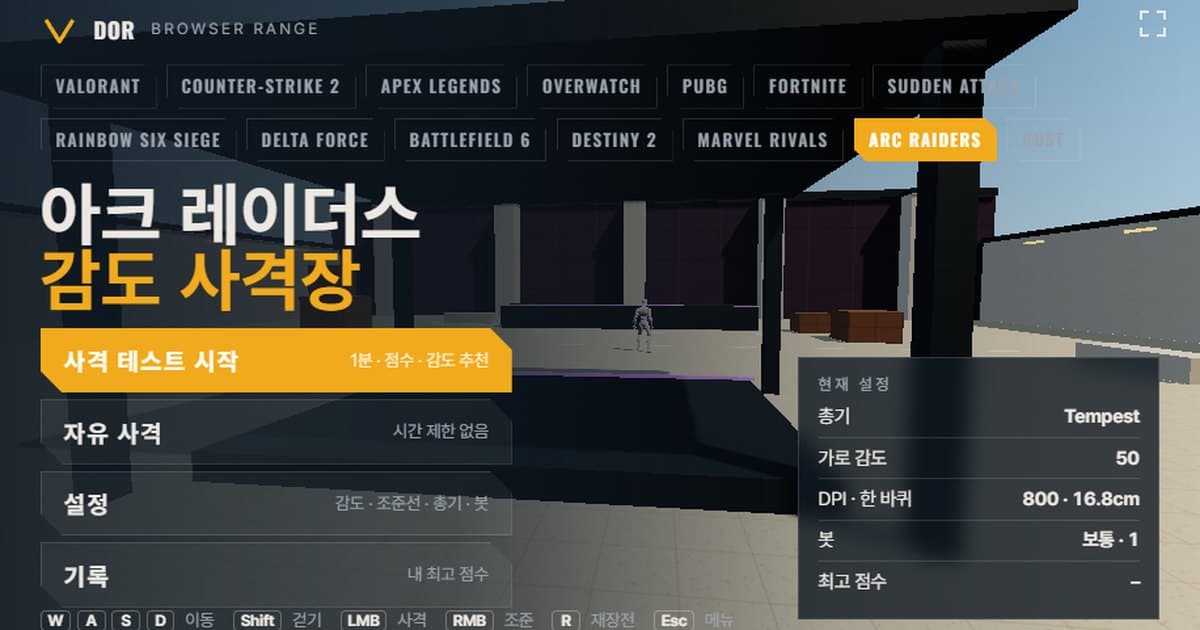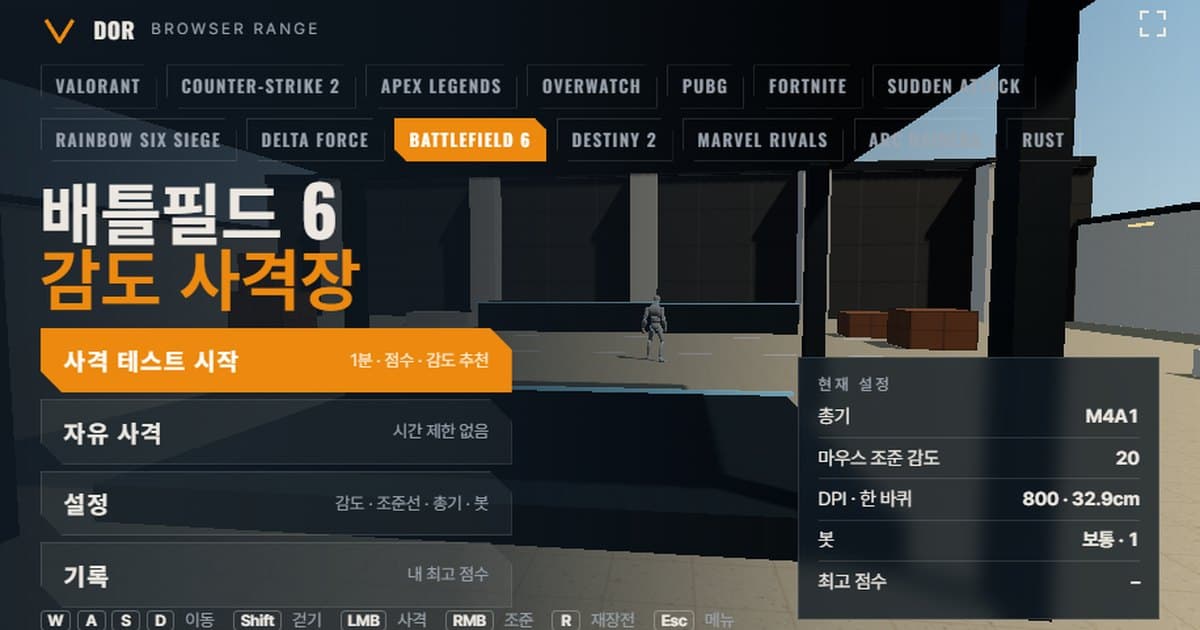
Battlefield 6 sensitivity is set with the Mouse Aim Sensitivity slider under Settings (gear) > Mouse & Keyboard > Infantry, as a whole number from 0 to 100; the out-of-the-box default is not documented, but EA's recommended starting value and this range's default are both 20. The screen above is a browser range for checking that number. It matches the game profile's mouse turn rate and 90° horizontal FOV. Enter your infantry sensitivity and DPI in the Settings menu exactly as they are in the game, run the 1-minute test, and you get kills, accuracy, headshot rate and the average time from a target spawning to its kill. On every kill it judges whether your crosshair overshot or stopped short of the target, and on the result screen it suggests whether to lower or raise sensitivity by 10%. There is nothing to install; it opens straight away in Chrome or Edge on PC. Because it uses raw input with the mouse locked to the screen, correct behaviour is not guaranteed on mobile or in other browsers.
Aim settings in Battlefield 6 do not end with a single sensitivity number. The 0–100 infantry sensitivity, the zoom sensitivity coefficient and the FOV slider all interact, and sensitivity converter sites use different turn constants, so cm/360 results diverge as well. This article therefore starts by stating what the range takes from the game as is and what it simplifies, then walks through the settings system and the uncertain points in order. Ranges for other games and shared usage notes are in the browser sensitivity range guide.
What matches Battlefield 6 settings and what does not
The goal of the range is 'enter the same number, turn the same distance'. The turn rate and FOV use the game's values as they are; movement speed and target health come from public sources, with unconfirmed parts filled in with assumptions. Check the table below to see which cells are game values and which are range assumptions.
| Item | Battlefield 6 | Range | Notes |
|---|---|---|---|
| Turn rate | °/count = 0.0017362 × infantry sensitivity (per community converter sites) | Same formula applied | Not confirmed by official documentation. Constants differ by up to 45% between converter sites |
| Field of view | Field Of View slider under Camera Settings, horizontal basis, reset value 90 (per community guides) | Horizontal 90°, fixed 16:9 | EA Help recommends 110 as a starting point. Whether hipfire turn rate changes with FOV is unconfirmed |
| Movement speed | Sprint 5.99 m/s (community measurement) | Sprint 5.99 m/s, walk 3.29 m/s | No public figure for walk speed, so it is a range assumption |
| Bot health/armor | 100 HP (back-calculated from damage and TTK tables), armor plate health unpublished | 100 HP, heavy armor 150 HP | Heavy 150 is a range assumption |
| Weapons | All infantry weapons, stats vary with attachments | 7 (M4A1 · PW7A2 · M87A1 · SVK-8.6 · L110 · P18 · M2010 ESR) | Approximations based on default attachments |
How to run the 1-minute test
- 1Enter sensitivity and DPIIn the menu, open Settings > General and enter the number from the game's Settings > Mouse & Keyboard > Infantry > Mouse Aim Sensitivity exactly as it is, then type in your mouse DPI. The range input accepts 1–100. DPI is not used in the turn calculation; it only feeds the cm/360 readout under Calculated.
- 2Pick a weaponIn the Weapons tab, choose one of the 7 weapons. If this is your first run, the M4A1 is a safe pick because it handles both spray and single taps. Fire rate, magazine and damage for each weapon are shown inside the tab.
- 3Start the testPress Start test in the menu; the mouse locks to the screen and the 1-minute countdown begins. Press the Fullscreen button first so the cursor never snags on a browser tab or the address bar.
- 4Shoot for one minuteAim and fire as targets appear. Pressing ESC pauses the run and brings the cursor back; press Resume to continue. If a message says the mouse lock was released, wait 1–2 seconds and press Resume again.
- 5Read the resultThe Round result screen shows kills against targets spawned at the top, then Accuracy, Headshot rate, Avg kill, Spawn → first shot avg, Shots per kill, Overshoot / undershoot, Missed targets and Best (same setup), with the sensitivity suggestion below them.
- 6Repeat 2–3 times the same dayPress Retry same setup or Retry with suggested sens to go again. When two or three results point the same way, put that sensitivity into the game.
Settings are split into five tabs, General, Crosshair, Weapons, Bots and Audio & Video, and are saved in this browser. In the Bots tab you can change how long a target stays before vanishing (Easy, Normal, Hard), heavy armor, the number of targets at once and strafing. Keep these fixed while you compare sensitivities so the rounds stay comparable. Crosshair color and thickness do not affect results, so set them to look like the one you use in the game.
How to read the result screen
- Accuracy: the share of shots that hit a target. The M87A1 counts a shot as a hit if any one of its 8 pellets connects, so its accuracy reads high; do not compare it directly with other weapons.
- Headshot rate: the share of hits that landed on the head. Battlefield 6 uses a 1.4× head multiplier for automatic weapons (standard ammo), so even the M4A1 needs 3 headshots or 4 body shots; as this rate rises, shots per kill fall. Read it as a check on your aim height.
- Avg kill: the average time from a target appearing until it drops. It is the first number to move when you change sensitivity.
- Spawn → first shot average: the time from seeing a target to firing the first round. It reflects reaction speed more than sensitivity, and it is normal as long as it does not swing wildly between rounds.
- Shots per kill: the rounds spent on one target. Against 100 HP targets, a rifle doing 25 body damage has a theoretical 4; if you stray far above that, your tracking wobbled.
- Overshoot / undershoot: on each kill the range judges whether the crosshair passed the target or stopped short of it, and this is the running count. If the two together are under 5, the sample is too small and no suggestion is given. Above 60% overshoot it suggests a sensitivity 10% lower; above 60% undershoot, 10% higher. At infantry sensitivity 20 that is 18 and 22 respectively.
Battlefield 6 sensitivity settings explained: infantry sensitivity, zoom coefficient, FOV
Infantry sensitivity lives under Settings (gear) > Mouse & Keyboard > Infantry > Mouse Aim Sensitivity, and EA's PC and controller settings guide calls it Infantry Mouse Aim Sensitivity. It is an integer slider from 0 to 100 (the range's input takes 1–100), and Vehicle Mouse Aim Sensitivity sits separately under Vehicles. The same guide recommends Infantry Mouse Aim Sensitivity 20, Zoom Sensitivity Coefficient 178 and Vehicle Mouse Aim Sensitivity 20–40 as a starting point, and suggests testing values in the in-game Firing Range. The range also defaults to 20, but whether 20 is the value on a fresh install is not stated in official documentation. According to community guides, the slider is stored as GstInput.MouseSensitivity in the PROFSAVE_profile file inside the Battlefield 6 settings folder under Documents, as the menu value divided by 1333.33 (0.00075 per step). This also fits the structure of a DICE designer's advice (reported by MP1st) that doubling your previous Battlefield slider value gives a similar feel.
cm/360 calculation and the uncertainty of the constant
0.0017362 is the °/count per slider step, an unofficial constant derived from aiming.pro's conversion table (2.31496° per settings unit, menu value ÷ 1333.33). yawsens and the Jotunn guide use 0.0025079, while West Games and Recharge use 0.0022 (an estimate), so converter sites differ by up to 45%.
| Infantry sensitivity | °/count | cm/360 at 800 DPI | With the other constant (0.0025079) |
|---|---|---|---|
| 15 | 0.0260 | 43.9 cm | 30.4 cm |
| 20 | 0.0347 | 32.9 cm | 22.8 cm |
| 30 | 0.0521 | 21.9 cm | 15.2 cm |
Uniform Soldier Aiming and the zoom sensitivity coefficient
Battlefield 6 has a Uniform Soldier Aiming option, and according to a DICE designer it is on by default. When it is on, aim-down-sights sensitivity is set by a single value, the Zoom Sensitivity Coefficient (EA's official name). This is the monitor-distance matching used in Battlefield 4 and 2042: 178 matches 100% of the horizontal distance on a 16:9 screen, 133 matches 4:3 and 0 is focal-length scaling. EA Help recommends 178 as a mouse starting value, and community reports say the default during the beta was 133. With the option off, a Zoom Aim Sensitivity slider (0–100, like hipfire) and per-magnification adjustments (1.25x, 1.5x, 2x, 2.5x, 3x, 4x, 6x, 8x, each 0–200%) apply instead; 1.25x is the lowest zoom level, which covers iron sights and red dots.
The range simplifies this system into a single Scoped sensitivity multiplier (default 1.0) in the General tab. While aiming with right click, it divides the hipfire turn rate by the weapon's magnification and multiplies by this value, so the default 1.0 works the same way as Battlefield 6's coefficient 0 (focal-length scaling). Plugging horizontal 90° and 16:9 into the community-documented matching formula, coefficient 178 gives an ADS sensitivity about 7% faster than focal-length scaling at 1.25x, about 21% at 2.5x and about 26% at 6x. If you use 178 in the game, setting the range multiplier near 1.07 (1.25x weapons), 1.21 (SVK-8.6) or 1.26 (M2010 ESR) gets you close, but these are calculated values, not measurements.
The FOV setting and the range's 90°
Field of view lives in the Field Of View slider under Settings > Graphics > Camera Settings. The slider number is horizontal (16:9 equivalent), and the menu also shows the vertical value. Community guides list a range of 85–120 with a reset value of 90, and EA Help recommends a FOV of 110 and Weapon Field of View set to Wide as a starting point. The Frostbite engine stores the vertical value, so on 21:9 or 32:9 screens the same slider value shows a wider view. The range is fixed at horizontal 90°, 16:9, so if you play at 110, targets look smaller in the game than in the range and crosshair movement on screen feels different even at the same cm/360. Whether hipfire turn rate changes with FOV as in earlier Frostbite titles has not been confirmed for Battlefield 6, so check the sensitivity you set in the range once more in the game.
The 7 range weapons and which to pick per drill
| Name | Fire rate (rpm) | Magazine | Reload (s) | Head · body damage | ADS zoom |
|---|---|---|---|---|---|
| M4A1 | 900 | 30 | 2.2 | 35 · 25 | 1.25x |
| PW7A2 | 947 | 40 | 2.01 | 23 · 16 | 1.25x |
| M87A1 | 94 | 8 | 1.17 | 134 · 134 | 1.25x |
| SVK-8.6 | 149 | 10 | 2.97 | 99 · 66 | 2.5x scope |
| M2010 ESR | 43 | 5 | 3.23 | 175 · 100 | 6x scope |
| L110 | 720 | 100 | 6.5 | 35 · 25 | 1.25x |
| P18 | 400 | 17 | 1.97 | 34 · 25 | 1.25x |
For one-tap drills, the M2010 ESR and SVK-8.6 fit. The M2010 ESR does 100 to the body, so in the range any hit is one shot and only the accuracy of 'stop and shoot' remains (in the game, sniper rifle hits to the stomach and limbs take 0.67× since Update 1.3.3.0, so a one-shot is not guaranteed). The SVK-8.6 does 99 to the head and 66 to the body, so a 100 HP target always needs two hits, which shows how quickly you reacquire for the second shot. For spray drills, the PW7A2 at 16 damage and 947 rpm needs 7 hits to finish, so it exposes tracking best, and the L110's 100-round belt lets you chase strafing bots for the whole minute without reloading. For flick drills, the P18 is good: semi-auto at 400 rpm with 4 body shots means you must hold the aim point through four clicks, and the overshoot/undershoot tally builds up most clearly. Keep the M4A1 as the baseline weapon and run each of the three drills once with it.
Limits of a browser range and how to compensate
- Raw input and OS acceleration: the range requests unaccelerated movement under pointer lock, but in some environments acceleration can leak in if Windows' Enhance pointer precision is on. Turn it off so the conditions match the game.
- Input processing interval: browsers batch mouse events per frame, so the fine input timing of a 4,000–8,000 Hz mouse may differ from the game. The total turn distance is the same, but if it feels different, drop the polling rate to 1,000 Hz for comparison.
- No recoil patterns: the range's recoil is a magnitude-only model, with none of Battlefield 6's per-weapon recoil direction or attachment adjustments. Practice spray control in the actual game.
- Simplified movement error: turning on Movement & firing error in settings makes the crosshair bloom while moving, but it does not reproduce accuracy changes after a slide or jump, or speed differences by weapon mobility stats (a community measurement of 7.12 m/s with a knife equipped).
- FOV fixed at 16:9: only horizontal 90°, 16:9 is supported. If you use a 21:9 screen or 110 FOV, target size and edge distortion differ, so use the range only for A/B comparisons of sensitivity and confirm absolute values in the game.
- How to compensate: alternate only two sensitivities with the same weapon and bot settings, and make the final call after playing two or three matches in the game at the same cm/360.
Moving sensitivity from another game to Battlefield 6
If you want to keep the cm/360 you used in another game, first find that game's cm/360, then solve the formula above for infantry sensitivity: infantry sensitivity = 2.54 × 360 ÷ (DPI × 0.0017362 × cm/360), which gives 20 if you want to keep 32.9 cm at 800 DPI. Per-game constants and a calculator are in the sensitivity & DPI converter, and comparing with the CS2 sensitivity settings guide, where raw input and the turn constant are officially published, shows why the Battlefield 6 constant is shaky. The slider units differ, but the same cm/360-based method applies to the Delta Force range as well. Either way, after converting, run the 1-minute test here two or three times and check the overshoot/undershoot direction.
Verifying in real matches after setting sensitivity: DOR
A range score is a number under controlled conditions; whether the sensitivity you chose also holds in real matches only shows when you rewatch your fights. When DOR detects Battlefield 6, it records your matches automatically, and you can save a clip of any moment with a single hotkey. Trim clips in the browser editor and share them with a dor.gg link. It is free and runs on Windows. Collecting the clips from the day you changed sensitivity shows whether the overshoot or undershoot seen in the range repeats in real fights. Supported scope and installation are on the Battlefield 6 recording page, and game information is on the official EA Battlefield 6 page.
 #Battlefield 6