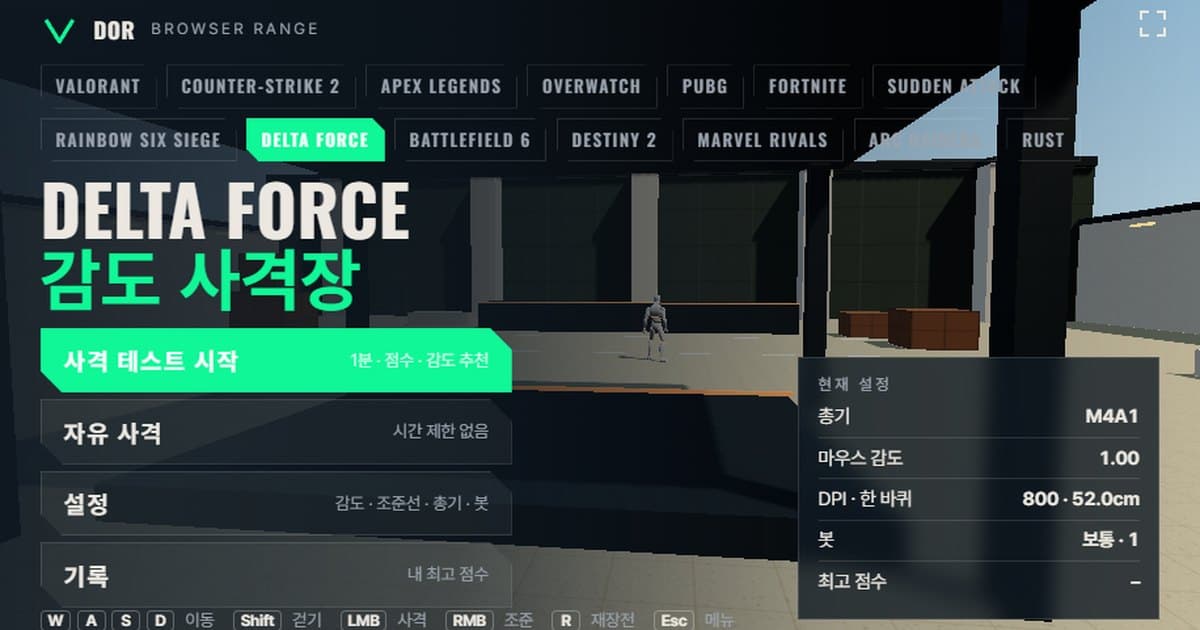
Delta Force sensitivity is set under Settings > Keyboard & Mouse > Sensitivity > Mouse Sensitivity with two decimal places, and one community converter lists a 0.1–10 range with a default of 1.0 while another lists 0.5–5 with a default of 2, so neither the range nor the default is officially confirmed. The range above lets you test the value you use there in one minute, because it reproduces Delta Force's mouse turn rate and field of view in the browser. Enter your sensitivity and DPI the way you would in the game settings, pick a weapon and kill targets for one minute. You get a score (kill count), accuracy, headshot rate and the average time from a target spawning to its kill, and the range tracks whether your crosshair overshot or stopped short of targets to suggest a sensitivity 10% lower or higher. It needs mouse lock and WebGL2, so it opens only in Chrome or Edge on PC, with no install or login. How it works and the profiles for other games are covered in the browser sensitivity range guide.
What the range matches in Delta Force and what it does not
The range matches the five items below to Delta Force. Keep in mind that the developer has not published a sensitivity formula or movement speeds for Delta Force, so the turn rate is the value community converter sites share, and the movement speed and armor are approximations made for the range. For reference, the game's official site uses the title Delta Force, which is also the name used throughout this article.
| Item | Delta Force | Range | Notes |
|---|---|---|---|
| Turn rate | Not published · converter sites use 0.022°/count × sensitivity | 0.022°/count × sensitivity | Community estimate, same ratio as CS2 |
| Field of view | Default FOV slider, default 90 · max 120 | Horizontal 90° (fixed 16:9) | The default of 90 rests on a single converter site, so the evidence is thin |
| Movement speed | No m/s figures published | Run 5.5 m/s · walk 3.03 m/s | Approximation for the range |
| Bot HP · armor | Soldiers 100 HP (Warfare); Operations uses durability-based armor | 100 HP · heavy armor option 150 HP | Heavy armor is a simplified value |
| Weapons | Dozens | 7: M4A1, AKM, Vector, SR-25, AWM, M870, Desert Eagle | Damage based on Warfare |
How to run the 1-minute Delta Force sensitivity test
- 1Enter sensitivity and DPIIn Settings > General, enter your mouse sensitivity exactly as it is in the game (for example 1.00) and type in your mouse DPI. DPI does not affect turning; it is only used to display eDPI and cm/360.
- 2Pick a weaponIn the Weapons tab, start with an automatic rifle such as the M4A1. Fire rate, magazine and damage are shown inside the tab, so choose the class you use most in the game.
- 3Start the testPress Start test in the menu and click the screen; the mouse locks and the 1-minute timer starts. Press the Fullscreen button first so you do not have to worry about the window edges.
- 4Kill targets for one minuteAim and kill targets as they appear. The Bots tab lets you change bot speed, bot movement and the number of targets at once, but keep the same conditions while you are comparing sensitivities.
- 5Read the resultWhen the timer ends, the Round result screen appears. Before the kill count and accuracy, look at the Overshoot / undershoot line and the sensitivity suggestion sentence below it.
- 6Repeat 2–3 times the same dayUse the Retry with suggested sens button to adjust one step and measure again. When the results converge on one value, put that value into the game.
Pressing ESC during a run pauses it and brings the mouse cursor back. Resume continues the run, and Quit discards that round without recording it. Settings are split into five tabs, General, Crosshair, Weapons, Bots and Audio & Video, and are saved in this browser, so the next time you open the range you can keep measuring with the same combination.
How to read the result screen
- Accuracy: hits divided by shots fired. A weapon like the Vector, which fires 1,091 rounds per minute, tends to show low accuracy, so compare only runs with the same weapon.
- Headshot rate: the share of your hits that struck the head. It generally rises as you lower sensitivity, but lower it too far and your Avg kill time grows.
- Avg kill: the average time from a target appearing to its kill. It is the number that best shows what you gain or lose when you change sensitivity.
- Spawn → first shot avg: the time from noticing a target to firing the first shot, which mixes reaction time with how fast you move your aim.
- Shots per kill: the rounds spent on one target. The M4A1 deals 20 body damage, so a 100 HP bot takes 5 body hits, or 3 if every hit lands on the head (38); look at how many more than that you used.
- Overshoot / undershoot: for every target you kill, the range tracks horizontal error while you were aiming and counts it as overshoot when the crosshair passed the target and undershoot when it stopped short. When one side exceeds 60%, it suggests a sensitivity 10% lower or higher; with fewer than 5 samples it only tells you the sample is too small.
- Missed targets: targets that vanished before you killed them. Raising Bot speed to Hard makes targets disappear sooner and pushes this number up, so leave bot speed alone while you compare sensitivities.
Delta Force's sensitivity system and cm/360 conversion
Delta Force's mouse sensitivity lives under Settings > Keyboard & Mouse > Sensitivity > Mouse Sensitivity, with separate horizontal and vertical sensitivity multipliers (default 1.00) below it. Values take two decimal places. The slider range and default are not confirmed by official documentation. Community converter sites disagree with each other, listing 0.1–10 (default 1.0) and 0.5–5 (default 2); since media guides recommend values like 5–8, the range uses 0.1–10 with a default of 1.00.
Turn rate is calculated as 0.022° per count × sensitivity. This constant is a community estimate shared by three converter sites, and the developer has never published it. It means the sensitivity numbers map 1:1 to CS2, which uses the same 0.022, so if you play CS2 you can enter the value you used in the CS2 sensitivity range as is.
The distance on the pad needed to turn a full 360°. The 0.022°/count figure comes from community converter sites and is not confirmed by official documentation.
| Mouse sensitivity | eDPI (800 DPI) | cm/360 | Feel |
|---|---|---|---|
| 1.00 | 800 | about 52.0 cm | Converter-site default, on the low side |
| 1.50 | 1,200 | about 34.6 cm | Medium |
| 2.00 | 1,600 | about 26.0 cm | On the high side |
ADS sensitivity rules
Delta Force's aim-down-sights sensitivity is monitor-distance based by default. The setting names guides list are ADS Sensitivity Type = MDV Only, Monitor Distance Coefficient 1.33 and ADS Sensitivity Multiplier 1.00; switching the type to per-magnification brings up a table where each magnification, 1x dot, 1.25x, 1.5x, 2x, 2.5x, 3x, 3.5x, 4x, 6x and 8x, takes its own multiplier (default 1.00). Whether 1.33 is the factory default is not confirmed by official documentation. The range does not reproduce this system; it applies the single Scoped sensitivity multiplier (default 1.0) from the General tab to right-click aiming, so the feel at 6x on the AWM can differ from the game. The monitor-distance math per magnification is the same as in the PUBG scope sensitivity calculator.
Delta Force weapons in the range
Weapon figures approximate published values for Warfare mode. Reload times are not published anywhere, so they are estimates for the range, and head damage is back-calculated from multiplier changes in the patch notes (1.9x for rifles and SMGs, 2.1x for the SR-25, 2.2x for the Desert Eagle).
| Name | Fire rate (rpm) | Magazine | Reload (s) | Head · body damage | ADS zoom |
|---|---|---|---|---|---|
| M4A1 | 800 | 30 | 2.3 | 38 · 20 | 1x |
| AKM | 600 | 30 | 2.5 | 49 · 26 | 1x |
| Vector | 1,091 | 17 | 2.0 | 38 · 20 | 1x |
| SR-25 | 364 | 10 | 2.4 | 74 · 35 | 1x |
| AWM | 35 | 5 | 3.6 | 100 · 100 | 6x scope |
| M870 | 74 | 6 | 3.3 | 456 · 240 (8 pellets combined) | 1x |
| Desert Eagle | 207 | 7 | 1.9 | 110 · 50 | 1x |
For one-tap practice, the Desert Eagle and SR-25 fit best. The Desert Eagle kills a 100 HP bot with one head hit (110) and the SR-25 with a head hit plus a body hit (74 + 35), so your headshot rate becomes your score. Do spray practice with the M4A1 and AKM and watch whether shots per kill drops to around 5–6 on the M4A1. For flick practice, use the AWM with bot movement on and more targets at once, and check the Overshoot / undershoot line to see whether your horizontal flick passes or stops short of the target before you open the scope.
Limits of a browser range and how to compensate
- Raw input: the range requests raw input through pointer lock, but if the browser refuses, OS acceleration gets mixed in. If a raw input warning appears in the menu, turn off Enhance pointer precision in Windows and reopen the page.
- Input timing: browsers batch mouse events per frame, which shrinks the benefit of a 4,000–8,000 Hz mouse. It does not affect sensitivity comparisons, but fine tracking can feel rougher than in the game.
- No recoil patterns: the range does not reproduce the unique recoil path of a weapon like the AKM, only a simplified recoil amount and spread. Practice recoil control in the in-game range.
- Accuracy while moving: turning on the Movement & firing error option makes the crosshair bloom, but there is no speed difference by operator ability or weapon weight.
- Field of view: fixed at a single 16:9 horizontal 90°. If you play at 100–120 in the game, on-screen movement looks smaller at the same sensitivity, so carry the range result over but confirm it once more in the game.
- How to compensate: use the range to decide the direction, up or down, and do the final fine-tuning in the game while keeping the same cm/360.
Verifying in real matches after setting sensitivity: DOR
The fastest way to check whether the sensitivity you set in the range also works in real matches is to record them. When DOR detects Delta Force, it records your matches automatically, and you can save a clip of any moment with a single hotkey. Trim clips in the browser editor and share them with a dor.gg link. It is free and runs on Windows. Rewatching your fights shows whether your crosshair passes or stops short of targets, the same way the range's overshoot / undershoot count does. Support details are on the Delta Force recording page.
 #Delta Force