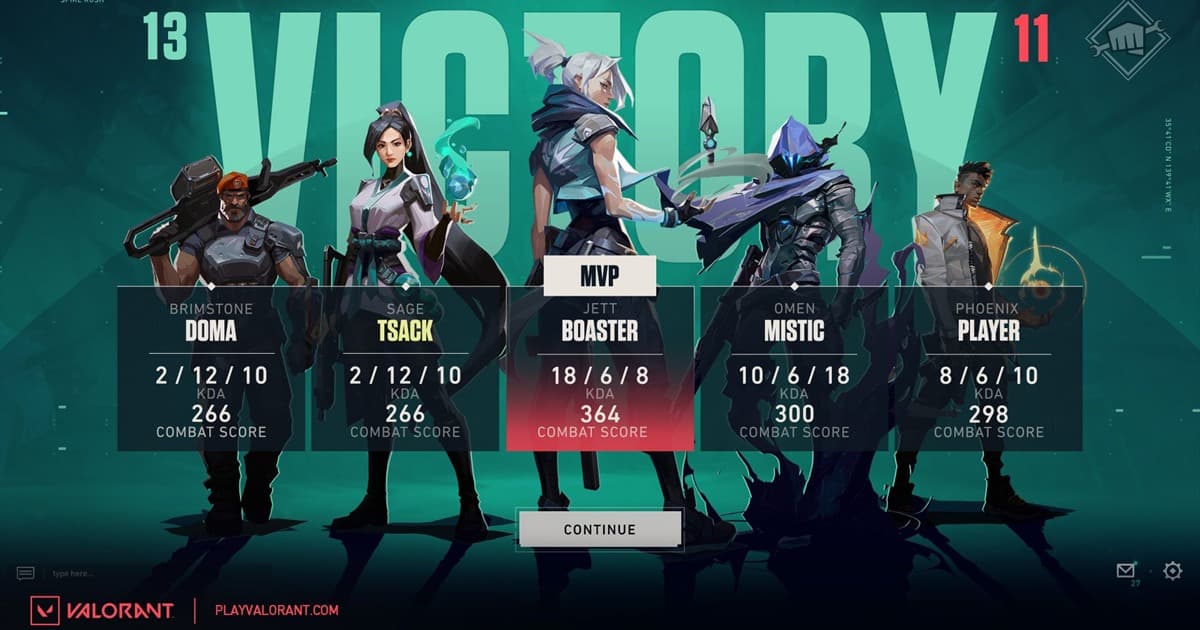
The best VALORANT clipping software depends on the job. Decide whether you need the last thirty seconds, a complete match, or editable footage, then record the same busy sixty-second scene with each candidate and compare frame time, game audio, microphone sync, and file size.
Pick the workflow before the app
DOR is a streamlined option for recording future sessions in supported games, OBS offers deliberate scene and track control, and NVIDIA App provides overlay-based capture on compatible GeForce hardware. The built-in VALORANT replay is useful for review, but replay data is not an ordinary video export; record replay playback or a future live match when you need an MP4. A VALORANT recorder should be tested in a round, not only in the practice range. Include team voice during buy phase, the exposure change at the edge of a smoke, a flash recovery, layered utility during a site entry, and a switch to spectator view after death. On a 144 Hz or 240 Hz setup, log one-percent-low FPS and frame time rather than only the average, then verify that the save shortcut does not collide with an ability or weapon key. Before publishing, review whether teammate voice, Riot IDs, party chat, or streamer information needs consent, muting, or cropping.
VALORANT clip recorder comparison
| Option | Best at | Verify first |
|---|---|---|
| DOR | A simpler supported-game recording flow | Game support and one test clip |
| OBS Studio | Scenes, resolution, and audio-track control | Setup time and encoder headroom |
| NVIDIA App | GeForce overlay and Instant Replay | Compatible GPU, overlay, and save folder |
| VALORANT replay | Changing viewpoints for match review | It is not a ready-to-upload video file |
Run a useful ten-minute comparison
- 1Write down one priority — Choose recent highlights, full-match review, or editing source footage as the primary job.
- 2Record the same minute — Use a practice area or low-stakes mode with movement, effects, and a readable interface.
- 3Listen to every source — Play the file in headphones and verify game sound, voice chat, and microphone in the intended mix.
- 4Measure the real cost — Note frame-time spikes, average FPS, and the one-minute file size instead of trusting a generic preset.
- 5Test the match-day shortcut — Choose a key that does not conflict with the game and confirm the file appears in the expected folder.
Selection checklist
- The HUD remains readable at the target resolution
- Frame pacing stays stable during a demanding fight
- Game and microphone audio reach the intended tracks
- There is enough disk space for a full session
- Recording indicators and privacy implications are understood
- Enemy outlines and the crosshair remain clear through smoke and flashes
- One-percent-low FPS and frame time stay stable at the target refresh rate
- Teammate voice and visible player names are cleared for publication
Where DOR fits for VALORANT
DOR does not convert third-party replay files or repair OBS and NVIDIA settings. It is an alternative for recording future play in supported games with a shorter setup path. Continue with the VALORANT game hub, game-specific recording guide, free game recorder comparison, and DOR automatic game recording, and the replay saving guide to compare the workflow and test it on your own hardware.
Check the official replay rules
The official VALORANT replay documentation describes replay controls, capabilities, or current limits. Because replay data can differ from exported video and may depend on the current client version, verify the live menu before relying on an old replay, then capture only footage you have the right to publish.