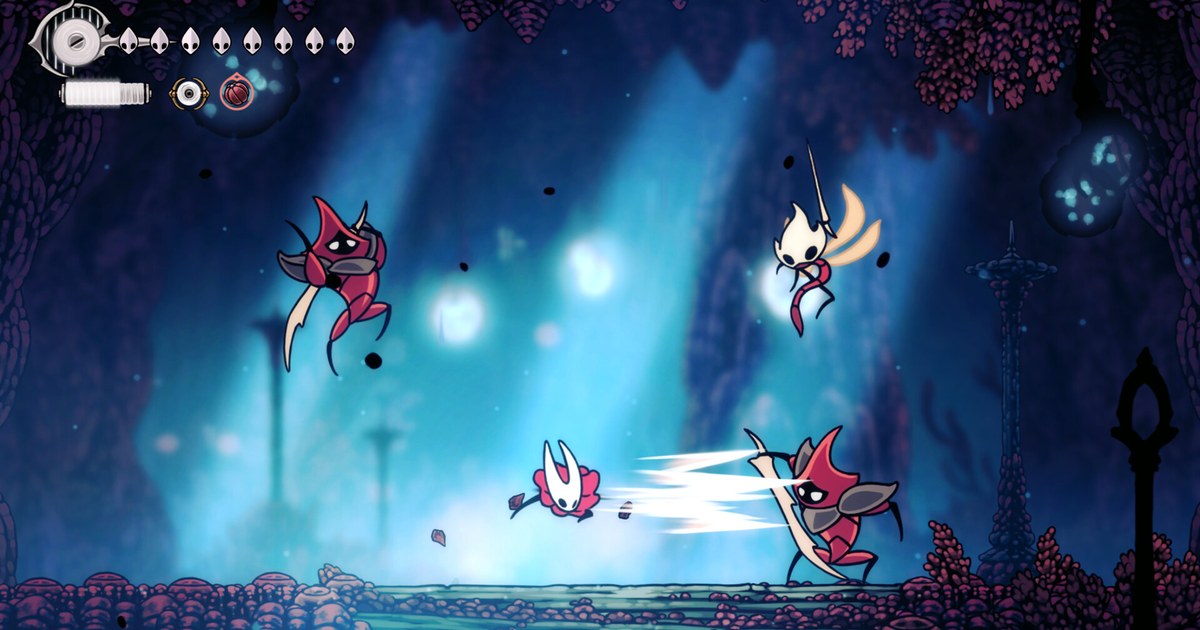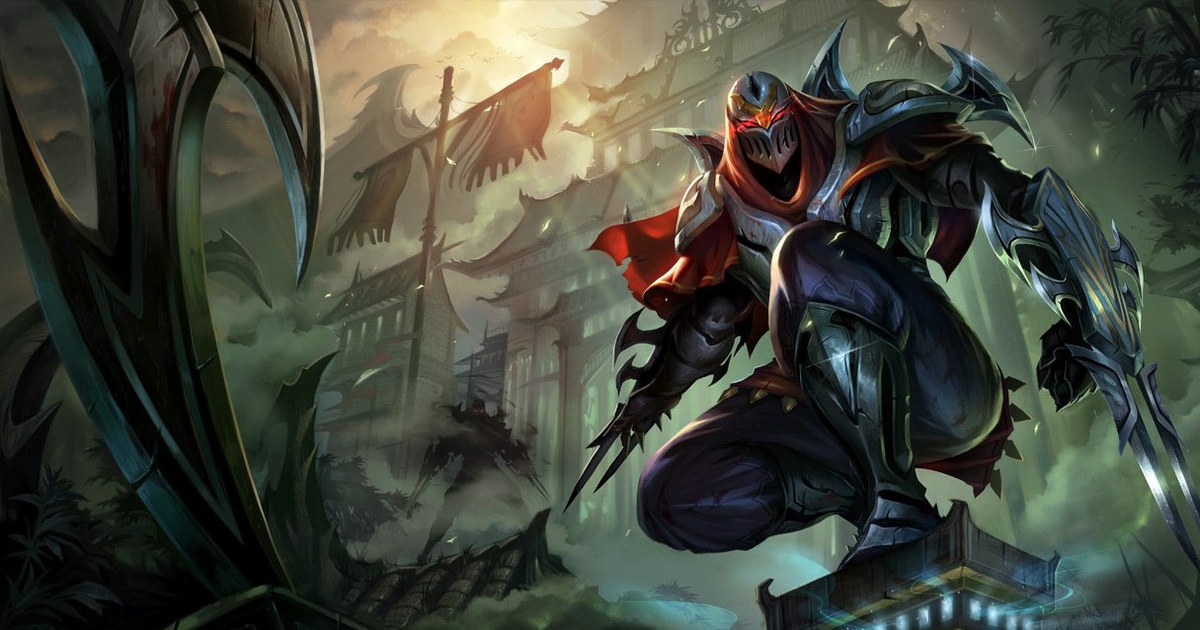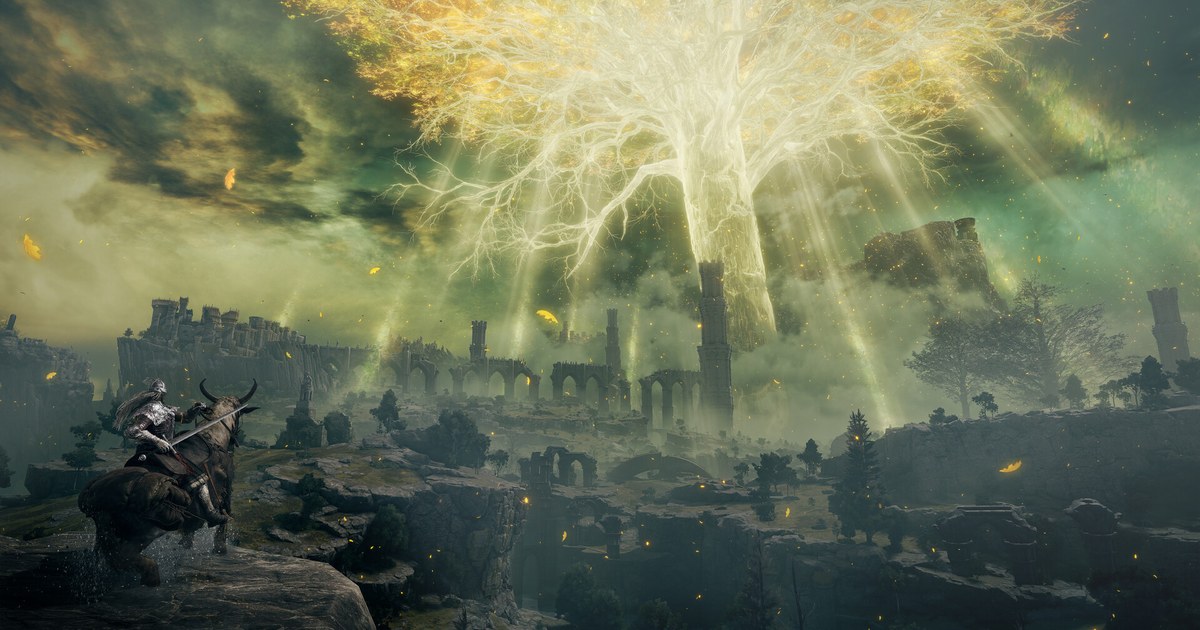
Here is the short answer: combining clips from different games works the same way as combining clips from one game. Decide the aspect ratio of the finished video, load your clips into DOR Studio, set the order, add transitions, text, and background music, then export an mp4.
The catch is that mixing games makes the look and the loudness of each clip very different, so simply gluing them together makes the video feel uneven. This guide focuses on how to smooth the points where the game changes.
The basic steps of joining clips are covered in how to merge game clips, so here we assume a monthly highlight reel from someone who played several games over the month. You need raw material before you can join anything, so the biggest time saver is leaving recording on and saving the scenes you like as you go.
The answer: one ratio, group by game, one label, one music track
A video made of several games feels like one piece if you keep four rules. First, decide the aspect ratio of the finished video at the start: 16:9 for a horizontal YouTube video, 9:16 for Shorts or Reels. Second, group the clips by game.
When games alternate scene by scene, viewers have to re-read the situation every time, which is tiring. Third, add the game name as a short text label at every point where the game changes. One line is enough, and the text style should stay the same across the video.
Fourth, lay one background music track from start to finish and bring the original clip sounds to a similar level. These four things are the glue that holds very different screens together. For a monthly highlight reel, it also works well to put the scenes that got the best reaction in the last group. You can read more about ordering clips in how to make a gaming montage.
How to combine clips from several games into one video
- 1Pick the scenes to use from My ClipsWhen you launch a supported game, DOR records the whole match automatically and keeps it in My Clips. For the seven games that create automatic event clips, start from those clips; for every other game, trim the scene you want from the full recording in the app and save it. Keep each clip to around ten seconds at most so the video does not drag once joined.
- 2Settle on one ratio for the finished videoWhen you trim a segment in the app, you can choose 16:9, 9:16, or 1:1 to match your final video. If clips with mixed ratios end up in one video, black bars are likely, so unify them from the start. For vertical videos, see how to turn a horizontal video into 9:16.
- 3Group by game and set the order in DOR StudioUpload your clips to DOR Studio (dor.gg/studio) and place them in the order of your game groups. Inside a group, going from shorter clips to longer ones keeps the rhythm alive. You can change the order after joining, so place everything roughly and play it once.
- 4Add a label and a transition where the game changesAt each point where the game changes, add the game name as text and pick just one transition to repeat in the same place. For options such as the glitch transition in the effect templates, see how to add glitch transitions to game clips. Mixing several kinds of transitions makes the video feel busy.
- 5Lay one music track and match the volumeLay one background track across the whole video, then play through and check whether each clip's original sound is too loud or too quiet, and adjust the volume. Games have different default loudness, so skipping this step makes one clip suddenly sound loud. For picking and fitting music, see how to add music to a game video.
- 6Export an mp4 or share a linkExport the finished video as an mp4 to upload to YouTube or social media, or send it to a friend right away with a dor.gg link. If file size worries you for Discord, see how to share clips on Discord.
Ways to arrange clips from several games
| Arrangement | Best for | How to do it |
|---|---|---|
| Group by game | Monthly highlights | Collect clips from the same game into one section and add a game name label where each section begins |
| Group by scene type | Kill reels, funny moments | Mix games but keep kills with kills and fails with fails so the mood does not jump around |
| Alternate quickly | One short for Shorts or Reels | Trim clips to around three seconds, cut between them fast, and use only one transition |
| Chronological order | A week or a month diary | Join clips in the order you played and add a date label to show the flow |
| Save the best for last | A video with one standout scene | Put solid scenes first and place the clip that got the best reaction in the final section |
| One round per friend | A video of games you played together | Gather the clips each friend sent into one video and mark whose scene it is with a name label |
Check before you export
- Every clip has the same aspect ratio and there are no black bars
- Clips are grouped by game and a name label marks each point where the game changes
- You used only one kind of transition
- The original sound of each clip is at a similar level
- The music runs as one track from start to end and does not cover voices
Collect scenes from many games and join them with DOR
DOR is a free Windows game recording app. When you launch a supported game, it detects it automatically and records the whole match, and recordings collect in My Clips. Automatic highlight clips are created in seven games: League of Legends, VALORANT, PUBG, FC Online, Fortnite, CS2, and Overwatch.
For any other game, you trim the scene you want from the full recording in the app and save it.
When trimming in the app you can choose 16:9, 9:16, or 1:1, and in DOR Studio (dor.gg/studio) you can join several videos, change the aspect ratio, and use effect templates such as shake zoom, punch zoom, handheld, and glitch transition, plus text, background music, and volume control.
The finished video exports as an mp4 with no watermark, or you can share it with a dor.gg link. For people who play several games, being able to gather scenes in one place without setting up a separate recorder for each game makes a monthly highlight reel much easier.