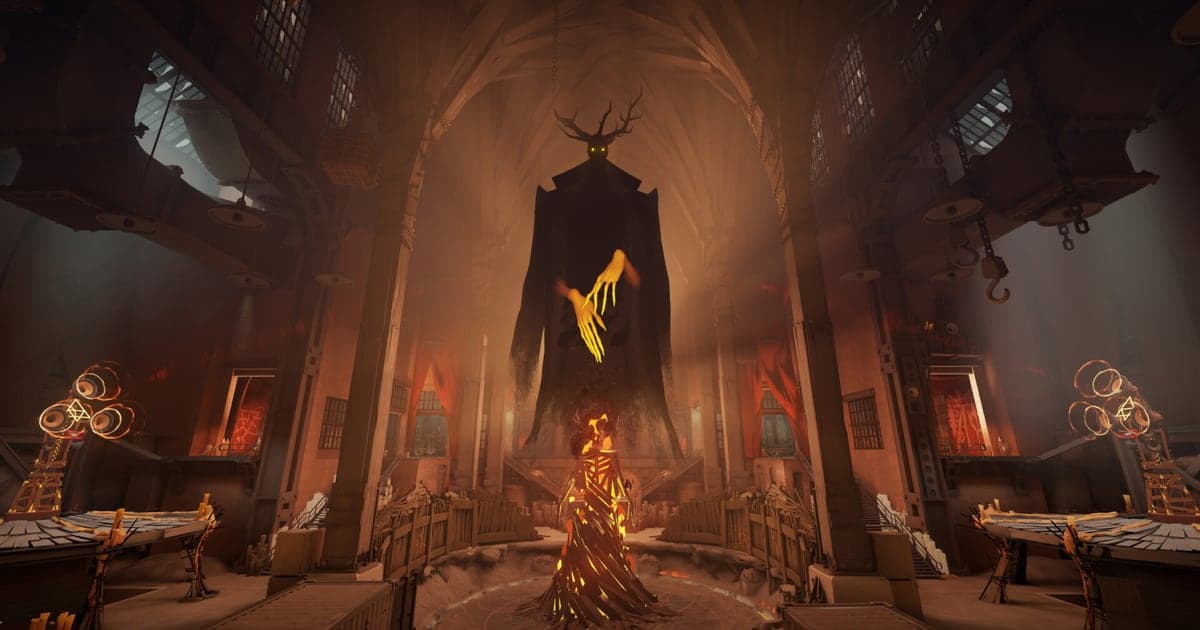
If you searched for a Deadlock replay, you are probably in one of three spots. The match just ended and the game says the replay is not ready. You downloaded a replay and cannot find the file. Or you want clean footage of a team fight without the HUD in the way. All three come down to how Valve's replay system works in Deadlock, which is still in early access, so menu names and behavior can change with any update. This guide sticks to what community guides and Steam threads widely report: where the Watch and Download Replay buttons live, why a fresh match often shows replay not ready for a minute or two, where downloaded .dem files sit on disk, what happens to them after a patch, and the console commands players use to hide the replay HUD. It also answers a question that comes up a lot, whether Deadlock records voice chat, and shows how to turn a replay into a video you can actually post. If your real goal is sending a play to friends, sharing Deadlock gameplay video covers the upload side. At the end there is a way to keep every match on disk without waiting for a replay at all, because DOR records the whole session for you.
Short answer: Profile, View all match history, then Watch or Download Replay
Community guides widely describe the same path. Open your Profile, choose View all match history, select the match and press Watch to stream it from Valve's servers or Download Replay to save a copy on your PC. If you have a Match ID from a friend, a stats site or your own history, type it into the Watch tab to pull up that game directly. Right after a match the button often says the replay is not ready. That usually means the server is still processing the match or your client has not refreshed the list; players typically report 1 to 2 minutes, sometimes longer, with one report of about 7 minutes. Valve has not published a statement on it, so the practical fixes are the ones the community uses: open a different match and come back, restart the game, or search the Match ID in the Watch tab. Valve also has not published how long replays stay on its servers, so if a match matters to you, download it soon instead of trusting it to be there next week. A downloaded replay is a .dem file stored locally, and server expiry does not touch it. The catch is the next game update. Older demos are commonly refused for playback after a new build, which is the main reason players record their best replays as video. As for voice, a replay is game data that your client plays back, and there is no confirmation that party voice is included, so do not count on it either way. If you want your party's calls kept with the footage, record the session with a recorder that captures both mic and game audio; recording Discord call audio walks through that setup.
From match history to a finished video, step by step
- 1Open the match from your historyFrom the main menu, go to Profile and choose View all match history. Pick the game you want and the Watch and Download Replay buttons appear. If a friend sent you a Match ID, typing it into the Watch tab is faster. If an update has moved things around, start from the match history screen and look for those two buttons.
- 2Wait out replay not ready, then refreshA match that just ended may still be processing on the server. Give it a minute or two, then open a different match and come back so the client reloads the list. If it still will not budge, restart the game or search the Match ID in the Watch tab. Players have reported waits of several minutes, so a short delay is not a sign the replay is gone.
- 3Download the matches you want to keepValve has not published how long replays stay on its servers, and community estimates vary. The easiest way to avoid a replay expired surprise is to press Download Replay as soon as a match you like is ready. Once the file is on your PC, server cleanup no longer affects it.
- 4Find the .dem file in the replays folderIn your Steam library, right click Deadlock and choose Manage > Browse local files to open the install folder under steamapps\common. Go into game\citadel\replays and your downloaded .dem files are there. A file ending in .dem.partial is an interrupted download, so delete it and download again. Keep in mind that a game update often makes these files unplayable, so back them up as video if they matter.
- 5Hide the HUD with console commandsIf the console is enabled in your settings, F7 opens it. While watching a replay, citadel_hide_replay_hud true hides the replay timeline and team bar, and citadel_hud_visible false hides the regular game HUD. Reverse them with false and true when you are done. Replay controls and commands can change between builds, so if one stops working, check it in the game again.
- 6Record the replay as a videoA replay is not a video file, so you cannot upload it as is. Play the part you want with the HUD hidden and capture it with a screen recorder, and you have footage you can post or edit. Do a short test first to make sure game audio is coming through, and finish before the next patch arrives so the demo still loads.
Deadlock replays at a glance: where to go and what to know
| Task | Where or how | What to know |
|---|---|---|
| Watch a match | Profile > View all match history > pick the match > Watch | Streams from Valve's servers. Menus can move in early access updates. |
| Save a copy | Download Replay on the same screen | Saved locally as a .dem file. Do it soon for matches you care about. |
| Open a specific match | Type the Match ID in the Watch tab | Also a common fix when a replay keeps showing not ready. |
| Replay not ready | Wait, open another match and return, or restart the game | Usually 1 to 2 minutes, sometimes longer, according to player reports. |
| Downloaded files | Deadlock install folder under steamapps\common > game\citadel\replays | A .dem.partial file means the download was interrupted. |
| Hide the replay timeline | citadel_hide_replay_hud true in the console (F7, if enabled) | Hides the replay timeline and team bar. |
| Hide the game HUD | citadel_hud_visible false in the console | Set it back to true to bring the HUD back. |
| After a patch | Older .dem files are commonly refused | Record replays you want to keep as video before the next update lands. |
Before you dig into Deadlock replays
- You know the Profile > View all match history path and where to type a Match ID in the Watch tab.
- When replay not ready appears, you wait a minute or two and open another match before retrying.
- Matches you want to keep are downloaded right after they finish.
- No leftover .dem.partial files are sitting in the replays folder.
- Replays you care about are recorded as video before the next update.
- The console is enabled in settings if you plan to use HUD commands.
- You set the HUD back to normal after recording.
- If you want party voice kept, you record with a tool that captures mic and game audio.
Skip the replay wait: DOR records every Deadlock match for you
Just launch the game and DOR's AI records it automatically. DOR is a free Windows app that detects Deadlock when it starts and records the whole session in the background as mp4 until you quit, with game audio and your mic captured together. There is no replay to wait for and no .dem file for the next patch to lock out: the match is already a video in your DOR library the moment you leave it. Trim the fight you want right in the library and export it in 16:9, 9:16 or 1:1. If you saved several clips over a night of lane fights and team wipes, check them and press AI Highlight to join them into one montage. AI Voice Notes turns what you and your party said into text on the recording timeline, so you can jump straight to the moment someone called the Mid Boss or a gank, and the voice stays with the footage. For more editing, open DOR Studio in your browser with nothing to install to join clips and add text, background music and effect templates such as shake zoom and punch zoom, then download an mp4. Share any of it with one dor.gg link that opens in any browser without installing anything. For the next steps, see how to share Deadlock gameplay video, the DOR browser clip editor, and vertical Shorts from game footage.