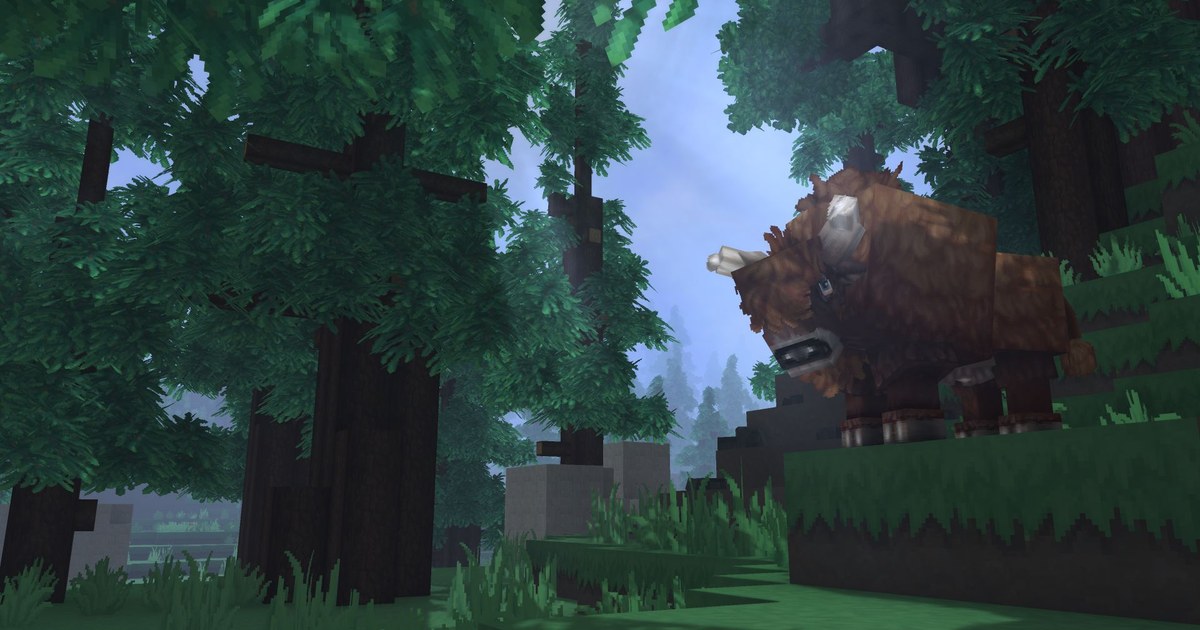
The short answer: the fastest way to get more FPS in Hytale is to lower view distance. Several guides agree that raising it can cut performance by half or more, while the other graphics options change little.
Hypixel Studios' own minimum spec targets 192 blocks view distance on the Low preset for 1080p at 30 FPS. So tweak in this order: view distance, preset, V-Sync and FPS cap, then render scale. As of November 24, 2026 the game is in Early Access, so option names and defaults can change with updates.
If you are not sure which spec tier your PC falls in, check the official minimum and recommended numbers in our Hytale PC requirements guide first. After changing settings, show an FPS counter with how to show FPS in games to compare before and after.
Bottom line: 192 blocks view distance, preset by target FPS
In Hytale, the farther you see, the more of the world your PC has to handle at once, and the cost grows fast. So if FPS is low, do not start with resolution or shadows. Drop view distance to 192 blocks, and if it still stutters, step down to 160 and then 128.
For presets, the official targets are Low for 30 FPS and High for 60 FPS, so start there. Lowering render scale is a poor trade in most guides, because Hytale has no DLSS or FSR upscaling and a lower scale simply blurs the picture.
Many guides also note that single player is heavier because your PC runs the world simulation too, so multiplayer may feel smoother on the same machine. For other causes of stutter, see fix game stuttering and clear shader cache to reduce stutter.
How to apply the best Hytale settings
- 1Measure your current FPSBefore changing anything, note your average FPS in a village or combat area you visit often. You need a baseline to know which change actually helped.
- 2Lower view distance to 192 blocksIn the Video settings under Rendering, set view distance to 192. This is the step with the biggest effect, so if you hit your target here you can leave the rest alone.
- 3Match the preset to your targetStart with Low if 30 FPS is enough and High if you want 60 FPS. If raising the preset drops FPS a lot, lower view distance one more step.
- 4Turn V-Sync off and set an FPS capDisable V-Sync and cap FPS below the lowest value you see in busy areas. On a 144 Hz monitor with high FPS, about 141 is a safe pick. To decide on V-Sync, read V-Sync on or off.
- 5Assign the high performance GPU in WindowsIn Windows Settings under System, Display, Graphics, add the Hytale executable and set it to high performance. Check this if FPS looks strangely low on a PC with integrated graphics too.
Hytale FPS settings at a glance (as of Nov 24, 2026)
| Setting | Suggested value | Why |
|---|---|---|
| View distance | 192 blocks, then 160 or 128 if needed | The biggest FPS lever, so adjust it first |
| Graphics preset | Low for 30 FPS, High for 60 FPS | These are the presets the official spec targets use |
| V-Sync | Off | It adds input delay and ties FPS to your refresh rate |
| FPS cap | Slightly below refresh rate (about 141 on 144 Hz) | Keeps frame times even so it feels less stuttery |
| Render scale | 100% | There is no upscaling, so lowering it only blurs the image |
| Windows graphics setting | Set Hytale to the high performance GPU | Stops laptops and mixed GPU PCs from using the wrong GPU |
Check after changing settings
- View distance is around 192 blocks
- V-Sync is off
- FPS cap is slightly below your refresh rate
- Render scale is 100%
- You compared average FPS before and after in the same place
Record Hytale with DOR
DOR is a free Windows game recording app. Supported games are detected automatically when launched and the whole match is recorded, and games outside the list like Hytale can be captured with screen recording. Dial in your FPS with these settings first, then start recording.
Recording is free at 720p or 1080p and 30 or 60 fps, with no watermark. 1440p and 120 or 144 fps are part of DOR Pro. On supported NVIDIA graphics cards such as the RTX series, recording uses NVENC hardware encoding.
Recordings collect in My Clips in the app, where you can trim them, or use DOR Studio (dor.gg/studio) to join videos, add text and BGM, then export an mp4 or share a dor.gg link. Settings for 60 fps are in record games at 60fps.