The short answer: when NVIDIA recording has no game audio, the usual cause is that the Windows default output device is not the headset you are using, or that audio is recorded on separate tracks and your player only plays one of them.
So the fix order is to set the default output device in Windows sound settings to the device you are listening on, check the audio track option in the NVIDIA app overlay (Alt+Z) settings, then turn off any virtual surround device and turn Instant Replay back on.
This article only covers missing game sound. If game sound is fine but your voice is missing, read NVIDIA recording mic not working first. Find your symptom in the table below, then go through the steps one by one.
Symptoms, causes and what to do now
| Symptom | Most common cause | What to do now |
|---|---|---|
| Your mic is audible but game sound is missing | The game plays through a device other than the Windows default output | In Settings > System > Sound, set the device you hear as the default output |
| The file has no sound, or only game sound or only your voice, in your player | Audio was recorded on separate tracks and the player plays only one | Switch the audio track in another player or change to single track recording |
| It only happens with virtual 7.1 or spatial sound on | A virtual surround device is set as the default output | Make the headset's plain stereo device the default and turn off virtual surround |
| It started after replugging a headset or reconnecting Bluetooth | The recorder is still holding on to the previous device | Toggle Instant Replay off and on in the overlay or restart the NVIDIA app |
| Sound is missing in only one game | The in-game audio device or per-app output differs from the default | Set the game's audio settings and the Windows volume mixer per-app output to the same device |
| Game sound is very quiet or barely audible | The game volume in the mixer is low or audio enhancements interfere | Raise the game volume and turn off audio enhancements on the output device |
The fix: make the device that plays sound and the device the recorder hears the same one
NVIDIA app recording and Instant Replay typically take the sound Windows sends to the default output device and put it into the video. If the game is playing through a different device, you can hear the game perfectly while the recorded file contains nothing but silence.
This happens most often on PCs with several outputs, such as a USB headset, Bluetooth earbuds, monitor speakers over HDMI, or a gaming headset's virtual 7.1 device. The key is to make the device the game actually plays through and the device the recorder listens to the same single device.
If the device matches and the file is still silent, the next suspect is tracks. When the mic is set to record on its own track, the file holds two audio tracks, and some players and editors only play one, so it can look as if the sound is missing. General causes that also apply to other recording programs are covered in how to fix game recording with no sound.
How to get game audio back
- 1Set the Windows default output device to the one you hearOn Windows 11, pick the headset or speakers that actually play sound under Settings > System > Sound > Output; on Windows 10 it is under Settings > System > Sound. On PCs with a monitor connected over HDMI, a monitor without speakers is sometimes chosen as the default output, so check the device name carefully.
- 2Check the game and per-app output devicesIf the game's audio settings have an output device option, set it to the default device or the one you just chose. If you assigned output devices per app in the Windows volume mixer, make sure the game uses the device you are listening on, and check that the game volume is not near zero.
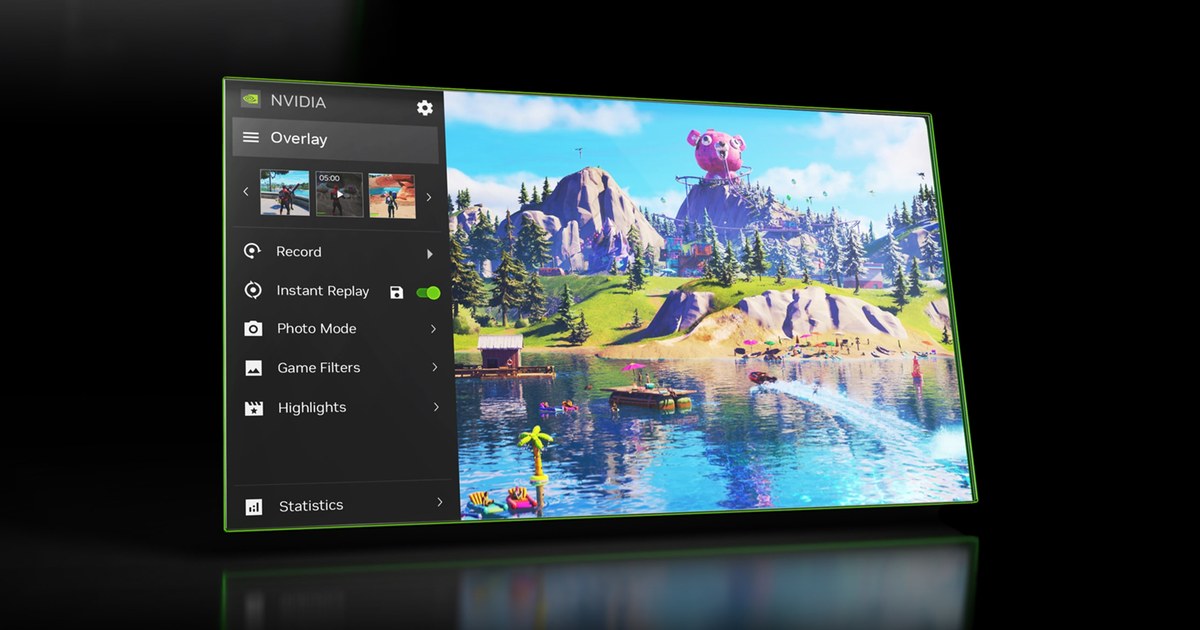
- 3Check the audio track mode in the NVIDIA appPress Alt+Z in game to open the overlay, then in Settings (the gear icon) look at the audio options to see whether multi-track audio, which records your mic as a separate track, is on. If it is, the file contains two tracks, so open it in a player that can switch tracks or change to single track recording. Menu names can vary slightly by app version. How to use split tracks is covered in separating game audio and mic tracks.
- 4Turn off virtual surround and audio enhancementsTurning on virtual 7.1 or spatial sound in gaming headset software creates a separate virtual device in Windows, and when that device is the default output, recordings have been reported to lose game sound. Switch the default to the plain stereo device to test, and turn off audio enhancements in the output device properties.
- 5Turn Instant Replay back on and record a 10 second testAfter changing devices, toggle Instant Replay off and on in the overlay, or fully quit and relaunch the NVIDIA app. Then record about ten seconds of a scene with clear game sound and open the saved file to confirm the game audio is there.
Check before you record
- The Windows default output device name matches the headset or speakers you are using
- The in-game output device and the per-app output in the Windows volume mixer are the same device
- Whether the NVIDIA app records audio on separate tracks, and if so, whether you tried switching tracks in your player
- Virtual 7.1 or spatial sound devices and audio enhancements are turned off
- After changing devices you toggled Instant Replay and recorded a 10 second test
Keep game sound and your voice together without picking tracks
DOR is a free Windows game recording app. When you launch a supported game, it detects it and records the whole match automatically, capturing game sound and your mic on one track and collecting the recordings in My Clips in the app.
So when you open a recording, there is no audio track to switch in your player. On supported NVIDIA graphics cards such as the RTX series, it records with NVENC hardware encoding.
Trim the moments you want with the in-app trim tool (16:9, 9:16, 1:1), and in DOR Studio (dor.gg/studio) you can join several clips, adjust text, BGM and volume, then export an mp4 or share a dor.gg link. Everything DOR produces is free of watermarks. How automatic detection and recording works is explained in DOR automatic game recording.