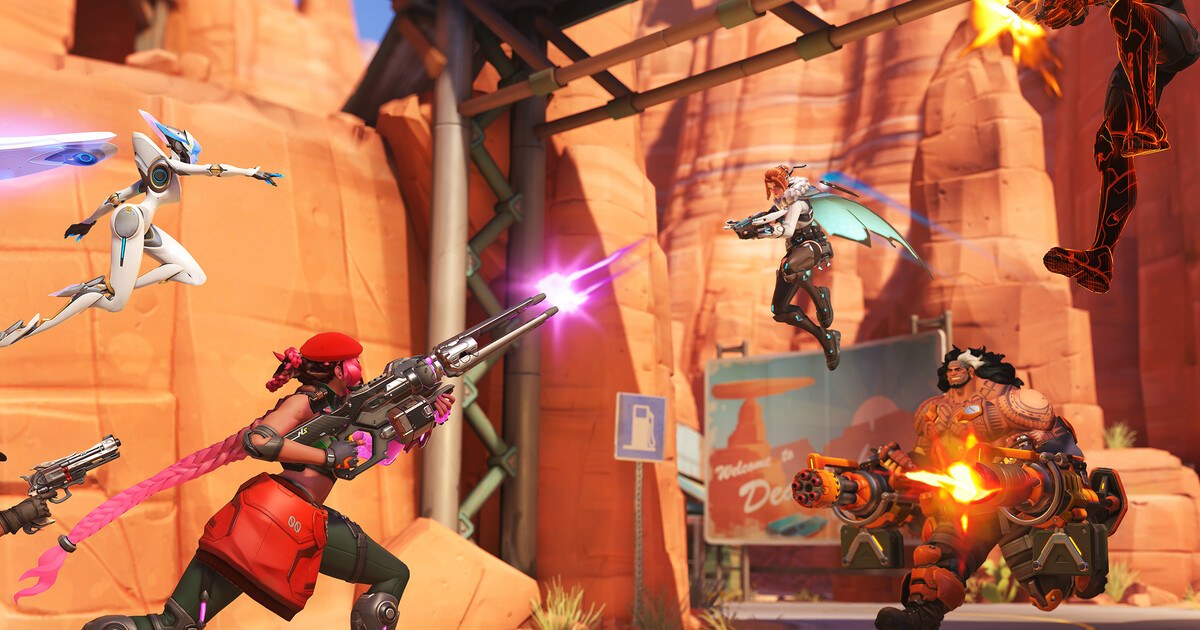
The short answer: saving Overwatch clips takes no extra work. Install DOR and launch Overwatch, and it is detected as a supported game, the whole match is recorded, and your kills and deaths pile up as auto clips in My Clips. To post one as a Short, pick a single scene and trim it at 9:16 in the app.
If you want to join several scenes, or add text and BGM, continue in DOR Studio (dor.gg/studio) and export an mp4. This guide focuses on turning a saved clip into a vertical video. For kill edit ideas and upload tips, see how to make Overwatch Shorts.
The more clips you collect, the longer it takes to decide what to post, so working through the steps below in one sitting keeps the process quick.
Short answer: pick one auto clip, save it at 9:16
One Short works best with one scene. Overwatch kills and deaths become auto clips, so choose a clip where the kill reads clearly, keep only the moment from just before the kill to just after it, and save it in a vertical ratio.
Going from a wide screen to vertical narrows the sides, so after saving, check the result to make sure the area around your crosshair and the kill notification are still on screen. If you want to know how auto clips are created, read what game auto clipping is first.
Because you only export the scene you chose, the full match video stays in My Clips, and you can pull out another scene later in exactly the same way.
How to save an Overwatch clip as a Short
- 1Install DOR and launch OverwatchDOR is a free Windows app. After installing it, launch Overwatch and it is detected as a supported game and the whole match is recorded. You never press start or stop yourself, so you are less likely to miss the final fight.
- 2Check the auto clips in My ClipsMy Clips in the app collects the full match video and the Overwatch kill and death auto clips. If this is your first time, review the quality and settings in how to record Overwatch gameplay.
- 3Choose one scene for the ShortPlay your clips and pick a scene that makes sense at a glance. Keep the range from the movement just before the kill to just after the kill notification. If you plan to use several scenes in one video, narrow your candidates to two or three at this point.
- 4Trim at 9:16 in the app and saveIn the app's trim tool, choose the 9:16 ratio, set the range, and save. 16:9 and 1:1 are available too, so you can save the same clip again in another ratio. For vertical framing and upload tips, see how to record game footage for vertical Shorts.
- 5Polish in Studio and export an mp4To go further, merge videos in DOR Studio and add text, BGM, volume changes and effect templates. Export the finished video as an mp4 for Shorts or share a dor.gg link. The app's AI Highlight joins the clips you choose into one video, works with seven games including Overwatch, and some templates produce a 9:16 vertical video. A Pro prompt may appear when you use it for free.
From Overwatch clip to Short at a glance
| Step | Where | What to do |
|---|---|---|
| Get ready to record | Install DOR, launch Overwatch | Nothing to press: the supported game is detected and the whole match is recorded |
| Check your clips | My Clips in the app | See that kill and death auto clips and the full match video are collected |
| Pick a scene | Clip playback screen | Choose one scene for the Short and set the range from just before the kill to just after |
| Make it vertical | Trim tool in the app | Choose the 9:16 ratio, trim, and save |
| Polish (optional) | DOR Studio | Merge scenes, add text, BGM and effect templates such as shake zoom |
| Export | Studio export | Save as mp4 or share a dor.gg link |
Check before you upload
- The scene reads as one moment and the range is not too long
- You saved the clip at the 9:16 ratio
- The area around your crosshair and the kill notification are still on screen after going vertical
- If you added BGM or text, it does not drown out the game sound
- The exported mp4 plays and fits the length guidance of the platform you are uploading to
Save Overwatch clips and edit Shorts in one place with DOR
DOR is a free Windows game recording app. When you launch a supported game it is detected automatically and the whole match is recorded, and recordings are collected in My Clips in the app. Overwatch is one of the seven games where kills and deaths become automatic highlight clips.
In the app you can trim a range and save it at 16:9, 9:16 or 1:1, and in DOR Studio (dor.gg/studio) you can merge videos, change the ratio, add effect templates such as shake zoom, punch zoom, handheld and glitch transition, plus text, BGM and volume, then export an mp4 or share a dor.gg link.
PC recordings, automatic event clips, Studio edits and exports carry no watermark. To join several clips into one video, also read how to make auto highlight clips. Recording quality is free at 720p and 1080p, 30 and 60 fps, with 1080p at 30 fps as the default.