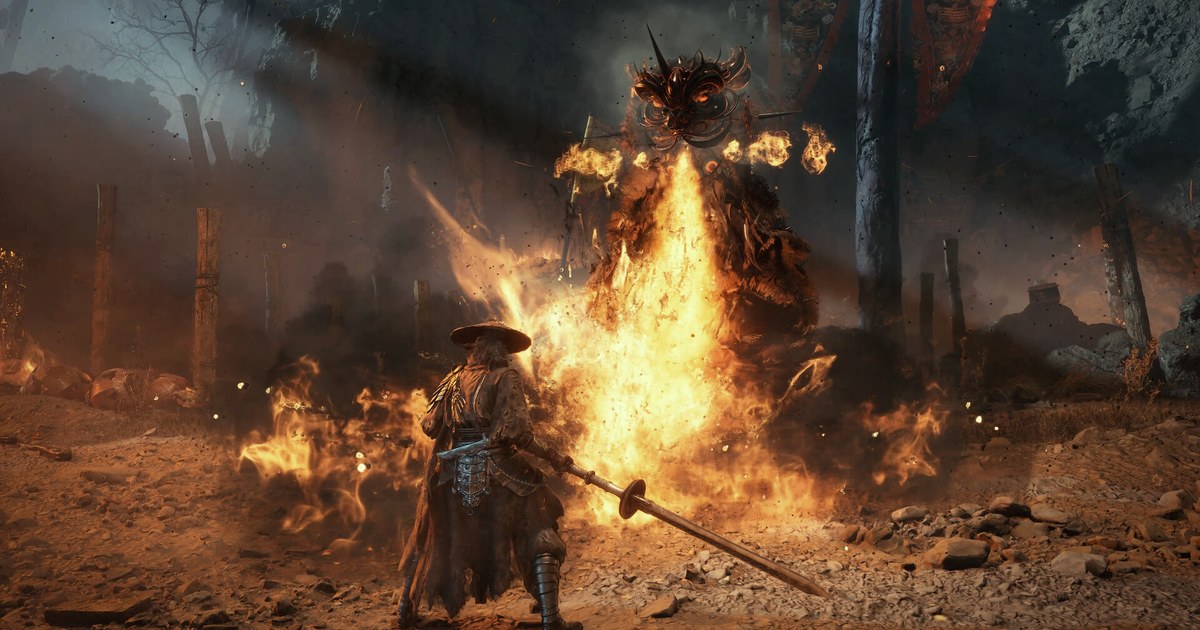
If you went looking for your Phantom Blade Zero saves in AppData, you were in the wrong place. The Steam version keeps your progress inside the game's install folder, and only settings, logs and cache files sit under AppData.
S-GAME's official support page uses the same install folder path in its save recovery guide. That matters the moment you uninstall, move your Steam library to another drive, install mods or take a big patch: the save folder lives with the game files unless you copy it out first.
This guide covers the exact save path and file name, the automatic backup folder, where the config files are, the official steps to restore a corrupted save, and what to watch for with Steam Cloud and the Epic Games Store version, all checked as of November 10, 2026.
The game launched on PS5 and PC (Steam and Epic Games Store) on October 28 at 7 p.m. PT, and this article covers the PC version only. As of November 10, 2026, the US Steam price is US$59.99 for the standard edition and US$69.99 for the Digital Deluxe Edition, with no discount running.
Phantom Blade Zero PC save and config locations (as of November 10, 2026)
| What | Where | Notes |
|---|---|---|
| Current save file | (Steam library)\steamapps\common\PBZ\ProjectPBZ\Saved\SaveGames\Steam\(SteamID64)\PBZSaveGame.sav | This is the file name S-GAME's official support page uses. The SteamID64 folder is a 17 digit number, one per Steam account. |
| Default install example | C:\Program Files (x86)\Steam\steamapps\common\PBZ\ProjectPBZ\Saved\SaveGames\Steam | If your library is on another SSD, such as a D drive, only the start of the path changes. |
| Automatic backups | 1RealTime folder inside the SteamID64 folder | Holds the .sav backups the official guide tells you to restore from. If you also see folders such as 2Hourly or 3Daily, keep them with the rest. |
| Config files | %LOCALAPPDATA%\ProjectPBZ\Saved\Config\Windows (GameUserSettings.ini and others) | Resolution and graphics settings. No story progress is stored here. |
| Shader cache | PBZ\ProjectPBZ\Saved\Cache in the install folder | The November 4 patch notes say to delete the files in here if you crash or stutter after updating. It sits next to SaveGames, so touch Cache only. |
| Steam Cloud | Listed as supported on the Steam store page | After restoring a save, quit the game and wait for Steam to finish uploading, as the official guide advises. |
| Epic Games Store version | Open the install folder from the launcher and look under ProjectPBZ\Saved | The official save recovery guide is written for Steam, and Epic cloud save support could not be confirmed as of November 10, 2026, so treat your own copy as the backup. |
Saves sit in the install folder, not AppData, so copy them before you uninstall or move
Plenty of PC games keep saves under AppData or Documents, where they survive an uninstall. Phantom Blade Zero on Steam does not.
Your progress lives under steamapps\common\PBZ, while AppData\Local\ProjectPBZ only holds config files, logs and cache data, so backing up AppData alone protects none of your progress. Three things follow from that.
First, uninstalling the game or deleting the install folder can take your saves with it. Steam Cloud can bring them back on a reinstall if it is turned on, but cloud sync is not a backup: it mirrors whatever state your files are in, including a corrupted one.
Second, at 145 GB with an SSD required, this is a game people often move to a different drive (see Phantom Blade Zero system requirements and install size). When you do, the start of the path changes, so use steamapps\common\PBZ as your landmark rather than a fixed drive letter.
Third, on a fresh install that has never saved, the SaveGames folder may not be there yet, so save once at a bell and check again. In game, you save manually at bells, and autosaves are kept separately from your manual saves. The cleanest moment to back up is right after saving at a bell and quitting to desktop.
How to back up your save and restore it if it breaks
- 1Save at a bell and quit completelySave at a bell, then quit to desktop. Copying while the game is running can capture a half written file. If you use Steam Cloud, check that the game page in your library shows the sync as finished before you copy.
- 2Open the install folder with Browse local filesIn your Steam library, right click Phantom Blade Zero and choose Manage, then Browse local files. The PBZ folder opens. Go into ProjectPBZ, Saved, SaveGames, Steam, then the folder named with a long number.
- 3Copy the whole SteamID64 folderCopy the numbered folder itself, including 1RealTime and any other subfolders, not just PBZSaveGame.sav. Put it outside the install folder: another drive, an external SSD or a cloud drive. Add the date to the folder name so you always know which copy is which.
- 4Swap in a 1RealTime backup if your save is corruptedThis follows the official support page. First make one more copy of the current state. Then delete PBZSaveGame.sav from the numbered folder, pick a .sav in 1RealTime from before the problem started, copy it into the numbered folder and rename it PBZSaveGame.sav. Choosing by the modified date helps you avoid a backup that already has the same problem.
- 5Load it, then save again at a bellLaunch the game, choose Load Game and enter the restored save. If everything looks right, find a bell and save, quit the game and let Steam finish its cloud upload. The official guide calls this step out to avoid sync conflicts.
- 6Back up again before uninstalls, moves and modsRepeat the copy before you uninstall, move your library or install mods. The November 4 patch notes warned that some third party mods are not compatible with that update and told players to remove mods if problems appear.
Before you call your save safe
- You copied the save with the game fully closed.
- You copied the entire SteamID64 folder, 1RealTime included, not just PBZSaveGame.sav.
- Your copy lives outside steamapps\common\PBZ.
- After a restore, you saved at a bell and waited for the Steam Cloud upload to finish.
- When clearing shader cache, you deleted only the files inside Saved\Cache and left SaveGames alone.
Your save keeps your progress, a recording keeps the boss fight
Backing up saves protects where you are in the story, not the moment you finally beat a boss after dozens of tries. For that you need a recording.
DOR is a free Windows app that detects supported games when you launch them and records the whole session from launch to exit, and every recording lands in My Clips.
From there you can trim just the part you want and save it in 16:9, 9:16 or 1:1, or combine several attempts into one video in DOR Studio (dor.gg/studio).
Storage looks after itself: older videos are cleared only when the full gameplay recordings go over their share (5 GB by default), and recent recordings and the ones you liked stay. So like the clear you want to keep. With a 145 GB game already on your SSD, recordings add up fast.
Point them at another drive with how to change your recording save location, estimate space with how many GB an hour of game recording takes, and if you are already short on room, follow how to fix low disk space for Steam game recording.