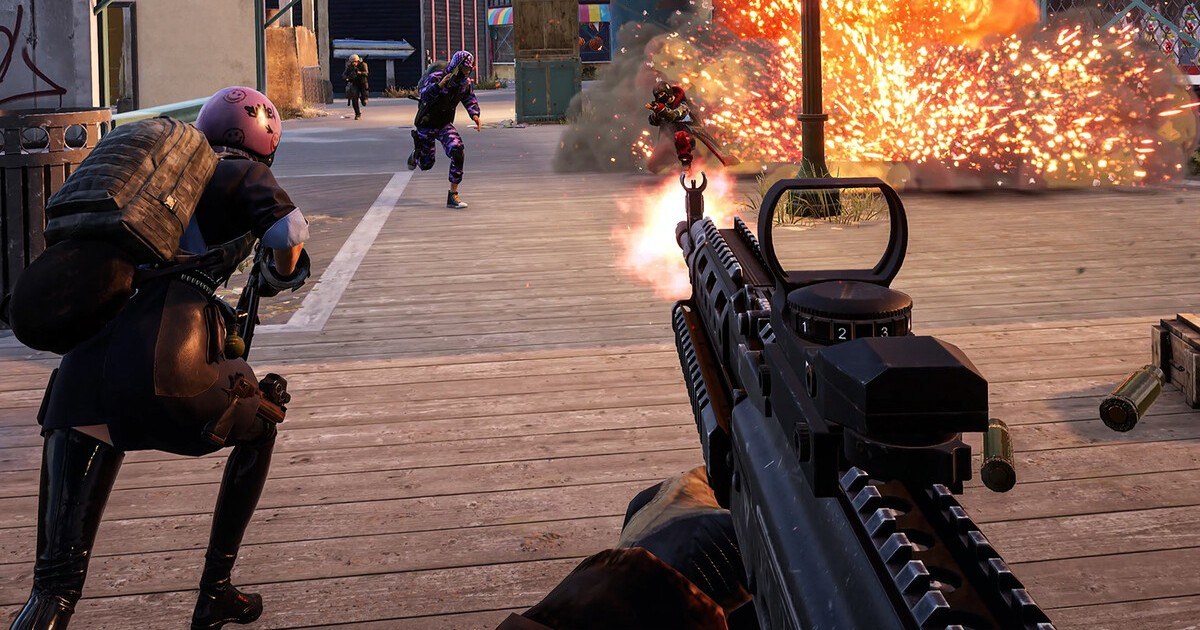
The short answer: a PUBG Short is not about clipping by hand, it is about picking one scene from clips that are already saved. Run DOR while you play PUBG and kills, knocks and deaths land in your clips automatically, so after the match you choose the best scene, crop it to 9:16 and export it.
As of November 24, 2026, YouTube Shorts can be up to 3 minutes long, but a PUBG fight reads best when it ends within 15 to 40 seconds. The general idea of turning landscape footage into vertical video is covered in how to make 9:16 vertical game videos; this guide only follows the PUBG route from saving to exporting.
The answer: one auto saved kill scene, 9:16, kept short
Three rules are enough for choosing a scene. Pick a fight with back to back kills or knocks, a moment whose start and end are obvious at a glance, and a scene that makes sense after you trim a few seconds on each side. Looting and travel are the first things to cut from a Short.
If you also want to see how you were caught from the other side, how to save killcams and deathcams is a useful companion. One scene per video is the default, and if you had several strong kills, put the strongest one first so the opening seconds hit hard.
From saved PUBG clip to uploaded Short
- 1Run DOR and play as usualDOR detects a supported game automatically and records the whole match. In PUBG, kills, knocks and deaths are stored as separate clips, so there is no record button or per scene hotkey to remember. Recordings gather in My Clips in the app.
- 2After the match, pick one scene from My ClipsWhen the match ends, browse the scenes gathered by Auto Highlight Analysis and the kill clips, then choose one scene for your Short. Do not try to use everything; keep the single strongest fight. For precise cutting, see how to trim game clips.
- 3Trim both ends down to 15 to 40 secondsKeep from just before the fight starts to just after the last kill. The walk before the first shot is the part viewers skip first in a Short. YouTube Shorts allow up to 3 minutes, but completion tends to drop as length grows, so finishing short is the safer choice.
- 4Switch to 9:16 and check the frameChoose 9:16 in the in app trim tool. Before exporting, use the preview to confirm your character, the muzzle flash and the kill feed still fit in the vertical frame. For first three second hooks and captions, see how to make game Shorts.
- 5Export as mp4 and uploadUpload the exported mp4 as your Short. If you want text, music or an effect template such as shake zoom, edit in DOR Studio first, then export an mp4 or share a dor.gg link. Results made with DOR carry no watermark.
Making a PUBG Short at a glance
| Step | What to do | How to do it |
|---|---|---|
| 1. Keep it on | Run DOR and play PUBG | DOR detects a supported game automatically and records the whole match, with kills, knocks and deaths saved as clips |
| 2. Pick a scene | Check candidates in My Clips | After the match, choose the single best scene from Auto Highlight Analysis and the clip list |
| 3. Trim | Remove unneeded parts | Keep from a few seconds before the fight to just after the last kill |
| 4. Set the ratio | Choose 9:16 | In the in app trim tool, pick 9:16 from 16:9, 9:16 and 1:1 |
| 5. Polish | Edit in Studio if needed | Joining scenes, text, music and effect templates are added in DOR Studio (dor.gg/studio) |
| 6. Export | Save mp4 or share a link | Export an mp4 to upload as a Short, or share a dor.gg link |
Check before you upload
- Only one scene is in the video
- There is no long travel stretch before the fight
- The ratio is 9:16 and the kill feed is not cut off
- The length is roughly 15 to 40 seconds
- The exported file is an mp4 and the sound is normal
With DOR, saving the scene and exporting 9:16 follow on from each other
DOR is a free Windows app. When you launch a supported game it detects it automatically and records the whole match; in PUBG, kills, knocks and deaths are saved as clips, and after the match Auto Highlight Analysis lets you review the scenes.
Recordings gather in My Clips, and in the app you can trim a section and pick 16:9, 9:16 or 1:1. Joining videos, text, music and effect templates are handled in DOR Studio (dor.gg/studio), and you export an mp4 or share a dor.gg link.
One Click Mad Movie, which links the clips you choose into one video, also includes a Magazine template that outputs vertical 9:16. Recordings and edited results carry no watermark, and free recording quality is 720p or 1080p at 30 or 60 fps. On supported NVIDIA graphics cards, recording uses NVENC hardware encoding.