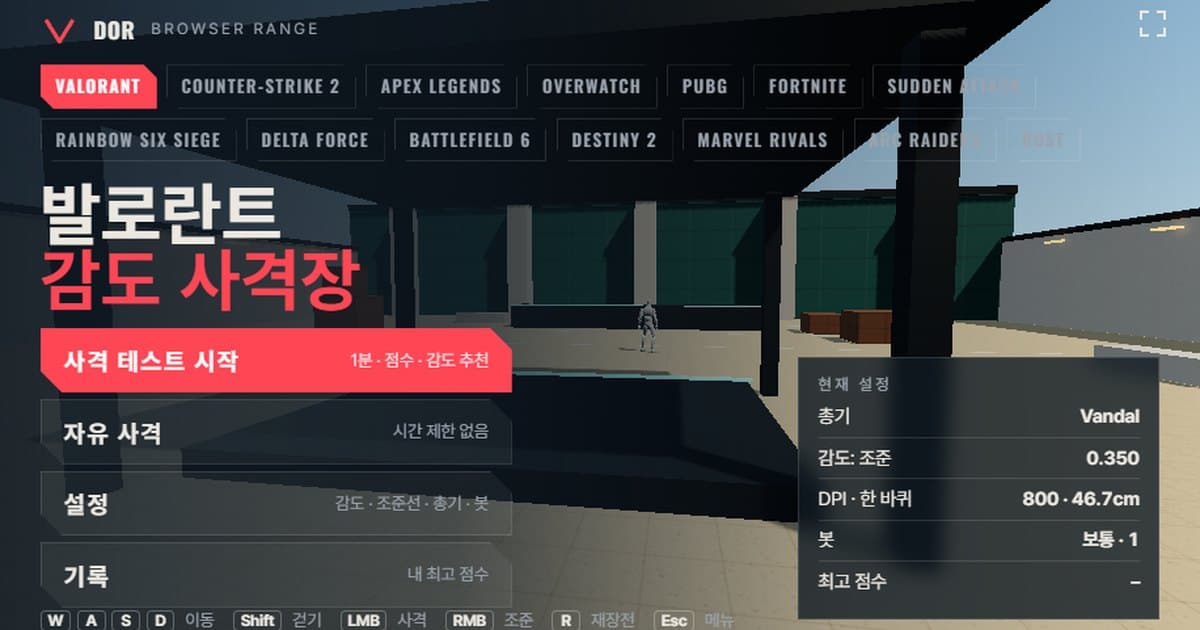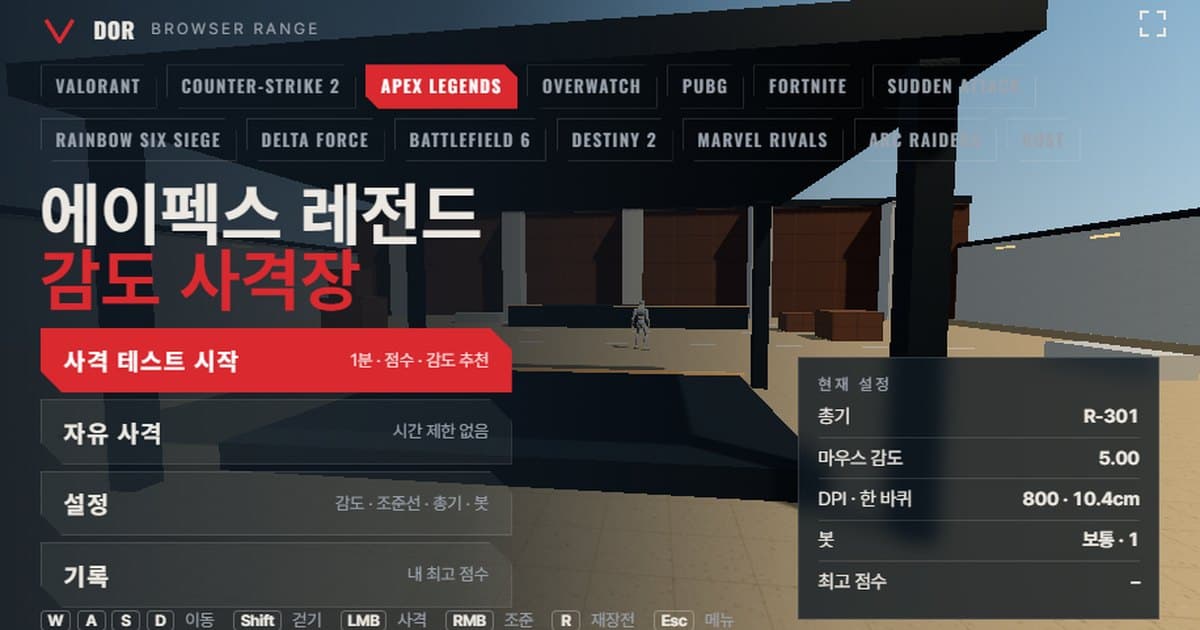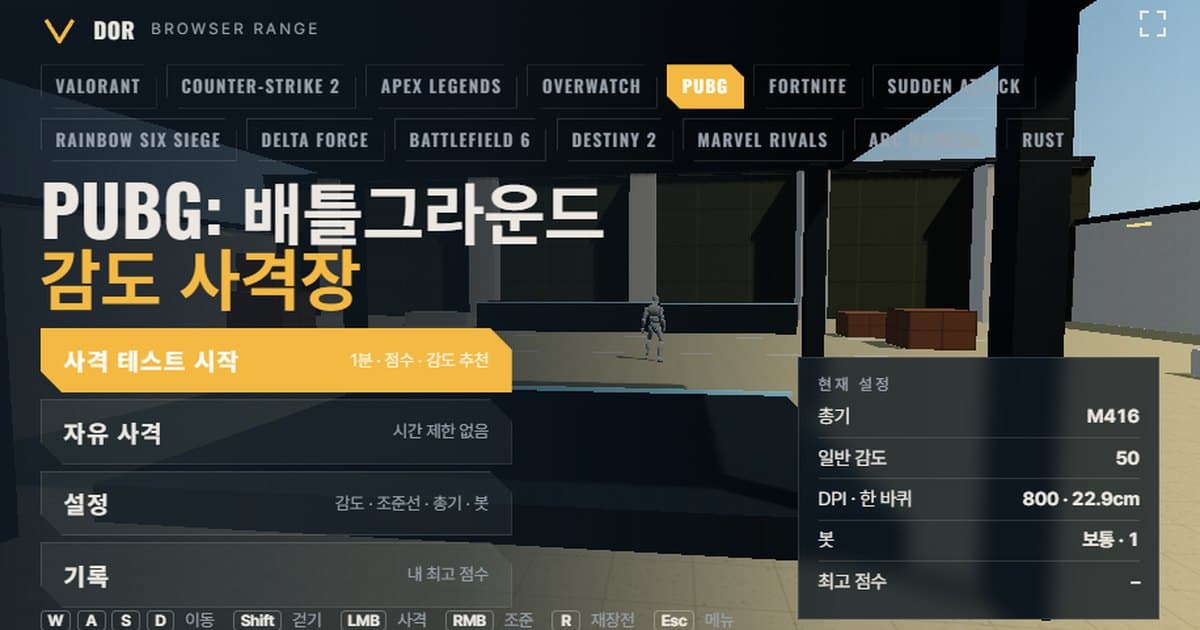
A PUBG sensitivity test here means shooting bots for 1 minute in the range at the top of this post to find out whether your current general sensitivity is too high or too low: it counts accuracy, headshot rate and how often you overshoot or undershoot targets, then suggests lowering or raising sensitivity by 10%. The range brings PUBG: BATTLEGROUNDS' mouse turn rate and field of view into your browser, so you enter the same 1–100 general sensitivity as in the game, pick a weapon and run the shooting test to get score, accuracy, headshot rate and the average time from a bot appearing to its kill. There is nothing to install; allow mouse lock in Chrome or Edge on PC and it is ready to use. It does not open on mobile or in browsers without pointer lock.
Unlike other games, PUBG's sensitivity number is not proportional to turn rate. Going from 50 to 100 makes turning ten times faster, not twice, because the slider is a log scale, so the range does not use 'sensitivity × constant' but applies the exponential formula used by community converter sites as-is. Krafton has never published the formula, so below we separate what is confirmed from what is estimated. How the range as a whole is built is covered separately in the introduction to the browser sensitivity range.
What matches PUBG's settings and what differs
What the range matches to the game is the angle turned per mouse count, the horizontal FOV at 16:9, running speed, bot health, and each weapon's fire rate, magazine, reload time and damage. Recoil patterns, bullet spread and how armor reduces damage are simplified, and the numbers themselves are approximations from public wikis and converter sites. The table below lists what is the same and what is different, item by item.
| Item | PUBG: BATTLEGROUNDS | Range |
|---|---|---|
| Turn rate | General sensitivity 1–100, log scale (per community converter sites, not confirmed in official docs) | 0.00005555 × 90 × 10^(sensitivity ÷ 50) °/count, same 1–100 slider, default 50 |
| Field of view | FPP camera FOV 80–103, default 90 (horizontal at 16:9) | Fixed at 90, calculated for 16:9 |
| Movement speed | Running about 6.3 m/s (community measurement, no official figure) | Running 6.3 m/s, walking 3.47 m/s while holding Shift |
| Bot health and armor | Health 100; vests and helmets reduce damage by 30/40/55% by tier and have durability | Health 100; setting bot armor to 'Heavy' simplifies it to 150 |
| Weapons | Dozens of ARs, DMRs, SRs, SMGs, shotguns and pistols | 7 weapons: P18C, UMP45, M416, AKM, Mini 14, Kar98k, S12K |
How to run the 1-minute test
The menu has four buttons: Start test, Free fire, Settings and Records. If this is your first time, open Settings first and enter the values you use in the game, spend about 10 seconds in Free fire checking how the turning feels, then go into the test; results are more stable that way.
- 1Enter sensitivity and DPIIn Settings > General, enter your general sensitivity (1–100) with the same value as in the game. The mouse DPI field only feeds the cm/360 shown under Calculated and has no effect on turn rate itself; because PUBG's slider is a log scale, the range shows cm/360 instead of eDPI (DPI × sensitivity). Actual turning uses the counts your mouse sends as-is, so it is important to run the range with your mouse DPI left at the same value you use in the game.
- 2Choose a weaponPick one of the 7 weapons in the Weapons tab. The M416 or UMP45 is right for measuring full-auto tracking, and the Kar98k for flicks and one-taps. In the Bots tab you can change bot speed, meaning how long a target stays up (Easy 2.5 s, Normal 1.6 s, Hard 1.0 s), armor, targets at once (1–3) and whether bots strafe.
- 3Start testPress the button and the browser locks the mouse and the cursor disappears. Press the Fullscreen button at the top right of the screen first so your view does not get cut off at the window edge. If a message says mouse lock failed, wait 1–2 seconds and press Resume again.
- 4Shoot for 1 minuteWhen a bot appears, aim and eliminate it. The remaining time is shown on screen, and kills, headshots and misses scroll up in the feed. Pressing ESC pauses and brings the cursor back, and Resume continues. If you press Quit, that round is not recorded.
- 5Read the resultWhen the round ends, the result screen shows score, accuracy, headshot rate, average time from appearance to first shot, shots per kill, and the number of overshoots and undershoots. Read the sensitivity suggestion below it and press 'Retry with suggested sens' to put the suggested value straight into Settings.
- 6Repeat two or three times the same dayResults only mean something when they point the same way. Run two or three tests a day with the same weapon and bot settings, and compare against the best score for the same settings in the Records tab. Turning off shadows and bloom in the Audio & Video tab keeps the frame rate stable on lower-end PCs.
How to read the round result
The numbers on the result screen are not lumped into a single score; they show which stage of your aim is slow. Here is what each item means and when a sensitivity suggestion is made.
- Accuracy: the share of shots fired that hit the bot. PUBG has bullet drop and damage falloff by distance, but range bots stand about 14 m away, so this value is close to pure aiming accuracy.
- Headshot rate: the share of hits that landed on the head. The bigger the gap between head and body damage, as with the Kar98k or Mini 14, the more directly this value feeds into kill time.
- Average appearance → kill: the average time from a bot appearing to it going down. It is the first value to shift when sensitivity changes, so it is a good baseline to measure two or three times and compare.
- Average appearance → first shot: your reaction time from seeing a bot to firing the first shot. If this stays the same while only kill time gets longer, the problem is tracking, not sensitivity.
- Shots per kill: the number of rounds used to take down one bot. On automatic weapons, if this exceeds half the magazine, it is a sign your crosshair is drifting off the target during full-auto fire.
- Overshoot / Undershoot: how many times you swung past the target and how many times you fell short. With fewer than 5 kills classified as an overshoot or undershoot, no suggestion is made due to lack of sample; if one side exceeds 60% of the total, it suggests a value 10% lower or higher than your current sensitivity in that direction. If balanced, it tells you to keep your current value.
PUBG's sensitivity system: the log-scale slider and per-scope settings
The settings live in the in-game Settings > Control > Mouse Sensitivity. The same tab lines up General sensitivity, Vertical sensitivity multiplier, Vehicle driving, Aim, ADS and the 2x, 3x, 4x, 6x, 8x and 15x scope sliders; apart from the vertical multiplier, all of them range 1–100 with a default of 50. Converter sites disagree on whether the slider minimum is 0 or 1 and we could not confirm it from official documentation, so the range uses 1–100. The vertical sensitivity multiplier defaults to 1.00 and multiplies all vertical input. Community records say vertical turning was fixed at 70% of horizontal before 2018, but the current settings file stores a multiplier of 1.00. If you pair a low scope slider with low DPI, one official note is worth knowing: the Update 28.2 patch notes from March 2024 list a PC fix for the 8x and 15x scopes not detecting fine movement at mouse DPI 400 with in-game scope sensitivity at 12 or below.
How the slider value turns into turn rate
The slider is a log scale. Adding 50 makes turning 10 times faster, and adding about 15 doubles it. In other words, 35 and 50 are a factor of two apart, and 1 and 100 are nearly a factor of 100 apart. Three converter sites (KovaaK's, aiming.pro, bo5.gg) write the formula in different forms, but all of them resolve to the same curve; the range uses the form KovaaK's lists in its game table.
FOV is the FPP camera field of view (90 in the range). At sensitivity 50 and FOV 90, one count turns about 0.05°, which is 22.9 cm per 360 at 800 DPI. This is not a formula published by Krafton but the consensus of converter sites, and only KovaaK's includes the FOV-proportional part while the other two ignore it, so if you play at an FOV other than 90, measure in the in-game training ground.
| General sensitivity | °/count (FOV 90) | cm/360 at 800 DPI |
|---|---|---|
| 38 | 0.0288 | 39.7 cm |
| 50 | 0.0500 | 22.9 cm |
| 60 | 0.0792 | 14.4 cm |
Per-scope sensitivity and the range's ADS multiplier
PUBG's scope sensitivity is not a multiplier applied to general sensitivity as in other games, but an absolute slider set separately per magnification. With every slider at 50, the turn rate while aiming equals the hip-fire turn rate multiplied by the FOV ratio. According to measurements on the mouse-sensitivity.com forum in 2017–2018, the aiming FOV for iron sights and red dots is about 80 and about 40 for the 2x, so turning slows to about 0.89x when aiming, about 0.44x at 2x and about 0.22x at 4x, while the 8x was measured at about 7.25x and the 15x at about 12x actual magnification. These are community measurements from a single source, so treat them as reference. The range divides the turn rate by the weapon's ADS multiplier while right-click aiming, so a red dot (1.19x) turns at about 0.84x of hip fire and a 4x (5.67x) at about 0.18x, slightly slower than the estimates above. If you keep ADS and every scope slider in the game at the same value as general sensitivity, raise the Scoped sensitivity multiplier (default 1.0) in Settings > General to about 1.25 when testing with the Mini 14 or Kar98k, or about 1.06 for red-dot weapons, to get close to the in-game feel. If your scope sliders sit below general sensitivity, multiply further on the same log scale: about 0.79x for 5 points lower and about 0.63x for 10 points lower. For example, general 38 with a 4x slider of 33 gives 1.25 × 0.79 ≈ 0.99, so the default 1.0 is fine. What value gives the same feel at each magnification can be calculated in the PUBG Scope Sensitivity Calculator.
FPP camera FOV and TPP
The FPP camera FOV slider runs from 80 to 103, applies only to the first-person hip-fire view, and the third-person camera FOV is fixed. A horizontal 90 at 16:9 corresponds to about 59 vertical, and 103 to about 71; first-person ultrawide widens horizontally without losing vertical. Scoped FOV is fixed regardless of this slider. The range is fixed at 90 in first person, so if you mostly play TPP the screen may feel different, but what the range measures is turn rate per mouse count, so you can use the result from the same slider value as-is. If you play at 103, just remember that by KovaaK's formula turning may be about 14% faster at the same slider value. This part is unverified, so we do not state it as fact.
The 7 weapons in the range
Weapon figures are rounded from the pubg.wiki.gg damage table for patch 22.2.8.1 at 10 m with no armor; Krafton has never released an official stat sheet. The ADS multiplier is the ratio of aiming FOV to the hip-fire FOV of 90: 1.19x for red dots and iron sights, and 5.67x for the Mini 14 and Kar98k, which are assumed to carry a 4x scope.
| Name | Fire rate (rpm) | Magazine | Reload (s) | Head · body damage | ADS multiplier |
|---|---|---|---|---|---|
| P18C | 1,000 (auto) | 17 | 1.7 | 47 / 22 | 1.19x |
| UMP45 | 667 (auto) | 25 | 2.0 | 86 / 43 | 1.19x |
| M416 | 698 (auto) | 30 | 2.4 | 94 / 40 | 1.19x |
| AKM | 600 (auto) | 30 | 2.25 | 110 / 47 | 1.19x |
| Mini 14 | 600 (semi) | 20 | 2.6 | 113 / 50 | 5.67x (4x scope) |
| Kar98k | 32 (bolt-action) | 5 | 4.0 | 198 / 103 | 5.67x (4x scope) |
| S12K | 240 (semi) | 5 | 2.4 | 324 / 216 (9 pellets total) | 1.19x |
The Kar98k is right for one-tap and flick practice. 198 to the head drops even a heavy-armor bot (150) in one shot and 103 to the body downs an unarmored bot in one, so look at time from appearance to first shot and headshot rate rather than accuracy. Measure full-auto tracking with the M416 and AKM; the AKM has more recoil, so a higher shots per kill is normal, and the UMP45 sits between the two in difficulty. For practicing fast turns at close range, use the S12K or P18C with bot speed on 'Hard' and more targets at once, and overshoots and undershoots pile up quickly.
Limits of a browser range and how to make up for them
Even with the same turn rate, a browser and the game client receive input differently. Before carrying a result over to the game, it helps to know and correct for the following differences.
- Raw input and OS acceleration: the range takes mouse movement as unprocessed as pointer lock allows, but in some environments the operating system's pointer acceleration gets mixed in. Turning off Windows' 'Enhance pointer precision' before running gets closest to the game's raw input.
- Input timing: browsers batch mouse events per display frame, so the advantage of a 4,000–8,000 Hz polling mouse does not show, and input finer than the monitor refresh rate is merged into one frame. Turn distance is preserved, but fine tracking can feel rougher than in the game.
- No recoil patterns: there are no vertical and horizontal recoil patterns for the M416 and AKM, no attachment effects like compensators and grips, and no burst mode. The range's shots per kill only shows whether your crosshair follows the target, not recoil control.
- Accuracy while moving: in PUBG, spread changes a lot with running, jumping, leaning and holding breath, but the range only roughly imitates how much the crosshair opens up while moving and firing via the 'Movement & firing error' toggle in the Crosshair tab.
- Armor model: the game's vests and helmets work with per-tier damage reduction and durability, but the range's heavy-armor bot stands in with 150 health. This differs from the real situation where head damage depends on helmet tier.
- FOV fixed at 16:9: the effect of first person widening horizontally on ultrawide monitors is not reproduced, and if you use an FPP camera FOV other than 90 the feel may differ.
The fix is simple. Use the range only to match the feel of turn rate and flick distance, and confirm recoil and per-scope feel in the game's training ground by firing a few 4x full-auto bursts at the same sensitivity. As long as you do not change DPI between the range and the training ground, the two results can be compared at the same sensitivity. If you want to measure other FPS games the same way, the CS2 range and VALORANT range are built on the same structure.
After settling on sensitivity, check it in real matches: DOR
If the range score and the training-ground feel agree, what remains is real-match recording. When DOR detects PUBG: BATTLEGROUNDS it records matches automatically and AI picks out highlights and saves them as clips. Clips can be trimmed in the browser editor and shared via a dor.gg link. Free, Windows. Rewatch the fight clips from the day you changed sensitivity a few days later and the overshoots the range numbers could not show are right there. Installation and supported scope are on the PUBG: BATTLEGROUNDS recording page, the latest patch notes and announcements for the game itself are on the official PUBG: BATTLEGROUNDS site, and the game installs from its Steam store page.
 #PUBG: Battlegrounds