Short answer: if your hardware supports it, turn Resizable BAR or SAM on
The recommended setting fits in one line. If your graphics card is an NVIDIA RTX 30 series or newer, an AMD Radeon RX 6000 series or newer, or an Intel Arc, and your motherboard BIOS has a Re-Size BAR option, enable it.
The order is: confirm Windows boots in UEFI mode, disable CSM in the BIOS, then enable Above 4G Decoding and Re-Size BAR Support. Save, reboot, and verify in NVIDIA Control Panel or AMD Adrenalin. On Intel Arc it is effectively mandatory, because the card needs it to reach its intended performance.
What Resizable BAR and SAM actually do, and why results vary by game
Resizable BAR is an optional PCI Express feature. Normally the CPU reaches the graphics card memory through a small window, moving data in many small chunks. With ReBAR enabled, that window can cover the whole VRAM, so assets such as textures can move in one go instead of many small transfers.
AMD markets the same idea as Smart Access Memory (SAM), ASRock calls it C.A.M (Clever Access Memory), and Intel documentation lists those as other names for ReBAR. Whatever the label, it is the same BIOS switch.
Modern, asset heavy games tend to benefit, while older or lighter games often show no change or a small loss.
When NVIDIA first rolled out support, it said the benefit varies a lot between games and some games actually lose performance, so its driver applies ReBAR through per game profiles for titles it has tested.
| Graphics card | Our recommendation | Why |
|---|---|---|
| Intel Arc (A series, B series such as the B580) | Always on | Intel says it must be enabled for optimal performance, and benchmarks have reported large drops without it |
| AMD Radeon RX 6000 and newer (RX 9070 XT and others) | On, just verify it | On compatible systems the driver enables SAM automatically during installation |
| NVIDIA RTX 30, 40 and 50 series | On | The driver applies it per game profile, some early RTX 30 cards need a VBIOS update |
| NVIDIA RTX 20, GTX 16 and older | Leave it | Not officially supported, and flashing modified firmware is not recommended |
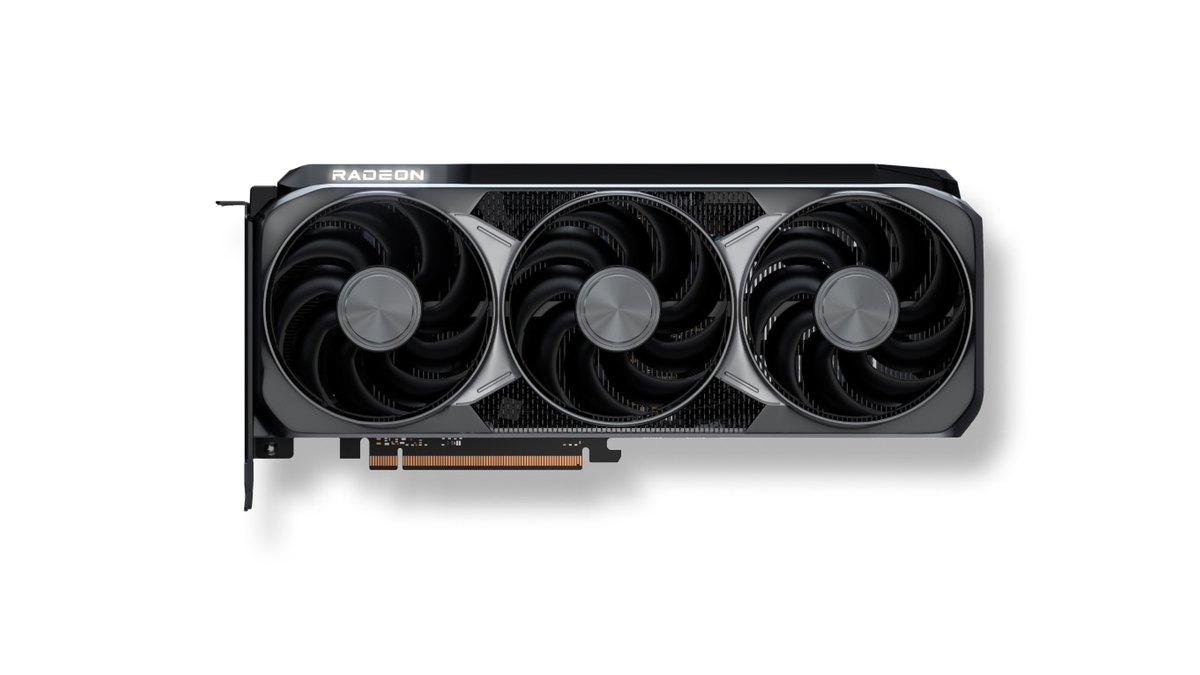
Current cards list the feature right on the spec sheet. The AMD Radeon RX 9070 XT includes AMD Smart Access Memory among its supported technologies, with 16GB of GDDR6 on a 256 bit bus and a PCIe 5.0 x16 interface. NVIDIA lists Resizable BAR support for both the GeForce RTX 5060 Ti and RTX 5060. If you are still choosing between the two brands, see our RTX 5070 Ti vs RX 9070 XT comparison and the RTX 5060 Ti 16GB vs RX 9060 XT 16GB comparison first.
Before you start: GPU generation, motherboard support and Windows boot mode
- Graphics card model: make sure it is one of the generations in the table above. Task Manager or Device Manager shows the exact model, as explained in how to check your PC specs on Windows 11.
- CPU and motherboard: when NVIDIA launched support in 2021, the official list covered Intel 10th and 11th gen Core with their chipsets, and AMD Ryzen 5000 with 500 series chipsets. For newer platforms, check your board manual for a Re-Size BAR entry.
- Windows boot mode: open System Information (msinfo32) and look at BIOS Mode. If it says Legacy instead of UEFI, convert the system disk to GPT before you touch CSM.
- Firmware: use the latest BIOS for your exact motherboard model, and for early RTX 30 cards, the VBIOS your card maker published for your model. NVIDIA warns against flashing Founders Edition or other models' firmware when no update exists for your card.
How to enable Resizable BAR or SAM in the BIOS, step by step
- 1Confirm Windows is installed in UEFI modeIf BIOS Mode in msinfo32 reads UEFI, continue. If it reads Legacy, use Microsoft MBR2GPT to convert the system disk to GPT without wiping data, then switch the firmware to UEFI boot. Microsoft advises suspending BitLocker protection before converting.
- 2Update the BIOS and graphics driverInstall the newest BIOS for your exact board model and the current graphics driver. Never cut power during a BIOS flash.
- 3Enter the BIOS and disable CSMPress Delete (or F2 on some boards) while rebooting. On ASUS, open Advanced Mode (F7), go to Boot, then CSM (Compatibility Support Module), and set Launch CSM to Disabled. ASUS states CSM has to be disabled for Resizable BAR to work.
- 4Enable Above 4G DecodingIn the PCI or PCIe settings menu, set Above 4G Decoding to Enabled. On some boards the Re-Size BAR option only appears after this one is on.
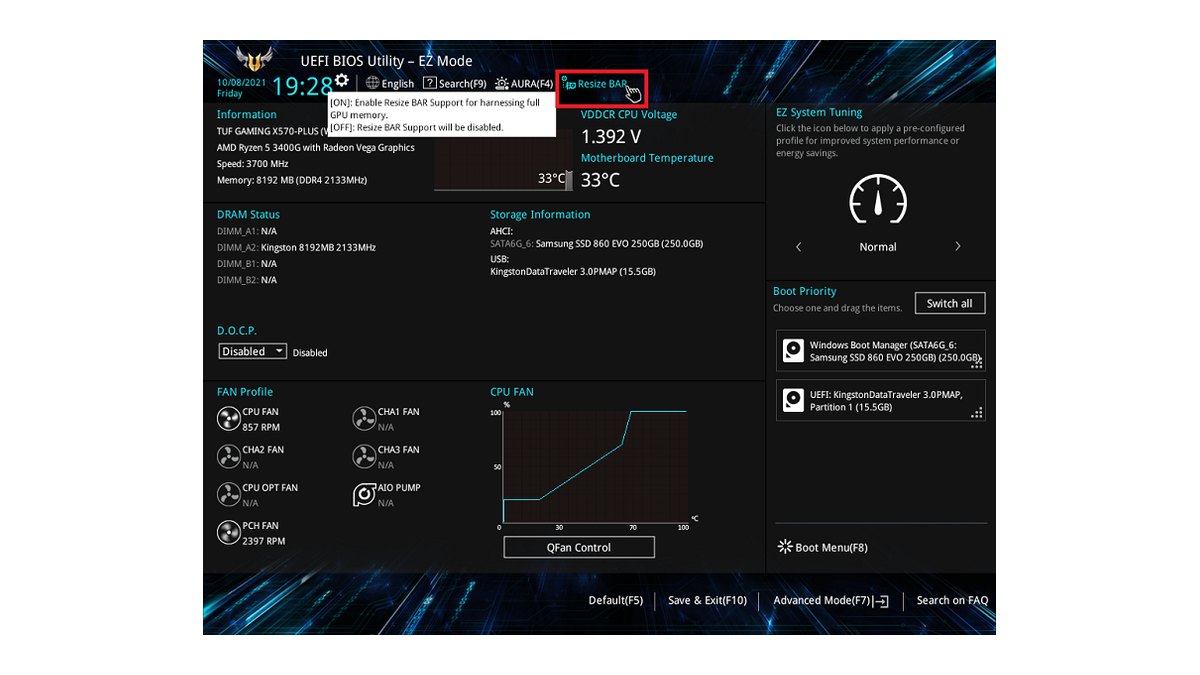
- 5Enable Re-Size BAR SupportSet Re-Size BAR Support to Enabled or Auto. ASUS EZ Mode changes both options with one button, ASRock labels it C.A.M, and some boards call it Smart Access Memory.
- 6Save and rebootSave with F10 and restart. If a confirmation window lists the changes, make sure Above 4G Decoding and Re-Size BAR Support are both on it before you accept.
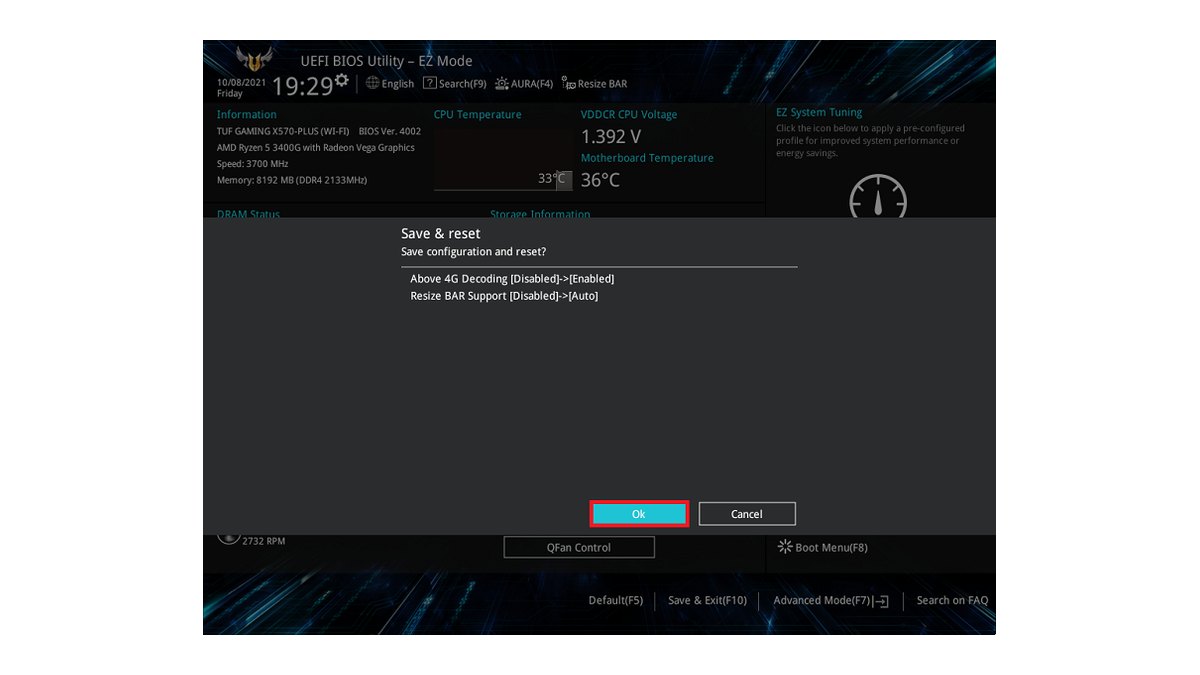
In the ASUS confirmation window above, a single press of the Resize BAR button changes Above 4G Decoding from Disabled to Enabled and Resize BAR Support from Disabled to Auto. That design stops you from enabling only half of the pair.
MSI, GIGABYTE and ASRock put these options in different places with slightly different labels, so typing Re-Size or Above 4G into the BIOS search box is usually the fastest route.
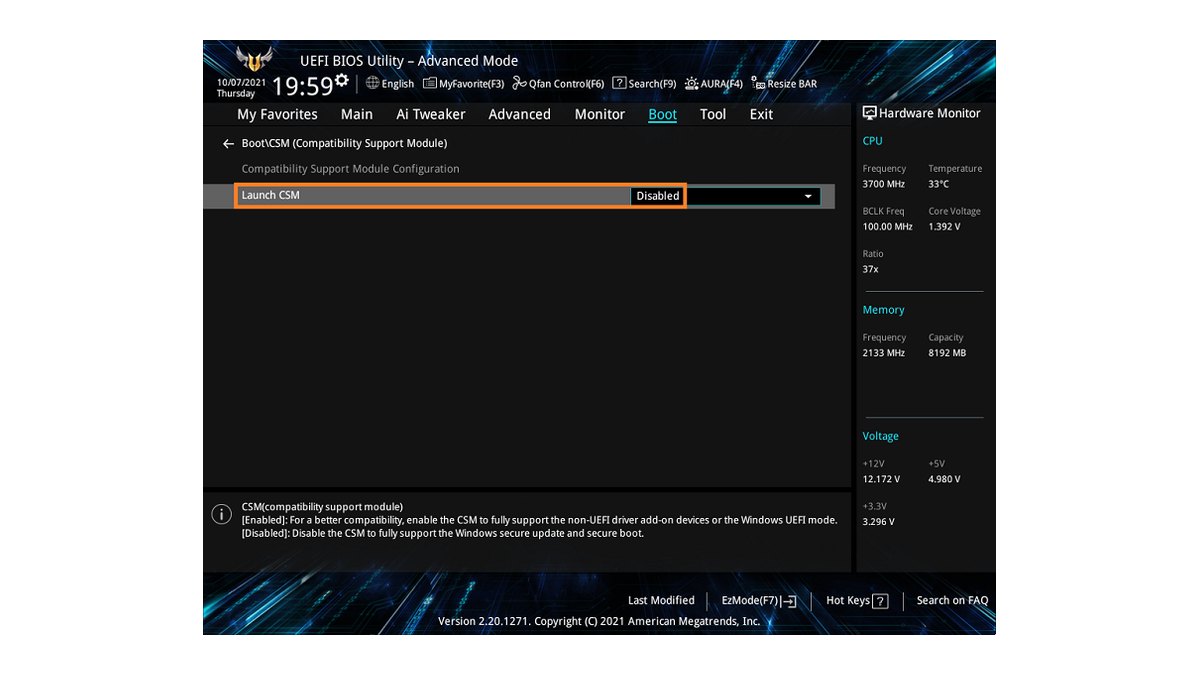
CSM is a compatibility layer that emulates the old legacy BIOS boot method. Turning it off makes the board boot in UEFI mode only. Most PCs with a clean Windows 11 install already use UEFI and a GPT disk, so you can switch it off without worry.
If your system drive has been carried over from an old Windows 10 build, though, it may still be MBR. In that case Windows may refuse to boot once CSM is off, which is why the first step matters.
How to check if Resizable BAR is enabled: NVIDIA, AMD and Intel
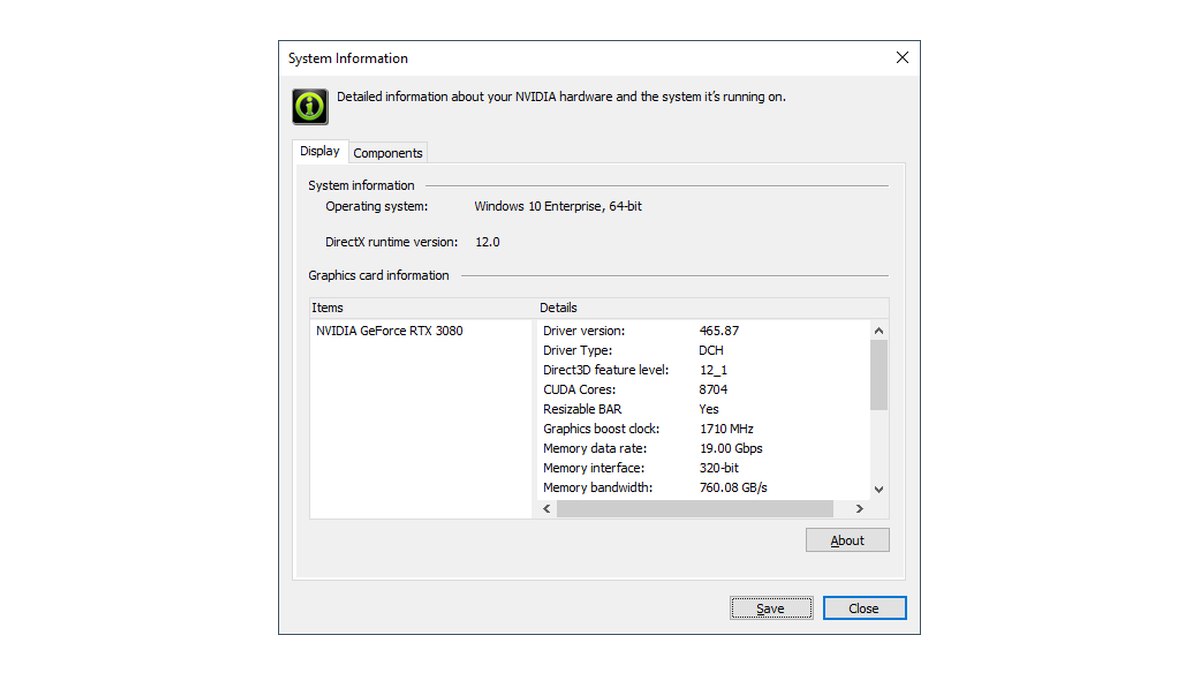
On NVIDIA, open NVIDIA Control Panel and click System Information in the lower left corner. In the Display tab, the details list should show Resizable BAR: Yes. If it says No, check that the BIOS changes were saved and reboot again.
While you are in there, you can tune the rest of the panel with our NVIDIA Control Panel settings for gaming guide. If your Control Panel version does not show that line, ASUS suggests running GPU-Z as administrator and checking that Resizable BAR reads Enabled.
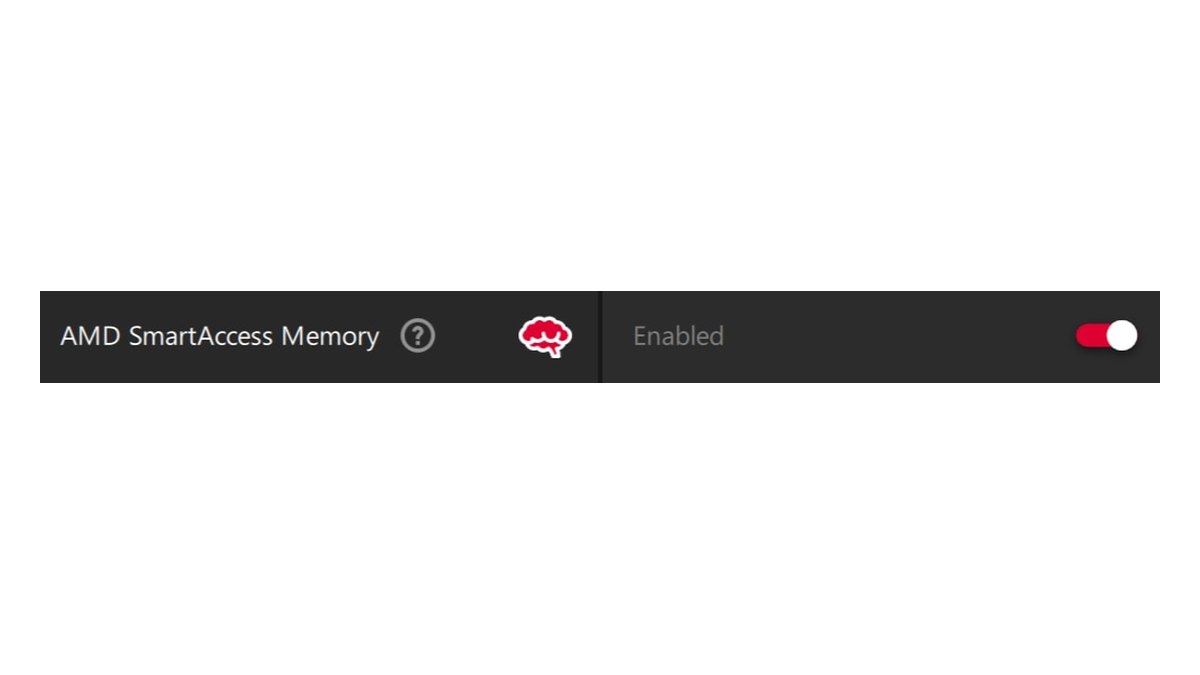
On AMD, open AMD Software: Adrenalin Edition, go to Performance, then Tuning, or simply type Tuning into the search bar. If the AMD SmartAccess Memory toggle shows Enabled, you are set. According to AMD, SAM is turned on automatically when the driver installs on a compatible system.
Flipping the toggle restarts AMD Software and the screen may go black for a moment, so change it with games closed. It is also worth glancing at this toggle again after every driver update.
For Intel Arc, Intel recommends checking the Resizable BAR status with Intel Driver & Support Assistant. Intel says Arc cards still run without ReBAR, but they need it enabled for optimal performance, and benchmark results with ReBAR off have shown steep drops. If you own an Arc card, do not skip this check.
Resizable BAR on or off for gaming: per game results
| Game | Benchmark example | Our call |
|---|---|---|
| Assassin's Creed Valhalla | RX 6800 at 1080p about +20%, RX 7900 XT at 1440p about +17%, RTX 3080 at 1440p about +9% | On |
| Red Dead Redemption 2 | RX 7900 XT at 1440p about +10% | On |
| Arc Raiders | RX 7900 XT at 1440p about +8.5% | On |
| Forza Horizon 4 and 6 | RTX 3080 at 1440p about +9% (FH4), RX 7900 XT at 1440p about +1% (FH6) | On |
| Destiny 2 | RX 7900 XT at 1440p average about −3%, 1% lows about −6% | Leave on, switch off for this game only if you see stutter |
| World of Tanks | RX 7900 XT at 1440p about −2% | Within noise, leave on |
| Watch Dogs: Legion | RTX 3080 at 1080p about −10% (2021 driver) | Old result, retest on a current driver |
On average the effect is small. A 2021 test of 20 games on an RTX 3080 with a Ryzen 9 5950X found 0 percent at 1080p, about 1 percent at 1440p and about 2 percent at 4K, while SAM on an RX 6800 averaged around 3 percent across 36 games.
The table shows the other side: big recent titles can gain double digits, and the games that lose usually lose only a few percent. That is why our rule is to keep it on globally and only switch it off for a main game that stutters or drops frames.
Starting with NVIDIA App 11.0.9, NVIDIA lets you set Resizable BAR per game under Graphics, Program Settings, Driver Settings, Resizable BAR. AMD only offers the global toggle in Adrenalin, so if one game misbehaves, compare both states and keep whichever is better.
User feedback keeps landing on the same point: it depends on the game, so judge it by the titles you actually play.
Six common mistakes when enabling ReBAR
- Leaving CSM on: Re-Size BAR will not work while CSM is enabled. ASUS says Launch CSM must be Disabled.
- Enabling only Above 4G Decoding: you also need Re-Size BAR Support. If that option is missing, turn on Above 4G Decoding first and look again.
- Disabling CSM on a legacy MBR install: the PC may not boot. Check BIOS Mode in System Information first and convert to GPT if needed.
- Updating only the BIOS: the motherboard BIOS, the card VBIOS and the driver all need support. Never flash firmware meant for a different model.
- Skipping the check after a driver update: after updating or reinstalling drivers, look at Control Panel or Adrenalin again.
- Testing a game that runs on the wrong GPU: on laptops and PCs with integrated graphics, make sure the game uses the dedicated card. See how to choose which GPU a game uses.
PC will not boot after enabling Resizable BAR: how to undo it
If Windows no longer starts after the change, go back into the BIOS. The surest fix is to undo what you just changed: set Launch CSM back to Enabled and, if needed, return Re-Size BAR Support and Above 4G Decoding to their previous values, then save.
On ASUS you can also load defaults with the Default (F5) button at the bottom of the screen, but on some boards CSM is disabled even in the default profile, so check the CSM setting again after loading them.
If you cannot even reach the BIOS screen, clear the CMOS using the jumper or button described in your motherboard manual. If a legacy disk was the cause, convert it to GPT once you are back in Windows and then try again.
Measure the difference with before and after recordings
You rarely feel ReBAR right away. To see whether it helps, play the same map, the same scene and the same graphics preset before and after enabling it, with an FPS counter on screen, and record both runs. Our guide on how to show FPS in games covers the overlay.
DOR is a free Windows app that detects supported games when you launch them and records the whole match automatically, collecting everything in My Clips. For a benchmark tool or anything that is not a game, use screen recording (F7 by default).
Flip between the two recordings and compare the FPS counter and any hitches in the same section, so the on or off decision for your main game is based on footage rather than feel.
Prices as of November 10, 2026
| Product | Launch MSRP (US) | Street price range |
|---|---|---|
| RX 9070 XT | $599 | About $960 to $1,170 |
| RTX 5060 Ti 16GB | $429 | About $820 to $880 |
| RTX 5060 8GB | $299 | About $460 to $570 |
These are the cards used as ReBAR and SAM examples above. ReBAR is a setting you turn on for the card you already own, so you do not need to buy any of them. Graphics card prices have moved a lot with memory supply and sales, so check the current price of the exact model at the store before you buy.
Related reading before a GPU upgrade
ReBAR helps you get the full value out of the parts you already own. If you are planning a new graphics card, start with our PSU checklist before a GPU upgrade for wattage and connectors, then read how to avoid a CPU and GPU bottleneck to see whether your current CPU keeps up.
Older CPUs and motherboards may not offer a ReBAR option at all, so factor that into the upgrade plan too.