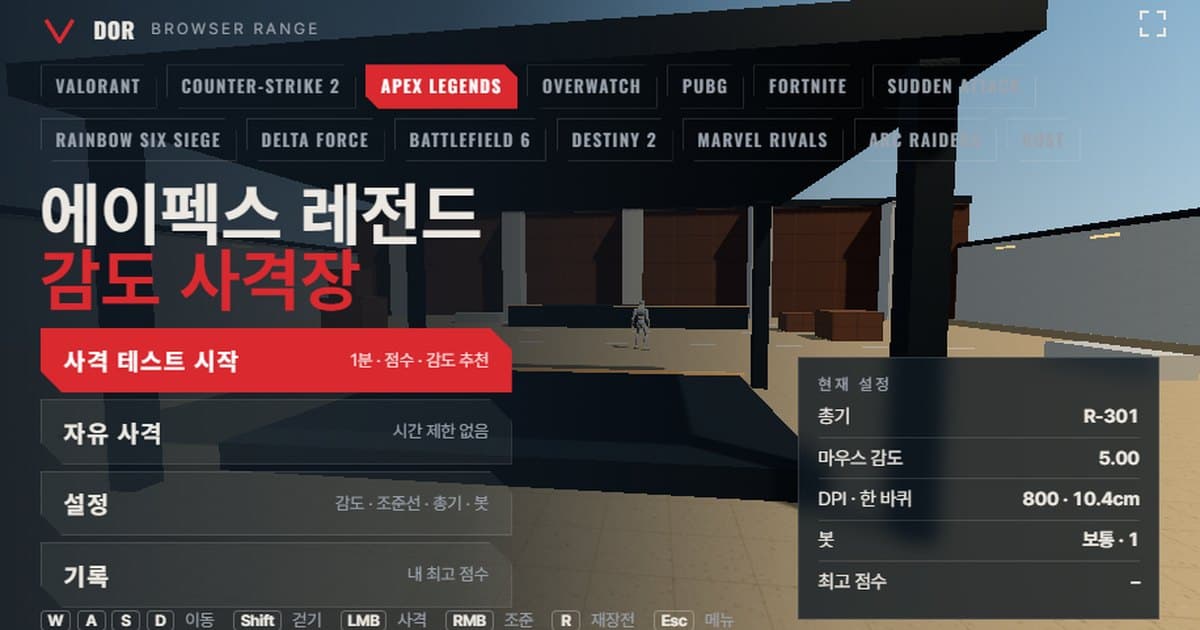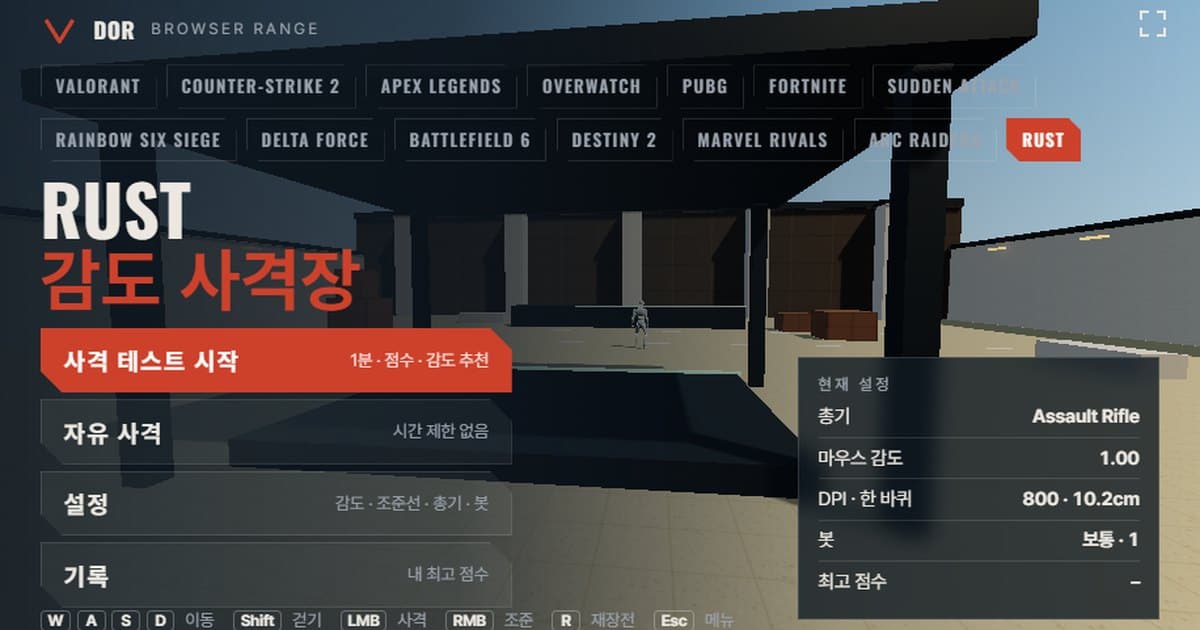
Rust sensitivity is set in Options > Input > Mouse Sensitivity, where the slider runs from 0.1 to 2 in 0.1 steps with a default of 1.0 (per 2017–2019 setup guides), and the input.sensitivity command in the F1 console changes the same value. The range at the top of this article is a browser practice ground that copies Rust's mouse turn rate and field of view. Enter your sensitivity and DPI in the same units as the game options, pick a weapon and run the 1-minute test: you get score, accuracy, headshot rate and average time to kill, and the range counts whether you overshot or undershot targets to suggest raising or lowering your sensitivity. There is nothing to install; it opens straight away in Chrome or Edge on PC, but it needs mouse lock, so it does not open on mobile or in in-app browsers.
Rust is not a round-based FPS but a survival game that runs on wipe cycles, so it is hard to predict when a fight will break out, and fights often start in the middle of farming. That makes it rare to get a chance to verify a sensitivity change right after making it. Use the range to get the same turn rate into your hands without joining a server. Ranges for other games are collected in the browser sensitivity range hub.
What matches Rust's settings and what differs
The table below lists which Rust values the range took over and where it simplified. One caveat first: Facepunch does not publish movement speeds or turn coefficients in official documentation, so many of these are community estimates.
| Item | Rust | Range | Notes |
|---|---|---|---|
| Turn rate | 0.1125° per count × sensitivity | Same (0.1125° × sensitivity) | Based on community converter sites; not confirmed in official docs |
| Field of view | Field of View slider 70–90, default 75 (presumably vertical) | Fixed horizontal 107.5° (vertical 75° converted at 16:9) | If you play at 90, the actual game looks wider |
| Movement speed | Not officially published | Sprint 5.5 m/s · walk 3.03 m/s | Range approximation; community-quoted values are about 5.5 m/s sprint and 2.8 m/s walk (unverified) |
| Bot health/armor | Health 100; armor reduces damage per body part by a percentage | Health 100 · 150 with heavy armor selected | Damage reduction simplified into extra health |
| Weapon list | Dozens, with attachments swapping sights | 7 fixed (Assault Rifle · Semi-Automatic Pistol · Thompson · MP5A4 · Bolt Action Rifle · Pump Shotgun · M249) | ADS zoom based on iron sights at 1.3× |
Headshot multipliers follow the official wiki's ammo table as is: 2× for bullet weapons and 1.2× for buckshot. Rust armor does not add health; it cuts projectile damage by a percentage per body part (a metal facemask, for example, reduces projectile damage by 50%), so in the range, turning on the heavy armor option in the Bots tab stands in for that with 150 health. Weapon stats do change with updates: the September 2026 update (Breach and Clear), for example, increased damage falloff on the Semi-Automatic Pistol, so for the latest values it is more accurate to check the official Rust changelog.
How to run the 1-minute test
The four large buttons in the menu are Start test, Free fire, Settings and Records. If this is your first time, go through one loop in the order below.
- 1Enter sensitivity and DPIIn Settings > General, enter your Mouse Sensitivity value from the game options (console input.sensitivity) as is, and type in your mouse DPI. DPI is not used to calculate turning; it is only there to display eDPI and cm/360.
- 2Choose a weaponIn the Weapons tab, pick one of the 7 weapons. When comparing sensitivities, use the same weapon every time so the results can be overlaid. The Assault Rifle is a safe first choice.
- 3Start the testGo back to the menu and press Start test; after a countdown the mouse locks and the minute begins. WASD to move, left click to fire, right click to aim, R to reload and Shift to walk.
- 4Deal with targets as soon as they appearWhile the 1-minute timer runs, targets disappear after a set time, so shoot them the moment they show up. Pressing ESC mid-round pauses the test and brings the cursor back; press Resume to continue. If you press Quit, that round is not recorded.
- 5Read the resultsWhen the round ends you get the score along with accuracy, headshot rate, Avg kill, Spawn → first shot avg, Shots per kill, Overshoot / undershoot and Missed targets. Read the sensitivity suggestion underneath and choose Retry with suggested sens or Retry same setup.
- 6Repeat 2–3 times on the same dayDo not decide on a single result; run 2–3 more rounds with the same setup and check whether the results overlap. The Records tab keeps the best score for each combination of settings.
Pressing the Fullscreen button at the top right of the menu makes the canvas fill the whole monitor so you practice at the same screen size as the game. The Settings window has five tabs: General, Crosshair, Weapons, Bots and Audio & Video. In the Bots tab you can change bot speed (Easy, Normal, Hard), bot armor, targets at once and bot movement (still or strafing). Settings are saved in this browser, so the next time you open the range it starts with the same values.
How to read the results screen
The results screen shows your kill count along with several metrics, and the one directly tied to sensitivity is overshoot / undershoot. Treat the other five in the list below as supporting metrics that tell you whether a sensitivity change has caused side effects; missed targets and your best score with the same setup are shown as well.
- Accuracy: the share of shots fired that hit a target. Lowering sensitivity usually raises it, but if it drops so low that you cannot keep up with targets, accuracy falls again.
- Headshot rate: the share of hits that landed on the head. Rust gives bullet weapons a 2× headshot multiplier, so this number heavily decides your time to kill.
- Avg kill: the average time from a target appearing to it going down. It works well as the final metric for comparing sensitivities.
- Spawn → first shot average: your reaction time from noticing a target to firing the first shot. It depends more on your condition and target recognition than on sensitivity.
- Shots per kill: the number of rounds spent on one target. With small magazines like the Semi-Automatic Pistol or Bolt Action Rifle, this value translates directly into how often you reload.
- Overshoot / undershoot: the count of how often your crosshair went past a target or stopped short of it while pulling onto it. With fewer than 5 kills the sample is too small and no suggestion appears; if overshoot exceeds 60% the range suggests a value 10% lower, and if undershoot exceeds 60% it suggests a value 10% higher. If the two are similar, it tells you to keep your current sensitivity.
Where Rust sensitivity is set and cm/360 conversion
You change it with the Options > Input > Mouse Sensitivity slider or with the input.sensitivity command in the F1 console. The slider moves from 0.1 to 2 in steps of 0.1, but the console accepts finer values such as input.sensitivity 0.25, so players who fine-tune their aim often use the console value. The range, step and 1.0 default come from 2017–2019 setup guides and a community wiki; no official documentation reconfirms them for the latest builds.
Turning is linear: you turn 0.1125° per count multiplied by your sensitivity. This coefficient comes from community converter sites rather than Facepunch documentation, and it matches one player's measurement (about 43 cm per 360° at 1600 DPI and sensitivity 0.1173). Some converter sites list a different coefficient, so the safe approach is to calculate with the formula below yourself and then measure your cm/360 in the game to confirm it.
At 800 DPI this reduces to cm/360 = 10.16 ÷ sensitivity. A sensitivity of 0.3 gives about 33.9 cm, and the default 1.0 gives about 10.2 cm, which is quite fast.
| Sensitivity (input.sensitivity) | eDPI at 800 DPI | cm/360 |
|---|---|---|
| 0.2 | 160 | about 50.8 cm |
| 0.3 | 240 | about 33.9 cm |
| 0.5 | 400 | about 20.3 cm |
ADS sensitivity: iron sights and scopes
Rust has no per-scope sensitivity sliders. When you aim with right click, the game automatically slows turning to match the sight's zoom, and on top of that a single input.ads_sensitivity value is applied as an overall multiplier (0.5 means half of hipfire). This command is backed by community evidence from player config files and conversion guides, and the default of 1.0 is inferred from the convention for multiplier commands. The sight zoom levels listed by community converter sites are roughly 1.3× for iron sights, 1.5× for the holosight, 8× for the 8x scope and 16× for the 16x scope; treat them as approximations. Some players bind a change of input.sensitivity to right click to use separate hip and ADS sensitivities, and the official wiki's keybind documentation shows an example of the same method. The range keeps every weapon at an iron-sight 1.3× zoom and imitates input.ads_sensitivity with the Scoped sensitivity multiplier (default 1.0) under Settings > General.
Field of view settings
Field of view is chosen with the Field of View slider in the options between 70 and 90, and the console graphics.fov accepts 60 to 90 according to community command lists. The default of 75 comes from older guides, and most PvP players use 90. That this value is vertical (Hor+) is inferred from Unity convention rather than Facepunch documentation, so confidence is moderate. Under that assumption, at 16:9 a value of 75 equals about 107.5° horizontal and 90 equals about 121.3°. The range is fixed at 107.5° horizontal, so if you play at 90, keep in mind that targets look a little smaller and the view wider in the actual game. FOV does not affect turning; it only changes how large targets appear on screen and how fast movement feels.
Recoil control, the core of Rust combat, is absent from the range. Each weapon only has a simplified upward kick and spread, so you cannot practice memorizing and pulling down the game's actual recoil patterns. The range is for dialing in sensitivity for first shots and crosshair movement (flicks and tracking); spray control has to be learned separately in the game.
Rust weapons included in the range
Weapon stats were back-calculated from the damage and DPS values on the official Facepunch wiki, and some magazine sizes and reload times come from community sources, so they are approximations. Rust is a paid game from Facepunch Studios sold on Steam, and all 7 weapons in the range are modeled with iron sights and no attachments.
| Weapon | Fire rate (rpm) | Magazine | Reload (s) | Head · body damage | ADS zoom |
|---|---|---|---|---|---|
| Assault Rifle | 450 | 30 | 4.5 | 100 · 50 | 1.3× |
| Semi-Automatic Pistol | 400 | 10 | 2.6 | 80 · 40 | 1.3× |
| Thompson | 462 | 20 | 3.5 | 75 · 38 | 1.3× |
| MP5A4 | 600 | 30 | 4.5 | 75 · 38 | 1.3× |
| Bolt Action Rifle | 35 | 4 | 5.3 | 160 · 80 | 1.3× |
| Pump Shotgun | 54 | 6 | 5.8 | 216 · 180 (12 pellets combined) | 1.3× |
| M249 | 500 | 100 | 7.5 | 130 · 65 | 1.3× |
For one-tap (single headshot) training, the Bolt Action Rifle is the right pick. With 160 to the head, a 100-health bot drops in one shot while the body takes two, so the difference between head and body shows up directly in your score. To check flicks and tracking together, fire short bursts with the Assault Rifle or MP5A4 and watch whether shots per kill creeps up. The Semi-Automatic Pistol is semi-auto at 400 rpm, which makes it good for checking click timing and crosshair reset, and the Pump Shotgun is purely for close-range flicks, where it builds up overshoot / undershoot counts quickly.
Limits of a browser range and how to work around them
- Raw input: the range requests the browser's raw input (unadjusted movement), but if the browser or OS refuses, Windows pointer acceleration gets mixed in. If a warning appears in the menu, turn off Enhance pointer precision in Windows mouse settings. Rust has no mouse acceleration option, so the off state matches the game.
- Input timing: browsers batch mouse movement per frame, so the fine movements of a 4000–8000 Hz polling mouse are not reflected exactly as in the game client. The total amount of turning is the same, but there can be small differences in the path.
- No recoil patterns: Rust's per-weapon recoil patterns and spray control are absent. Use the range only as a tool for measuring first-shot accuracy and crosshair movement sensitivity.
- Accuracy while moving: Rust's accuracy loss while moving or jumping is only imitated by how much the crosshair blooms through the Movement & firing error option under Settings > Crosshair. The actual game's ballistics and bullet drop are absent.
- FOV fixed at 16:9: the range is based on 107.5° horizontal and does not follow Rust's Hor+ behavior where the horizontal view widens at 21:9. Ultrawide users get closer to the game by testing at a 16:9 window size.
The workarounds are simple. Keep DPI and polling rate the same as in the game, turn off Enhance pointer precision, open the range in fullscreen, and judge by the average of several runs on the same day rather than a single result. Once you put the value you picked in the range into the game, measuring your cm/360 for real also confirms whether the turn coefficient estimate is right. If you want to change DPI while keeping the same feel, use the sensitivity & DPI converter; to carry over a cm/360 from another FPS as is, compare it with the conversion tables in the CS2 sensitivity range or PUBG sensitivity range articles.
Verify in real fights after setting sensitivity: DOR
Range scores are a reference; the final call has to be made in real fights. But in Rust you never know when a fight will happen, and once you die there is no way to rewind, so even after days of playing with a new sensitivity you end up relying on memory for what changed. When DOR recognizes Rust, it records your play sessions automatically, and you can save a clip of any moment with a single hotkey. Clips are trimmed in the browser editor and shared as dor.gg links. It is free and runs on Windows. If you collect fight clips from the day you changed sensitivity, you can check whether the range's overshoot/undershoot results point the same way in real combat. Details of support are on the Rust recording page.