Short answer: the easiest clipping software for The Outlast Trials is an app that records an entire trial on its own as long as it is running.
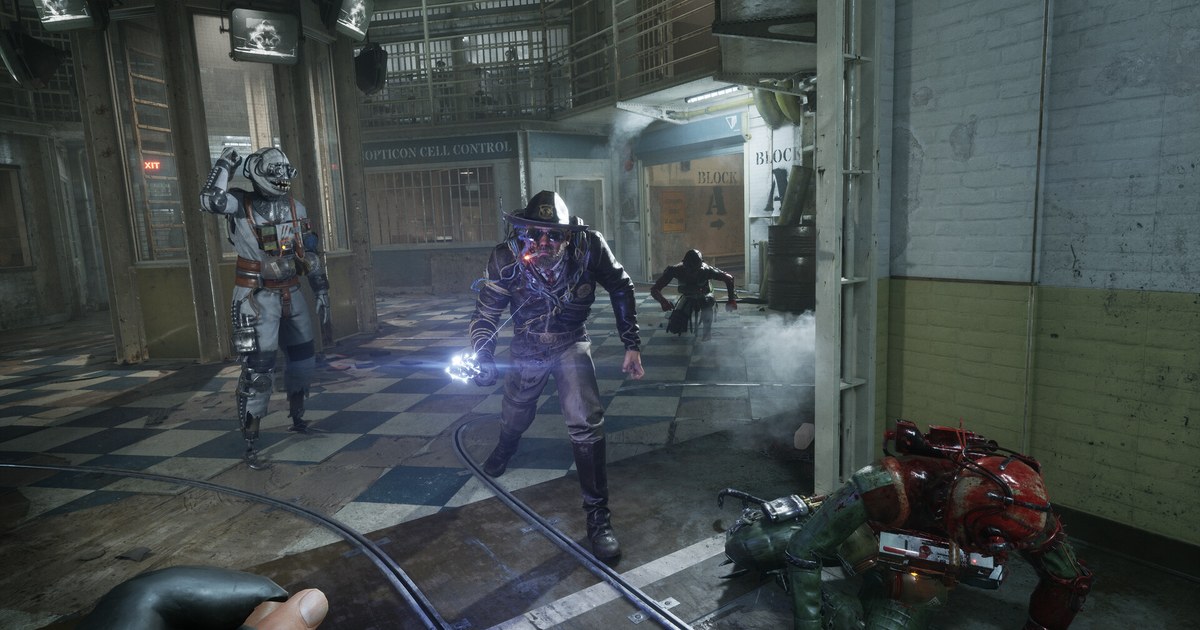
The moments people want to keep in this game, a locker door flying open or a pursuer bursting out at the end of a hallway while everyone screams and scatters, arrive without warning, and nobody remembers the save hotkey in that second.
Tools that save the last few dozen seconds (NVIDIA app Instant Replay, Xbox Game Bar, the Medal clip key, the OBS replay buffer) only give the clip to whoever kept calm enough to press the key, while session recording lets you scrub through the footage and pick the moment after the trial ends.
DOR is a free Windows app that detects The Outlast Trials when you launch it and records from launch to exit, so all you do is cut the scream out of My Clips.
The table below compares how each tool saves a moment and what to watch for in this game, followed by the steps to turn a reaction into a 9:16 vertical clip. Everything here reflects November 2026.
Verdict: session recording if you hate missing a scream, replay saving if you only want short clips
There is one deciding question: can you press a hotkey the moment something terrifying happens? The Outlast Trials is a co-op horror game you can play solo or in a team of 2, 3 or 4 (per the Steam store page), and when a scare lands your hands go to screaming before they go to the keyboard.
If you have regretted missed moments, DOR's full session recording fits better; if you want to save only short moments and keep storage low, a replay saving tool fits better. How replay saving works is covered in how to clip the last few seconds, and the differences between Medal and the NVIDIA app are in Medal vs NVIDIA ShadowPlay.
Horror adds two things to check. The first is audio. A reaction clip lives on the screams and the chatter, so check on your first run how the tool captures game sound and your microphone.
DOR records game sound and your mic together on one track. The second is dark scenes. This game is full of dim hallways and flashlight beams, and recording at low quality tends to smear the black areas into blocks.
Keep your recording resolution at 1080p and zoom into a dark scene from your first run. Session recording uses more space, but DOR only clears the oldest videos when the full gameplay share (5 GB by default) is exceeded, and it keeps recent recordings and videos you liked.
The Outlast Trials clipping tools compared (as of November 2026)
| Tool | How it keeps the scream | What to know in The Outlast Trials |
|---|---|---|
| NVIDIA app Instant Replay | Keeps remembering the recent stretch while on, saves only when you press the hotkey | Built for GeForce RTX cards; set a generous replay length so pressing late after a scare still catches it |
| Xbox Game Bar | With background recording on, a hotkey saves the last 30 seconds by default | Built into Windows so nothing to install; change the length under Settings > Gaming > Captures |
| Steam Game Recording | Background recording keeps overwriting footage inside the disk limit you set | Turn moments you want into clips, and export them if you need an mp4 |
| Medal | The clip hotkey saves a set length, and there is also a full session recording mode | Captures game, mic and Discord audio on separate tracks and makes share links |
| OBS Studio replay buffer | Keep the replay buffer on and press the save hotkey to keep the last stretch | Free and open source; you tune output settings yourself for dark scene quality |
| DOR | Detects The Outlast Trials and records the full session from launch to exit automatically | A free app that records on its own while running; cut screams in My Clips and save them without a watermark |
Check these before choosing a clipping tool for The Outlast Trials
- I thought about whether I can press a hotkey the moment a scare hits
- I tested one run to confirm friends' voices and my mic make it into the recording
- I zoomed into a dark hallway scene from my first run to check it is not smeared
- I confirmed there is enough storage to record several trials as full sessions
- I checked how to upload game videos without quality loss so dark scenes survive the upload
How to turn a scream in The Outlast Trials into a clip
- 1Start DOR before launching the gameInstall DOR and leave it running, then launch The Outlast Trials and it detects the game and starts recording automatically. There is no record button to press and no hotkey to memorize, so you can focus on hiding and running.
- 2Check audio and dark scenes on your first runAfter one short trial, open the video in My Clips and confirm you can hear game sound, your mic and your friends. If you talk over Discord, also read how to record Discord call audio. If dark hallway scenes look smeared, check that your recording resolution is 1080p.
- 3Find the scream after the trialWhen the session ends, the recording lands in My Clips. Jump to the moment a pursuer appeared, the locker you got caught in, or the final sprint to the exit, and set the range with a few extra seconds on each side.
- 4Cut the reaction clip in 9:16Trim and save in 16:9, 9:16 or 1:1 inside the app. For a reaction clip headed to Shorts or TikTok, choose 9:16, and see turning gameplay into YouTube Shorts for framing tips.
- 5Stitch scenes together and shareIn DOR Studio (dor.gg/studio), merge several clips, add text, BGM and effect templates like shake zoom, then export an mp4 or share a dor.gg link. Tips for sending it to friends are in how to share The Outlast Trials gameplay videos.
Keep DOR running and The Outlast Trials records itself
DOR is a free Windows game recording app. When you launch The Outlast Trials, it detects the game and records the full session from launch to exit, and the recording collects in My Clips inside the app. Because you never have to press a hotkey, even the moment you fled screaming stays on video.
Cut the scenes you want in 16:9, 9:16 or 1:1 inside the app, and use DOR Studio to merge several scenes or add text, BGM and effect templates.
Free recording quality lets you choose 720p or 1080p at 30 or 60fps, and on supported NVIDIA graphics cards such as the RTX series, DOR records with NVENC hardware encoding. Export the result as an mp4 or share it as a dor.gg link, and record, edit and share without a watermark.