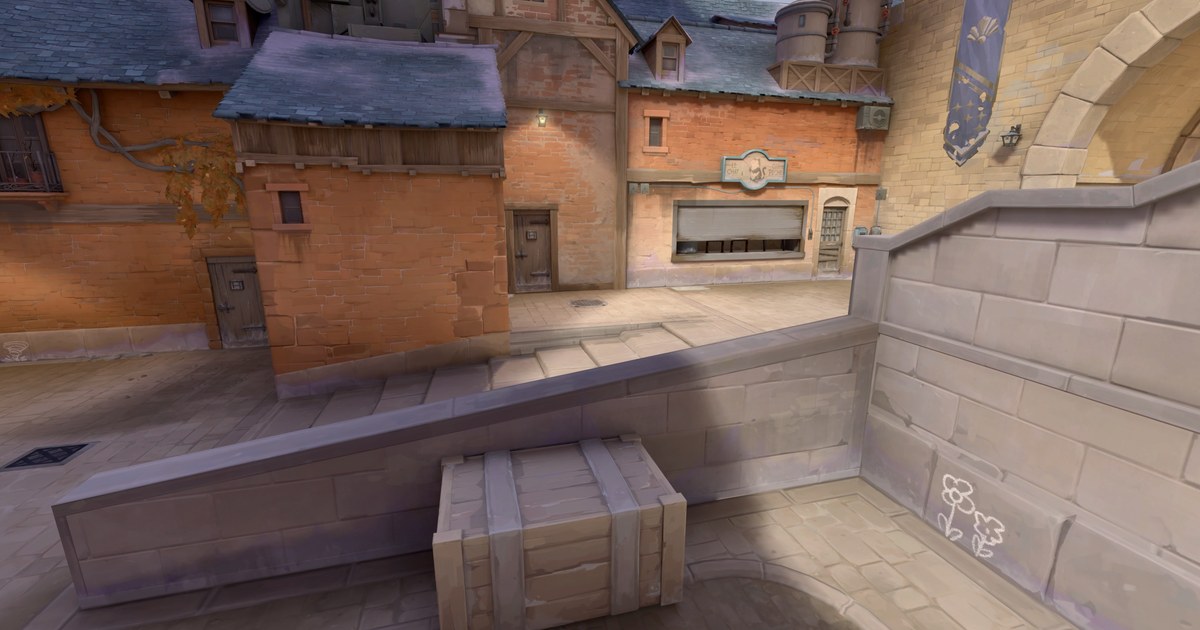

Here is the short answer: to make a VALORANT highlight video, open the DOR app, pick a few kill clips it saved automatically, and press AI Highlight. DOR is a free Windows app that detects a supported game when you launch it and records the whole match.
In VALORANT it saves kill moments as clips, with Ace and Clutch tags. AI Highlight takes the clips you chose, applies a template, adds music and effects, and joins everything into one video. You do not open an editing program, search for moments, cut them, and join them by hand.
This guide walks through which clips to pick, which template and aspect ratio to use, and where to finish the video. If you want to start from capturing clips, read how to clip VALORANT; for hand editing after the highlight is made, see how to make a kill montage. Everything here is based on the app as of November 24, 2026.
The answer: pick kill clips from one game, pick a template, press create
Kill clips that DOR saved automatically in VALORANT are all AI Highlight needs, and putting an Ace or Clutch tagged clip first gives the video a center. One video joins clips from one game only, so full match recordings or scenes you trimmed by hand are better joined in DOR Studio.
There are 11 templates and each takes a different number of clips, so choose the template that fits the clips you have. VALORANT is among the seven games AI Highlight supports; the other games are covered in the seven AI Highlight supported games. AI Highlight does not judge by watching the footage.
It reads game events such as kills and builds the video automatically, so clips that contain kill events give the most stable result.
How to make a VALORANT highlight video
- 1Launch VALORANT and play a match as usualWith DOR installed, launching VALORANT is detected automatically and the whole match is recorded. Kill moments are saved as clips with Ace and Clutch tags, and recordings collect in My Clips in the app. You never press a record button.
- 2Pick the clips from My ClipsIn the clip screen of the DOR desktop app, pick clips from the same game yourself, or press the AI Highlight button in the clip list to move on with clips that were selected automatically. Put Ace or Clutch tagged clips and the kill you most want to show first.
- 3Choose a templateIn the template window, choose a template and pick a track from the music list. Each template takes a different number of clips, so check that it matches the number you picked. The traits of each template are collected in the 11 AI Highlight templates explained.
- 4Set the aspect ratio and lengthThe default is 16:9, and the template window also offers 9:16 and 3:4. The Magazine template is made in 9:16 vertical. With the Default and AutoHighlight templates you can turn on the one minute limit to keep the video within about a minute.
- 5Press create and waitPressing create starts the AI edit. If you close the window while it is working, the automatic edit keeps going, and when it finishes you can see the result in the AI edit complete window.
- 6Finish in Studio and shareIn DOR Studio (dor.gg/studio), add text, BGM, volume, and effect templates, then export an mp4 or share a dor.gg link. If you also want to join scenes you cut yourself, follow the steps in how to merge game clips.
How to choose clips and a template for each situation
| Situation | What to pick | Why |
|---|---|---|
| One match as one video | Several kill clips from the same match with the Default or AutoHighlight template | The default ratio is 16:9, and turning on the length limit trims it to about one minute |
| A match with lots of kills | The Maniac template with 3 to 6 clips | That template accepts 3 to 6 clips |
| One moment, shown big | The FreezeZoom template with 1 clip | That template is built from a single clip |
| Vertical video for Shorts or Reels | The Magazine template with 1 to 4 clips | Magazine is made in 9:16 vertical |
| You have an Ace or Clutch tagged clip | Include that clip first | It lets you anchor the highlight on the biggest moment from the start |
| Clip count does not fit the template | Check the required clip count in the template window and switch templates | Each template takes a different number of clips, so switch to one that fits |
Check before you create
- Every clip you picked is a VALORANT clip
- The number of clips matches what the template accepts
- If you need vertical video, you chose 9:16 or the Magazine template
- If the video must be shorter, you turned on the one minute limit
- You decided whether to add text and BGM in Studio or export as is
Make a VALORANT highlight in one go with DOR
DOR is a free Windows game recording app. When you launch a supported game it detects it automatically and records the whole match, and recordings collect in My Clips. In VALORANT, kill moments are saved as automatic highlight clips with Ace and Clutch tags.
AI Highlight takes those clips, adds music and effects to fit the template you chose, and joins them into one video; it works with seven games: League of Legends, VALORANT, PUBG, FC Online, Fortnite, CS2, and Overwatch.
In the app you can trim a section and save it in 16:9, 9:16, or 1:1, and in DOR Studio you can join videos, change the aspect ratio, add effect templates (Shake Zoom, Punch Zoom, Handheld, Glitch Transition and more), text, BGM, and volume, then export an mp4 or share a dor.gg link.
DOR results carry no watermark. Free recording quality is 720p or 1080p at 30 or 60fps, with 1080p at 30fps as the default. As of November 24, 2026, AI Highlight is an app feature, and a Pro prompt may appear depending on the situation.