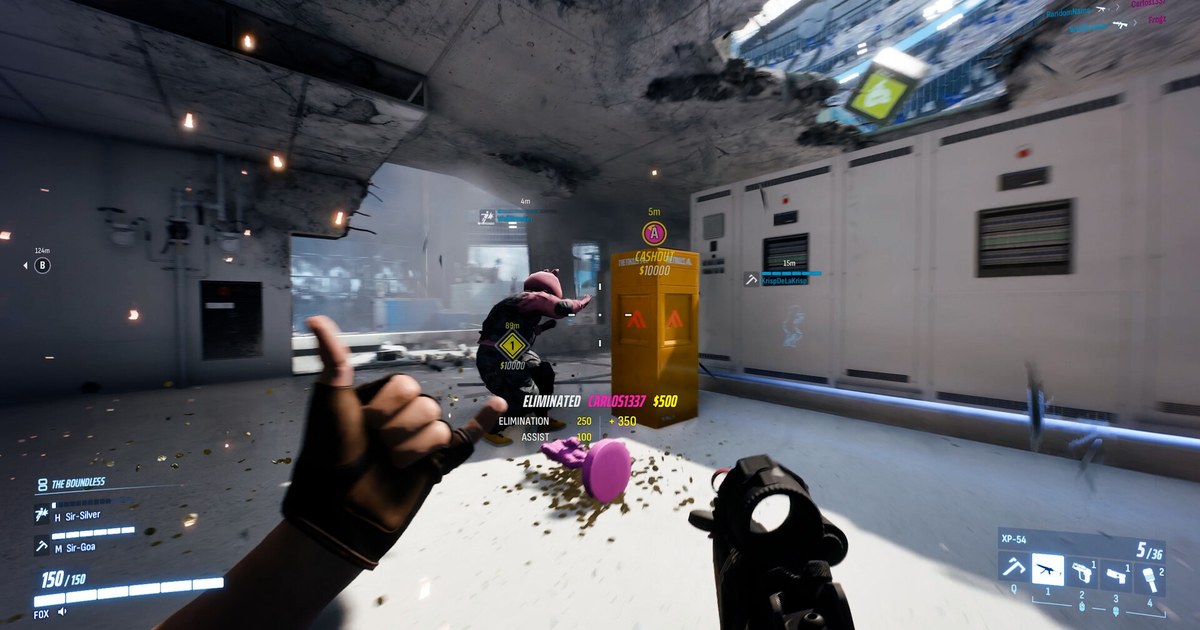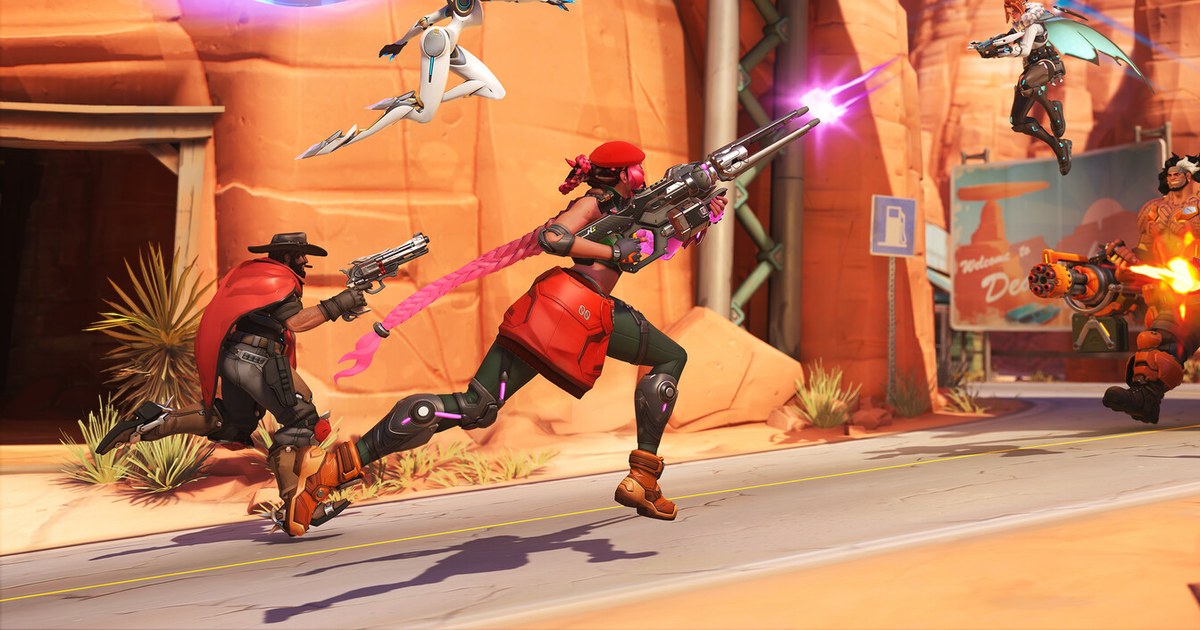
The short answer: you do not need to rewatch a two or three hour recording to find your best moment. Within 10 minutes of the match ending, pick three candidate scenes.
If your game has automatic event clips, start with the clip list; otherwise, watch only 30 seconds either side of the times you noted. The reason to do it right away is that memory fades fast, and every hour you wait makes the same scene harder to find.
How automatic clips get saved is covered in what auto clip detection is, so this guide focuses on the picking order, including games that have no event clips. Follow the steps below and one match takes about 10 minutes to sort, with no need to scrub through a whole video from start to finish.
Bottom line: clips first, noted times second, three candidates
There are three routes, and you try them in order. First, for games where DOR detects events and saves them as clips (League of Legends, VALORANT, PUBG, FC Online, Fortnite, CS2, and Overwatch), open My Clips and skim those clips first.
The kill or goal is already cut out, so you do not need to open the full match. Second, for every other game, or for moments that are not events (a comeback, a funny situation, a teammate's reaction), open the full recording and watch only 30 seconds either side of the time you wrote down.
Third, if you had Match Notes on, tap the timestamp of a line where people were talking a lot and jump straight there. Whichever route you use, never keep more than three candidates, because a long list turns choosing back into watching. You can see how automatic highlight clips gather in DOR auto highlight clips.
How to pick a moment from a long recording
- 1Write down three scenes as soon as the match endsYour memory is sharpest right after the match. In a notes app, write three lines such as a late fight, a 1v3, or the final comeback, each with a rough time. Going past three turns choosing back into watching.
- 2Open My Clips first for games with auto clipsIf you play League of Legends, VALORANT, PUBG, FC Online, Fortnite, CS2, or Overwatch, skim the event clips in My Clips in the DOR app first. If a scene you noted is already cut as a clip, skip the full recording and go to the next step.
- 3For other games, watch 30 seconds around the timeFor games without event clips, or for moments that are not events, jump to your noted time in the full recording and watch only 30 seconds either side. Even if the time is off, knowing the rough minute is enough to skim one or two minutes around it.
- 4With Match Notes, find the lines where people reactedIf Match Notes was on, search the note text for a cheer or a shout of surprise, then tap that line to jump to the moment in the video. Each line shows whether you, Discord, or the game was speaking, so you can also filter by speaker.
- 5Pick one final scene and save the segmentWatch your three candidates once each and choose the best one. Leave about five seconds before and after so the scene does not feel cut off. You can see how to trim in how to trim game clips.
- 6Join the good runners-up into one videoChain the decent candidates together with your pick and you have one highlight video for the day. How to join several clips is covered in how to merge game clips.
Where to look, by situation
| Situation | Look here first | How to find it |
|---|---|---|
| Game with automatic event clips (7 games) | Event clips in My Clips | Skim the clips saved for kills, goals, and multi-kills, and keep only the ones you like |
| Any other game | The full match recording | Watch only 30 seconds either side of the times you noted after the match |
| A moment that is not an event, such as a comeback or a funny scene | The full match recording | Recall when your team reacted loudly and jump to that stretch |
| A match with a lot of team voice chat | Match Notes (if turned on) | Tap the timestamp on a line to jump to the scene, or search the note text for a word |
| Reviewing the next day | The full match recording | Skip ahead in big steps, then narrow down to 30 seconds around each candidate |
| More than three candidates left | Your candidate list | Watch each one once and cut the list down to the best three |
Check before you finish picking
- You picked candidates within 10 minutes of the match ending
- You kept the list to three candidates or fewer
- For auto clip games, you opened My Clips first
- For other scenes, you watched only 30 seconds either side of the noted time
- You saved the chosen scene with about five seconds of room on each side
Collect long recordings automatically and jump to the scene with DOR
DOR is a free Windows game recording app. When you launch a supported game, it detects it automatically and records the whole match, and recordings collect in My Clips.
For League of Legends, VALORANT, PUBG, FC Online, Fortnite, CS2, and Overwatch, events such as kills and goals are also saved as separate clips (as of November 24, 2026); for other games, you cut the scene you want from the automatically recorded video.
Trim a segment in the app and save it in 16:9, 9:16, or 1:1. In DOR Studio (dor.gg/studio) you can join several videos, add text, BGM, and effect templates, then export an mp4 or share a dor.gg link. There is no watermark.
With Match Notes, released on November 23, 2026 (shown on the site as AI Voice Notes), DOR records your mic, Discord team voice, and game sound for each match while it records the game, then transcribes on your PC after the match while you are not playing.
Every line is tagged with who spoke (you, Discord, or in game) and a timestamp, tapping a line takes you to that moment in the video, and you can search note text and filter by speaker.
Turn it on in Settings > Lab or in the Notes tab of the match drawer; it is off by default, and the first time you give consent once and download the transcription model once (around 900MB).
Notes are created for matches of one minute or longer, and since it is an experimental feature, transcriptions may not be accurate. How to post the scene you picked is covered in DOR one click share.