
The short answer: lock in 240Hz or more, start in an FPS mode, then raise Black eQualizer and Color Vibrance only a little
Good VALORANT monitor settings are more about sequence than magic numbers.
Pick your monitor's highest refresh rate in Windows first, start from the picture mode built for VALORANT, decide whether to run motion blur reduction (DyAc on ZOWIE, ELMB on ASUS), and only then nudge Black eQualizer and Color Vibrance one step at a time.
Follow that order and you end up with a picture that fits your eyes and your room lighting without copying a pro's numbers blindly. If you are still shopping, most players should just buy the ZOWIE XL2566X+.
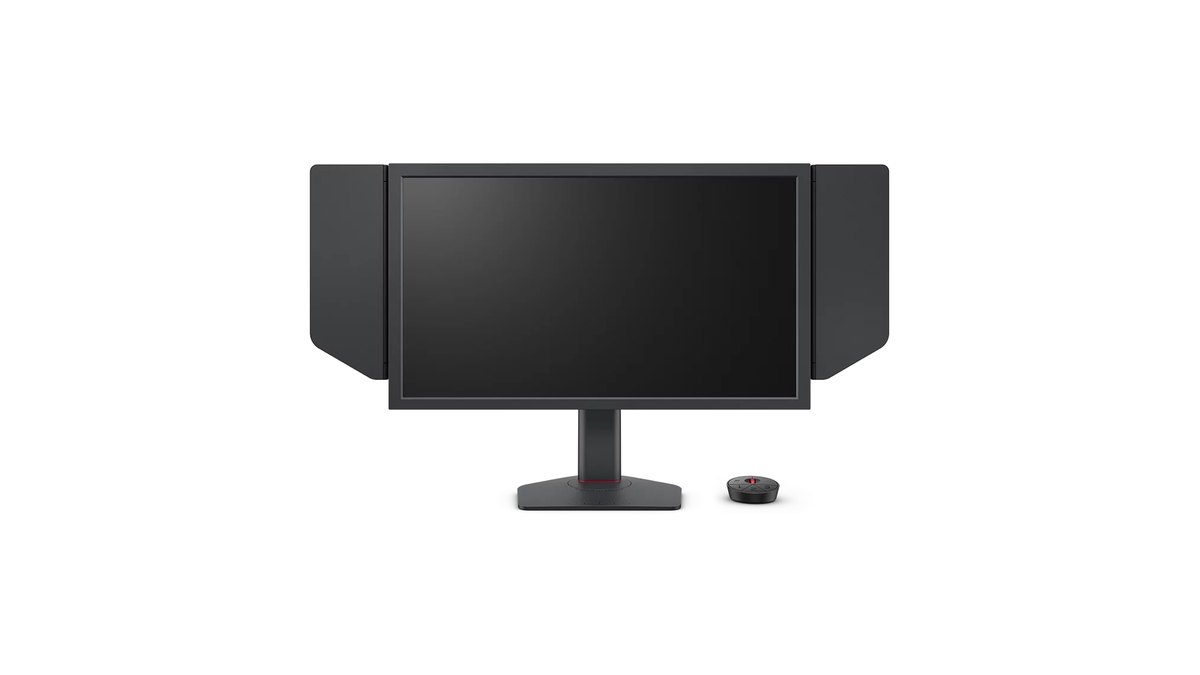
It is the second most used monitor in the public VALORANT pro tally, it replaces the number one XL2566K, it is listed on ZOWIE's US site, and its FPS2 picture mode is tuned for VALORANT, so setup takes minutes.
If you also want rich color and a sharper desktop, the 27 inch QHD Samsung Odyssey OLED G6 (G60SF) is the alternative.
- Refresh rate: choose the highest value under Windows Advanced display, then check the real Hz on the monitor's information screen. 240Hz is the baseline.
- Picture mode: ZOWIE XL2566X+ and XL2586X+ use FPS2 (VALORANT optimized). XL2566K and XL2546K load a VALORANT mode into a Gamer slot through XL Setting to Share. Samsung G60SF uses the FPS mode, ASUS starts from FPS1 to FPS3.
- Motion blur reduction: if your frame rate sits near your refresh rate, turn DyAc or ELMB on. If it swings a lot, turn it off and use VRR. On ZOWIE, VRR only works with DyAc off.
- Overdrive (AMA): start on High, one step below the strongest setting.
- Black eQualizer: raise it only until dark corners become readable. Samsung counts in the opposite direction from ZOWIE.
- Color Vibrance and Digital Vibrance: stay near the middle. Push them too far and map colors, enemy outlines and ability effects can blend together.
What monitors VALORANT pros use: the top five in the public tally are all 24 inch class ZOWIE panels
A public tally of 705 VALORANT pros (updated November 9, 2026) puts five BenQ ZOWIE models at the top, all 24 to 25 inch FHD TN monitors. Every player in the tally runs 240Hz or higher, and most of them play on 1080p screens. In other words, pros care more about a screen size they can take in at a glance and clean motion than about a big panel or high resolution.
| Rank | Model | Size and refresh rate | Pros (share) |
|---|---|---|---|
| 1 | ZOWIE XL2566K | 24.5 in TN, 360Hz | 163 (23.12%) |
| 2 | ZOWIE XL2566X+ | 24.1 in Fast TN, 400Hz | 130 (18.44%) |
| 3 | ZOWIE XL2546K | 24.5 in TN, 240Hz | 111 (15.74%) |
| 4 | ZOWIE XL2546 | Previous generation of the XL2546K | 45 (6.38%) |
| 5 | ZOWIE XL2586X+ | 24.1 in Fast TN, 600Hz | 26 (3.69%) |
One catch for US buyers: the old XL2566K and XL2546K product pages on ZOWIE's US site now redirect to the newer X+ models. As of November 10, 2026, the current models on ZOWIE's US site are the XL2566X+ (400Hz) and the XL2586X+ (600Hz).
If you already own an XL2566K or XL2546K, the setup order below works exactly the same. If you are comparing other brands by refresh rate and panel type, start with our best gaming monitor picks, which rates each model by price tier.
Why this order matters: if the refresh rate is wrong, nothing else counts
Plug in a 360Hz monitor while Windows is still set to 60Hz and no amount of Black eQualizer tuning changes the fact that you are seeing 60Hz motion.
That is why ZOWIE's own manual tells you to set the Windows refresh rate first, then match the in game frame rate, then confirm the actual Hz on the monitor's information screen. Picture mode comes next, because a picture mode swaps brightness, gamma, color and more as one package.
Tune Black eQualizer first and switch modes later and you can overwrite your own work. Motion blur reduction and overdrive apply to every mode on ZOWIE monitors, so you set them once. Black eQualizer and color come last because they depend most on your eyes and your room.
Step by step VALORANT monitor setup
- 1Pick the max refresh rate in WindowsGo to Start, Settings, System, Display, Advanced display and choose the highest value under refresh rate. If the value you expect is missing, check the cable and port first. The XL2566X+ only reaches 400Hz over DisplayPort 1.4; its HDMI ports top out at 240Hz on a PC. Our Windows 11 refresh rate guide walks through every screen.
- 2Confirm the real Hz on the monitorOpen the information screen in the monitor menu and check the incoming refresh rate. To get 600Hz on the XL2586X+ you need an up to date Windows 11, and the EDID setting under System, Other Settings must be on 540Hz/600Hz, otherwise 600Hz does not even show up in Windows.
- 3Start from the VALORANT picture modeOn the ZOWIE XL2566X+ and XL2586X+, FPS2 is the VALORANT mode. On the Samsung G60SF pick the FPS picture mode; on the ASUS PG259QWS Ace pick one of GameVisual FPS1 to FPS3. Keep a Standard style mode for work and video so colors stay closer to accurate.
- 4Choose motion blur reduction or VRRIf VALORANT holds a frame rate close to your refresh rate, turn on DyAc (ELMB on ASUS). If your frame rate swings hard in fights, turn it off and enable variable refresh such as FreeSync or G-Sync Compatible. ZOWIE recommends DyAc only at 100Hz and above.
- 5Start overdrive on HighAMA offers Premium, High and Off. The strongest step can add bright trails behind moving objects (inverse ghosting), so start on High and judge by watching edges in motion. The Samsung G60SF does not list a response time menu, so there is little to tune there.
- 6Nudge Black eQualizer and Color VibranceRaise Black eQualizer just until an agent standing in a dark corner is visible, and keep Color Vibrance and your GPU's Digital Vibrance near the middle. Save the result to a user slot such as Gamer1 to 3 so you can roll back.
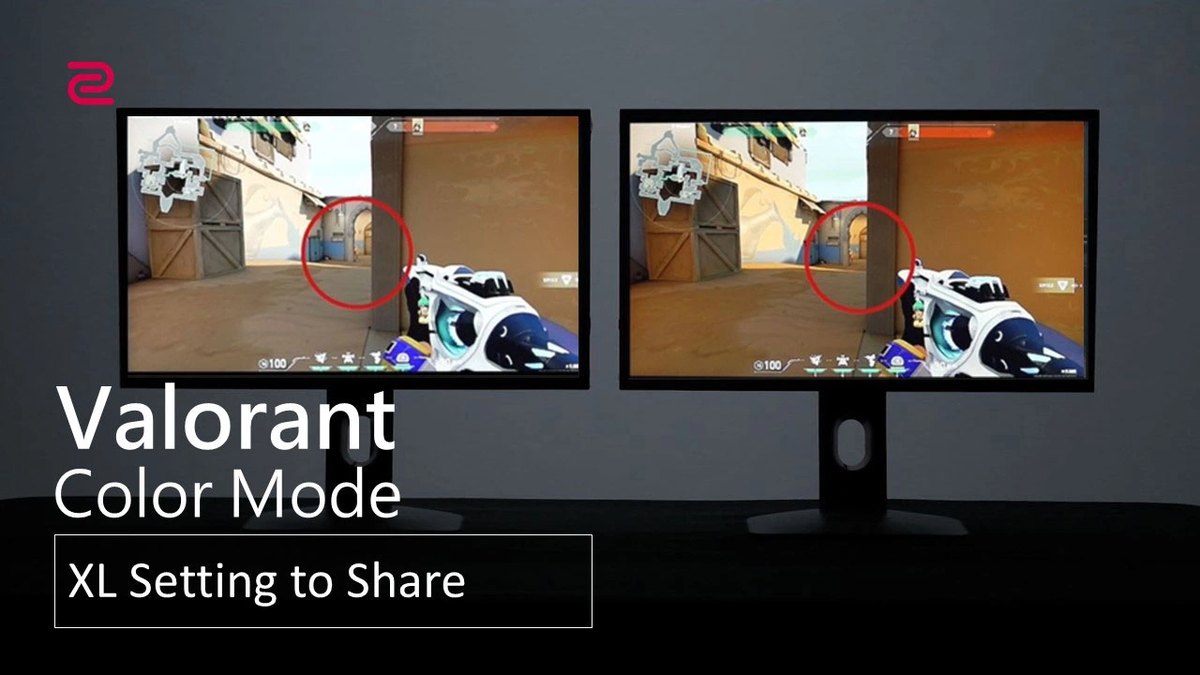
XL2566K and XL2546K owners: load the VALORANT mode with XL Setting to Share
The older XL-K series has no built in VALORANT picture mode. Out of the box, FPS1 targets CS:GO, FPS2 targets Call of Duty Warzone and FPS3 targets Fortnite.
ZOWIE instead publishes a VALORANT mode file, and its free Windows tool XL Setting to Share writes that file into one of the Gamer1 to Gamer3 slots. First turn on DDC/CI under System, Other Settings in the monitor menu so the app can find the monitor.
Click Import, choose the slot, and select the profile file. With Auto Game Mode on, the monitor switches modes when you launch a game. ZOWIE itself notes that the mode does not guarantee better performance, so treat it as a starting point and fine tune with the steps above.
DyAc and VRR do not run together
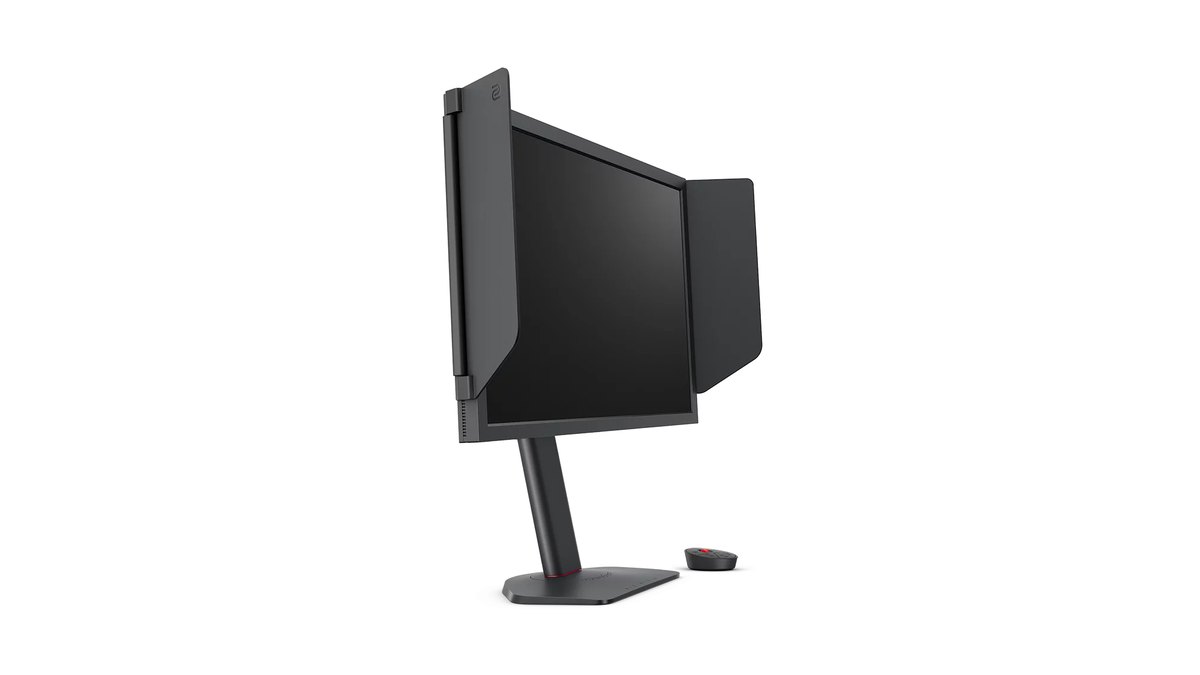
On the ZOWIE XL2566K, XL2566X+ and XL2586X+, variable refresh rate only works with DyAc switched off. So our rule of thumb is to decide by your frame rate. If your PC keeps VALORANT near your refresh rate, DyAc makes moving enemies look crisper.
If frames drop hard in fights, turn DyAc off and let VRR smooth out tearing and stutter. According to measured reviews, the XL2546K already showed very little blur without DyAc+ and almost none with it on, while on the 600Hz XL2586X+ the difference between DyAc 2 on and off was judged small. Wondering whether to add VSync on top? Our VSync on or off guide explains how it affects input lag.
Raise Black eQualizer and Color Vibrance one step at a time
ZOWIE Black eQualizer runs from 0 to 20. Raising it lifts dark areas while leaving bright areas alone, so pushing it too far can make the whole image look washed out, and, as the manual notes, scenes that are already bright or have few dark areas change little. Color Vibrance also runs 0 to 20.
In a ZOWIE feature on pro settings, two players using the same XL2566K had completely different color settings. One had been running NVIDIA Digital Vibrance at max and turned it down after enemy outlines got harder to read against Bind's brown and orange tones.
Another kept vibrance low because higher values made abilities harder to see. The goal is the point where both dark corners and ability effects stay readable on your own screen. On NVIDIA cards, the Digital Vibrance slider lives under Adjust desktop color settings in the NVIDIA Control Panel.
Recommended settings by game and by monitor
| Game | ZOWIE XL2566X+ and XL2586X+ | ZOWIE XL2566K and XL2546K |
|---|---|---|
| VALORANT | FPS2 (VALORANT optimized) | VALORANT mode loaded into a Gamer slot with XL Setting to Share |
| CS2 | FPS1 (CS2 optimized) | FPS1 (made for CS:GO) |
| Apex Legends | FPS3 (Apex optimized) | Downloaded profile in a Gamer slot |
| Fortnite | No official mode listed | FPS3 (made for Fortnite) |
| All games | DyAc 2 on turns VRR off; use DyAc at 100Hz and up | DyAc+ on turns VRR off; use DyAc at 100Hz and up |
| Setting | ZOWIE XL2566X+ and XL2586X+ | ZOWIE XL2566K and XL2546K | Samsung G60SF | ASUS PG259QWS Ace |
|---|---|---|---|---|
| Starting mode | FPS2 | VALORANT mode in a Gamer slot | FPS picture mode | GameVisual FPS1 to FPS3 |
| Blur reduction | DyAc 2 (Premium, High, Off) | DyAc+ (Premium, High, Off) | Check the game menu | ELMB |
| Shadows | Black eQualizer 0 to 20, higher is brighter | Black eQualizer 0 to 20, higher is brighter | Black Equalizer, closer to 1 is brighter | Dynamic Shadow Boost |
| Color | Color Vibrance 0 to 20 | Color Vibrance 0 to 20 | Saturation 0 to 50 | Saturation |
| Overdrive | AMA, start on High | AMA, start on High | Not listed in the manual's response time menu models | 0.02 ms (GtG) official spec |
| Max refresh conditions | XL2566X+ 400Hz over DP only; XL2586X+ 600Hz needs current Windows 11 and EDID 600Hz | XL2566K 360Hz over DP 1.4 | 500Hz at QHD | 720Hz at FHD |
ZOWIE ships its VALORANT profile as two files (VALORANT and VALORANT-V2), and we could not verify the exact values inside them against the original files, so this table stops at the mode names. For a deeper look at choosing an overdrive level and spotting inverse ghosting on each panel type, see our monitor overdrive settings guide, published the same day.
Using an OLED: where the settings live on the Samsung G60SF and ASUS PG259QWS Ace
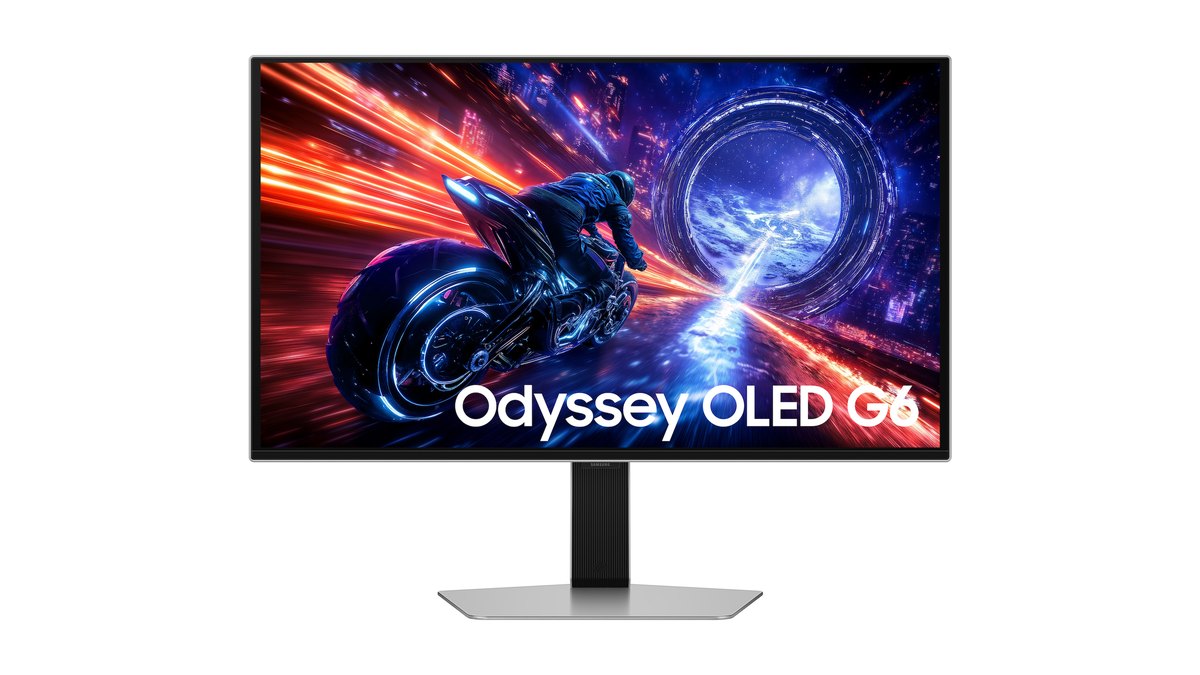
The Samsung Odyssey OLED G6 (G60SF) is a 27 inch QD-OLED, QHD, 500Hz monitor, listed on Samsung's US store as of November 10, 2026. Choose the FPS picture mode and it raises shadow brightness to help you spot enemies.
Watch the Black Equalizer direction: Samsung's manual says values closer to 1 brighten dark areas and values closer to 10 darken them for better contrast. That is the reverse of ZOWIE, so copying a ZOWIE number straight across does the opposite of what you want. Black Equalizer is also unavailable while Eye Saver Mode is on.
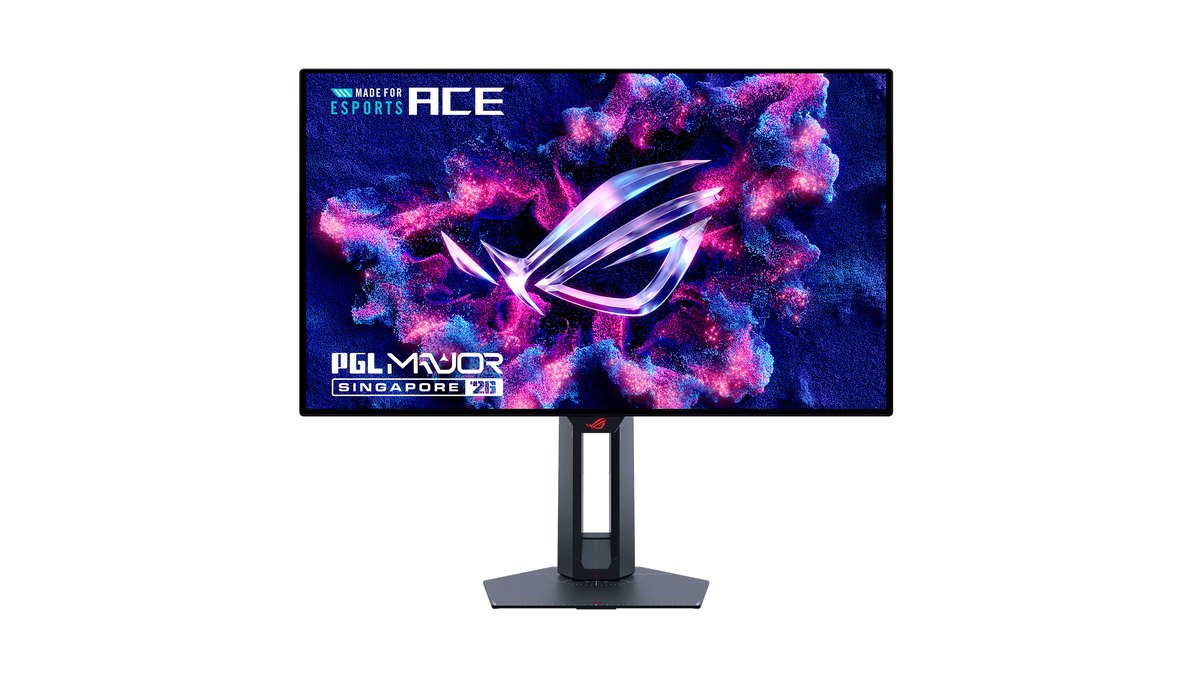
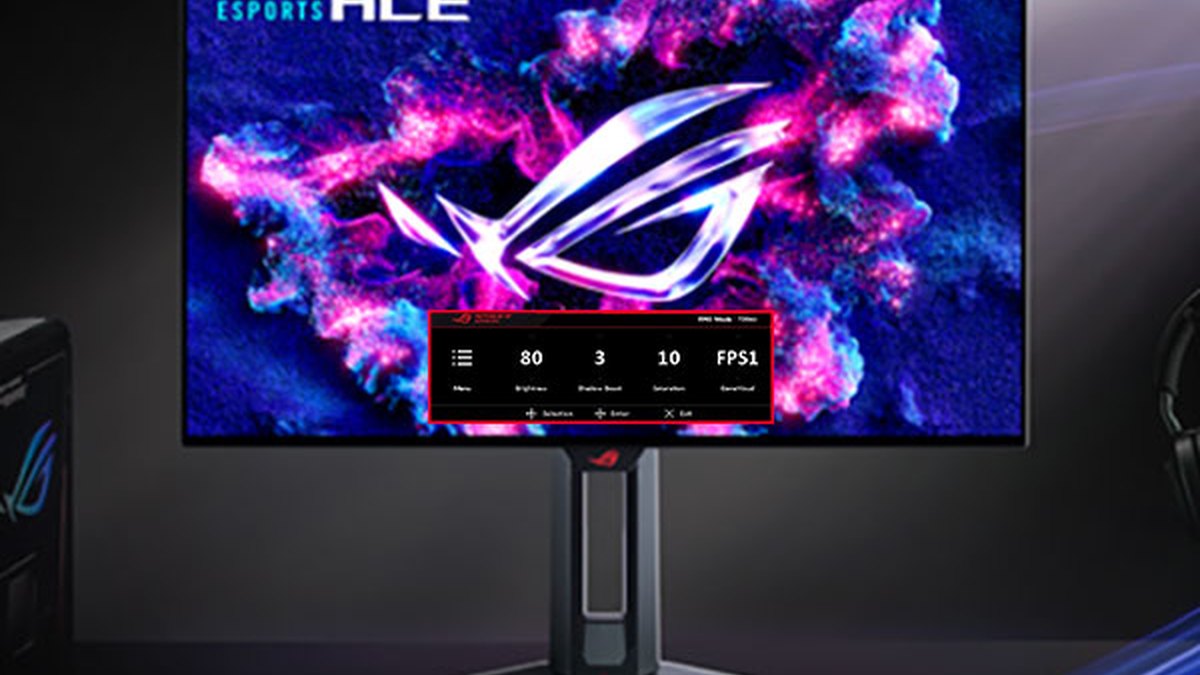
The ASUS ROG Swift OLED PG259QWS Ace is a 24.5 inch FHD tandem WOLED monitor running at 720Hz, listed on ROG's US product pages as of November 10, 2026. Its settings are easy to reach: one Quick OSD row adjusts Brightness, Shadow Boost (brighter shadows), Saturation and the GameVisual mode.
Map Shadow Boost to the role of Black eQualizer and Saturation to Color Vibrance, then follow the same order. Its motion blur reduction feature is ELMB.
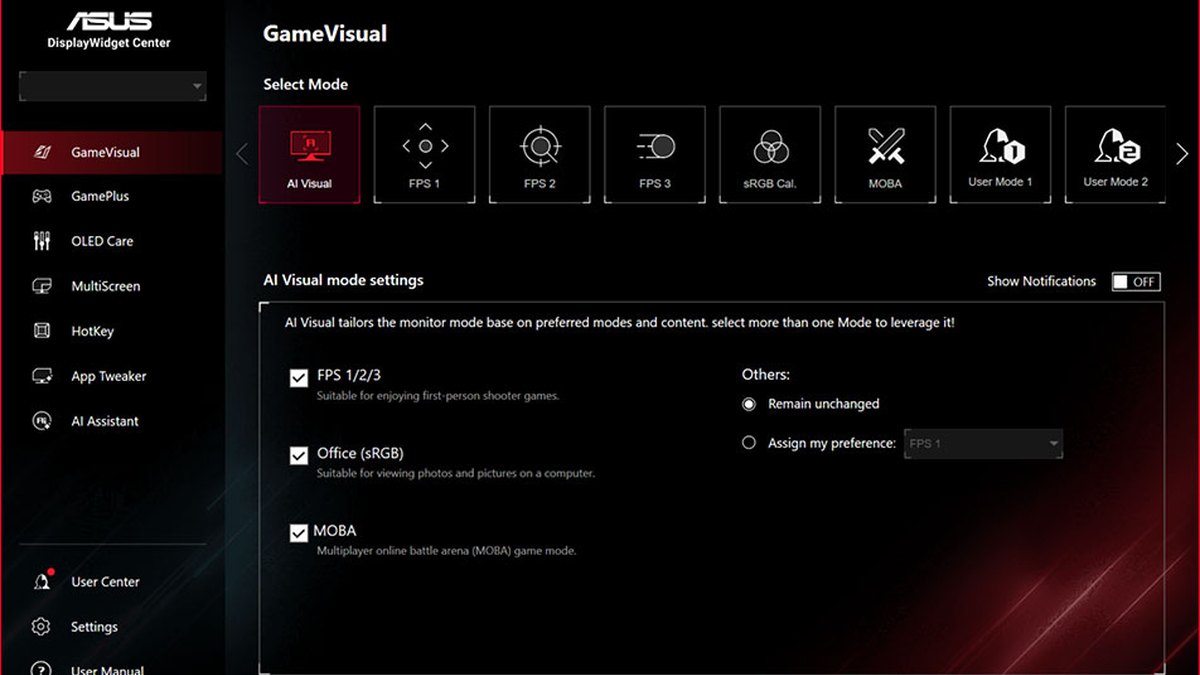
If you would rather change modes from Windows than with the monitor buttons, use DisplayWidget Center. The GameVisual tab switches between FPS 1 to 3, sRGB Cal., MOBA and user modes, and the OLED Care tab turns on burn in protection.
For which panel type suits VALORANT, read our OLED 720Hz vs TN 600Hz comparison, and for settings that matter when a game keeps a fixed HUD on an OLED for hours, see our OLED burn in prevention guide.
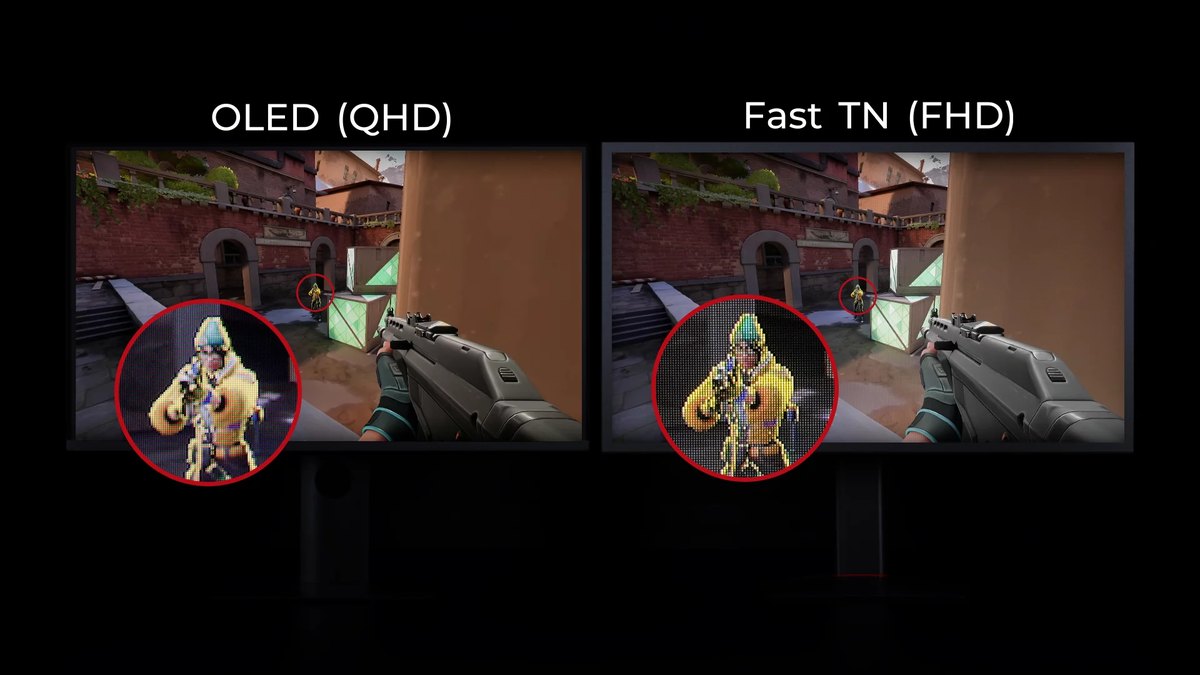
That image is ZOWIE marketing comparing how a distant enemy looks on Fast TN versus OLED, so read it as the maker's pitch. The practical tradeoff is clear enough: OLED wins on contrast and color, while Fast TN stays at FHD but matches the 24 inch class FHD setup of the top models in the public pro tally. Whichever you own, the setup order in this guide does not change.
Prices (as of November 10, 2026)
| Product | Launch price (MSRP) | Street price range |
|---|---|---|
| ZOWIE XL2566X+ | $649.99 | About $629 to $650 |
| ZOWIE XL2586X+ | $999.99 | Check the seller |
| Samsung Odyssey OLED G6 G60SF | $999.99 list | About $1,000 |
| ASUS ROG Swift OLED PG259QWS Ace | $1,099 (reported) | Check the seller |
These prices were checked on November 10, 2026 and move often with sales and stock. In the US the 400Hz XL2566X+ costs roughly $350 less than the 600Hz XL2586X+, so if your PC sits near 400fps in VALORANT, the XL2566X+ is the easier buy. Always confirm the final price with the seller before you order.
Six common VALORANT monitor setup mistakes
- Changing in game settings while Windows is still at 60Hz. The manual says to fix the Windows refresh rate first.
- Connecting an XL2566X+ over HDMI. Its HDMI 2.0 ports stop at 240Hz on a PC; use DisplayPort 1.4 for 400Hz.
- Trying to run DyAc and VRR at the same time. On ZOWIE, VRR only turns on with DyAc off.
- Copying a Black eQualizer number from another brand. On Samsung a lower number means brighter shadows.
- Using the FPS mode for everything. According to measured reviews, the XL2546K showed a 4.78 dE grayscale error in FPS1 and 2.98 dE in Standard. Use FPS for games and Standard for the desktop.
- Forgetting Windows Dynamic refresh rate (DRR). Microsoft notes it can cap some games, so turn it off if a game feels slow.
Is 360Hz worth it for VALORANT, or is 240Hz enough
Treat 240Hz as the baseline. Everyone in the public pro tally plays at 240Hz or above, and whether to go higher depends on whether your PC can actually hold that many frames in VALORANT.
According to measured reviews, the 600Hz XL2586X+ showed average click to muzzle flash system latency of 7.5 ms at 144Hz and 6.81 ms at 600Hz.
The same reviewer felt the jump from 360Hz to 600Hz but did not see a big change in results, and concluded that if a game cannot push past roughly 400 fps, a lower refresh monitor is the better buy. So 360Hz and up makes sense once your frame rate can back it up. If you sit around 240 fps, setting up a 240Hz to 280Hz monitor properly comes first.
Player opinion is split too. In Korean community threads we read about a secondary VALORANT monitor, some players recommended TN for low blur and longevity, others said VALORANT leans hard on the CPU so the money is better spent there, and some felt spending big on an FHD screen was not worth it.
In a thread about moving from 240Hz to 360Hz, some called the difference big while others found it modest, and a few said response time, blur and input lag mattered more than the refresh number.
How to check your settings worked: record the same scene before and after
A day after a settings change it is hard to remember what actually improved. Before you touch Black eQualizer or vibrance, record one match as is, then record the same map and the same spot after the change and play them side by side.
DOR is a free Windows app that detects VALORANT when you launch it and records the whole match, collecting everything in My Clips. Kills are cut into automatic clips with ace and clutch tags, so lining up fights for comparison is quick.
Keep the game at your monitor's full refresh rate and set recording to the free 1080p at 30 or 60 fps; 1440p and 120 or 144 fps recording are part of DOR Pro. For how to keep in game fps and recording fps separate, see how to record at 144Hz without losing fps, and for the full VALORANT recording setup, see our VALORANT recorder guide.