The short answer: start one step below max, step down if you see halos
Overdrive should be on, but the strongest level is usually not the best setting. On most LCD gaming monitors the second level from the top is the safest starting point.
On BenQ ZOWIE that is AMA High, on ASUS, whose Variable OD has six levels, it is the manual's default of Level 3, and on monitors with Off, Weak, Medium and Strong it is Medium. From there you only move one notch at a time.
The measured examples point the same way: on the ZOWIE XL2566K the top level was only marginally faster than High with more overshoot, and on the AOC Q27G3XMN the top level cleared more smearing but added bright halos (inverse ghosting).
- Confirm Windows is actually running your monitor at its maximum refresh rate. A level picked at 60Hz can look different at your full refresh rate.
- Set overdrive to the second level from the top: AMA High on ZOWIE, and on ASUS, which has more levels, the Variable OD default of Level 3.
- If a bright or oddly colored outline trails moving objects, drop one level. That is inverse ghosting (overshoot).
- If objects drag a long, soft blur behind them, raise one level. That is ordinary ghosting.
- With VRR (G-SYNC Compatible or FreeSync) in a game where frame rates swing, test one level lower than your fixed refresh pick. On OLED, use the spec mode and fix flicker on the VRR side.
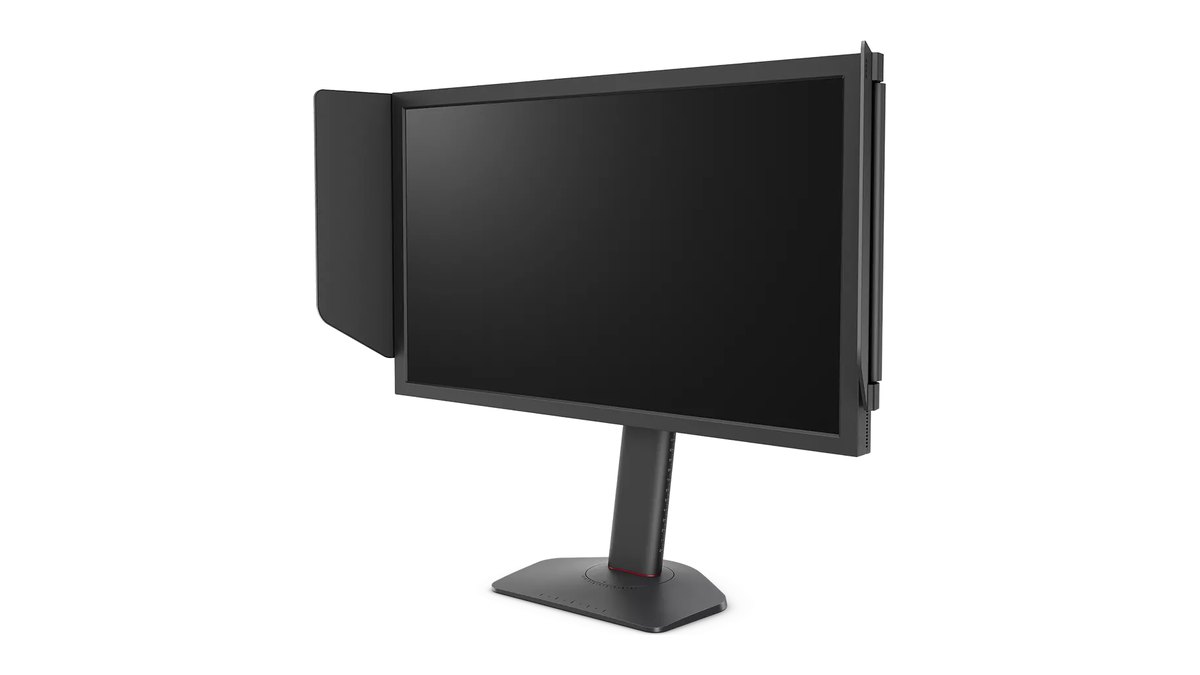
Pros land in the same place. We counted a public settings database of 581 pros who use ZOWIE monitors (checked November 10, 2026): 392 run AMA High, 161 run Premium and only 7 turn it off. Among the 127 using the 400Hz XL2566X+, it is 83 on High and 39 on Premium.
Almost nobody disables it, and more than twice as many choose the level under the maximum. A measurement review of the XL2566X+ also found that at 400fps with AMA High, motion looked clean without visible smearing or artifacts.
What overdrive does, and why ghosting and inverse ghosting pull in opposite directions
Overdrive briefly pushes extra voltage into the liquid crystal so each pixel changes color faster. ZOWIE calls it AMA and describes it in its FAQ as response time compensation (RTC). The catch is that the harder you push, the more pixels overshoot their target.
Too little and you get a blurry trail behind moving objects (ghosting). Too much and you get a bright or discolored edge (inverse ghosting, also called overshoot or coronas).
ZOWIE itself notes that stronger overdrive always trades away some image quality, and ASUS frames level selection as a balance between the two. So tuning overdrive is not about cranking a number. It is about finding the middle between two kinds of artifacts.
| Artifact | What it looks like | Cause | Fix |
|---|---|---|---|
| Ghosting (smearing) | A soft blurry tail behind moving objects | Slow pixel transitions, not enough overdrive | Raise overdrive one level |
| Inverse ghosting (overshoot) | A bright or colored halo behind objects | Overdrive too strong, pixels overshoot the target | Lower overdrive one level |
| Burn in or image retention | Static elements leave marks (mostly OLED) | Panel wear, unrelated to motion blur | Use the panel care features |
| VRR flicker | Brightness pulsing in dark scenes | VRR reacting to big frame rate swings | Cap or stabilize frame rate, or turn VRR off for that game |
This is also why the response time on the box is a poor guide. LG footnotes that the 1ms GtG of its LCD UltraGear models is measured in the Faster response time mode, and ASUS lists a typical figure and a minimum figure separately.
ZOWIE does not publish response times for its XL series at all, citing the lack of an industry standard and unit to unit panel variation. A spec number often reflects the strongest mode and the fastest transition, so you still need to check whether that mode looks clean on your screen. If you are still choosing a monitor, start with panel type in our gaming monitor buying guide and the picks in best gaming monitors.
Where to find it: AMA, Variable OD and Response Time by brand
| Brand | Menu path | Options | Starting point |
|---|---|---|---|
| BenQ ZOWIE (XL2566X+ and others) | Picture → AMA | Premium · High · Customize · OFF | High |
| ASUS (some TUF and ROG) | Gaming → Variable OD, or DisplayWidget Center | Level 0 to 5 (manual lists Level 3 as default) | Around Level 3 |
| LG UltraGear LCD (27G610A etc.) | OSD → Response Time | Faster is the mode the 1ms GtG spec uses | Faster, one level down if halos show |
| LG UltraGear OLED (27GX700A) | Game Adjust → Response Time | Faster Mode is the 0.03ms GtG spec mode | Faster Mode |
| Samsung Odyssey OLED (G60SF) | Varies by model, check the manual | Varies by model | The spec mode |
| Four step monitors like AOC Q27G3XMN | Overdrive | Off · Weak · Medium · Strong | Medium |
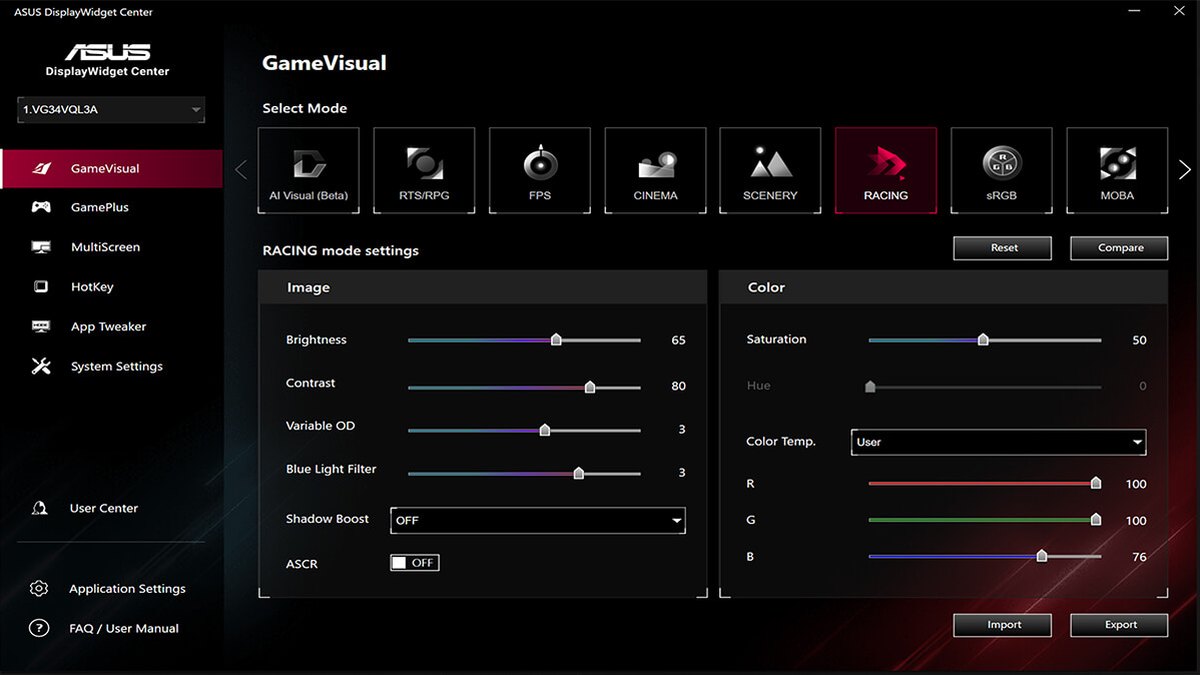
On ASUS you do not have to fight the joystick menu. The DisplayWidget Center app for Windows exposes the same setting as a Variable OD slider, as shown above. ASUS manuals list a range of Level 0 to 5 with Level 3 as the default.
The word Variable is there because some models adjust overdrive strength to the game's frame rate. Dragging the slider while a ghosting test runs in another window is far quicker than clicking through the OSD.
ASUS's own setup guide recommends exactly that: rough it in with a test pattern, then make the final call in dark scenes of a real game.
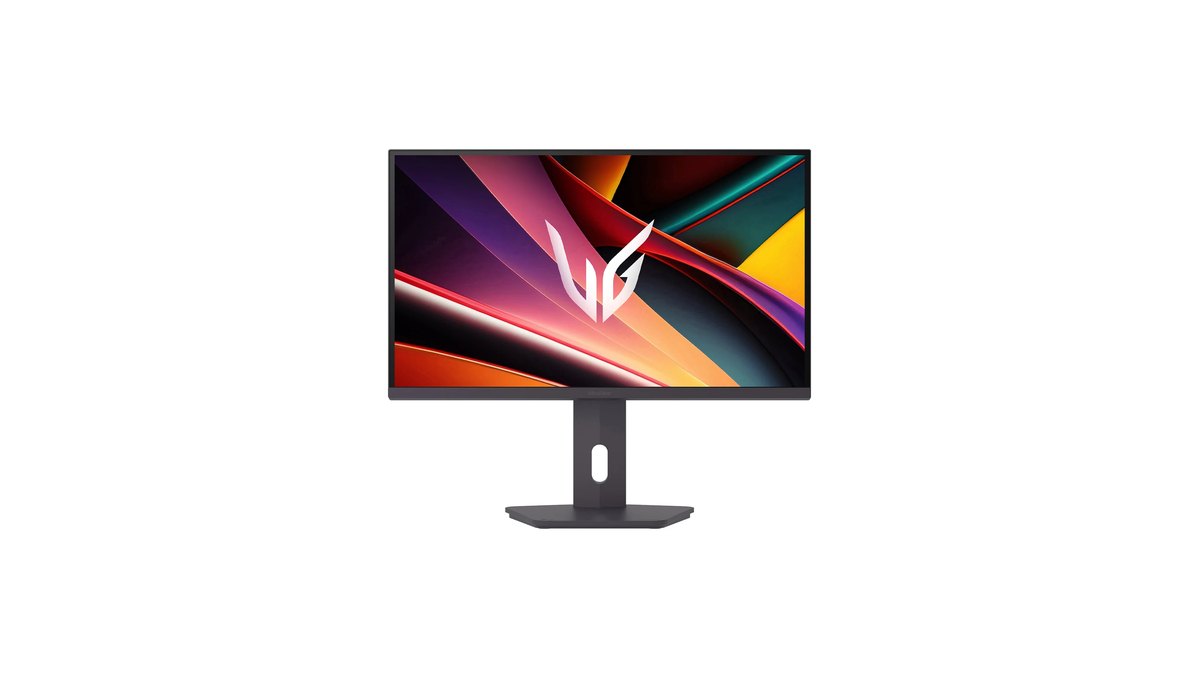
For LG UltraGear LCD models, LG states that you need the Faster response time mode to hit the 1ms GtG on the spec sheet. That makes the choice easy: compare Faster with the level just below it. The names of the lower levels can vary by model and firmware, so the reliable rule is simply to go one level down and compare if halos appear.
How to set monitor overdrive, step by step
- 1Set Windows to the max refresh rateGo to Settings → System → Display → Advanced display and choose your monitor's highest refresh rate. Our guide on changing refresh rate in Windows 11 walks through it with screenshots. If the top value is missing, check your cable and use DisplayPort first.
- 2Check the monitor's current stateOpen the OSD information page and confirm the refresh rate and whether VRR is active. On ZOWIE, Adaptive-Sync under the System menu is the VRR switch, and turning on DyAc 2 disables Adaptive-Sync.
- 3Open the overdrive menuUse the table above: Picture → AMA on ZOWIE, Gaming → Variable OD on ASUS, Response Time on LG (Game Adjust → Response Time on OLED).
- 4Set the second level from the topZOWIE High, Medium on four step monitors, and the Level 3 default on ASUS, which has more levels. On LG start from Faster, or Faster Mode on OLED.
- 5Compare neighboring levels on a ghosting testOpen a browser ghosting test where a UFO scrolls across the screen and flip between one level up and one level down. A bright outline behind the UFO is overshoot, a gray tail is ghosting.
- 6Confirm in dark scenes of a real gameFlick quickly across a dark interior or against a bright sky. If halos bother you in game even though the test looked fine, drop one level.
Recommended overdrive by game and situation
| Situation | Example games | Typical conditions | Starting level |
|---|---|---|---|
| Competitive FPS, fps above refresh | CS2, VALORANT | Fixed max refresh; turning on DyAc 2 disables VRR | ZOWIE High, try Premium only if no halos |
| Battle royale with swinging frame rates | PUBG, Apex Legends, Overwatch 2 | VRR on, fps often dips below max refresh | One level below your fixed refresh pick (Medium on four step) |
| Graphics heavy single player | AAA titles | 60 to 120fps with VRR | Default if the monitor has variable overdrive, otherwise a lower level |
| Console | PS5, Xbox Series X | Fixed 120Hz (ZOWIE uses HDMI 2.0 at 120Hz) | Retest at 120Hz; High was fine in XL2566K measurements |
| OLED monitor | Any | Overdrive matters very little | Spec mode, handle flicker on the VRR side |
So the deciding factor is not the game title but the frame rate your PC delivers in it. If fps stays above your refresh rate, as it often does in CS2 or VALORANT, keep the level you chose at fixed refresh. If frames regularly fall below refresh, stepping down one level is the safer bet.
Check what you actually get first with our guide on how to show FPS in games. If VALORANT is your main game, the rest of the display options live in VALORANT monitor settings.
Why VRR calls for one level less
A useful way to think about it: overdrive strength is set with the short frame time at maximum refresh in mind. When VRR lowers the refresh rate, each frame lasts longer and the same push can overshoot.
Measurement reviews of the AOC Q27G3XMN, a 180Hz VA panel, found Strong cleared the most smearing at fixed 180Hz, but its halos became very visible as refresh dropped, while Medium stayed consistently good across the range.
The ZOWIE XL2566K behaved differently: under VRR, overshoot on High nearly vanished and only crept up slightly at lower refresh rates. Because models vary this much, the key is to recheck in scenes where your frame rate is low. If the V-Sync, G-SYNC and FreeSync combination itself is confusing, read should you turn V-Sync on or off first.
Backlight strobing for motion clarity often cannot run alongside VRR. On ZOWIE, enabling DyAc 2 turns Adaptive-Sync off and vice versa, and ZOWIE recommends DyAc 2 at 100Hz or above. On some ASUS models ELMB needs VRR off, and only models with ELMB Sync run both together.
Monitors in NVIDIA's G-SYNC tier with a built in NVIDIA processor advertise variable overdrive, and if you mostly play games with big frame swings, that feature can matter more than which fixed level you pick.
Does an OLED monitor need overdrive
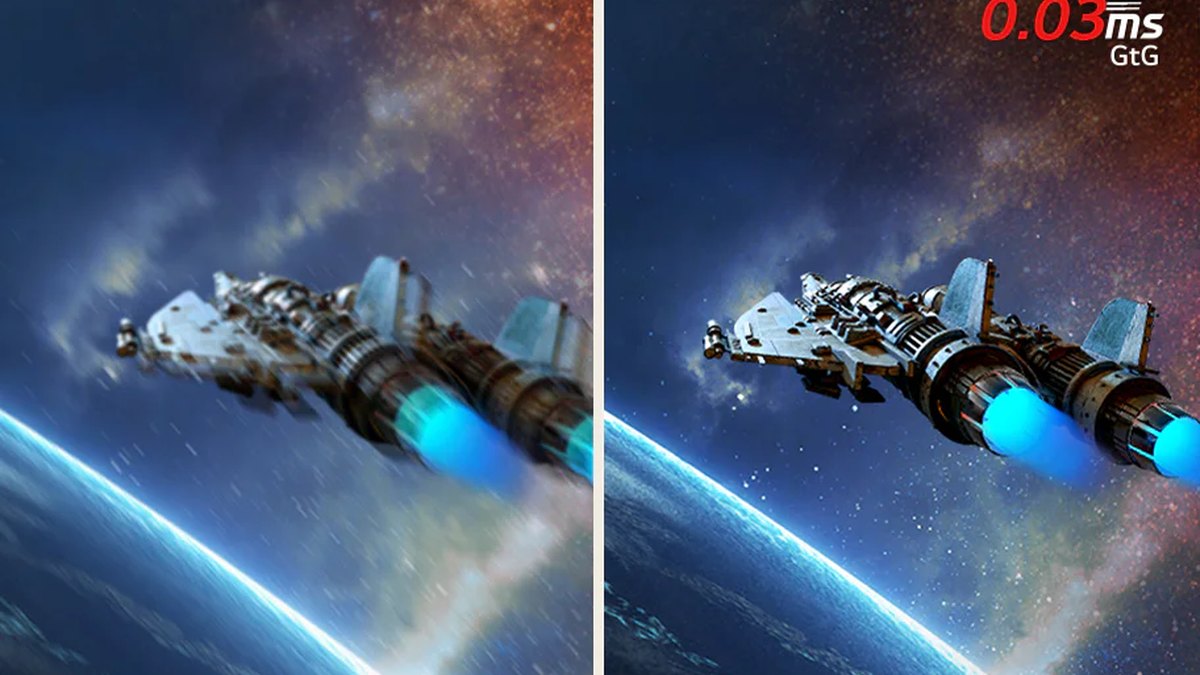
OLED pixels emit and switch their own light, so transitions are nearly instant and there is little need for LCD style overdrive. A measurement review of the 2023 LG 27GR95QE noted it had no response time control in the OSD at all.
The LG UltraGear 27GX700A, released in 2025, does have a Game Adjust → Response Time menu, and LG says Faster Mode is required for its 0.03ms GtG rating. If your OLED has a menu, pick the spec mode and move on. If you are weighing high refresh panels against each other, our comparison of 720Hz OLED vs 600Hz TN covers that decision.
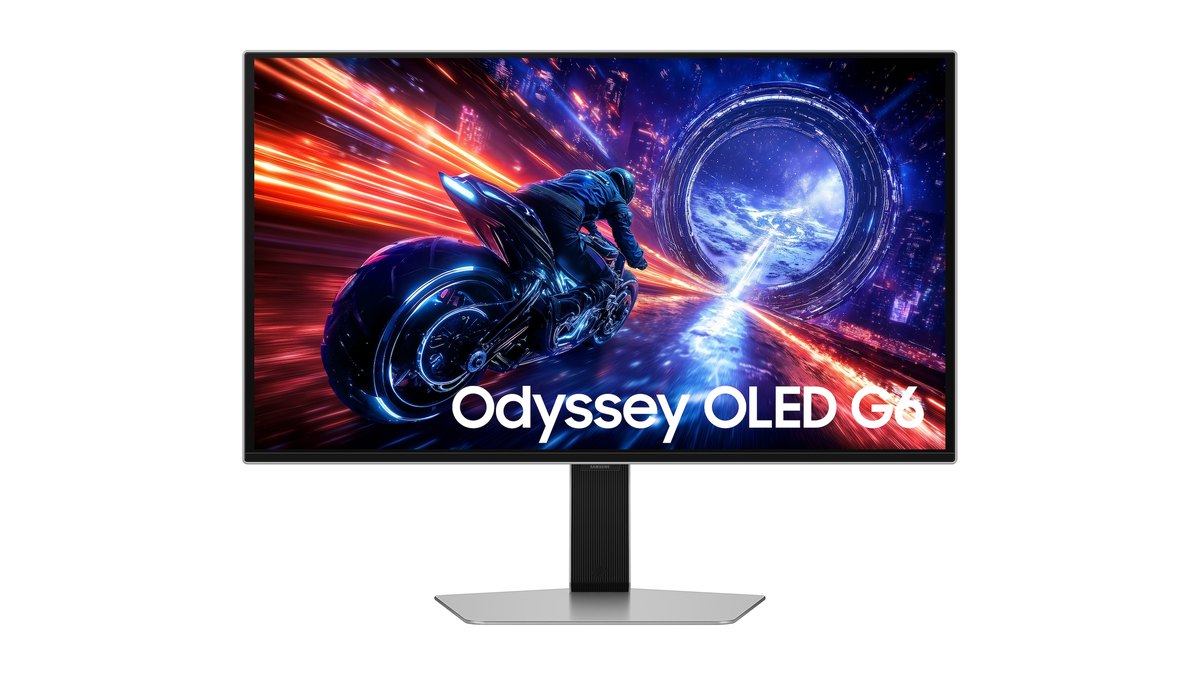
Samsung's Odyssey OLED G6 (G60SF) is likewise rated at 0.03ms GTG with QHD at 500Hz. Menu layouts differ between models, so check the manual for any response time option and use the spec mode. What actually deserves attention on OLED is VRR flicker and burn in, not overdrive.
Reviews of both the 27GX700A and the G60SF flagged VRR flicker when frame rates swing. In one forum question we read, a user worried that OLED ghosting meant burn in, and the replies pointed out that motion ghosting and burn in are separate issues, concluding the symptom was most likely VRR flicker. For the burn in side, see our OLED burn in prevention settings.
Prices as of November 10, 2026
| Product | Launch price (MSRP) | Street price range |
|---|---|---|
| BenQ ZOWIE XL2566X+ | $649.99 | about $629 to $650 |
| LG UltraGear 27G610A | $299.99 list | about $170 to $235 |
| LG UltraGear 27GX700A | $849.99 | about $400 to $650 |
| Samsung Odyssey OLED G6 (G60SF) | $999.99 | about $550 to $750 |
These are US prices for the monitors used as examples above. MSRP is the launch or list price, and the street range reflects regular retailer listings we saw, not coupon or limited flash deals. Monitor prices move often, especially around sales events, so check the retailer before you buy. The overdrive steps in this guide work the same at every price point.
Five common overdrive mistakes
- Locking the top level because the box says 1ms or 0.03ms. Spec numbers often reflect the strongest mode, and in the measured examples the top level had more overshoot.
- Judging overdrive while Windows is still at 60Hz. The same level looks different at a different refresh rate.
- Keeping a fixed refresh level with VRR on and frames swinging. Halos can grow in low frame rate scenes.
- Thinking the monitor is broken because strobing (DyAc 2, ELMB) and VRR will not run together. On some models, ZOWIE included, enabling one disables the other.
- Turning overdrive off on a high refresh LCD. Measurement reviews showed the XL2566K could not keep up with 360Hz transitions on Off, while High cut average response time by more than half.
How to check you got it right
Check in two passes. First, run the browser UFO ghosting test and flip between your current level and the levels above and below. A bright outline or colored fringe behind the UFO means too much; a long gray tail means too little.
The level where both are least visible is the right one for your panel. Second, play a real game and flick quickly across dark interiors, bright skies and foliage.
A measurement review of the ZOWIE XL2566K found Customize 12 was slightly slower than High but removed small dark overshoot, so if your monitor has a fine tuning range, comparing a few Customize values against High is worth a few minutes.
Compare before and after with DOR under the same conditions
Split the job: a ghosting test tells you whether the screen looks cleaner, and a recording tells you whether your play actually improved. DOR is a free Windows game recorder that detects supported games when you launch them, records the full match and collects it in My Clips.
In CS2 and VALORANT it also saves your kills as automatic clips. Record the same map and the same practice routine before and after changing overdrive, and you can compare tracking and fights side by side under the same conditions.
Recordings capture the frames your graphics card rendered, so leave pixel level ghosting to the test pattern and use the recordings to judge your gameplay. To run recording while playing at high refresh, see record at 144Hz without losing FPS.