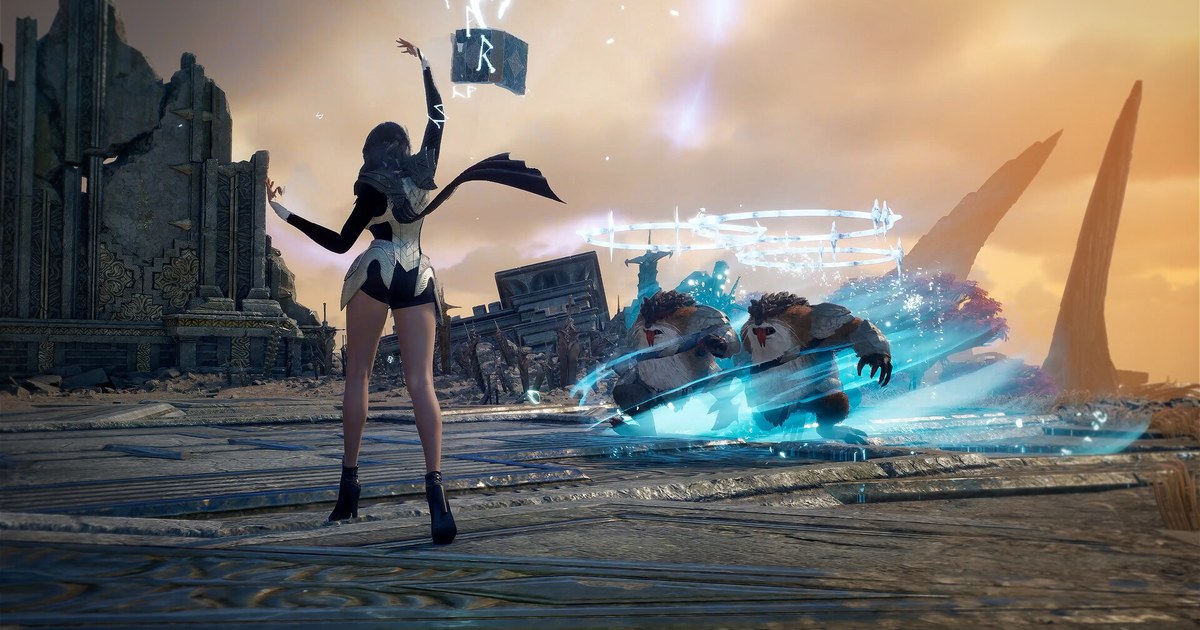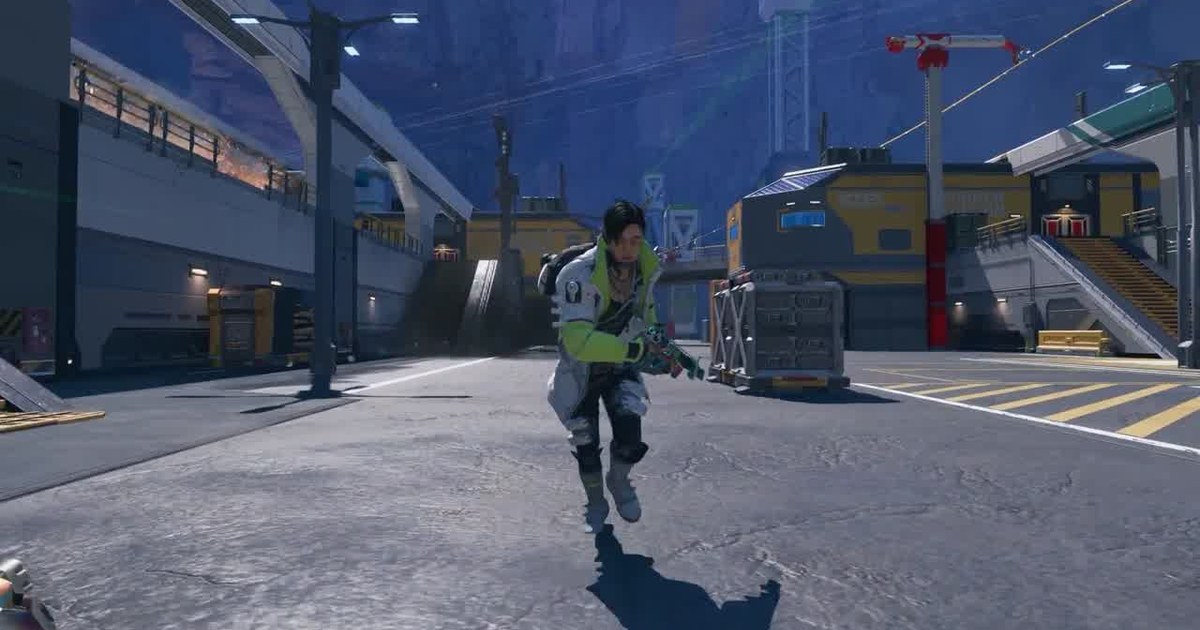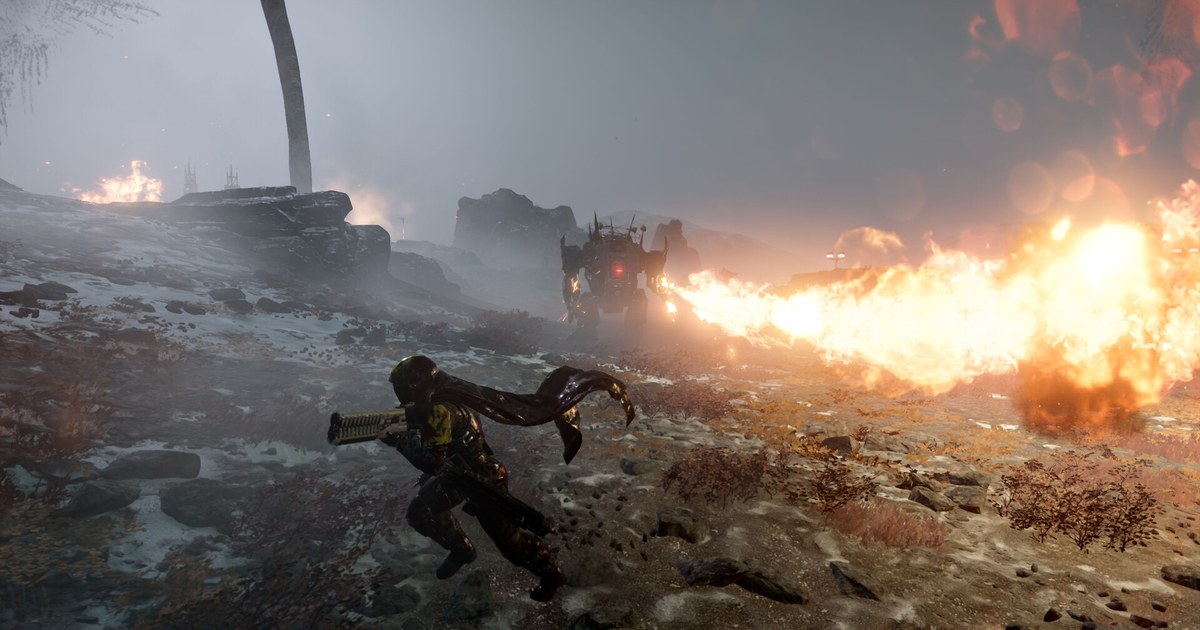
The short answer: fix the balance before you record, not after. Set your mic input volume in Windows Sound settings, turn the game's effects and music sliders down a little, and record a 30 second test.
DOR records game sound and your mic as one track, so you cannot lift only your voice or lower only the game inside a finished clip; the ratio you had when recording is the ratio you keep. For clips you already have, the volume tab in DOR Studio lowers the whole video and balances it against BGM.
If you want the basics of capturing mic and game together first, see how to record game audio and mic together. This guide only covers getting the loudness balance right.
The answer: set the mic, lower the game, confirm with a test
The goal is simple: your voice should stay clear on top of the game. Pushing the input volume to the maximum makes the voice crackle, so start by placing the mic about a hand span from your mouth and adjusting until the input bar moves past halfway when you speak. Then bring the game down.
For loud shooters, lower the in game effects slider or turn that game down in the Windows volume mixer, and your voice rises in the mix. If your voice is too loud instead, lower the mic input volume.
If the mic is not being captured at all, that is a device problem rather than a volume problem, so start with fixing a mic that will not record.
How to balance game and mic volume
- 1Set the mic input volume firstIn Windows Settings, open System, then Sound, pick your mic under Input, and use the mic test while speaking at your normal volume. The bar should move past halfway without reaching the end. Guides give slightly different target numbers, so watch for crackling rather than a number. The layout can vary with your device and driver.
- 2Lower the in game volume around your voiceReduce the effects and music sliders in the game's settings a little at a time until your voice is easy to hear. Leave teammate voice chat and alert sounds alone so you do not miss them.
- 3Turn down just one gameThe volume mixer under Advanced in Windows Sound settings sets volume per app. Lowering only the game leaves other apps unchanged. On Windows 11 the per app input meter may not show, so set this step by ear.
- 4Confirm with a 30 second test clipLaunch a supported game so DOR starts recording automatically, talk as usual through a scene with gunfire or explosions for about 30 seconds, then play it back in My Clips. Listening on both headphones and PC speakers shows quickly whether your voice gets buried. If you talk with teammates on Discord, also read how to record Discord call audio.
- 5Polish an existing clip in StudioIn the DOR Studio volume tab, adjust the original video volume and the BGM volume separately. The original volume ranges from 0 to 100 percent and applies to the whole video, so the voice to game ratio stays as recorded. Use it to lower everything or to balance against BGM rather than to lift a quiet voice.
Where to adjust each problem
| Problem | Where to adjust | What to do |
|---|---|---|
| My voice is too quiet | Windows Sound settings, Input | Pick your mic and raise the input volume until the bar moves past halfway without hitting the end |
| My voice crackles | Windows Sound settings, Input | Lower the input volume and move the mic a bit farther from your mouth |
| The game drowns out my voice | In game audio settings | Lower the effects and music sliders and leave the voice chat slider alone |
| Only one game is too loud | Windows volume mixer | Under Advanced in Sound settings, lower that game's volume only |
| The finished clip is too loud overall | DOR Studio volume tab | Drag the original video volume slider down within the 0 to 100 percent range |
| Music covers my voice | DOR Studio volume tab | Set the BGM volume lower than the original video volume |
Check before you start recording
- The mic test bar moves past halfway when you speak
- The bar does not hit the end and crackle when you get loud
- Teammate voice chat is still clear after lowering game effects
- You listened to the 30 second test on both headphones and speakers
- If you add BGM, its volume is lower than the original video
Capture your voice and the game in one go with DOR
DOR is a free Windows game recording app. Launch a supported game and it detects the game and records the whole match automatically, and recordings gather in My Clips.
Audio is captured as one track of game sound and your mic, so setting levels before you record as above gets you close to a finished clip.
In the app you can trim a section to 16:9, 9:16 or 1:1, then in DOR Studio (dor.gg/studio) merge videos, add text and BGM, adjust volume, and export an mp4 or share a dor.gg link. There is no watermark. Export formats are covered in DOR clip export formats. Free recording quality is 720p or 1080p at 30 or 60 fps, with 1080p 30 fps as the default.