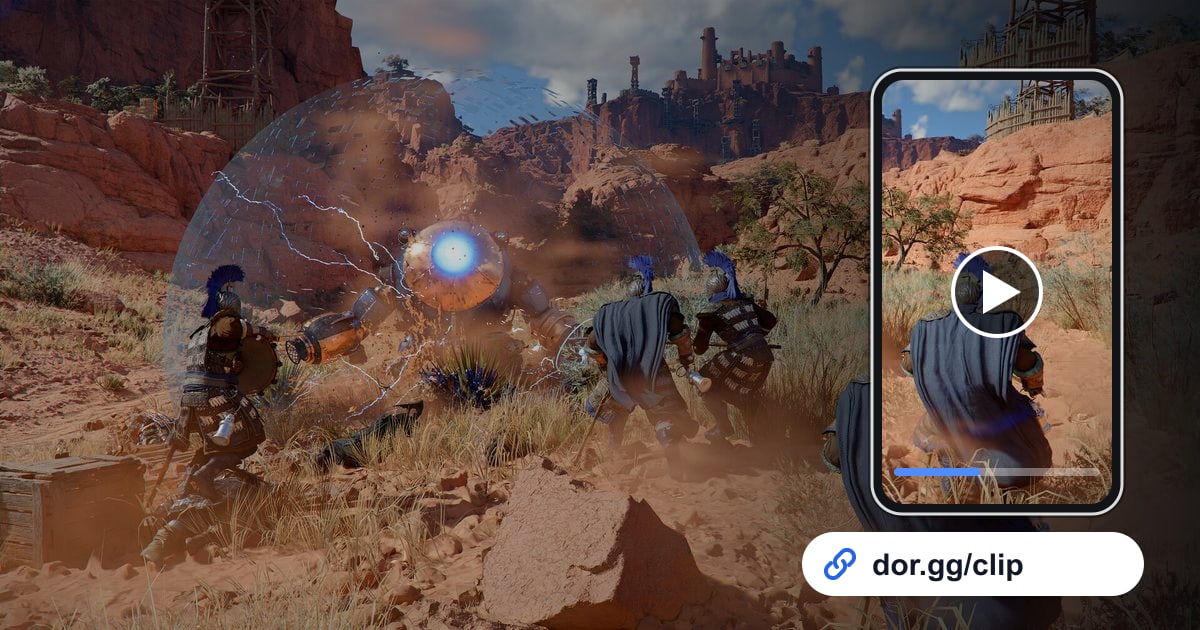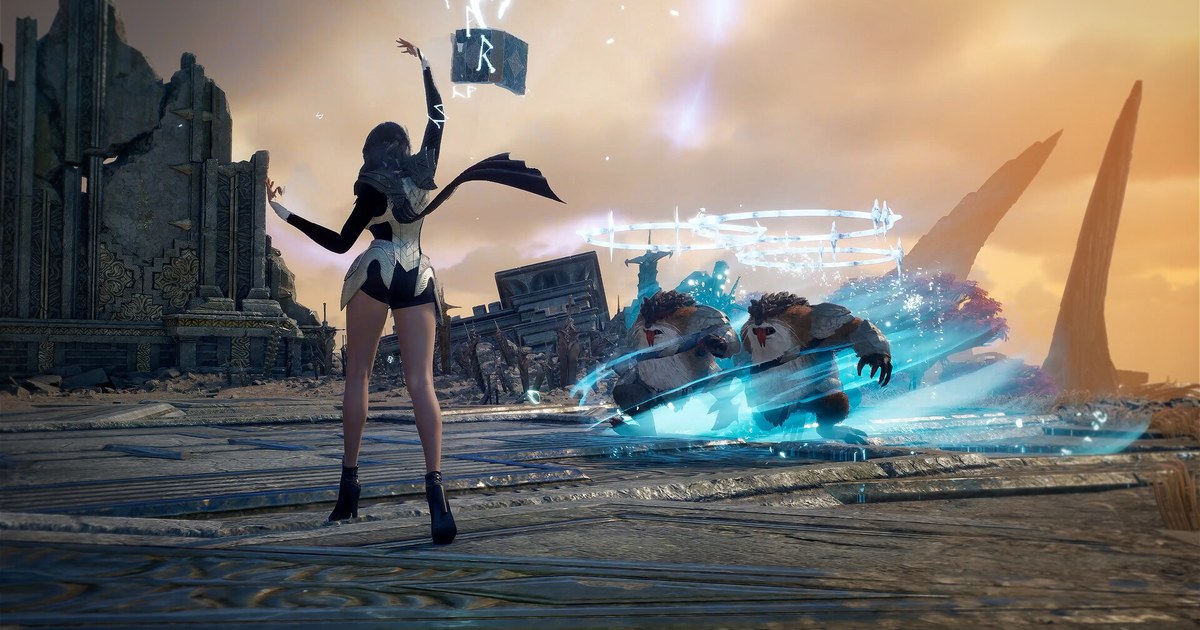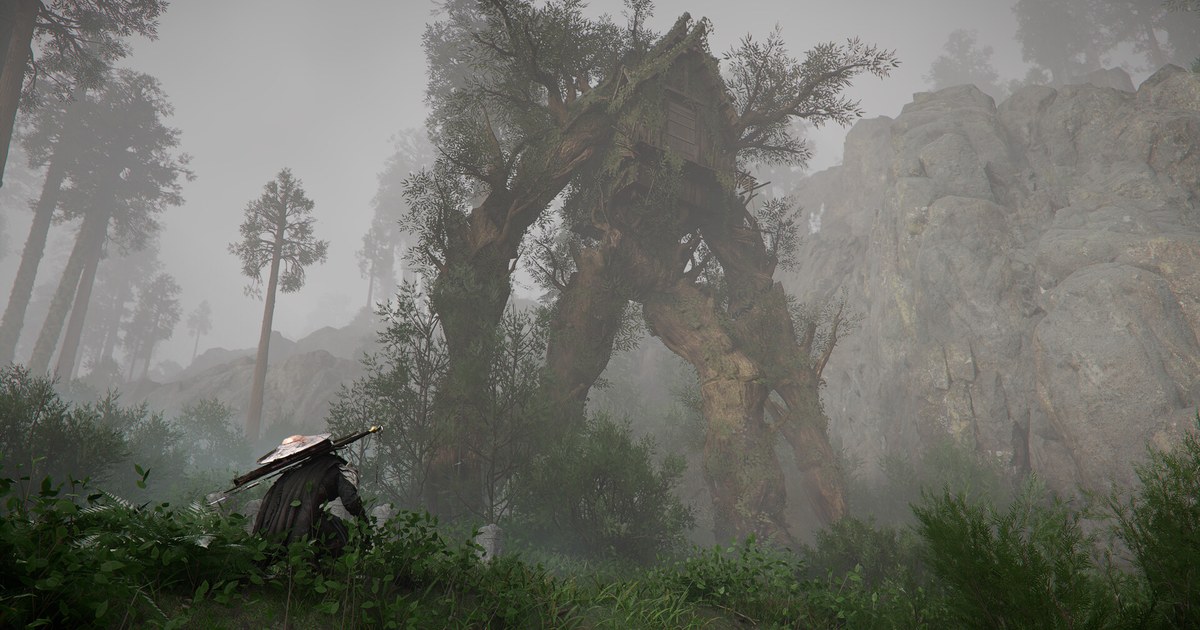
The short answer is that you record Crimson Desert by installing DOR, a free Windows app, and launching the game. DOR detects the game and records your play automatically from launch to exit, and the video collects in My Clips inside the app.
What is left for you to do is pick the start and end of the scene you want and trim it. Crimson Desert is an open world action adventure where you roam a large map and a boss fight can start without warning, so it is hard to know in advance when a great scene will happen.
If you start and stop recording for every clip, you will probably miss the moment that matters. We recommend saving the whole session first and choosing scenes afterward. General trimming methods are covered in how to trim game videos, so this guide focuses on the flow from a Crimson Desert session to a finished clip.
Bottom line: auto record the whole session, trim scenes afterward
One method is enough for recording Crimson Desert: record the entire session automatically, then trim and save only the scenes you want to post. That way you never have to press start and stop in the middle of a fight, and the footage exists whether you beat a boss or just stumbled on a nice view.
Crimson Desert is a game DOR supports, so it is detected as soon as you launch it. Game specific notes and the supported range are on the Crimson Desert hub. When you choose scenes, put one story in each clip: the final blow of a boss fight, or one view you found while riding.
Keeping each clip between 10 and 30 seconds makes it easy to post as Shorts or send to a friend. You can also change the camera angle that frames your scenery in Crimson Desert camera settings.
Steps to record Crimson Desert and make clips
- 1Install DOR and launch Crimson DesertAfter you install DOR, launch Crimson Desert as you normally do and the game is detected and recording begins. You do not need to press a record button, so leave the settings alone for your first session and just play.
- 2Start with the default recording qualityThe free quality options are 720p and 1080p at 30 or 60 fps, with 1080p 30 fps as the default. Record with the defaults first, and keep them if you like the result. On supported NVIDIA graphics cards such as the RTX series, DOR records with NVENC hardware encoding.
- 3Find your scenes in My Clips after you playWhen you finish, open My Clips and the full video of the session you just played is there. Watch it and note where a boss fight begins, the final blow, and any view you liked. Two or three scenes per session is usually plenty.
- 4Trim the range and save it as a clipSet the start and end of the scene in the app, then trim and save. You can choose 16:9 for landscape video, 9:16 for Shorts and Reels, or 1:1 for square. Vertical video tips continue in how to make vertical game videos.
- 5Merge several scenes in Studio and shareIf you have several scenes, merge them into one video in DOR Studio at dor.gg/studio. Add effect templates, text, BGM and volume, then export an mp4 or share a dor.gg link. The merging order is in how to merge several game clips.
Crimson Desert recording to finished clip at a glance
| Stage | What to do | How |
|---|---|---|
| First time only | Install DOR | Install the free Windows app and launch Crimson Desert as usual |
| While playing | Press nothing | When you launch a supported game, DOR detects it and records the whole session |
| After you finish | Open the video in My Clips | The session you just played is waiting in My Clips as one full video |
| Choosing scenes | Set a start and an end, then trim | Trim a range in the app and pick 16:9, 9:16 or 1:1 |
| Combining scenes | Merge in DOR Studio | Add effect templates, text, BGM and volume to make one video |
| Posting | Export mp4 or share a link | Save an mp4 to upload, or send friends a single dor.gg link |
What to check before you post
- The recording saved to My Clips as the whole session
- Each clip holds only one scene
- You picked the ratio for where you post (16:9, 9:16, 1:1)
- Merged videos did not get too long
- You have enough storage space (check the default 5GB limit if needed)
From Crimson Desert recording to sharing with DOR
DOR is a free Windows game recording app. When you launch a supported game such as Crimson Desert, it detects the game automatically and records the whole session, and recordings collect in My Clips inside the app.
For Crimson Desert, the workflow is to pick the scenes you want from the full video, then trim and save them yourself. In the app you can trim a range and choose 16:9, 9:16 or 1:1.
In DOR Studio at dor.gg/studio you can merge several videos, change the ratio, add effect templates such as shake zoom and punch zoom, add text and BGM, adjust volume, and then export an mp4 or share a dor.gg link. DOR output carries no watermark. To send a boss fight to a friend, continue with how to share Crimson Desert gameplay videos.