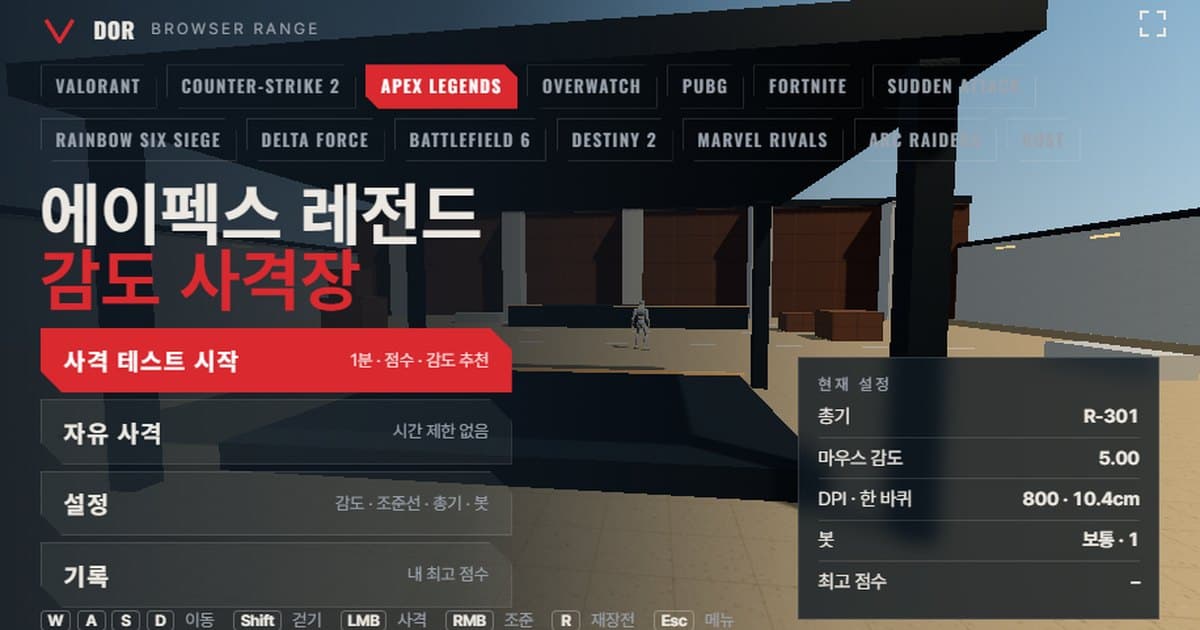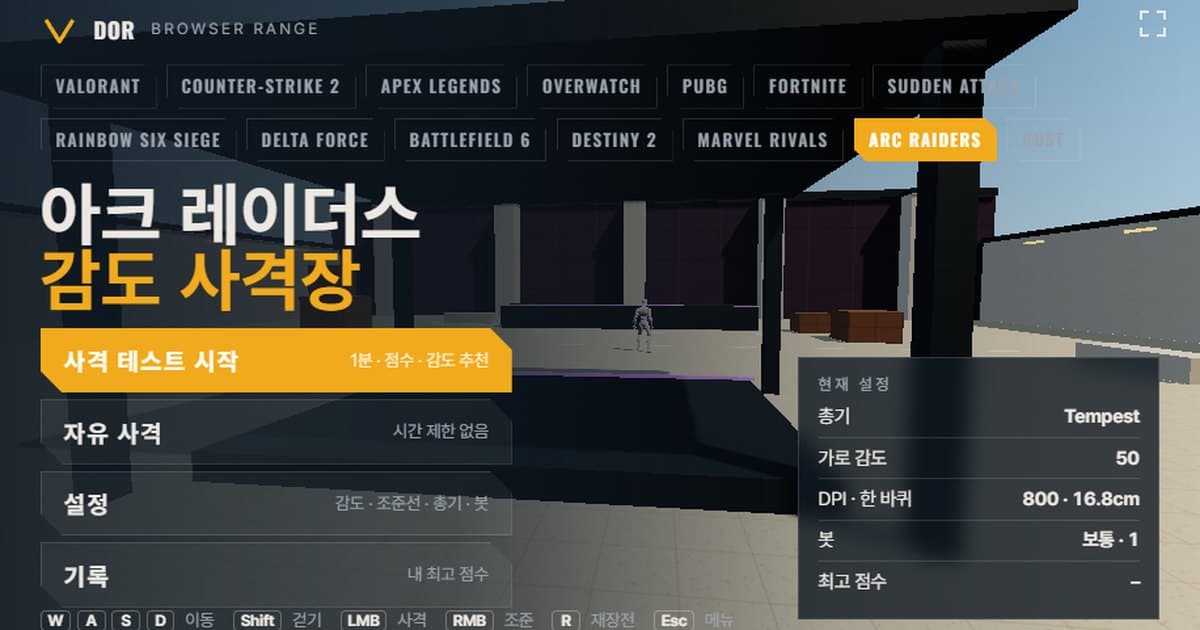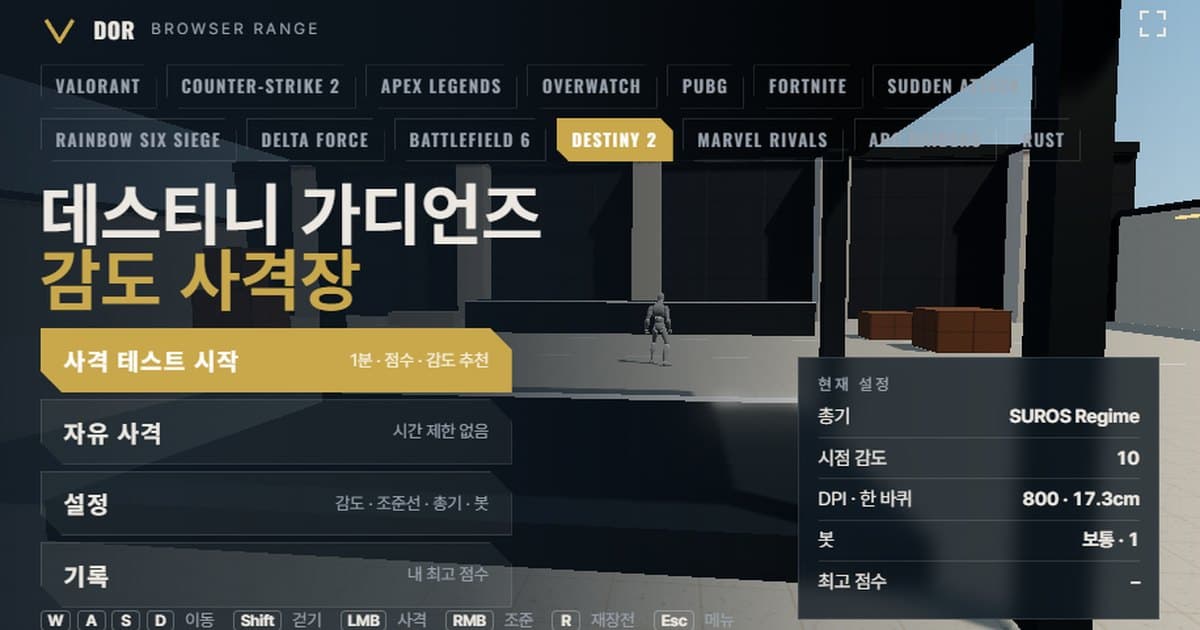
Destiny 2 sensitivity is set under Settings > Mouse and Keyboard > Look Sensitivity on an integer 1–20 scale, and the default is commonly given as 10, although no official Bungie document confirms it. At 800 DPI, sensitivity 10 works out to 17.3 cm per 360° and sensitivity 5, the pro median (eDPI 4000), to 34.6 cm. The range at the top of this article is a browser practice ground that runs with the same mouse turn rate and FOV as the game. Enter your look sensitivity and DPI just like the in-game settings, pick a weapon, and shoot the bots that appear for one minute; you get a score, accuracy, headshot rate and average kill time, plus a suggestion to raise or lower your sensitivity based on whether you overshot or stopped short of targets. It needs mouse lock and WebGL2, so it opens only in Chrome or Edge on PC, with no install or login. It is for players whose hand cannon shot keeps slipping to the shoulder in the Crucible, or who are debating whether to drop from 10 to 5, and want to compare the numbers before launching the game. The game itself is free on Steam, and recording guidance is collected separately on the Destiny 2 recording page.
What matches Destiny 2's settings and what does not
The range borrows five things from the game: mouse turn rate, FOV, movement speed, target health and weapon stats. The table below lists the range value, the game value and where that value came from side by side. Bungie does not publish a sensitivity formula or movement speeds for Destiny 2, so many of these are community measurements.
| Item | Range | Destiny 2 | Source / notes |
|---|---|---|---|
| Turn rate | 0.0066°/count × look sensitivity | Same linear scaling, sensitivity 1–20 | Based on community converter sites such as CSDB.gg; no official Bungie documentation |
| FOV | Horizontal 85° (16:9 fixed) | FOV slider 55–105, PC default 85 | Community guides; 85 is roughly 55° vertical |
| Movement speed | Default move 8.3 m/s · Shift walk 4.57 m/s | Sprint about 8.3 m/s, walk measured at 5.0–5.2 m/s (intended 5.6 m/s) | Community measurements; in August 2025 Bungie acknowledged a base movement speed bug |
| Bot health | 200 (heavy armor option 250) | Crucible Guardian about 200 (health about 70 + shield about 130) | Community frame measurements; official figures after Edge of Fate unconfirmed |
| Head damage | Fixed per weapon (see weapon table below) | Precision multiplier about 1.6–1.9× by weapon type, snipers about 3.4× | d2foundry community data, as of patch 8.2.6 |
| Weapon list | 7 (5 Exotics + 2 Legendaries) | Hundreds, with random perks and Masterworks | light.gg published stats; perk effects not implemented |
What matches is the turn rate and the FOV: how many degrees the view turns when you push the mouse a given number of centimeters, and how large that turn looks on screen. What differs is weapon perks, subclass abilities, movement tools like jumps and slides, and per-weapon-type precision multipliers. Exotic traits such as Ace of Spades' Memento Mori or SUROS Regime's fire-rate change while aiming are not included either. So the range score only shows how precisely you can track targets at this sensitivity; it does not predict your Crucible win rate. The range's movement speeds apply to your own WASD movement, and its Shift walk of 4.57 m/s is slightly slower than the August 2025 community measurement (5.0–5.2 m/s, intended 5.6 m/s). Bot strafing uses the same back-and-forth pattern in every game, so it does not reproduce how Guardians move in the Crucible.
How to run the 1-minute test
- 1Enter sensitivity and DPIIn the menu, open Settings > General and enter your look sensitivity as the same 1–20 value as in the game, and your mouse DPI as its real value. DPI does not affect turning; it is only used to calculate eDPI and cm/360. Set the scoped sensitivity multiplier to the same value as the game's ADS sensitivity modifier.
- 2Choose a weaponIn the Weapons tab, pick one of Ace of Spades, The Immortal, SUROS Regime, MIDA Multi-Tool, Cloudstrike, Felwinter's Lie or Thunderlord. For a first run, choosing the primary weapon type you mostly use in the Crucible makes the comparison with the game easier.
- 3Adjust bots and crosshairIn the Bots tab set bot speed (how long a target stays before vanishing), bot armor, targets at once and bot movement (still or strafing), and in the Crosshair tab set the color, line thickness and gap. The Audio & Video tab lets you change sound effects and graphics quality. For the first few runs, keep the defaults and change only the sensitivity so the comparison stays accurate.
- 4Start the testPress Start test in the menu; the mouse locks and the one-minute round begins after a countdown. The Fullscreen button expands the range to your whole monitor so targets appear at the same scale as in the game. Pressing ESC mid-round pauses the test and brings the cursor back; press Resume to continue. If you press Quit, that round is not recorded.
- 5Read the resultsWhen the minute ends, the Round result window shows the score (kills / spawned), Accuracy, Headshot rate, Avg kill, Spawn → first shot avg, Shots per kill, Overshoot / undershoot, Missed targets and Best (same setup), together with a sensitivity suggestion. The Retry with suggested sens button appears only when your aim leans toward overshooting or undershooting; pressing it starts the next round with the suggested value already applied.
- 6Repeat 2–3 times on the same dayPress Retry same setup and shoot 2–3 more rounds. The Records menu and Best (same setup) keep only the top score per weapon and bot setup and do not separate sensitivities, so note accuracy and Avg kill for each sensitivity yourself and compare. When the results point the same way, carry that sensitivity over to the game's look sensitivity.
How to read the result screen
- Accuracy: the share of shots fired that hit a bot. If accuracy is low while overshoot and undershoot come out roughly even, suspect your shot timing before your sensitivity.
- Headshot rate: the share of hits that landed on the head. Destiny 2 leans heavily on precision damage, so this number almost decides your time to kill.
- Avg kill: the average time from a bot appearing to it going down. When the sensitivity suits your hand, this drops even if accuracy stays the same.
- Spawn → first shot average: close to a reaction-time figure. It is normal for it to barely change when you change sensitivity; if it grows a lot, your sensitivity is low and moving the aim onto the target takes time.
- Shots per kill: the number of rounds spent on one bot. With bot health at 200, the baseline for Ace of Spades is 3 to the head or 5 to the body.
- Overshoot / undershoot: for each kill, the range judges whether your aim went past the target (overshoot) or stopped short of it (undershoot) on the way in, and counts each. If either side exceeds 60%, the range treats your sensitivity as leaning that way and suggests a value adjusted by 10%. Because Destiny 2 uses integer steps, at sensitivity 10 or below it moves one step (1) instead of 10%.
- Not enough data: if fewer than 5 overshoot/undershoot judgments were recorded, no sensitivity suggestion is given. Just shoot one more round.
Destiny 2's sensitivity system: the 1–20 scale, ADS modifier and FOV
Look sensitivity lives under Settings > Mouse and Keyboard > Look Sensitivity and uses an integer scale from 1 to 20. The 1–20 range is supported by Bungie's August 2021 announcement that it was widening controller sensitivity to 11–20 to bring it closer to keyboard and mouse, and by PC players reporting that they use 15–16. Some eDPI calculator sites list a 1–10 scale, but that does not match actual usage reports. The default of 10 is only the value the community goes by; it could not be confirmed in official documentation, and the menu wording may differ slightly by game version and language.
0.0066 is the rotation per mouse count in degrees, the coefficient community converter sites use as the same value as Overwatch 2 and Call of Duty. Bungie has never published an official figure, so the result is an approximation.
| Look sensitivity (800 DPI) | eDPI | cm/360 | Notes |
|---|---|---|---|
| 3 | 2400 | 57.7 | Lower end of the pro range; stable tracking but slow turnarounds |
| 5 | 4000 | 34.6 | Pro median (blueberries.gg tally), top of the 20–35 cm that converter sites recommend |
| 10 | 8000 | 17.3 | Commonly cited default (unconfirmed); on the fast side for lining up a single hand cannon shot |
The ADS Sensitivity Modifier ranges from 0.5 to 1.5 and there is no per-scope setting. The game first reduces sensitivity in proportion to the zoom magnification, and this modifier is multiplied on top; converter sites treat that as equivalent to 0% monitor distance match. The default of 1.0 is an estimate, and the community commonly uses 0.5–0.8. The range's scoped sensitivity multiplier is multiplied the same way, so enter the same value as in the game. The higher the magnification, as with Cloudstrike's 5× zoom, the larger this value's effect.
The FOV slider runs from 55 to 105 and the PC default is 85. The number is the horizontal FOV at 16:9; 85 corresponds to roughly 55° vertical and 105 to roughly 73°. Hipfire turn rate is independent of FOV, but at FOV 105 the same turn looks smaller on screen, so the sensitivity feels slower than in the range (fixed at 85). That difference has to be judged in the game rather than the range, and how ultrawide monitors are handled is disputed even within the community, with no official confirmation. Comparing with the Overwatch 2 range, which uses the same turn coefficient, you can confirm that carrying the sensitivity number straight across between the two games gives the same cm/360; for other games, match cm/360 with the sensitivity and DPI converter.
The 7 weapons in the range
| Name | Fire rate (rpm) | Magazine | Reload (s) | Head · body damage | Zoom |
|---|---|---|---|---|---|
| Ace of Spades | 140 | 13 | 3.19 | 80 · 45 | 1.4× |
| The Immortal | 720 | 32 | 2.28 | 24 · 14 | 1.4× |
| SUROS Regime | 600 | 27 | 1.63 | 26 · 15 | 1.6× |
| MIDA Multi-Tool | 200 | 16 | 1.69 | 65 · 38 | 2× (scope) |
| Cloudstrike | 140 | 7 | 3.22 | 293 · 85 | 5× (scope) |
| Felwinter's Lie | 55 | 4 | 0.84 | 355 · 320 (12 pellets total) | 1.2× |
| Thunderlord | 450 | 62 | 4.65 | 58 · 41 | 1.5× |
For one-tap practice, firing one shot at a time, Ace of Spades is the baseline. Three headshots drop a bot, so the closer your shots per kill is to 3, the better. Practice spraying with The Immortal or SUROS Regime and watch accuracy together with shots per kill. Practice flicks with Cloudstrike; one headshot is a kill, so the headshot rate is effectively your score, and with 5× zoom it is affected most by the scoped sensitivity multiplier. MIDA Multi-Tool is for mid-range tracking through its 2× scope, and Felwinter's Lie is for getting a feel for the close range where all 12 pellets connect.
Limits of a browser range and how to work around them
- Raw input: when the browser supports raw input under pointer lock, OS acceleration is bypassed, but in environments that do not, Windows' Enhance pointer precision gets in the way. If the range shows a notice that raw input is unavailable, turn off Enhance pointer precision in Windows mouse settings and reopen it.
- Input rate: browsers batch mouse movement per display frame, so the fine movements of a 4000–8000 Hz mouse are not reflected as finely as in the game. Movement is reflected up to the monitor refresh rate, so testing at 144 Hz or higher is better than 60 Hz, and lowering the polling rate to 1000 Hz narrows the gap.
- Recoil pattern: Destiny 2's per-weapon recoil direction and stability stat are not reproduced. The range's recoil is a simple upward kick, so use it for aim tracking practice, not spray control.
- Movement accuracy: details like the game's airborne effectiveness, hit assistance while sliding and strafe slowdown while aiming (about 25%) are absent. Turning on the Movement & firing error option in Settings only imitates how much the crosshair blooms while moving.
- FOV: fixed at horizontal 85 at 16:9. If you play on a 21:9 monitor or at FOV 105, target sizes on screen differ, so use range scores only as a relative comparison between sensitivities, not as absolute values.
- Weapon perks and abilities: Exotic effects such as Memento Mori, Cloudstrike's lightning strike and Thunderlord's ramping fire rate, and subclass abilities, are not included. Shots per kill is based on base damage.
Because of these limits, do not lock in a sensitivity you settled on in the range right away; play about 10 Crucible Control matches at the same sensitivity before deciding whether to keep it. Turn-rate comparisons with other games' ranges are collected in the browser range collection, and if you also play Overwatch 2 you can carry over the cm/360 baseline from the Overwatch sensitivity settings article as is.
Checking in real matches after settling on a sensitivity: DOR
Once the range numbers are stable, the next step is real matches. When DOR recognizes Destiny 2, it records your matches automatically, and you can save a clip of any moment with a single hotkey. Clips can be trimmed in the browser editor and shared as a dor.gg link. It is free and runs on Windows. If you record a few Crucible matches on the day you change sensitivity, you can rewatch the moment a hand cannon shot slipped to the shoulder and check against the range results whether it was an overshoot or an undershoot. Support details are on the Destiny 2 recording page.