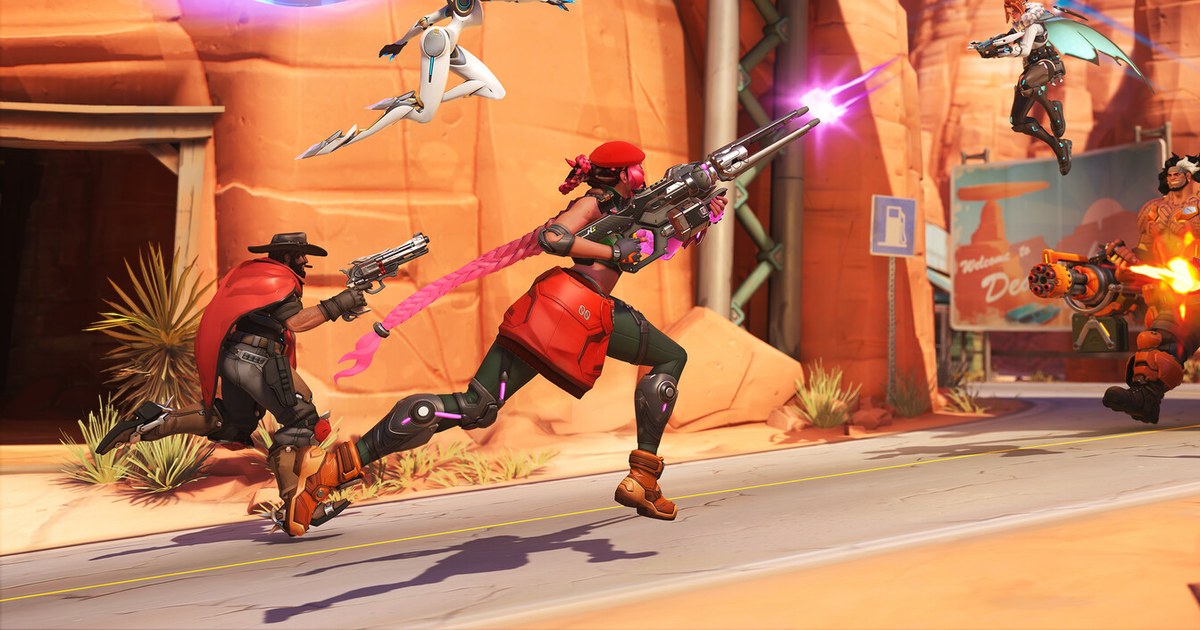
The short answer: install DOR, play Overwatch with it running, then open AI Highlight in the app, pick your clips, and choose a template. In the app this feature is labeled One Click Montage. Overwatch is one of the 7 games that support it.
When you launch the game, DOR detects it automatically and records the whole match, and it also saves your kills and deaths as separate clips. That means you skip hunting for moments on an editing timeline and only choose among clips that are already there.
Which games are supported is covered in the 7 games that support AI Highlight, and the manual way to cut a montage is in how to make a gaming montage. This guide focuses on the fastest path from Overwatch clips to one finished video. Information is current as of November 24, 2026.
Bottom line: pick auto event clips and choose a template
For Overwatch, the material you feed into AI Highlight is the event clips saved automatically from kills and deaths, not the full match recording. Full recordings, round recordings, clips you trimmed in the app, existing highlights, and selections mixed from several games cannot be used.
The feature does not watch your video to decide; it reads game events such as kills and edits automatically, so it needs clips that carry those events.
There are 11 templates (Default, AutoHighlight, SkullMeme, Bow and Arrow, Maniac, Life Force, Magazine, Camera, FreezeZoom, Finale, and Aim), and each needs a different number of clips. The differences are explained in the 11 AI Highlight templates.
If you cannot decide, build one and, if you do not like it, build again with another template. The feature opens only in the desktop app, not in the web studio.
How to make an Overwatch highlight
- 1Install DOR and keep Overwatch runningDOR is a free Windows app. When you launch a supported game it detects it automatically and records the whole match. In Overwatch, kills and deaths are saved as separate event clips, so playing at least one match gives you material.
- 2Check the scenes in My ClipsAfter a match, the match video and event clips collect in My Clips in the app. The scenes you feed into the highlight must be event clips, not the full recording, so skim for kill moments you like.
- 3Pick clips with the AI Highlight buttonOpen AI Highlight (One Click Montage) in the app and choose the videos to edit yourself, or use the button in the clip list to select clips automatically and move on to the template window. The button appears for matches of a supported game on the release version.
- 4Choose template, ratio, and lengthIn the template window, pick one of the 11 templates. The ratio is 16:9 by default and can be switched to 9:16 or 3:4, while Magazine stays vertical. For Default and AutoHighlight you decide whether to turn on the 1 minute limit. Free users may see a Pro prompt while using it; see AI Highlight free vs Pro for details.
- 5Polish and export the resultThe template adds music and effects automatically, and editing continues even if you close the window while it works. Add text or BGM in DOR Studio, then export an mp4 or share a dor.gg link. DOR output has no watermark.
Which template to pick and how many clips it needs
| What you want | Template to pick | Good to know |
|---|---|---|
| Emphasize one kill | FreezeZoom | It needs 1 clip |
| Chain several kills together | Maniac | It needs 3 to 6 clips |
| Make a vertical video | Magazine | 1 to 4 clips, produced in 9:16 vertical |
| One horizontal highlight video | Default | You can choose a 1 minute limit or no limit |
| Let clips be gathered into one video | AutoHighlight | It has the same 1 minute limit toggle as Default |
| Not sure which to pick | Any template to start | Editing continues even if you close the window, so build one at a time and compare |
Check before you make it
- Did you play Overwatch with the DOR app running
- Do you have kill or death event clips in My Clips
- Did you choose event clips rather than a full recording or a clip you trimmed
- Does the number of selected clips match what the template needs
- Did you decide on horizontal or vertical first
Turn Overwatch kill clips into a montage with DOR
DOR is a free Windows game recording app. When you launch a supported game, it detects it automatically and records the whole match, and recordings collect in My Clips.
In Overwatch, kills and deaths become clips automatically, and you can join those clips into one video with a template in the app's AI Highlight (One Click Montage). It reads game events to edit automatically, and the template adds music and effects.
When you trim in the app you can choose 16:9, 9:16, or 1:1, and DOR Studio (dor.gg/studio) lets you merge videos, change the ratio, use effect templates, add text, BGM, and volume, then export an mp4 or share a dor.gg link.
Recording quality is 720p and 1080p at 30 and 60 fps for free, with a default of 1080p at 30 fps. You record, edit, and share without a watermark.