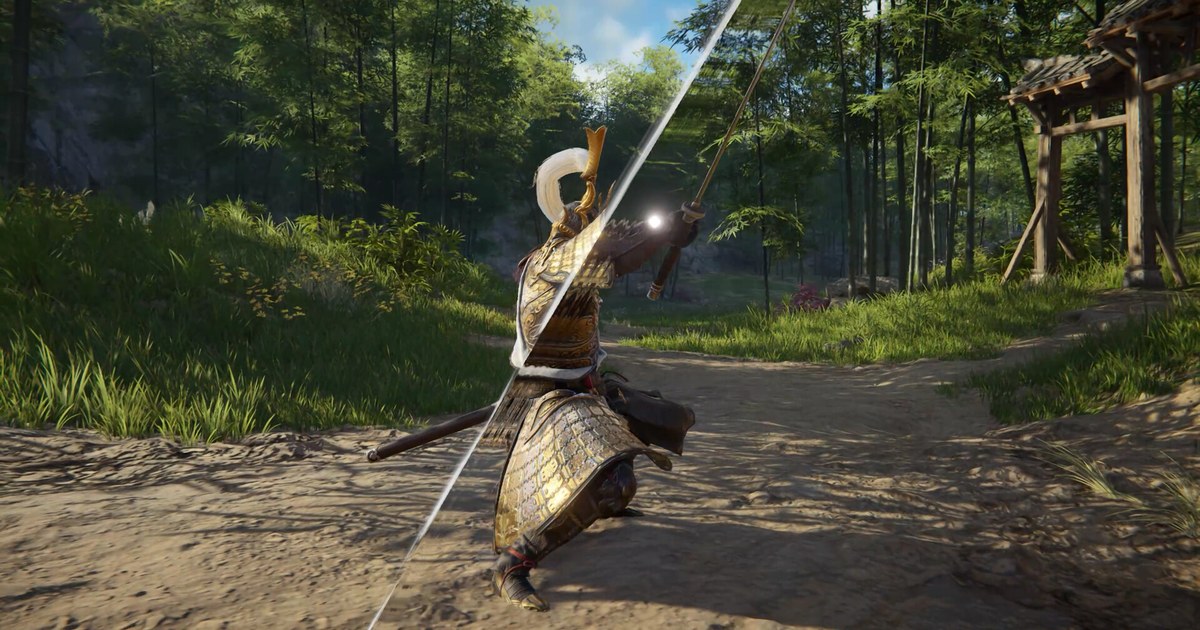

Short answer: the easiest and least error prone way to clip NARAKA: BLADEPOINT parries is to keep a recorder running, capture the whole match at 60fps, and cut just the few seconds that contain the parry.
Naraka's melee combat works like rock paper scissors: charged attacks beat normal attacks, parries beat charged attacks, and normal attacks beat parries. That makes the moment you parry an opponent's charged attack the shortest and most watchable part of any fight.
You usually only realize you wanted to save it after it is over, and a last few seconds hotkey only works if you press it right then.
This guide compares NVIDIA app, AMD Software, Xbox Game Bar, OBS Studio, Medal and DOR on three things: keeping the frame rate, how much of the past they can save, and turning clips into 9:16 short form video. The answer you can use right away is to leave the free DOR app running.
Recording starts on its own when you launch Naraka, and you pick the scene in My Clips when you are done. Game specific recording info is on the NARAKA: BLADEPOINT recording hub, and tips for each platform you post to are in how to share Naraka parry videos.
Verdict: auto record the whole match at 60fps and cut later
A good Naraka parry clip needs three things. First, frame rate. A parry is timed to the instant an opponent's charged attack lands, so at 30fps the motion tends to look smeared, while 60fps keeps the parry animation and the follow up combo smooth.
Second, how the clip is saved. Last moment saving (Instant Replay, replay buffer) needs a hotkey press right after the play, which is hard to do in a multi team brawl. If the whole match is recorded, you can choose calmly afterwards.
Third, short form conversion. Shorts, TikTok and Reels need a vertical 9:16 cut, and if the recording app can save 9:16 directly you do not need to open a separate editor. The simplest setup that covers all three is to leave DOR running and switch its recording setting to 60fps.
The load 60fps recording puts on your PC and how to set it up are covered in how to record games at 60fps. For reference, Naraka's recommended specs on Steam as of November 29, 2026 are a GTX 1060 6GB class graphics card and 16GB of memory, and some headroom above that helps if you record at the same time.
Six Naraka recording tools compared (as of November 2026)
| Software | How it saves Naraka moments | Pick it when |
|---|---|---|
| NVIDIA app (ShadowPlay) | Instant Replay saves the last moments. The official page describes saving the last 30 seconds; manual recording goes up to 4K HDR at 120fps | You use an NVIDIA graphics card and are comfortable saving with a hotkey |
| AMD Software | Set the Instant Replay length in 15 second steps up to 20 minutes and save the last moments | You use a Radeon graphics card and want to keep long fights in full |
| Xbox Game Bar | Built into Windows; Win+Alt+G saves the last moments (30 seconds by default) | You only save a scene now and then and want nothing to install |
| OBS Studio | You set the replay buffer length and save hotkey yourself; a longer buffer uses more memory | You want to fine tune quality and bitrate by hand |
| Medal | A hotkey saves the last 30 seconds, records at 60fps by default, and the built in editor trims and shares by link | You want to post clips to a community right away |
| DOR | Detects Naraka launching, auto records the whole session, and cuts 16:9, 9:16 or 1:1 clips in My Clips | You want a free app that records on its own with no hotkey |
Checklist before you record
- Is your recording set to 60fps (the free version of DOR lets you pick 1080p at 60fps)
- Do you have enough storage for recordings (Naraka alone needs 90GB to install according to Steam)
- Did you test a short match to confirm game sound and your mic are both recorded
- Do you remember or note which match had the parry and roughly when
- Have you chosen 16:9 (YouTube) or 9:16 (Shorts, TikTok, Reels) for where you will post
How to turn a parry highlight into a Short
- 1Install DOR and set 60fpsAfter installing DOR, choose 1080p resolution and 60fps in the recording settings. The default is 1080p at 30fps, so this one change is all you need for smooth parry footage.
- 2Launch Naraka and play as usualWhen you start Naraka, DOR detects the game and begins recording, keeping the whole session as one video until you close the game. There is nothing to press between matches.
- 3Find the parry in My ClipsWhen you finish playing, open My Clips in DOR and play the recording. Skip to the fights and check the moment you parried a charged attack and the counter that followed. For trimming tips, see how to trim game clips.
- 4Cut it to 9:16 and saveSet the range from two or three seconds before the parry to the moment your counter takes the opponent down, choose the 9:16 ratio and save. How to keep your character centered in a vertical frame is covered in recording games for vertical Shorts.
- 5Share a dor.gg link or upload the mp4Send the saved clip to friends as a dor.gg link, or export it as mp4 and upload it to Shorts, TikTok or Reels. The result has no watermark.
Saving Naraka parry clips with DOR
DOR is a free Windows game recording app. When you launch NARAKA: BLADEPOINT, it detects the game automatically and records the whole session from launch to exit, and recordings collect in My Clips in the app.
Cut the parry you want to 16:9, 9:16 or 1:1 and save it, and combine scenes from several matches in DOR Studio, adding effect templates such as shake zoom and punch zoom, text and BGM. How to join several clips into one video is in how to merge game clips.
On supported NVIDIA graphics cards such as the RTX series, DOR records with NVENC hardware encoding, and recordings, edits and shared results have no watermark.