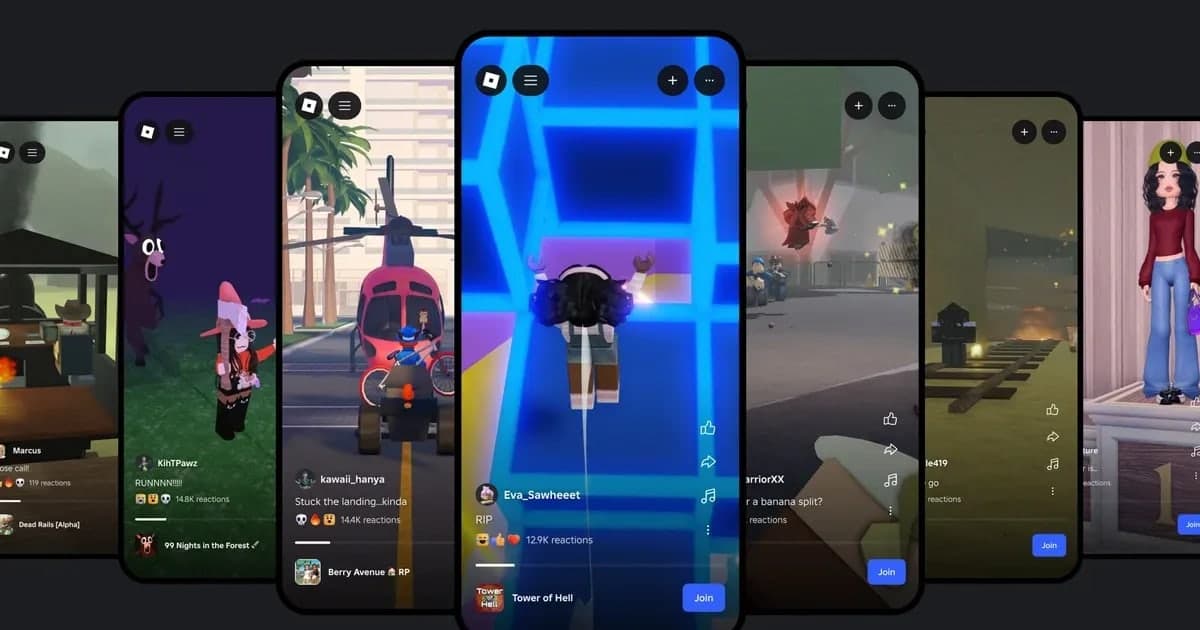
Roblox Moments is a video-sharing experience that Roblox launched in beta in September 2025. You record a short clip inside an experience with the built-in Captures tool, then post it in the Moments experience after trimming it and adding music and a description. Other players can react to it and press Join to go straight into the experience it came from. In July 2026 Roblox also announced a dedicated Moments tab in a redesigned app home, so you will now see Moments described both as an experience and as a tab. The key thing to understand is that Moments is not a recorder. It is a place to publish clips you have already made with Captures, so you need a working capture first. If the capture icon is missing or your clips are not being saved, start with what to do when the Roblox capture button is missing or not saving. This guide is based on the Roblox Help Center and the Roblox newsroom as checked on October 14, 2026. It covers how to record a clip for Moments, how to post it step by step, what to check when a Moment won't upload or the feature doesn't show up, and how to keep Moments clips separate from the longer videos you make for YouTube or TikTok. If you searched for a Roblox Moments link, note that the official help article does not give one; it tells you to open Moments from Search or the More tab.
Bottom line: Moments accepts only Captures clips of up to 30 seconds
Roblox Moments accepts one kind of video: clips you recorded inside an experience with the built-in Captures tool that are sitting in your Captures gallery. The official FAQ says users cannot upload external files, so a video recorded or edited with another program will not work. The posting path is: open the in-experience menu in the top-left corner, choose Captures, record with the capture icon, join the Moments experience, tap the + button at the top right, pick a clip, trim it, add music, write a description and tap Post. The baseline rules are up to 10 uploads per day, users aged 13 or older (the requirement at launch), and moderation before anything goes live. The new app home with a dedicated Moments tab, announced in July 2026, is reaching countries in stages, and browsing videos from friends and other players in that tab is for age-checked players 16 or older. So if Moments is missing or you cannot get into it, check your account age and age-check status first; how to complete Roblox age verification walks through it. If what you actually want is a clip longer than 30 seconds, a video with your voice and the game sound, or an edit for YouTube or TikTok, Moments is the wrong tool and you need a PC recording instead. How to record Roblox for longer than 30 seconds compares the options.
How to post a Moment, step by step
- 1Record a clip of up to 30 seconds with CapturesClips for Moments have to be recorded inside an experience. Open the in-experience menu in the top-left corner and choose Captures; a capture icon appears on the right side of the screen. Click or tap it to start recording and again to stop. A clip can be up to 30 seconds long. Voice chat and in-experience sounds are not recorded, and the on-screen UI and the names above avatars are removed. Recording only starts when you press the icon, so start it just before the moment you expect. Your clips are stored in the Captures gallery inside Roblox app storage.
- 2Find and join the Moments experienceAccording to the help article, Moments is reachable from Search and the More tab, with placement on Home planned. In regions that already have the new app home, Moments can also appear as its own tab, but as of the July 28, 2026 announcement that tab was rolling out from Canada, New Zealand and Singapore first, so whether you see it depends on your account and the timing. If there is no tab, look up Moments in Search and join the experience from there.
- 3Tap + and choose a clip from your Captures galleryInside the Moments experience, tap the + button at the top right of the screen to open your Captures gallery, then choose the clip you want to post. Only clips recorded with Captures show up there; other video files on your computer or phone cannot be picked. Clips from experiences that have no content maturity label, or that carry the Restricted label, are automatically blocked from being uploaded to Moments.
- 4Trim the clip, add music and write a descriptionBefore posting you can trim the clip, add music and write a description. Captures clips have no game sound or voice, so this step is where you add audio to a Moment. Roblox has said it offers the music through a partnership with DistroKid. In the description, say briefly which experience it is and what happens, which helps viewers decide whether to press Join.
- 5Tap Post and stay until the confirmation appearsWhen you are ready, tap Post. The help article asks you to stay in the Moments experience after posting so the upload can finish, and a prompt appears once your Moment is live. Leaving or closing the app before that may stop the post from finishing. You can upload up to 10 videos per day, and every video is moderated before it is posted. If an upload fails, it is often a temporary connection issue, so try again; if it keeps failing, check your internet connection and make sure the app is up to date.
- 6Check reactions and handle rejectionsOnce published, other players can react to your Moment and use Join to enter the experience it shows. The official FAQ explains that a clip posted in a Moments experience is not shown everywhere on Roblox; it is only eligible to appear on that Moments experience's own viewing surfaces. If moderation rejects a video, you get a temporary notification in the experience where you posted it, and a placeholder may remain in My Content. In that case pick a different clip that clearly follows the rules and post again.
Moments not showing up or not uploading: causes and fixes
| Symptom | Cause according to Roblox | What to check or do |
|---|---|---|
| The Moments experience or tab is missing | Moments launched for users 13 or older. The new Moments tab is rolling out country by country, and browsing videos in it is for age-checked players 16 or older. | Check your account age and age-check status. If there is no tab, open Moments from Search or the More tab. |
| No capture icon inside the experience | The capture icon has been hidden from the menu, or the developer turned off player capture in that experience. | Choose Captures again in the in-experience menu. If it is still missing, try recording in another experience. |
| A clip is in the gallery but cannot be posted | Clips from experiences with no content maturity label or with the Restricted label are automatically blocked from Moments. | Pick a clip recorded in a different experience that has a maturity label. |
| Uploads stop for the day | You can upload up to 10 videos per day. | Post again the next day and choose that day's clips in advance. |
| You tapped Post but nothing went live | You left the experience before the upload finished, or there was a temporary connection problem. | Stay until the confirmation prompt appears; if it fails, retry and check your connection and app version. |
| The Moment disappeared and only a placeholder remains | Moderation rejected it; you get a temporary notification and a placeholder may appear in My Content. | Post a different clip that clearly follows the rules. |
| A file you recorded or edited on PC is not in the gallery | Moments does not accept external files; you can only choose clips from your Captures gallery. | Record the Moments version separately with Captures inside the experience. |
Before you post a Moment
- Your account is 13 or older, and if you also want the new Moments tab, you have completed the age check (browsing there is for 16+, and the tab may not be in your region yet).
- The capture icon shows in the experience you want to record, and that experience has a content maturity label other than Restricted.
- You started recording before the moment happened, so the key part fits inside 30 seconds.
- You have picked music to add in Moments, because Captures clips have no sound.
- You have posted fewer than 10 videos today.
- You can stay in the Moments experience until the post confirmation appears.
- Any captures you want to keep are saved to your device with the save icon in the gallery, because deleting the Roblox app also deletes the gallery.
Keep a separate DOR recording for everything outside Moments
DOR is a free Windows PC app that detects the PC version of Roblox downloaded from roblox.com. It starts recording automatically when you join an experience and stops when you leave it, either by returning to the home screen or by closing Roblox, and each experience is saved to your library as one mp4 with no length limit. Recording begins after you enter the experience, and on the first join it can start a little late. Automatic recording is on by default and can be turned off with the Full Game Recording toggle in settings. Unlike Captures, DOR records the game sound together with your microphone, with noise suppression applied to the mic, so your conversations and reactions are kept. Captures only records after you press the icon, but in DOR you can press F8 (changeable) while an experience is being recorded to save the last 30 seconds (15, 30, 45 or 60 seconds) as a separate clip, so you can still keep a moment you did not see coming after it has happened. How to clip Roblox goes through that in detail. From the library you can trim a recording and export it at 16:9, 9:16 or 1:1 to share as a dor.gg link, or open it in DOR Studio in your browser to merge clips and add text, background music and effect templates before downloading an mp4. How to make Roblox Shorts covers the vertical workflow step by step. Moments does not accept external files, so a DOR recording cannot be posted to Moments. Use Captures for Moments and your DOR recordings for YouTube and TikTok. DOR runs only on PC, so it does not record Roblox played on a phone or tablet.
 #Roblox