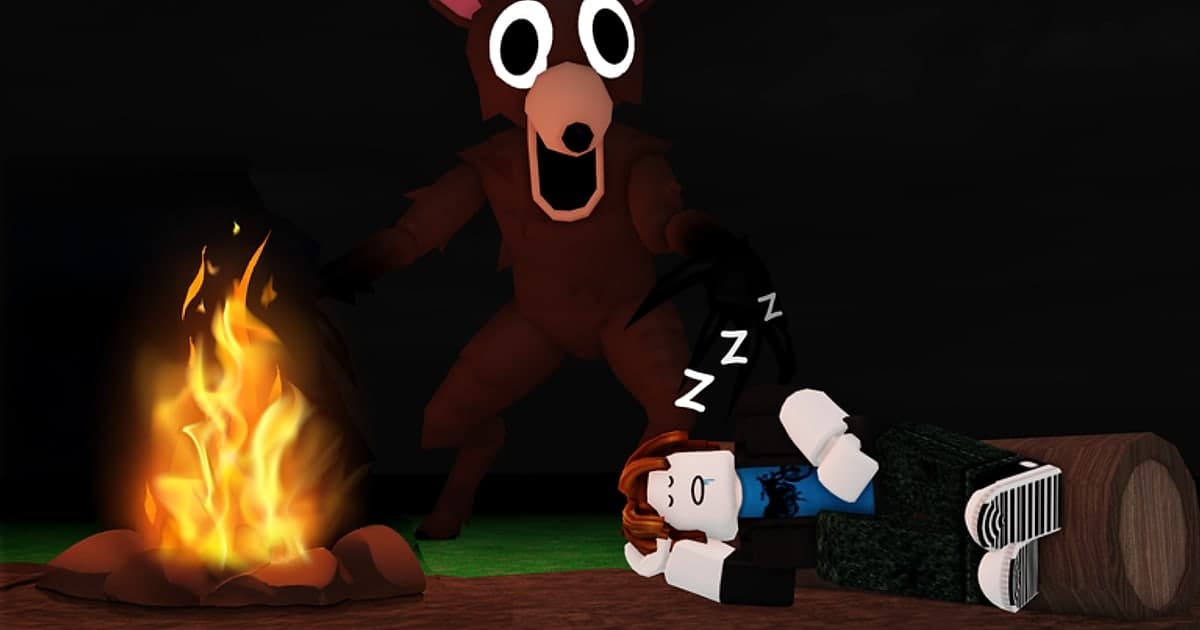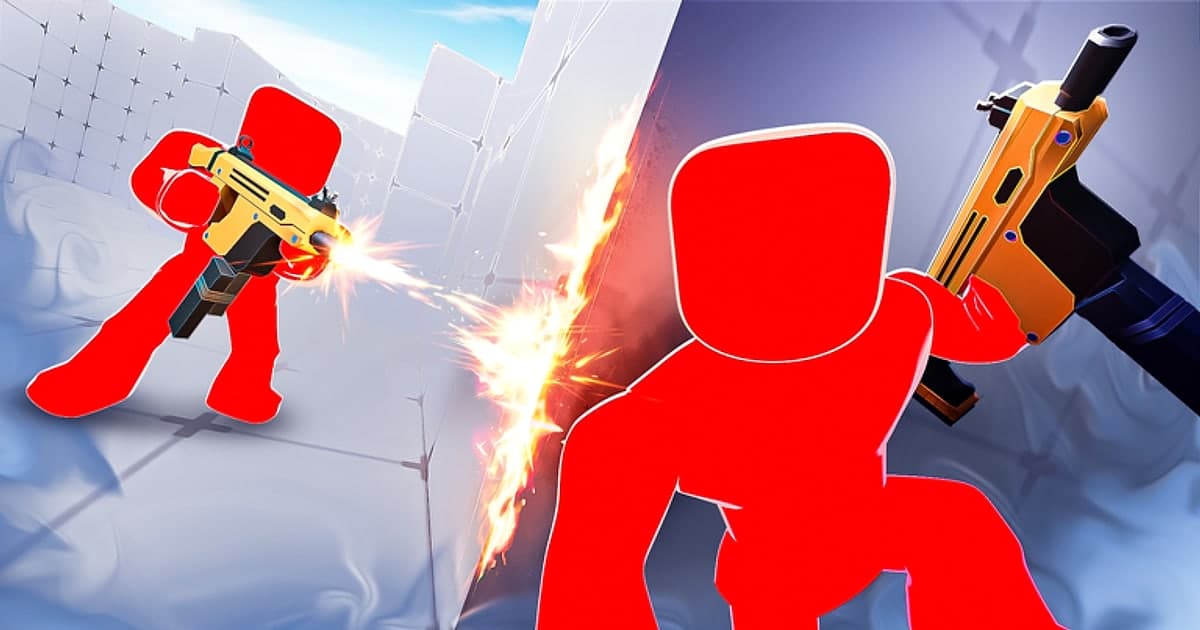
Roblox RIVALS is a first-person shooter (FPS) experience on Roblox made by Nosniy Games, and it is a different game from Marvel Rivals. You step on a duel pad in the lobby to start a duel, anywhere from 1v1 to 5v5, and the first side to 5 wins takes it. You earn keys to unlock weapons and skins, and there are contracts with rewards, win streaks and leaderboards. According to the official Roblox experience data on October 14, 2026, it had about 70,000 concurrent players and about 18.7 billion visits, and it runs on desktop, phones, tablets, Xbox and PlayStation 5. Events and content can change with updates. Because aim and reaction time decide most duels, players keep searching for two things: which settings to use, and how to keep the shots that landed. The short answer: raise your frame rate with Maximum Frame Rate in the Roblox menu's Settings tab, use the Graphics Quality slider to leave enough headroom to hold that frame rate, and tune sensitivity and FOV inside RIVALS' own settings. We found no separate system requirements published for RIVALS, so go by Roblox's official requirements. On Windows the minimum is 64-bit Windows 10 or 11, graphics that support DirectX 10 feature level or higher, and at least 1 GB of RAM, and for the best experience Roblox recommends a desktop less than 5 years old with a dedicated graphics card, or a laptop less than 3 years old. For the frame cap itself in more depth, see how to unlock the Roblox FPS cap. This guide covers a settings order that suits RIVALS and how to keep kills and clutches as clips and montages. All official Roblox facts here were checked on October 14, 2026.
Bottom line: frame rate in Roblox settings, aim in RIVALS settings, kills on a recording
Your settings live in two places. The first is the shared Roblox menu. Inside an experience, click the menu icon in the upper-left corner or press Esc, and the Settings tab lets you change Graphics Mode and Graphics Quality. Maximum Frame Rate, which Roblox announced in May 2024, is also chosen here, with the options Default, 60, 120, 144 and 240. Default means 60 FPS, not your monitor's refresh rate, so if you play on a 144Hz or 240Hz monitor you have to change it yourself. At launch the setting was Windows only, and we have not found a later official announcement of Mac support. Roblox's developer documentation also says the default client frame rate cap is 60 FPS and that Windows users can raise it to 240 FPS. As for external FPS unlockers, Roblox explains that they work by changing an internal client flag that was never meant to be a stable public API, so they may change without notice, and it recommends the in-game setting instead. The second place is RIVALS' own settings. Community guides describe changing anything that touches your aim, such as sensitivity, field of view (FOV) and crosshair, in the settings inside the RIVALS screen. However, we could not find an official settings guide published by the creator, and item names and locations can differ by update and by device (PC, mobile or console), so check them on screen. We also found no creator notice saying RIVALS limits frame rate on its own, so how many frames you actually get at 240 depends on your PC and monitor. After changing settings, press Shift+F5 to see your real frame rate. You should also decide in advance how you will keep kill moments. Roblox's built-in Captures last up to 30 seconds, do not record voice chat or in-experience sound, and save video with the experience UI removed. For a montage where gunshots and hit sounds come through, you need a PC recorder. The idea of running the game at a high frame rate while saving the recording at a lighter 60 fps is explained in recording at 144Hz without losing frames.
From RIVALS settings to kill clips, step by step
- 1Open the Settings tab in the Roblox menuWhile you are in RIVALS, click the menu icon in the upper-left corner or press Esc to open the menu. Choose the Settings tab at the top to see shared Roblox items such as Graphics Mode and Graphics Quality; on Windows, Maximum Frame Rate is chosen here too. These items apply to every experience, not just RIVALS. When you are done, click Resume or press Esc to go back.
- 2Match Maximum Frame Rate to your monitorIf you leave Maximum Frame Rate on Default, the game stops at 60 FPS. On a 60Hz monitor Default or 60 is enough; on a 144Hz monitor pick 144, and on a 240Hz monitor pick 240. Frames above the refresh rate are not all shown on screen, so first make sure your monitor's refresh rate is at its maximum under Windows Settings > System > Display > Advanced display. Roblox has said it has no plans to allow values above 240 because of known issues tied to its physics engine.
- 3Set Graphics Mode to Manual and adjust the sliderWith Graphics Mode on Automatic, your device adjusts quality on its own. If your frame rate wobbles during duels, switch Graphics Mode to Manual and move the Graphics Quality slider left to favor performance. Moving it right improves visuals but can cost frames. The goal is the point where your chosen cap does not drop much during fights. If you plan to record at the same time, leave a notch or two of headroom for the recording load.
- 4Check your real frame rate with Shift+F5Roblox's developer documentation says pressing Shift+F5 in the client shows the debug stats summary, where you can see your current frame rate. Compare the number while standing in the lobby with the number during a real duel. It can be high in the lobby and still drop in 2v2 or larger duels with several players fighting at once. If the number swings a lot, lowering the cap one step and holding it steady can make your aim feel more consistent.
- 5Tune sensitivity, FOV and crosshair in RIVALS' settingsAim sensitivity, field of view (FOV) and crosshair style are changed in the settings inside the RIVALS screen. The Roblox menu's Settings tab also has camera-related items, so if your sensitivity feels oddly fast or slow, check both places. With no official guide from the creator, community guides recommend different numbers. Rather than copying someone else's values, turn around in the lobby before a duel and look for a setting low enough to track a moving opponent precisely and high enough to check behind you quickly. Changing your mouse DPI changes how the same sensitivity number feels.
- 6Decide how to keep kills and clutchesThere are three ways. Roblox's built-in Captures are used by opening Captures in the menu and tapping the capture icon on the right of the screen; they last up to 30 seconds and include no voice or in-experience sound. A recorder's replay buffer saves the previous few dozen seconds to a file the moment you press a hotkey, so a one-tap or comeback clutch you just landed is not lost. A full recording keeps the whole session so you can cut only the parts you need later. RIVALS duels are short and moments fly by, so keeping a full recording running and saving each good moment with the replay buffer is a convenient combination.
- 7Gather the clips into a montageTrim each saved clip to just 3 to 8 seconds around the kill and the montage moves faster. Mix different kinds of moments, such as one-taps, multi-kills and 1vX clutches, and put the strongest one last. Short transition effects where scenes change and a quick zoom effect on the kill give the edit rhythm. If you plan to post it as a Short, export in 9:16 and crop so the crosshair stays in the middle of the frame, which keeps each moment easy to read.
RIVALS settings to check at a glance
| Item | Where to change it | What to check |
|---|---|---|
| Maximum Frame Rate | Roblox menu (Esc) > Settings tab | Default is 60 FPS. Pick 60, 120, 144 or 240 to match your monitor. Roblox announced it as a Windows setting. |
| Graphics Mode and Graphics Quality | Roblox menu (Esc) > Settings tab | Set Graphics Mode to Manual to control the slider yourself. Left favors performance, right favors visuals. |
| Monitor refresh rate | Windows Settings > System > Display > Advanced display | If it is set to 60Hz, the screen shows at most 60 frames even when you pick a higher cap. |
| Sensitivity, FOV and crosshair | RIVALS' own in-experience settings | We could not find an official guide from the creator. Item names can differ by update and device. |
| Real frame rate | Shift+F5 inside the experience | Compare the lobby with a live duel to see whether frames drop when several players fight. |
| Recording resolution and frame rate | Your recorder's settings (DOR default 1080p 60 fps) | Game frame rate and recording frame rate are separate. Higher values mean more PC load and bigger files. |
Check before your next duel
- Maximum Frame Rate is no longer on Default (60 FPS).
- Your monitor's refresh rate is set to its maximum in Windows.
- You used Shift+F5 to confirm frames hold during 2v2 or larger duels.
- You used the official Roblox setting rather than an external FPS unlocker (Roblox does not officially support unlockers and recommends the in-game setting).
- Your clip hotkey does not clash with any key you use in RIVALS.
- You decided whether your voice belongs in the montage and turned mic recording on or off.
Keeping RIVALS kills with DOR
DOR is a free Windows PC app. It automatically detects the PC version of Roblox downloaded from roblox.com, starts recording when you join an experience such as RIVALS, and stops when you leave the experience for the home screen or close Roblox. Support for the Microsoft Store app 'Roblox - Windows' has not been confirmed. Auto recording is on by default, and you can turn it off with the Full Game Recording toggle in settings. Recording starts only after you join an experience, so the Roblox home screen is not recorded, and if you jump into an experience right after launching Roblox, the first recording can start about 15 to 20 seconds late, so in that case wait about 20 seconds in the RIVALS lobby before stepping on a duel pad, and your first duel is less likely to be missed. Moving between the lobby and duels inside the same experience usually continues as one recording, and each experience lands in your library as one mp4. When you land a kill or clutch, press F8 (you can change the key). The previous 30 seconds are saved as a separate clip, and you can choose 15, 30, 45 or 60 seconds. No notification appears in the game when a clip is saved, so check your library after the match. DOR does not detect kills in Roblox and make clips automatically. Automatic kill clips work only in 7 games such as League of Legends and VALORANT, so in RIVALS you save with F8 or cut from the full recording yourself. How hotkey clips work and how to set their length is covered in how to clip Roblox. Game sound and your microphone are recorded together (mic on by default, with noise suppression) and mixed into one track, so turn the mic off before recording if you do not want your voice in the montage. If you turn off Record All Sounds in settings, only Roblox's sound is captured instead of everything your PC plays, such as Discord or music. DOR is designed to crop the recording to the Roblox window and to black out any stretch where another window covers Roblox, so keep the game window uncovered during duels. Quality defaults to 1080p 60 fps and goes up to 2160p, and NVIDIA graphics cards use NVENC hardware encoding by default. After recording, set start and end points in the library trim tool, export in 16:9, 9:16 or 1:1, and share a dor.gg link. For a montage, open DOR Studio (dor.gg/studio) in your browser with nothing to install, merge several clips, add effect templates such as Punch Zoom, Shake Zoom, Handheld and Glitch transitions, plus text and background music, and download an mp4. Videos added to Studio must be at least 3 seconds long and no larger than 500MB, and each project has a limit on how many videos it can hold. For ordering and joining clips see how to merge multiple game clips, and for posting a vertical Short see how to make Roblox Shorts. DOR cannot record Roblox on phones, tablets, Xbox or PlayStation 5, so use this as your method when you play RIVALS on PC.
 #Roblox