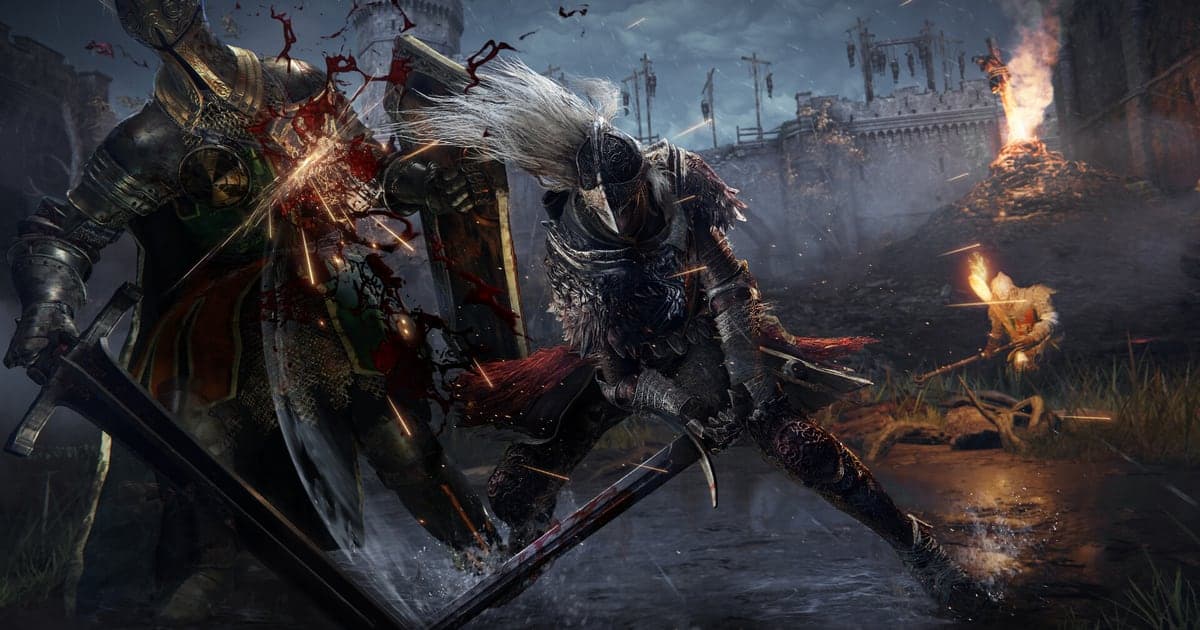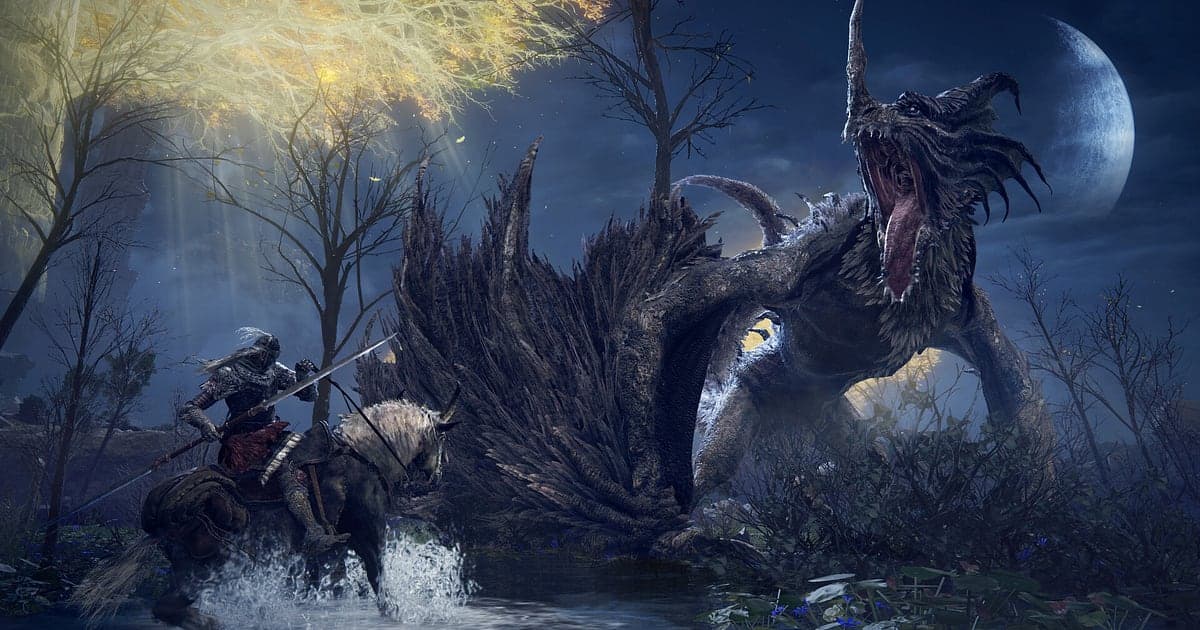
Elden Ring records automatically: install DOR, launch the game, and AI takes care of it. The game has no built in recording and no official photo mode, so capturing it means using a separate tool. DOR detects Elden Ring as it starts and records every run back from the Site of Grace to the arena, so you never have to press record before an attempt you do not know will be the one. The first time you dodged Waterfowl Dance, the hit that finally dropped Messmer and a Torrent ride across the Lands Between all end up in the recording. This guide covers setup, saving clears, finding the winning attempt, finding co op calls, editing a victory video, sharing, and recording settings.
- Keep every one of dozens of boss attempts on video, then trim out just the one that worked.
- Clip a no hit Malenia or a parry riposte with the clip save shortcut right after it lands.
- Find co op calls like 'Waterfowl incoming, run, just run' with AI Voice Notes.
- Make a victory video with your death count stamped on it and send it to friends with one dor.gg link.
Before you record Elden Ring: install and recording mode
All you need is DOR, a free Windows app that adds no watermark. This guide covers Elden Ring for PC, launched from Steam. Recording works per session with no time limit, so even if one boss takes your whole evening, every attempt runs into a single video. Long runs such as speedruns stay in one video too. Elden Ring is heavy on the graphics card, and frames and recording both stay steady on PCs at or above the recommended spec. The basic setup for recording PC games is in how to record PC games.
| Item | For Elden Ring | Notes |
|---|---|---|
| Install DOR | Free Windows app | No watermark on videos |
| Game version | Elden Ring for PC, launched from Steam | The game has no built in recording, so an external recorder is needed |
| Recording mode | Session recording: one video from launch to exit | Every boss retry stays in the same recording |
| Display mode | Fullscreen, windowed and borderless all record | Switches to monitor capture if anti cheat blocks game capture |
| Resolution and frame rate | 1080p at 30fps by default, 60fps available | The game runs at up to 60fps on PC, so 60fps recording matches it |
Record Elden Ring with DOR: step by step
- 1Install DOR and leave it runningInstall DOR and open it once; it then waits in the background for Elden Ring. If you play co op on a call with a friend, check that DOR picked the right microphone.
- 2Launch Elden RingStart the game from Steam and DOR detects it and starts recording. Capture begins at the title screen, so there is nothing to do before you walk into a boss arena.
- 3Check that it is recordingThe first time, open the DOR app while resting at a Site of Grace to confirm it is recording. Recording uses GPU hardware encoding, which matters in boss fights where one dropped frame can cost you a roll.
- 4Clip right after a clearRight after the boss bar empties and the victory text appears, or right after you turn an invader around, press the clip save shortcut. The last 30 seconds become a clip and the session recording keeps going.
- 5Quit and check My ClipsWhen you close Elden Ring, the day's recording and your saved clips appear in My Clips. Check that the final blow on today's boss was captured.
Find your recordings
Recordings collect in My Clips, the library in the DOR app. Each launch and quit makes one recording, and clips saved with the shortcut are listed separately. In a recording with dozens of boss attempts, walking through the fog gate marks the start of each try, so skip from fog gate to fog gate to find the attempt you want. That is also how you see which attempt the pattern started to click and where your dodge timing was late. Trim the winning attempt from the fog gate to the victory text and export it in 16:9, and cut the final blow separately in 9:16. Like your clear videos. When space fills up, older videos you have not liked are cleared first, so those records stay. Trimming tips are in how to trim game clips.
Save the moments you want to keep
The clip save shortcut keeps the stretch of play just before you press it. The default is 30 seconds, with 15, 30, 45 or 60 seconds available. A parry riposte or a quick invader kill fits in 15 or 30 seconds. A second phase where you dodge Waterfowl Dance and push through to the finish needs 60 seconds to include the dodge that mattered. Press right after the victory text appears. If you miss it, that attempt is still in the session recording, ready to trim. The idea is explained in save the last few seconds instantly.
Find what was said with AI Voice Notes
AI Voice Notes turns your co op plans into text pinned to the recording timeline. Lines like 'Waterfowl incoming, run, just run', 'parry window, now now now', 'summon the Mimic Tear first' or 'invader right by the grace' are kept as sentences at that moment, and selecting one jumps to the scene. See who was meant to pull aggro and how you planned to handle phase two, right beside the footage. Things you mutter while playing solo are kept the same way. To set your mic level, see record game audio with your mic.
Build a montage with AI Highlight
AI Highlight joins the clips you check into one montage. Check 'Waterfowl Dodge', 'Parry Riposte', 'Malenia No Hit' and 'Messmer Final Blow', press AI Highlight, and the first encounter through the killing blow runs as one video. Your death count turns into a proper victory reel. Drop a 'Torrent Ride' in between to keep the feel of the journey. To set the order yourself, use merge game clips.
Edit in DOR Studio
DOR Studio opens in your browser with nothing to install. Merge and trim clips, add text, background music and effect templates, and export in 16:9, 9:16 or 1:1 as an mp4 or a share link. Put a shake zoom on the frame the boss bar empties and stamp your death count as text so the win lands. A punch zoom suits the moment a parry connects, and a glitch transition works between your first and final attempts. For a speedrun, add split times as text. Lay a track over it and export 16:9 for edits or 9:16 for Shorts. See everything in the DOR browser clip editor and vertical shorts in record vertical shorts from games.
Share with a dor.gg link
Send a no hit clip as one dor.gg link. Drop it on Reddit or Discord and people play it in a browser with no app. There is no watermark, so it also works as a clean boss guide upload on YouTube. Picking out just the clear after dozens of attempts is covered in how to share Elden Ring boss videos.
Elden Ring recommended settings and troubleshooting
Elden Ring records in fullscreen, windowed and borderless. The game runs at up to 60fps on PC, so recording at 60fps captures its motion as it is, and going higher only makes files bigger. If the game's frame rate wobbles, lower graphics options, and on a tight PC switch DOR to 720p/30fps mode. A comparison with other recorders and the fix for OBS black screens are in how to record Elden Ring on PC, and if recording only misbehaves in fullscreen, see fullscreen recording not working.
| Symptom | What to check | Fix |
|---|---|---|
| The recording is a black screen | Whether other recorders or overlays are running | Close other recorders and relaunch. DOR switches to monitor capture if game capture is blocked |
| Frames wobble in boss fights | Game graphics options and GPU headroom | Lower options; if it still struggles, use 720p/30fps mode |
| Your co op partner's voice is missing | The Windows output device and DOR microphone setting | Match them to the devices you use and record a short test |
| Worried a recorder could get you banned | What the recorder does to the game | DOR records only the screen, never changes game files or gameplay data, and has no cheat features |