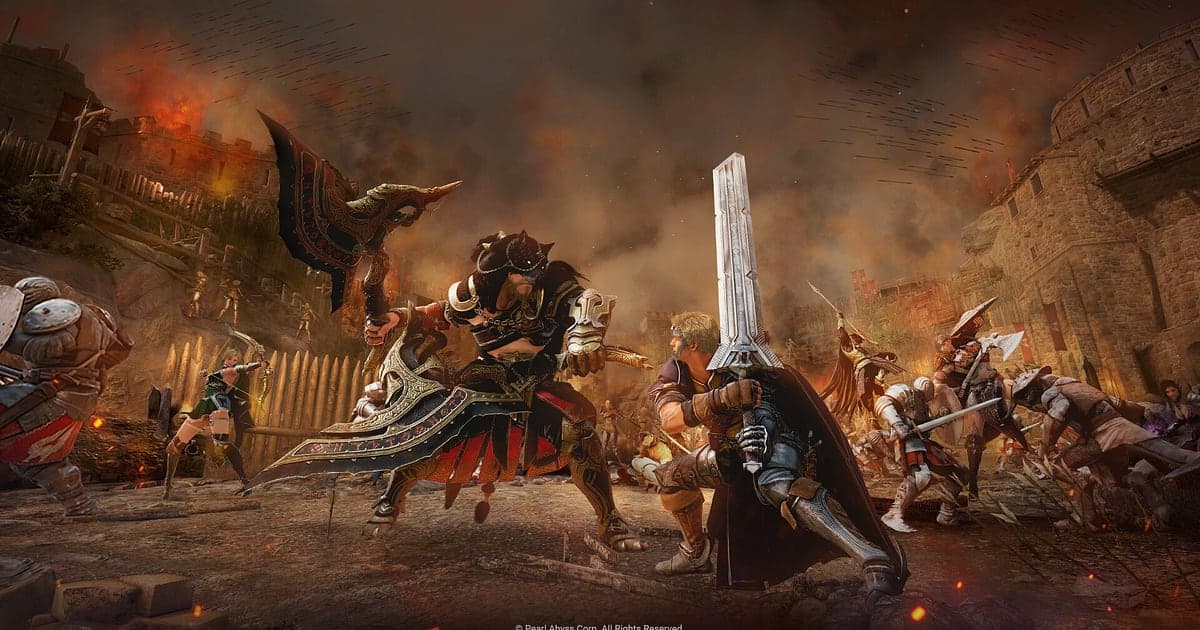
Black Desert records automatically: install DOR, launch the game, and AI handles it with no record button. A Black Desert day is long. The PEN attempt you saved Cron Stones for, a node war with dozens of guildmates on the field and an Epheria Frigate heading out to sea can all happen in one evening. DOR detects the game as it starts and keeps recording through grind spot rotations and life skilling until you log off, so the moment a TET finally sticks is on video. This guide covers setup, saving enhances and node wars, finding scenes in a long recording, reviewing shotcalls, editing highlights and sailing videos, sharing, and fixing frame rate problems.
- Keep a long Black Desert day on video, from grind spot rotations and life skills to the evening node war.
- Clip the moment a TET sticks or Kzarka goes down right after the result appears.
- Find node war calls like 'left fort is breaking, need backup' with AI Voice Notes to see which side broke first.
- Cut out just the stretch you spent sailing and turn it into a scenery and voyage video.
Before you record Black Desert: install and recording mode
All you need is DOR, a free Windows app that adds no watermark. This guide covers Black Desert running on a Windows PC. Recording works per session with no time limit, so the whole time you are logged in stays in one video, and an hour long node war is kept in full. Black Desert is heavy on the graphics card, and frames and recording both stay steady on PCs at or above the recommended spec. Leave it running all day and the recording grows too; ways to shrink files are in reduce game recording file size.
| Item | For Black Desert | Notes |
|---|---|---|
| Install DOR | Free Windows app | No watermark on videos |
| Game version | Black Desert on a Windows PC | Detected automatically when the game opens |
| Recording mode | Session recording: one video from launch to exit | Grinding, life skills and node wars stay in one recording |
| Display mode | Fullscreen, windowed and borderless all record | Switches to monitor capture if game capture is blocked |
| Resolution and frame rate | 1080p at 30fps by default, 60fps available | The game is GPU heavy, so use 720p/30fps mode when frames are tight |
Record Black Desert with DOR: step by step
- 1Install DOR and leave it runningInstall DOR and open it once; it then waits in the background for Black Desert. If you listen to node war shotcalls on guild voice chat, check the microphone and output device DOR uses.
- 2Launch Black DesertStart Black Desert and DOR detects it and begins recording. Capture starts at character select, so the grind you start the moment you log in is included.
- 3Check that it is recordingWhile you prep in town, open the DOR app once to confirm it is recording. Recording uses GPU hardware encoding, so a node war with dozens of guildmates on screen adds little load.
- 4Clip right after an enhance or a bossRight after the enhance result appears, or right after Kzarka falls, press the clip save shortcut. The last 30 seconds become a clip and the session recording keeps going.
- 5Quit and check My ClipsWhen you close Black Desert, the day's recording and your saved clips appear in My Clips. Open it to check that tonight's node war was captured to the end.
Find your recordings
Recordings collect in My Clips, the library in the DOR app. Each launch and quit makes one recording, and clips saved with the shortcut are listed separately. In a recording left running all day, use the evening hour when node war starts, trips between town and grind spots, and boarding your ship as landmarks. Trim a node war from the moment your fort comes under attack to the moment it is decided and export it in 16:9, so guildmates can rewatch which side of the fort broke first. Trim an enhance from just before the click to the result and export it in 9:16 or 1:1. Like the node wars you want to keep. When space fills up, older videos you have not liked are cleared first, so those stay. Trimming tips are in how to trim game clips.
Save the moments you want to keep
The clip save shortcut keeps the stretch of play just before you press it. The default is 30 seconds, with 15, 30, 45 or 60 seconds available. An enhance is quick from click to result, so 15 seconds is enough. A field boss kill or a fort defense that runs for minutes needs 60 seconds to catch the final push from the start. Press right after the result text appears or the boss falls. If you miss it, trim it from the session recording. The idea is explained in save the last few seconds instantly.
Find what was said with AI Voice Notes
AI Voice Notes writes your guild's voice chat calls onto the recording timeline. Lines like 'going for PEN, everybody pray', 'left fort is breaking, need backup', 'Kzarka spawns in five' or 'let's sail out toward Margoria' are kept as sentences at that moment, and selecting one jumps to the scene. After a node war, check when the shotcaller said to flank and who was assigned to hold the fort, alongside the footage. To keep Discord voices in the recording too, see record Discord call audio.
Build a montage with AI Highlight
AI Highlight joins the clips you check into one montage. Check 'TET Success', 'Kzarka Down', 'Node War Fort Hold' and 'Awakening Combo Grind', press AI Highlight, and an enhance success effect through a node war comeback runs as one video. Add an 'Epheria Frigate Voyage' or 'Dream Horse Bred' at the end and a first cut of your guild recruitment video comes out with no editing. To set the order yourself, use merge game clips.
Edit in DOR Studio
DOR Studio opens in your browser with nothing to install. Merge and trim clips, add text, background music and effect templates, and export in 16:9, 9:16 or 1:1 as an mp4 or a share link. Trim from just before the enhance click and shake zoom the frame the result appears, so viewers hold their breath too. Add the tier and Cron count as text and lay a track under it. A glitch transition works between node war scenes, and a sailing video needs only a calm track. See everything in the DOR browser clip editor and vertical shorts in record vertical shorts from games.
Share with a dor.gg link
Post a trimmed node war in your guild Discord as one dor.gg link, and members watch it in a browser with no app. Enhance success shorts go up on YouTube or TikTok with no watermark. Picking node wars and enhances out of a recording left running all day is covered in how to share Black Desert gameplay videos.
Black Desert recommended settings and troubleshooting
Black Desert records in fullscreen, windowed and borderless. Recording starts at 1080p and 30fps; choose 60fps if you want awakening combos to look smooth. If crowded node wars drop the game's own frame rate, lower the game's graphics options first, and on a tight PC switch DOR to 720p/30fps mode. If frames drop only while recording, check fix FPS drops while recording first.
| Symptom | What to check | Fix |
|---|---|---|
| Frames drop in node wars | Game graphics options and GPU headroom | Lower options; if it still struggles, use 720p/30fps mode |
| The recording is a black screen | Display mode and other overlay software | Close other recorders and relaunch. DOR switches to monitor capture if game capture is blocked |
| Guild shotcalls are missing | The Windows output device and DOR microphone setting | Set both to your headset and record a short test |
| Recording does not start when Black Desert opens | Whether DOR was running first | Open DOR first, then relaunch Black Desert |