Terraria records automatically: install DOR, launch the game, and AI handles it, with no OBS scenes or sources to set up. DOR recognizes Terraria from the world select menu and records for as long as you stay in. Your first Eye of Cthulhu kill, the Wall of Flesh falling into Hardmode and the long hellevator dig all end up in the recording. This guide covers getting ready for a world you play for weeks, saving boss fights and builds, finding multiplayer chat, editing a progression montage and a base tour, sharing, and fixing recording problems.
- Keep a Terraria world's whole journey on video, from a wooden sword on day one to the Moon Lord.
- Save an Eye of Cthulhu kill or a Blood Moon zombie defense with the clip save shortcut right after it happens.
- Record multiplayer, whether you host or join a friend's world, with game audio and your mic.
- Edit a short tour of your finished NPC town with background music and text.
Before you record Terraria: install and recording mode
The only setup is installing DOR, a free Windows app that adds no watermark. This guide covers Terraria for PC, launched from Steam. Recording is per session: switching worlds or hopping in and out of multiplayer servers keeps everything in one video until you quit, and there is no cap on recording length. Terraria is light, so the default 1080p at 30fps records smoothly even on minimum spec PCs, and a very old laptop can use the 720p/30fps mode. Settings for modest hardware are in record games on a low end PC.
| Item | For Terraria | Notes |
|---|---|---|
| Install DOR | Free Windows app, no OBS style scene setup | No watermark on videos |
| Game version | Terraria for PC, launched from Steam | Detected from the world select menu |
| Recording mode | Session recording: one video from launch to exit | Single player and multiplayer stay in the same recording |
| Display mode | Fullscreen, windowed and borderless all record | Switches to monitor capture if game capture is blocked |
| Resolution and frame rate | 1080p at 30fps by default, 60fps available | Light enough to record smoothly at minimum spec |
Record Terraria with DOR: step by step
- 1Install DOR and leave it runningInstall DOR and open it once; from then on it waits in the background for Terraria. If you prep bosses with friends on Discord, check which microphone DOR picked.
- 2Launch Terraria and pick a worldStart Terraria and DOR begins recording from the world select menu. Whether it is your own world or a friend's server, recording starts as you join, with nothing else to do.
- 3Check that it is recordingThe first time, open the DOR app from somewhere safe like inside your house and confirm it is recording. Do it before a Blood Moon rises, and you can relax when zombies start banging on the door.
- 4Clip right after a boss or a buildRight after the Wall of Flesh falls and Hardmode begins, or right after you place the last block of a build, press the clip save shortcut. The last 30 seconds become a clip and the session recording keeps going.
- 5Quit and open My ClipsWhen you close Terraria, the recording and your saved clips appear in My Clips. Check that today's boss kill landed in a clip.
Find your recordings
Recordings collect in My Clips, the library in the DOR app. Every launch and quit makes one recording, and clips saved with the shortcut are listed separately. To find a boss fight in a long recording, look for the point where a boss health bar appears on screen; for a Blood Moon, look for the sky turning red. Trim the part you want by setting a start and an end, then keep it or export it as a 9:16 short. Like the moments that became milestones for your world, such as your first Eye of Cthulhu. When space fills up, older videos you have not liked are cleared first, so they are still there weeks later when you make a progression video. Trimming tips are in how to trim game clips.
Save the moments you want to keep
Pressing the clip save shortcut turns the play just before into a clip. The default is 30 seconds, with 15, 30, 45 or 60 seconds available. A quick boss like the Eye of Cthulhu, or tossing items into the Shimmer, fits in 30 seconds. A long fight such as the Moon Lord, or holding the door through a Blood Moon, is better at 60 seconds so the run up to the finish is included. Press it right after the final hit lands and the treasure bag drops. If you miss it, trim it from the session recording. The idea is explained in save the last few seconds instantly.
Find what was said with AI Voice Notes
AI Voice Notes turns the conversation in a multiplayer world into text along the recording timeline. Even after hours of boss prep, lines like 'One more row of platforms for the arena', 'Toss the Guide Voodoo Doll in the lava' or 'Blood Moon's up, close the doors' are kept as sentences at the moment they were said. Selecting one jumps to that scene, so the Plantera arena plan is easy to find in hours of footage. It is especially handy when you look back on a server you built with friends. Game audio and your mic are recorded together; to balance them, see record game audio with your mic.
Build a montage with AI Highlight
AI Highlight joins the clips you check into one montage. Weeks into a world, check 'First night Eye of Cthulhu', 'Wall of Flesh into Hardmode', 'Finding a Plantera bulb', 'NPC town tour' and 'Moon Lord final fight', then press AI Highlight. You get one progression video, wooden sword to endgame gear. If you want to set the order by hand, use merge game clips.
Edit in DOR Studio
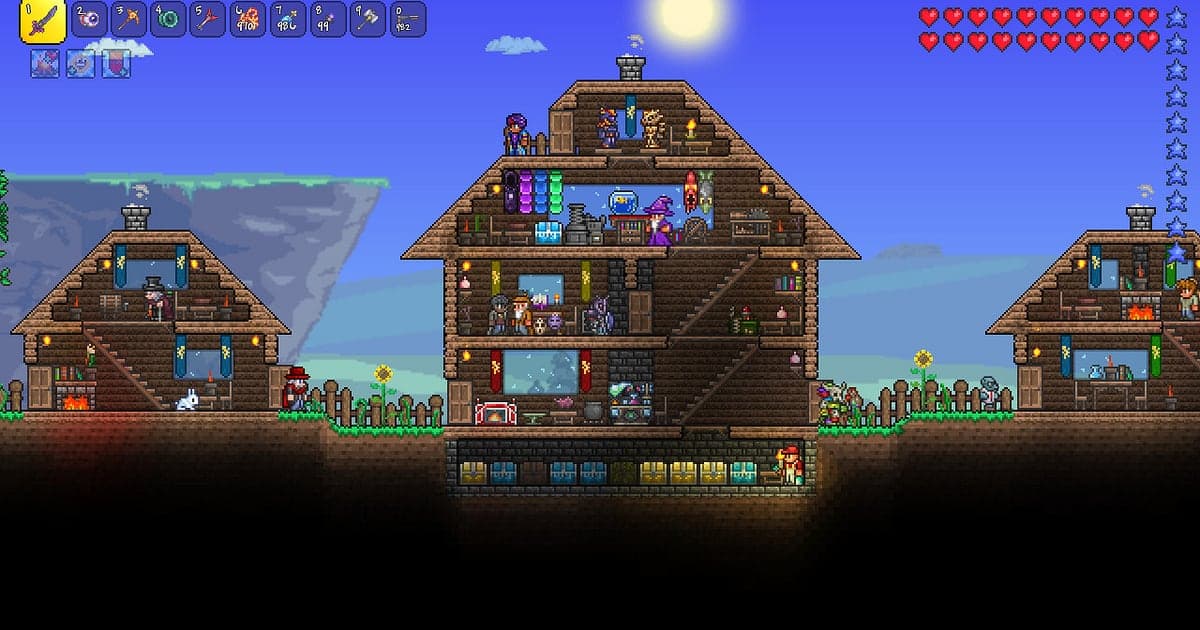
DOR Studio opens in your browser with nothing to install. Merge and trim clips, add text, background music and effect templates, and export in 16:9, 9:16 or 1:1 as an mp4 or a share link. For a base tour, cut the block placing grind into short pieces, then lay music and text over the walk through the finished base, and it plays like a quick timelapse. Add a shake zoom to a boss's final hit and a glitch transition as the world shifts into Hardmode. See everything in the DOR browser clip editor and vertical shorts in record vertical shorts from games.
Share with a dor.gg link
Send the edit as one dor.gg link, and your server buddies watch the tour in a browser with no app. Drop it in Discord with 'Finally beat the Moon Lord'. Base tours posted to YouTube or TikTok carry no watermark, so nothing covers your build. Picking only the boss fights and base tours out of a long world recording is covered in how to share Terraria gameplay videos.
Terraria recommended settings and troubleshooting
Terraria records in fullscreen, windowed and borderless. Frame Skip in the video settings is a game option that works separately from recording; you choose 30fps or 60fps for the recording in DOR. Pick 60fps if you want smoother boss fight shorts. If Terraria opens but recording does not start, check recorder not detecting the game first.
| Symptom | What to check | Fix |
|---|---|---|
| Recording does not start | Whether DOR was running before Terraria | Open DOR first, then relaunch Terraria |
| The recording is a black screen | Display mode and other overlay software | Close other recorders and relaunch. DOR switches to monitor capture if game capture is blocked |
| Friends' voices are missing | The Windows output device and DOR microphone setting | Match them to the devices you use and record a short test |
| Motion in the recording looks choppy | The DOR recording frame rate | Switch to 60fps, or on an old PC use 720p/30fps mode |