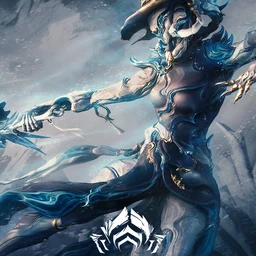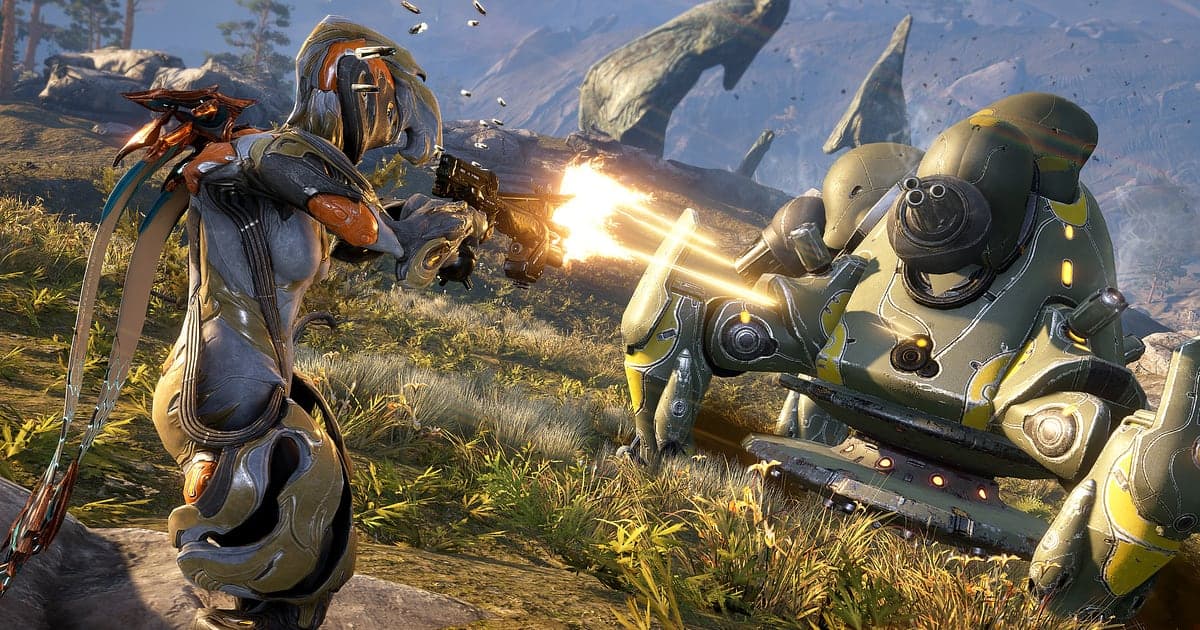
Warframe records automatically: install DOR, launch the game, and AI takes care of it. DOR detects the game as it starts and records from the time you spend tinkering in the Orbiter all the way to mission complete. Three bullet jumps across a tileset, a build that deletes a Steel Path boss in seconds, and the relic that finally drops the Prime part you chased all week all end up in the recording. Quest cutscenes you watched are there too. This guide covers setup, saving moments, finding squad chat, making a build showcase, sharing, and fixing recording problems.
- Keep your Warframe play as one video, from Orbiter prep to an hour long Survival run.
- Clip the Prime part you wanted the moment the relic reward appears, before the screen closes.
- Find squad lines like 'Everyone on the same relic? Go Radiant' with AI Voice Notes.
- Combine a Steel Path boss deletion and a bullet jump across the map into a new frame build showcase.
Before you record Warframe: install and recording mode
All you need is DOR, a free Windows app that adds no watermark. This guide covers Warframe for PC, launched from Steam. Recording works per session, so running several missions back to back keeps everything in one video until you quit, with no recording time limit. Warframe is fairly light, so the default 1080p at 30fps records smoothly even at minimum spec. Tips for recording Survival runs that last over an hour without hitches are in record long gameplay without stutter.
| Item | For Warframe | Notes |
|---|---|---|
| Install DOR | Free Windows app | No watermark on videos |
| Game version | Warframe for PC, launched from Steam | Detected automatically when the game opens |
| Recording mode | Session recording: one video from launch to exit | The Orbiter and back to back missions stay in one recording |
| Display mode | Fullscreen, windowed and borderless all record | Switches to monitor capture if game capture is blocked |
| Resolution and frame rate | 1080p at 30fps by default, 60fps available | Light enough to record smoothly at minimum spec |
Record Warframe with DOR: step by step
- 1Install DOR and leave it runningInstall DOR and open it once; it then waits in the background for Warframe. If you plan farming runs with your squad on Discord, check the microphone DOR picked.
- 2Launch WarframeStart the game and DOR notices and begins recording. Capture starts while you swap mods and slot Forma in the Orbiter, so how you built the frame is in the recording too.
- 3Check that it is recordingBefore your first mission, open the DOR app once from the Orbiter to confirm it is recording. Recording uses GPU hardware encoding, so fights where damage numbers cover the screen add little load.
- 4Clip right after a reward or a bossRight after the relic reward screen appears in a fissure, or right after a Steel Path boss goes down, press the clip save shortcut. The last 30 seconds become a clip and the session recording keeps going.
- 5Quit and check My ClipsWhen you close Warframe, the recording and your saved clips appear in My Clips. Check that today's Prime part reward was captured.
Find your recordings
Recordings collect in My Clips, the library in the DOR app. Each launch and quit makes one recording, and clips saved with the shortcut are listed separately. In a recording with several missions, use the return to your Orbiter as the divider between them. To rewatch a quest cutscene, go to the part where you played that quest; completed quests can also be replayed in game from the Codex. Trim any section by setting a start and an end, then export in 16:9, 9:16 or 1:1. Like the videos you want to keep, such as a new frame's first mission. When space fills up, older videos you have not liked are cleared first, so those stay. Trimming tips are in how to trim game clips.
Save the moments you want to keep
The clip save shortcut keeps the stretch of play just before you press it. The default is 30 seconds, with 15, 30, 45 or 60 seconds available. The relic reward screen moves on quickly, so press as soon as it appears; 15 or 30 seconds is plenty there. A multi stage fight like finishing an Eidolon hunt needs 60 seconds to catch the final phase from the start. For a chain of bullet jumps and slides, press right after you land. If you miss it, trim it from the session recording. The idea is explained in save the last few seconds instantly.
Find what was said with AI Voice Notes
AI Voice Notes turns what your squad says into text pinned to the recording timeline. Lines like 'Everyone on the same relic? Go Radiant', 'Bullet jumping to extraction' or 'Need to rebuild this for Steel Path' are saved as sentences at that moment, and selecting one jumps to the scene. Find the fissure where someone promised to bring a Radiant, or the moment someone said how many Forma went into a build, alongside the footage. To keep Discord voices in the recording too, see record Discord call audio.
Build a montage with AI Highlight
AI Highlight joins the clips you check into one montage. Check 'Steel Path boss deleted', 'Relic cracks the Prime part', 'Bullet jump across the map' and 'Eidolon hunt finish', press AI Highlight, and a week of grinding becomes one video. End with 'New frame's first mission' and it works well for showing a new build to your clan. To set the order yourself, use merge game clips.
Edit in DOR Studio
DOR Studio opens in your browser with nothing to install. Merge and trim clips, add text, background music and effect templates, and export in 16:9, 9:16 or 1:1 as an mp4 or a share link. Trim to your flashiest movement, add a shake zoom on the landing and a punch zoom when an ability goes off. Put the frame name and mod setup on screen as text and you have a build showcase. A glitch transition works between missions. See everything in the DOR browser clip editor and vertical shorts in record vertical shorts from games.
Share with a dor.gg link
Send the edit as one dor.gg link. Post it in your clan's Discord and members watch it in a browser with no app. No watermark covers the damage numbers, on Reddit, YouTube or TikTok alike. Sending a Steel Path clear and a relic reward to your squad is covered in how to share Warframe gameplay videos.
Warframe recommended settings and troubleshooting
Warframe records in fullscreen, windowed and borderless. Recording starts at 1080p and 30fps; choose 60fps to keep fast bullet jump movement smooth. If effect heavy missions make the game itself heavy, lower the game's graphics options first, and on an older PC switch DOR to 720p/30fps mode. Settings for modest hardware are in record games on a low end PC.
| Symptom | What to check | Fix |
|---|---|---|
| Stutter in effect heavy missions | Game graphics options and recording resolution | Lower game options; if it still struggles, use 720p/30fps mode |
| The recording is a black screen | Display mode and other overlay software | Close other recorders and relaunch. DOR switches to monitor capture if game capture is blocked |
| Squad voices are missing | The Windows output device and DOR microphone setting | Match them to the devices you use and record a short test |
| Recording does not start when the game opens | Whether DOR was running first | Open DOR first, then relaunch Warframe |