Record, edit
& find your community
Practical guides from capturing and editing gameplay to finding friends, parties, and communities.
Page 4 of 12
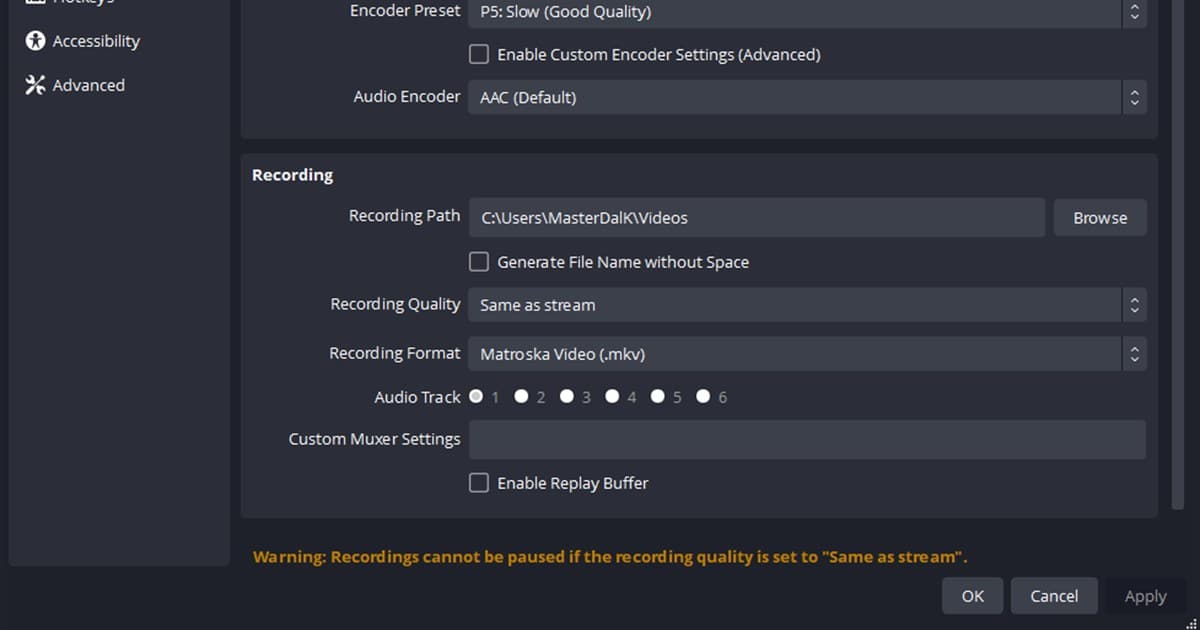 Recording File Management
Where Does OBS Save Recordings? Default Location + How to Change It
By default OBS saves recordings to the Videos folder of your Windows account. Here is the default location by setup, the File > Show Recordings shortcut, how to change the folder, and the MKV to MP4 remux reminder.
 Comparison
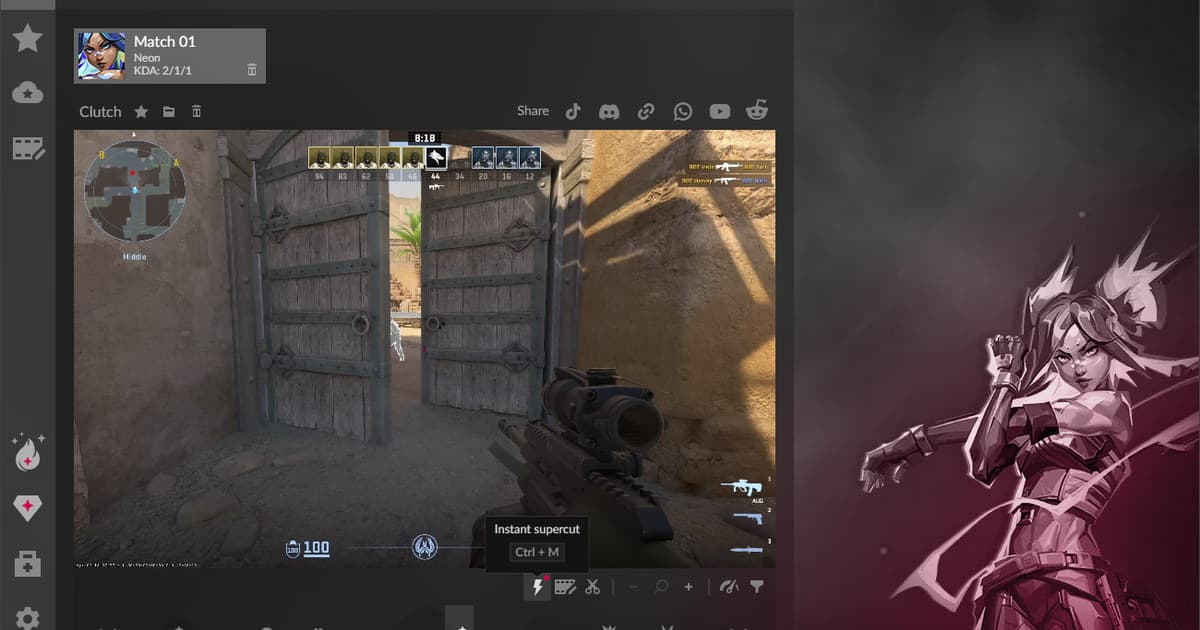
Outplayed Alternatives (2026): vs ShadowPlay, OBS & DOR — With or Without Overwolf
This comparison puts Outplayed next to NVIDIA ShadowPlay, OBS Studio, and DOR on automatic highlights, Overwolf dependency, GPU requirements, manual replay saving, audio control, and review time, and it separates the alternatives that run without Overwolf from the ones that do not.
 Troubleshooting
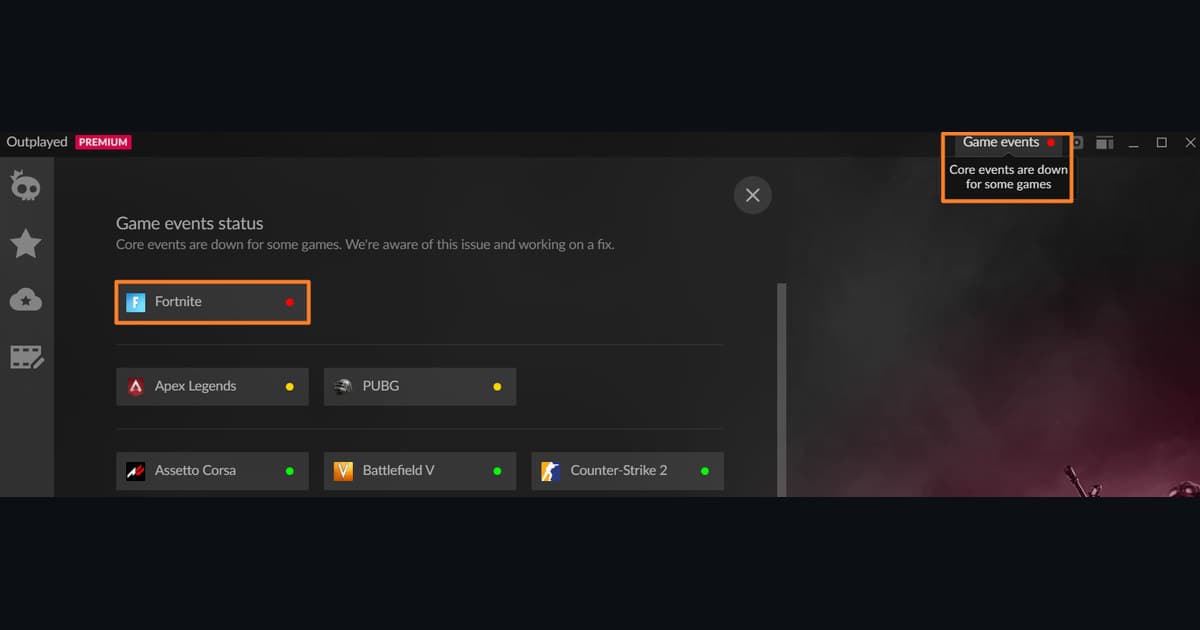
Fix missing session recordings in Outplayed: a safe troubleshooting order
Diagnose missing session recordings in Outplayed by separating detection, permissions, hotkeys, storage, capture, and audio playback.
 Guide
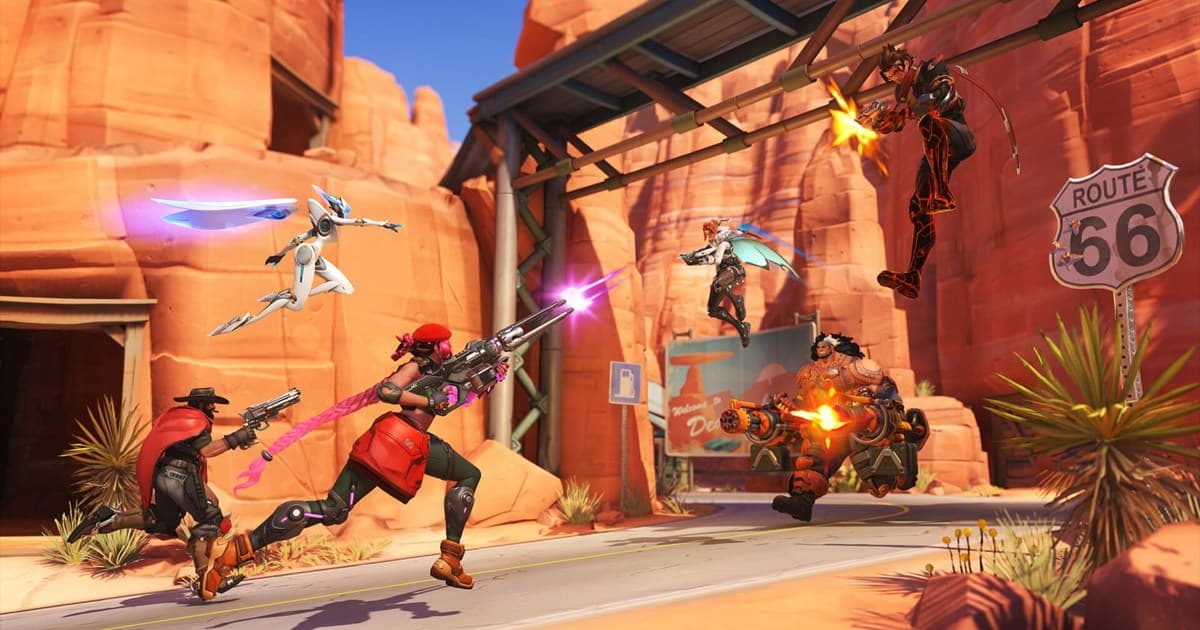
GuideHow to Save and Make Overwatch POTG (Play of the Game) (2026)
An Overwatch POTG is the best play of the match, picked automatically each time a game ends. But in-game it only shows for a few seconds and then disappears. Here is how POTG gets chosen, the limits of the in-game highlight save feature, and how to reliably keep POTG-level moments as a video file.
 Comparison
PUBG Pro Sensitivity Explained: The DPI Bands Pros Actually Use
You do not need a table of player names to use pro PUBG sensitivity. Here are the DPI bands and cm/360 range where pros actually sit, why they stay on low sensitivity, and how to move that band onto your own hands.
 Guide
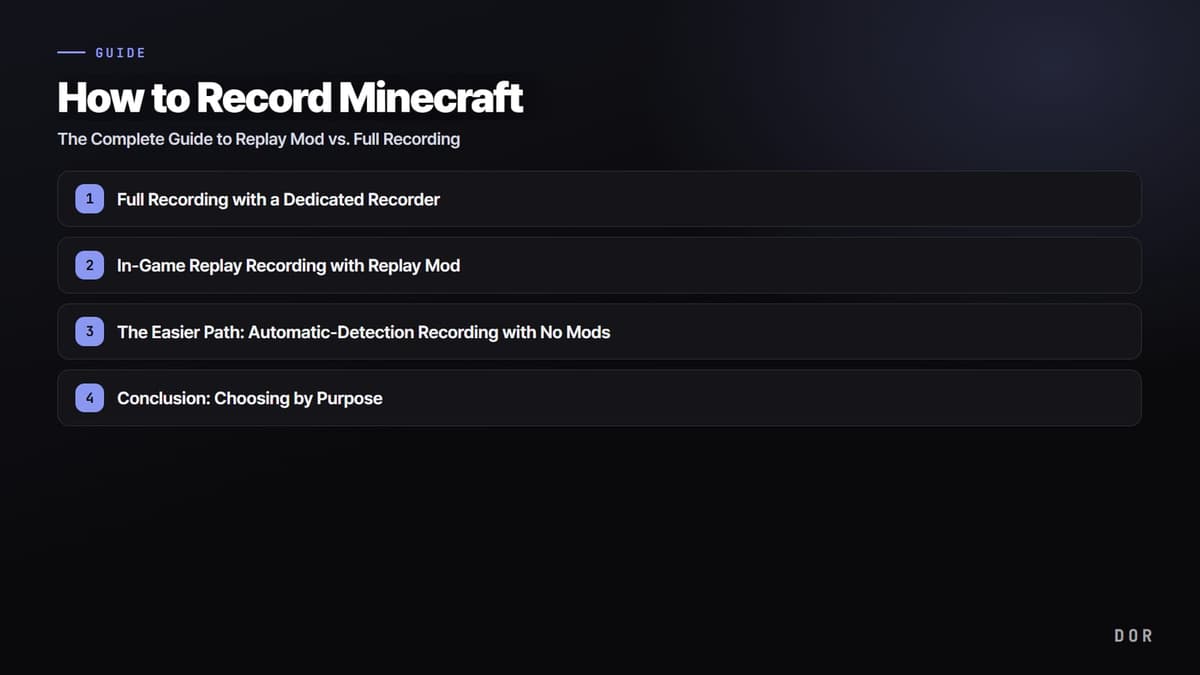
GuideHow to Record Minecraft: The Complete Guide to Replay Mod vs. Full Recording (2026)
Here are the two paths for recording Minecraft lightly, laid out step by step: full recording, which captures your screen straight to MP4 with a dedicated recorder, and the Replay Mod approach, which rebuilds the camera inside the game. We guide you to the easiest way to capture only the good moments lightly, while avoiding mod conflicts.
 Guide
GuideSharing Clips on Discord: 3 Ways to Get Around the File Size Limit
A free Discord account only lets you upload up to 20MB per video. We break down, step by step, how to get past this limit with compression and link sharing, plus the fastest way to share using a DOR link.
 Troubleshooting
Fix a mic that is not picked up in Steam Game Recording: a safe troubleshooting order
Diagnose a mic that is not picked up in Steam Game Recording by separating detection, permissions, hotkeys, storage, capture, and audio playback.
 Troubleshooting
Fix missing game sound in Steam Game Recording: a safe troubleshooting order
Diagnose missing game sound in Steam Game Recording by separating detection, permissions, hotkeys, storage, capture, and audio playback.
 Troubleshooting
Fix No Recording Available errors in Steam Game Recording: a safe troubleshooting order
Diagnose No Recording Available errors in Steam Game Recording by separating detection, permissions, hotkeys, storage, capture, and audio playback.
 Guide
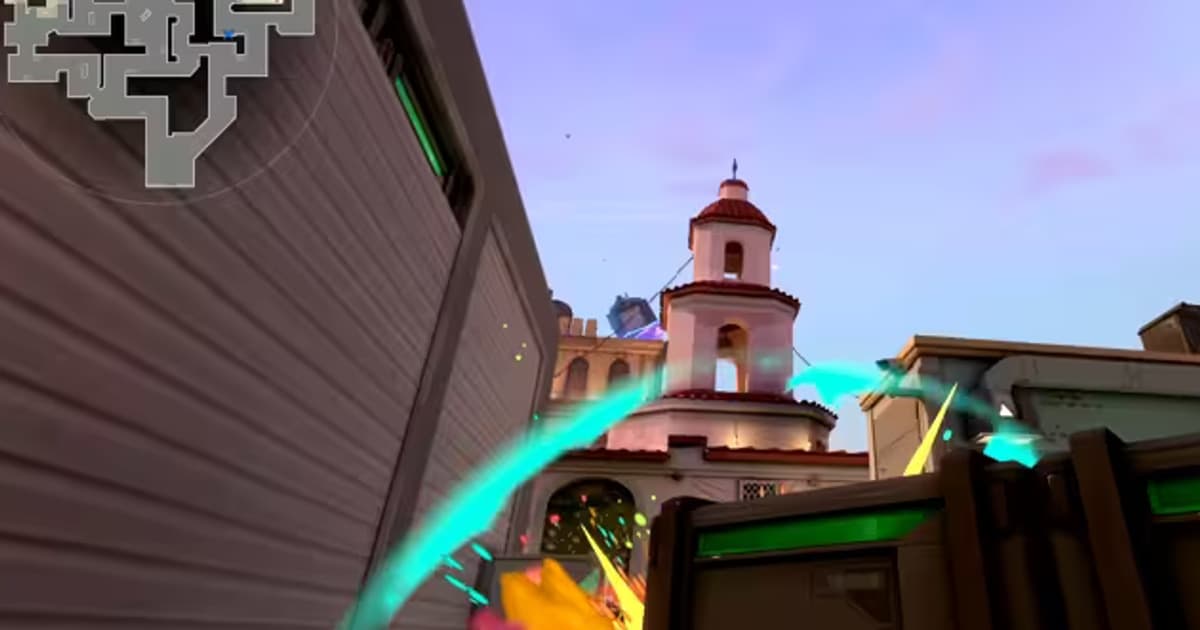
GuideA Collection of Valorant Pro Crosshair Codes, and How to Copy and Apply Them Instantly
Copy the crosshair codes of pros like TenZ, Aspas, and Demon1 and paste them into your settings to get the exact same reticle instantly. Here are the steps to apply them, the codes, and how the code format works, all in one place.
 Guide
GuideWhat Is a Clutch? How to Clip Your Clutch Moments (2026)
A clutch is a decisive play where you single-handedly overturn a 1-versus-many numbers disadvantage. We cover what a clutch is and where the term comes from, the signature clutch scenes in Valorant, CS2, and League of Legends, and how to catch those unpredictable moments and save them as clips.
 Recording Guide
What Is eDPI? Meaning, Formula, and Per-Game Examples
eDPI is your mouse DPI multiplied by your in-game sensitivity. Here is the formula, per-game calculation examples, why the same eDPI feels different across shooters, and why pros tend to sit low.
 Guide
GuideHow to Record Games With Xbox Game Bar, Its Limits, and an Automatic-Clip Alternative (2026)
We walk step by step through how to record games with Windows' built-in Xbox Game Bar, from the Win+G and Win+Alt+R hotkeys to where files are saved. We honestly cover what Game Bar cannot do and an alternative for people who need automatic clips.
 Comparison
The Best Free Recording Software, Sorted by What You Actually Record
No watermarks, no time limits, no trial traps. A comparison of truly free recording tools organized by use case: gameplay, tutorials, and marathon sessions.
 Comparison
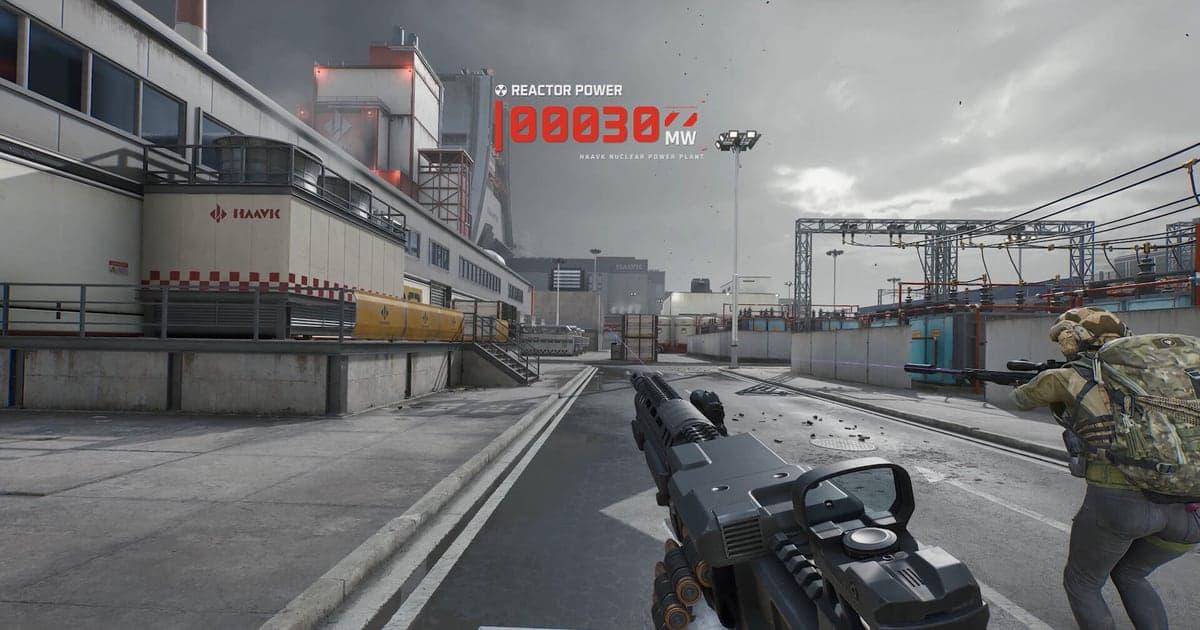
Delta Force PC System Requirements — Minimum, Recommended, and Enough Headroom to Record
Official Delta Force specs from Steam in one table — minimum, recommended, 88 GB storage — plus a quick way to check your own PC and judge whether it can play and record at once.
 Comparison
Eternal Return System Requirements — Minimum, Recommended, and What Recording Adds
Eternal Return runs on modest hardware, but playing and recording are two different workloads. Here are the official minimum and recommended specs, what they mean for integrated-graphics laptops, and how much headroom you need to capture your matches.
 Comparison
LoL Highlight Programs Compared: Stop Editing, Start Collecting
You do not need to build LoL highlights by hand every game. We compare automatic highlight generation with OBS manual editing and the client replay system to see which one actually saves time.
 Recording Guide
How to Watch LoL Replays on Your Phone — What Actually Works
LoL replay files (.rofl) will not play on mobile — they only open in the PC client. Here is the workaround that actually works: auto clips on PC, played from a dor.gg link in your phone browser.
 Recording Guide
PUBG NVIDIA Highlights: Setup Steps and Fixes When It Won't Save
A practical walkthrough for enabling NVIDIA Highlights in PUBG, what changed after the move to the NVIDIA App, and a symptom-by-symptom checklist when kill clips refuse to save.
 Troubleshooting
PUBG Sensitivity Bug Fix: When Settings Reset or Won't Save
If your PUBG sensitivity suddenly feels different or resets on every restart, the cause is usually one of a few things. Here is a symptom-by-symptom fix, from lobby vs in-game sensitivity to config files and PC cafe resets.
 Recording Guide
How to Record PUBG Gameplay: Full Matches, Zero Buttons
PUBG's death cam, spectate mode, and replays let you re-watch a match — none of them leaves you a video file. Here's a setup that records every match in full, clips each kill automatically, and keeps saving and sharing simple.
 Recording Guide
VALORANT Recorder Guide: Auto-Record Every Match in Full
A VALORANT recorder shouldn't depend on you remembering a hotkey. Here's how to auto-record every match in full while kill highlights save themselves — and why replay downloads can't replace it.
 Guide
GuideThe Complete Guide to Sensitivity Conversion: eDPI Math and DPI Conversion Explained
This is the math you need when you want to carry your PUBG sensitivity over to Valorant or CS2. The eDPI formula, the cm/360 standard, and how to recalculate your sensitivity after a DPI change, all with worked examples.