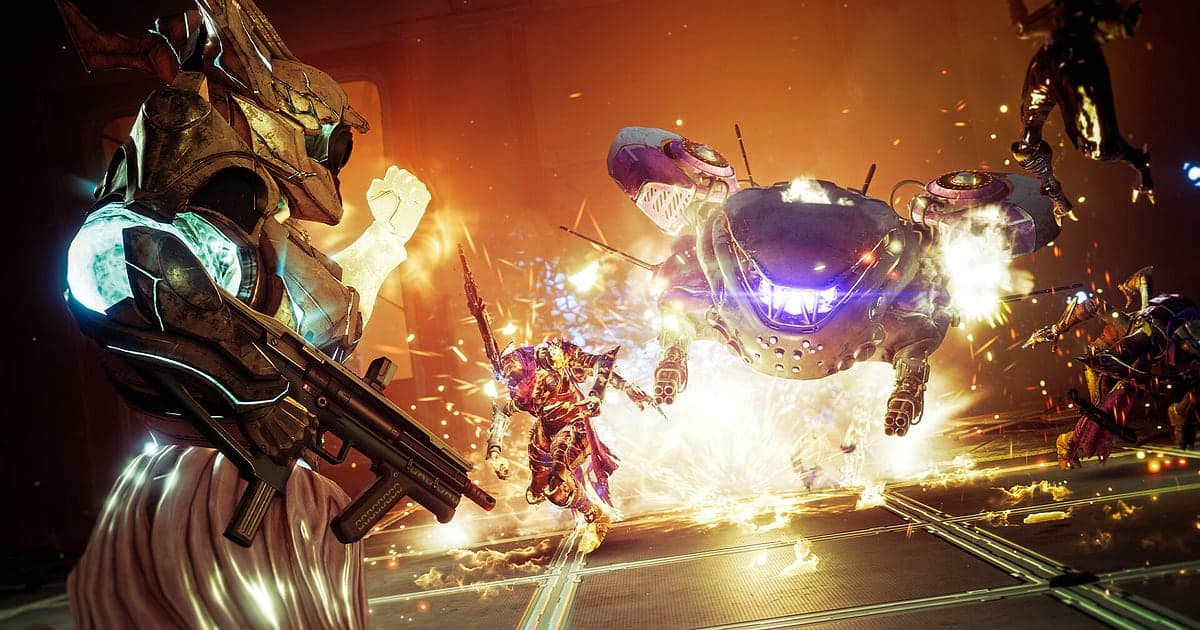
Destiny 2 records automatically once DOR is installed: launch the game and the AI takes it from there. You never have to remember a record button before a raid or draw a capture area. DOR detects the moment the game starts and keeps one continuous video covering orbit, gear sorting in the Tower, and every raid encounter through the final boss. When you close the game, the recording ends with it. Destiny 2 activities can run for hours, so the real work is not starting a recording but pulling the clear after twenty wipes out of a very long file. This guide walks through installing DOR, saving moments, finding fireteam callouts, building a montage, sharing a link, and tuning settings and fixes for high refresh rate play.
- Keep a multi hour Destiny 2 session in one video, from loading into the raid to clearing the final encounter.
- Save the moment three Supers land at once and the boss melts in one phase with the clip save shortcut.
- Use AI Voice Notes to jump to the exact point someone said "I got left plate" during an encounter.
- Combine a Trials clutch, a Gambit invasion triple and your first exotic drop into one montage.
- Send the clear to your clan Discord or a group you met through LFG with a single dor.gg link.
Before you record Destiny 2: install and recording mode
On PC, Destiny 2 is available on Steam, the Epic Games Store and the Microsoft Store, and DOR detects and records the game whichever store you launch it from. DOR is a free Windows app and never puts a watermark on your videos. It uses full session recording, so if you run a few Crucible matches and then head straight into a raid, everything stays in one video until you close the game. Destiny 2 itself takes up a lot of disk space, so check free space on both the drive the game is installed on and the drive your recordings are saved to. Install size by store and the minimum and recommended specs are listed in Destiny 2 install size and requirements. The table below covers what to check before your first recording.
| Item | For Destiny 2 | Notes |
|---|---|---|
| Install | DOR, free Windows app | No watermark on your videos |
| Game version | PC version on Steam, Epic Games Store or Microsoft Store | DOR detects the game window from any of these stores |
| Recording mode | Full session recording | One video from orbit to exit, not split when you switch activities |
| Display mode | Fullscreen, windowed and borderless all record | Switches to monitor capture where game capture is blocked |
| Resolution and frame rate | 1080p at 30fps by default, 60fps available | At 144 or 240Hz, a recommended spec GPU keeps your refresh rate while recording |
| Storage | About 30MB for a 30 second 1080p clip | Leave plenty of free space for multi hour raid sessions |
Record Destiny 2 with DOR: step by step
- 1Install DORDownload and install DOR. It takes about a minute and costs nothing. Leave DOR running once it is installed. If your fireteam has a raid planned for reset day, set it up before you log in so there is nothing left to do later.
- 2Launch Destiny 2Start Destiny 2 from whichever store you use. DOR begins recording as soon as it detects the game, so it is normal to see loading screens and orbit at the start of the video.
- 3Check that recording is runningWhile you wait for the fireteam in orbit or the Tower, glance at the DOR app once to confirm recording is in progress. If the game is not picked up, follow what to do when the recorder does not detect your game. After that, play raids or Crucible as you normally would.
- 4Save the clip right after the boss fallsWhen the boss health bar hits zero in the damage phase and just before the loot chest appears, press the clip save shortcut. The last 30 seconds are saved as a separate clip, so you never have to scrub through three hours of raid footage to find it.
- 5Close the game and open My ClipsWhen you finish and close Destiny 2, the full session video and every clip you saved appear together in My Clips in the DOR app. Nights that end in a clear and nights that end in wipes are kept the same way.
Find your recordings
Your recordings live in My Clips in the DOR app, also called the library. Each time you open and close Destiny 2 becomes one session, and moments you grabbed during play show up as separate clips. To find a specific encounter inside a long raid session, look for three landmarks: the loading screen when you leave and return from orbit, the loot chest that appears after an encounter, and the respawn at a checkpoint after a wipe. Once you find the part you need, set a start and an end point to trim it, then export as 16:9, 9:16 or 1:1. The full walkthrough is in how to trim game clips. Like the videos you want to keep for good, such as a first clear or a Flawless run. When space fills up, older videos you have not liked are cleared first, so your liked clears stay put.
Save the moments you want to keep
Even with the whole session recorded, saving a moment as a clip on the spot makes it far easier to find later. Press the clip save shortcut and the last stretch of gameplay is saved as a clip. The default length is 30 seconds, and you can pick 15, 30, 45 or 60 seconds in settings. In Destiny 2, good times to press it are right after a boss health bar empties, right after you take the last opponent in Trials of Osiris and turn a round around, right after a Gambit invasion streak ends, and the moment an exotic drops for the first time. Damage phases where the fireteam stacks Supers fit better at 45 or 60 seconds, so one clip covers everything from grabbing the buff to the boss melting. To pick the right length for each kind of moment, see saving the last few seconds instantly.
Find what was said with AI Voice Notes
Raids are won and lost on callouts. Lines like "I got left plate", "grab the buff, we're in damage phase", "Well is down, stand in it" and "one rez token left, save it" never stop. DOR records game audio and your microphone together, and AI Voice Notes writes what was said onto the recording timeline as text. Before weekly reset, when you want to check who called which symbol on which encounter, search the timeline text for that word and select it to jump straight to the scene. When the fireteam argues about why a wipe happened, start from the line "who left the plate" and the answer comes quickly. If you run callouts over a Discord voice channel, check your input devices with recording Discord call audio.
Build a montage with AI Highlight
To shrink a whole raid week into a few minutes, use AI Highlight. In the library, check the raid clear moment, a one phase with Supers, a Trials clutch, a Gambit invasion triple and that dungeon fall death everyone still laughs about, then select AI Highlight. DOR joins them into a single montage. Check the clips in order from the first encounter to the final boss and you get a clan video celebrating the first clear; check only Crucible moments and you get a PvP montage. If you would rather arrange the clips in your own order, see how to merge game clips.
Edit in DOR Studio
DOR Studio opens in your browser with nothing to install. Put a shake zoom on the frame your Super goes off, and add text like "left plate" or "damage phase" over the mechanics so the video doubles as a clan guide. Use a glitch transition between encounters, and try a punch zoom the moment an exotic drops. Export the full guide in 16:9 and the one phase clip separately in 9:16 for Shorts. Framing tips for vertical video are in recording games for vertical Shorts. When you are done, download an mp4 or share the result as a link straight away.
Share with a dor.gg link
Send trimmed moments as dor.gg links. Whoever opens the link plays the video right in the browser without installing anything, so you can send a clear to someone you only met once through LFG. Post the first clear link in your clan Discord, or message the one phase clip to the clan member who could not make it that night. Tips on picking raid moments to send are in sharing Destiny 2 gameplay videos, and posting to Discord is covered in sharing clips on Discord.
Destiny 2 recommended settings and troubleshooting
If you play Destiny 2 at 144 or 240Hz, a recommended spec GPU lets you keep that high refresh rate while recording. Recording starts at 1080p and 30fps by default. Switch to 60fps if you want Crucible fights and Super animations to look smoother. The recording frame rate only applies to the video file, so you can leave your in game 144 or 240fps cap as it is. DOR uses GPU hardware encoding, so its effect on your in game frame rate is small. If frames still dip, drop recording to 720p/30fps mode, and if the stutter only happens while recording, start with fixing FPS drops while recording. Fullscreen, windowed and borderless all record, and where anti cheat blocks game capture, DOR switches to monitor capture. DOR has no cheat features and never touches your game files or play data.
| Symptom | What to check | Fix |
|---|---|---|
| The recording is a black screen | The in game display mode and capture method | All three display modes record. If it is still black, follow [fixing fullscreen recording](fullscreen-recording-not-working) to switch to monitor capture. |
| Gunfire is recorded but party callouts are missing | Your Windows output device and DOR audio settings | Pick the game audio and microphone devices again, then work through [fixing game recordings with no sound](game-recording-no-sound-fix). |
| Frame rate dips in the Crucible | Recording frame rate and in game graphics options | Keep recording at 30fps or drop to 720p/30fps mode, and size high refresh play to a recommended spec GPU. |
| One raid makes a huge file | Recording resolution and free drive space | Save encounter moments as clips and like only the videos you want to keep. |
| Worried a recorder could affect your account | How DOR works | DOR only captures the screen, has no cheat features and does not modify game files or play data. |